Deleting a category permanently removes it from your knowledge base. Deleted categories are moved to the recycle bin, where they remain available for recovery for 30 days. After 30 days, they are permanently deleted and cannot be recovered.
When you delete a root-level category, all its subcategories and articles are also deleted. Deleted items are available in the recycle bin for 30 days.
Before you delete
Deletion is irreversible after the 30-day recycle bin window. Before proceeding:
- Check for internal links. Any articles in other categories that link to content inside this category will have broken links after deletion.
- Consider hiding instead. If you may need the content again, use Hide to remove the category from the knowledge base site without deleting it.
- Consider deprecating instead. If the content is outdated but historically relevant, mark the articles as deprecated so readers are informed before you delete.
Delete a category
- Navigate to Documentation () in the left navigation bar.
- Hover over the category in the Categories & Articles pane and click the More () icon.
- Select Delete ().
- Click Delete in the confirmation dialog.
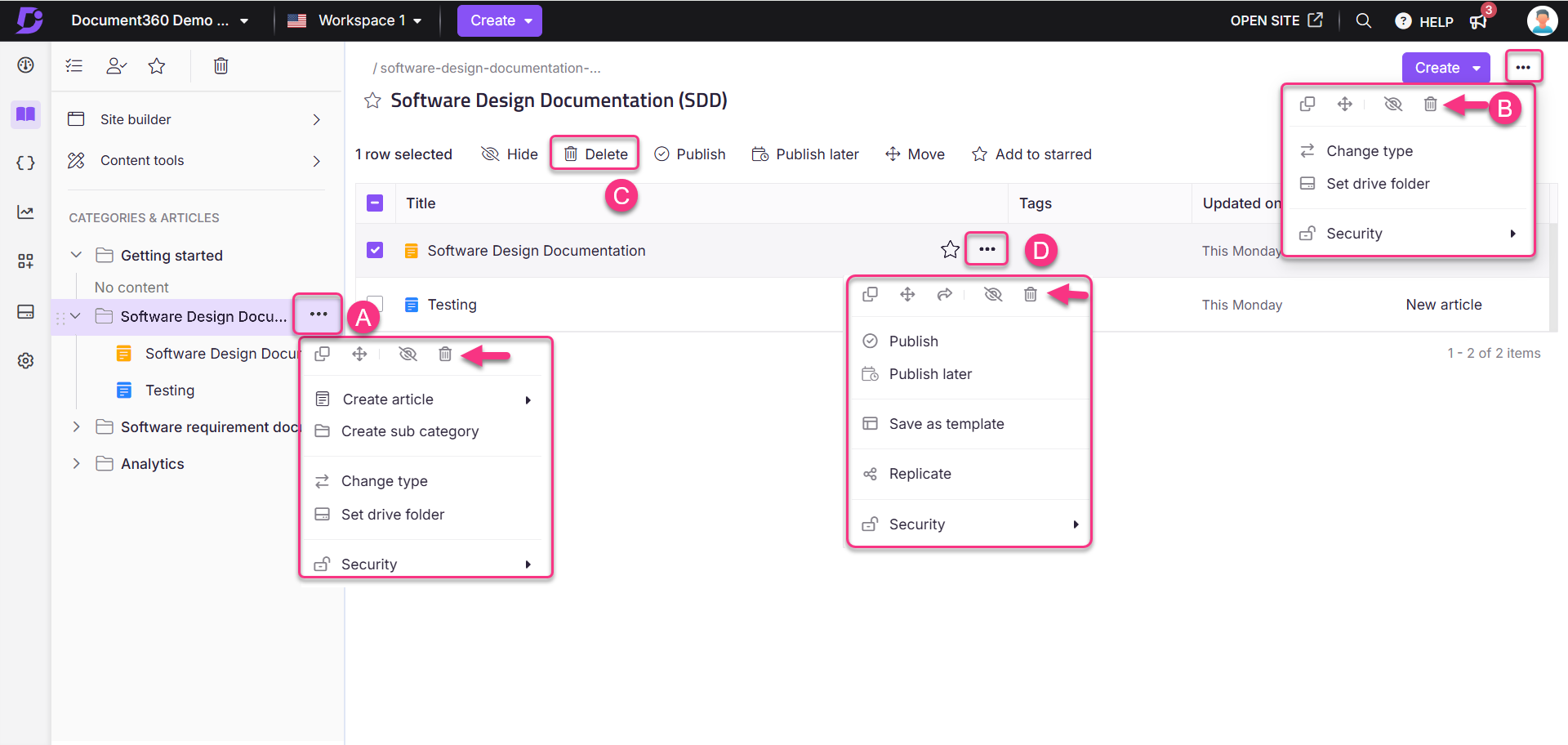
You can also delete a category from the More () icon inside a Folder or Index category, by selecting multiple items inside a Folder or Index category and clicking Delete (), or by hovering over a specific article or subcategory and clicking its More () icon > Delete.
What happens when you delete a category
- The category and all its subcategories and articles are removed from the knowledge base portal and site.
- Deleted items move to the Recycle bin and are recoverable for 30 days.
- After 30 days, content is permanently deleted and cannot be restored.
- Any articles in other categories that link to the deleted content will have broken links.
Recover a deleted category
Deleted categories and their contents can be recovered from the recycle bin within 30 days of deletion.
- Navigate to Documentation () in the left navigation bar.
- Click Recycle bin () in the left navigation pane.
- Locate the deleted category and select it.
- Click Restore.
After 30 days, deleted items are permanently removed and cannot be restored from the recycle bin. For long-term recovery, use Backup and Restore from Settings () > Knowledge base portal.
Best practices
- Hide before you delete. Hiding a category removes it from the knowledge base site but keeps it in the portal, giving your team time to confirm the content is no longer needed before permanently deleting it.
- Check inbound links first. Review your article structure to identify any articles that link to content inside the category before deleting it.
- Use bulk delete carefully. Selecting multiple items and deleting in bulk is faster but harder to undo. Double-check your selection before confirming.
- Prefer deprecating over deleting for historically relevant content. Articles with search traffic or historical value should be marked as deprecated rather than deleted, so readers who find them via search understand they are outdated.
FAQ
How long are deleted categories available in the recycle bin?
Deleted categories are available in the recycle bin for 30 days. After that, they are permanently deleted and cannot be recovered.
What is the difference between deleting and hiding a category?
Delete removes the category from the portal and places it in the recycle bin. It is no longer accessible until restored.
Hide removes the category from the knowledge base site but keeps it fully accessible in the portal for editing. It can be unhidden at any time with no impact on the content.
Use Hide when the removal is temporary. Use Delete when the content is no longer needed.
When I delete a category, are its subcategories and articles also deleted?
Yes. Deleting a root-level category deletes all its subcategories and articles. All deleted items are moved to the recycle bin and can be recovered within 30 days.
What happens to articles that link to deleted content?
Any internal links pointing to deleted articles or categories will become broken links. Readers clicking those links will encounter a 404 error. Check for inbound links before deleting high-traffic categories.
Can I delete multiple categories at once?
Yes. Inside a Folder or Index category, select the checkboxes next to the items you want to delete, then click the Delete () icon from the bulk action bar.