Hiding a category removes it from the knowledge base site while keeping it fully accessible in the portal for your team. Hidden categories appear with a strikethrough in the Categories & Articles pane, making them easy to identify without affecting your published content.
Hiding a category is different from deleting it. Hidden categories remain in the portal and can be unhidden at any time. Deleted categories are moved to the recycle bin.
When to hide a category
- The category is being drafted or reviewed and you do not want readers to see incomplete content.
- The content is seasonal or time-sensitive and only relevant at certain times.
- A product feature or release is not yet live and you want to keep the documentation hidden until it is.
- The content is not yet ready for a specific audience but your team needs to continue working on it internally.
Hide a category
- Navigate to Documentation () in the left navigation bar.
- Hover over the category in the Categories & Articles pane and click the More () icon.
- Select Hide ().
The category appears with a strikethrough in the Categories & Articles pane, indicating it is hidden from the knowledge base site.
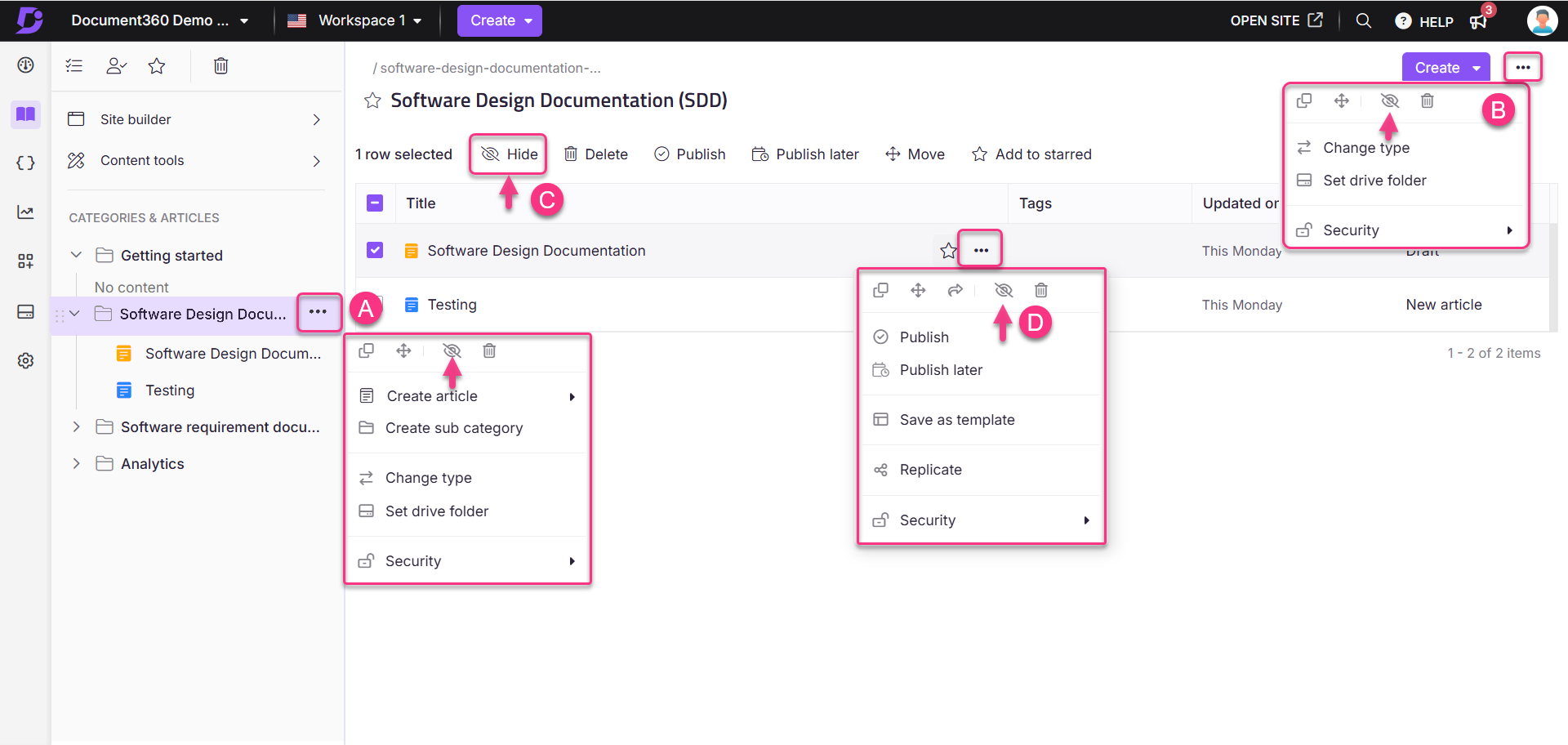
You can also hide a category from the More () icon inside a Folder or Index category, by selecting multiple items inside a Folder or Index category and clicking Hide (), or by hovering over a specific article or subcategory and clicking its More () icon > Hide.
When you hide a parent category, all its subcategories and articles are also hidden. Unhiding the parent restores visibility for all content within it.
Unhide a category
- Navigate to Documentation () in the left navigation bar.
- Hover over the hidden category in the Categories & Articles pane and click the More () icon.
- Select Unhide ().
The category is immediately visible on the knowledge base site again.
You can also unhide from the More () icon inside a Folder or Index category, or by selecting multiple hidden items and clicking Unhide ().
What happens when you hide a category
- The category and all its subcategories and articles are removed from the knowledge base site.
- Hidden categories remain visible in the portal with a strikethrough, so your team can still access and edit them.
- Readers cannot access hidden content, not even via a direct link.
- When you unhide a category, it becomes visible on the knowledge base site immediately.
Best practices
- Use Hide instead of Delete for temporary removal. If there is any chance the content will be needed again, hide it rather than delete it. There is no time limit on hidden categories.
- Check for linked articles before hiding. If published articles in other categories link to content inside a hidden category, those links will be broken for readers. Review inbound links before hiding high-traffic categories.
- Communicate with your team. When hiding a shared category, let other contributors know so they do not spend time looking for content that appears missing.
- Combine with workflow review. Use hidden categories alongside workflow status to manage in-progress content. Keep it hidden until it reaches a published state.
FAQ
What is the difference between hiding and deleting a category?
Hide removes the category from the knowledge base site but keeps it fully accessible in the portal for editing. It can be unhidden at any time with no impact on the content.
Delete removes the category from both the portal and the site, placing it in the recycle bin for 30 days before permanent deletion.
Use Hide for temporary removal. Use Delete when the content is no longer needed.
Can readers access a hidden category via a direct link?
No. Hidden categories and their articles are not accessible to readers, not even via a direct URL. Readers will encounter a 404 error if they try to access hidden content directly.
When I hide a parent category, are its subcategories and articles also hidden?
Yes. Hiding a parent category hides all its subcategories and articles. Unhiding the parent restores visibility for all content within it.
Can I hide a category after it has been published?
Yes. You can hide a category at any time, including after it has been published. The category is removed from the knowledge base site immediately but remains available in the portal.
Can I hide multiple subcategories at once?
Yes. Inside a Folder or Index category, select the checkboxes next to the items you want to hide and click the Hide () icon from the bulk action bar.