In Document360, you can rename categories and subcategories as many times as needed. The display name updates across the portal and knowledge base site, but the category slug and article URLs are never affected by a rename, so existing links always continue to work.
When to rename a category
- A product, feature, or team has been renamed and you need to update your category names to match current terminology.
- A category name is vague or uses internal language. Replace it with a reader-centric name that describes what the category contains.
- Category names are inconsistently formatted. Standardise them to match your knowledge base naming convention.
- As your knowledge base grows, some category names may no longer reflect the content they contain.
Rename a category
- Navigate to Documentation () in the left navigation bar.
- Click the category in the Categories & Articles pane to open it.
- Click the category name at the top of the category page to make it editable.
- Enter the new name and click Update.
You can also rename directly from the Categories & Articles pane by hovering over the category, clicking the More () icon, and selecting Rename.
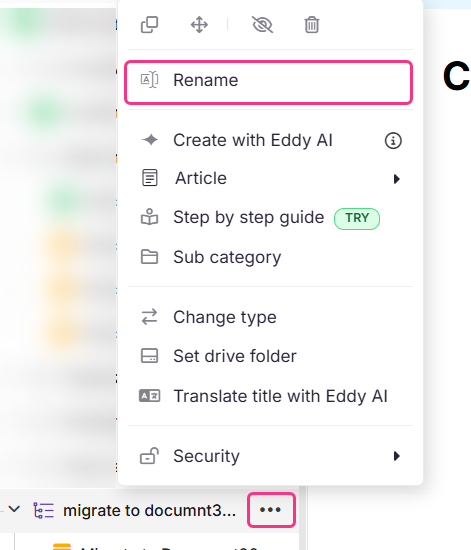
Renaming a category only updates the display name. The slug and all article URLs within the category remain unchanged, so existing links and bookmarks continue to work after a rename.
If you also want the URL to reflect the new name, update the slug manually after renaming:
- Click the More () icon on the category page and select SEO.
- Update the Slug field and click Save.
After updating the slug, add a redirect rule from the old slug to the new one to prevent 404 errors for readers who have bookmarked or linked to the old URL. Learn about redirect rules
Best practices
- Rename freely. Because slugs are not updated on rename, you can update category names as often as needed without breaking existing links.
- Keep names reader-centric. Category names appear in the navigation on your knowledge base site. Write them for your readers, not your internal team. Avoid abbreviations, jargon, and overly technical terms.
- Be consistent with formatting. Decide on title case or sentence case and apply it uniformly across all categories. Inconsistent formatting is harder to scan.
- Update the slug separately if needed. If a rebrand also requires updated URLs, manually update the slug after renaming and always add a redirect rule to protect existing links.
- Keep names concise. Category names have a 300-character limit, but shorter names are more scannable in navigation. Aim for names that work well in a sidebar.
FAQ
Does renaming a category change its slug or article URLs?
No. Renaming a category only updates the display name. The slug and all article URLs within the category remain unchanged, so existing links and bookmarks continue to work after a rename.
How do I update the slug after renaming a category?
Slugs are not updated automatically on rename. To update a slug manually:
- Navigate to the category page in the portal.
- Click the More () icon and select SEO.
- Update the Slug field and click Save.
After updating the slug, add a redirect rule from the old slug to the new one to prevent broken links for readers who have bookmarked or linked to the old URL.
Can I rename a category as many times as needed?
Yes. You can rename a category as many times as needed. Since the slug is not updated on rename, there is no risk of breaking existing links.
Is there a character limit for category names?
Yes. Category names have a maximum of 300 characters, including spaces.