Starring a category adds it to your Starred list for quick access in the knowledge base portal. It works like a personal favourites list, giving you one-click access to the categories you work with most without having to navigate through the full category tree every time.
Starred categories are only available in the portal. They are not visible to readers on the knowledge base site.
When to star a category
- You are actively editing a category and want to jump back to it quickly without navigating the full tree.
- Your knowledge base has many categories across multiple levels and starring frequently used ones saves navigation time.
- A category has been assigned to you for review and you want it to stay accessible at the top of your workflow.
Star a category
- Navigate to Documentation () in the left navigation bar.
- Click the category in the Categories & Articles pane to open it.
- Click the Starred () icon next to the category title.
The category is added to your Starred list.
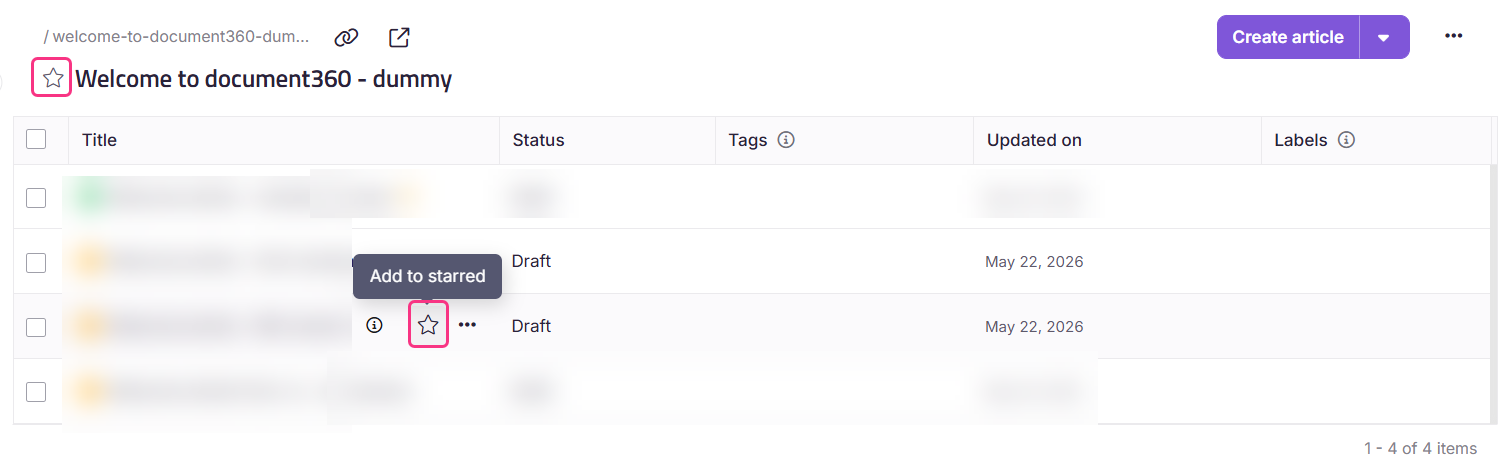
You can also star a subcategory by hovering over it in the Folder or Index category overview and clicking the Starred () icon. For Page type categories, click the Starred () icon near the category title.
Access starred categories
- Navigate to Documentation () in the left navigation bar.
- Click Starred () in the left navigation pane.
.png)
Your starred categories and articles are listed here. You can also view starred categories from the Overview page alongside your recent items.
Only the categories and articles you star appear on your Starred page. Categories starred before September 2025 remain visible to all team members. Items starred after that date are personal to the user who starred them.
Remove a category from Starred
From the category directly:
- Navigate to the category in the Categories & Articles pane or the Folder or Index overview.
- Click the Starred () icon next to the category title to unstar it.
From the Starred page:
- Navigate to Documentation () > Starred () in the left navigation pane.
- Select the checkboxes next to the categories you want to remove.
- Click the star () icon again.
.png)
When the category filter is applied to starred items, article status is not shown for starred Folder or Index categories. Only Page categories display article status in the Starred view.
Best practices
- Star categories you are actively working on and remove the star when the work is complete. Keeping your Starred list lean makes it more useful.
- Use Starred alongside the Overview page. The Overview page shows your starred items alongside recent activity, giving you a complete picture of your current work without navigating the full tree.
- Avoid starring too many categories. If everything is starred, nothing stands out. Reserve Starred for categories that genuinely need quick access right now.
FAQ
Can readers see starred categories on the knowledge base site?
No. Starred is a portal-only feature. It has no effect on the knowledge base site and is not visible to readers.
Can I star subcategories as well as root categories?
Yes. You can star categories, subcategories, and articles. All starred items appear together on the Starred page.
Why can my team members see my starred categories?
Categories and articles starred before September 2025 are visible to all team members. Items starred after that date are personal to the user who starred them and are not visible to others.
Can I remove multiple categories from Starred at once?
Yes. From the Starred () page, select the checkboxes next to the items you want to remove and click Remove from starred.