Starring an article adds it to your personal Starred list for quick access in the knowledge base portal. It works like a favourites list, letting you bookmark frequently used articles so you can return to them without navigating through the category tree each time.
The Starred feature is only available to portal users. Readers accessing the published knowledge base site cannot star or save articles. They can bookmark pages in their browser as a workaround.
When to star an article
- You return to an article regularly for editing and want it one click away.
- The article is under active review and you want to keep it easily accessible without searching each time.
- The article is a reference or style guide that team members check often during writing.
Star an article
From the article editor:
- Navigate to the article in the knowledge base portal.
- Click the Add to starred () icon in the article header.
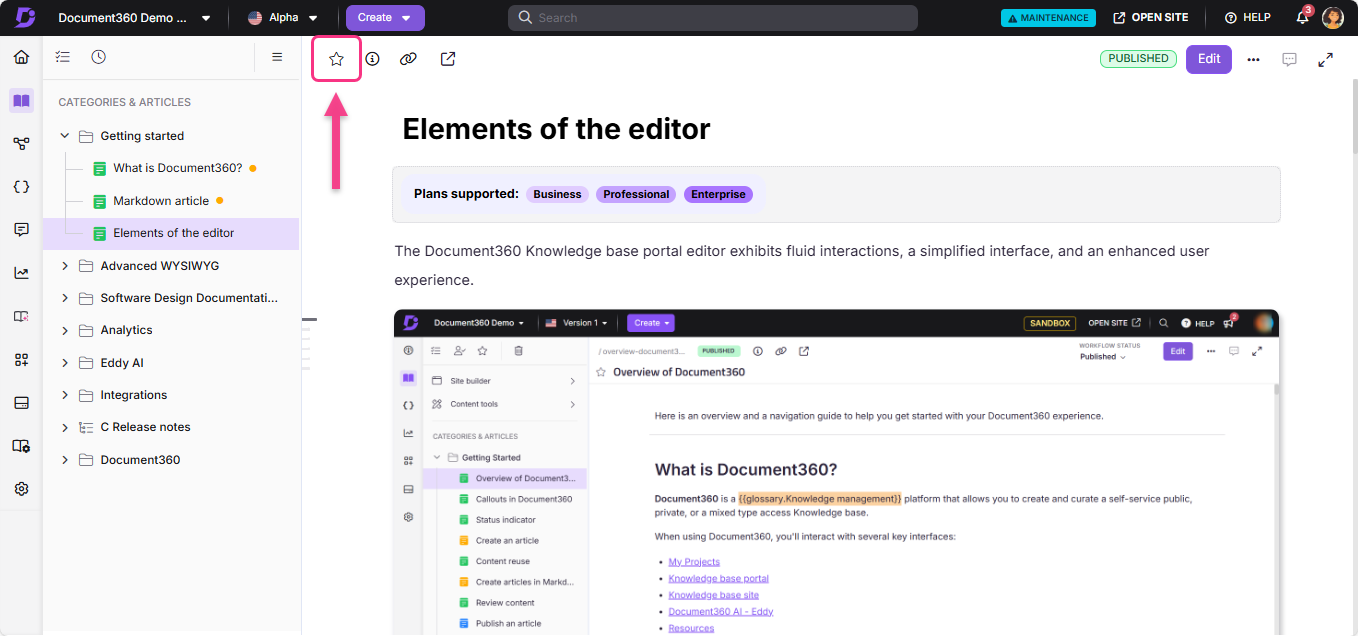
You can also star an article from a Folder or Index category. Hover over the article listed under the category and click the Add to starred () icon that appears next to the article name.
Access your starred articles
- Navigate to the Overview page () in the left navigation bar.
- Hover over the Overview icon and select Starred ().
Your starred articles and categories are listed on the Starred page.
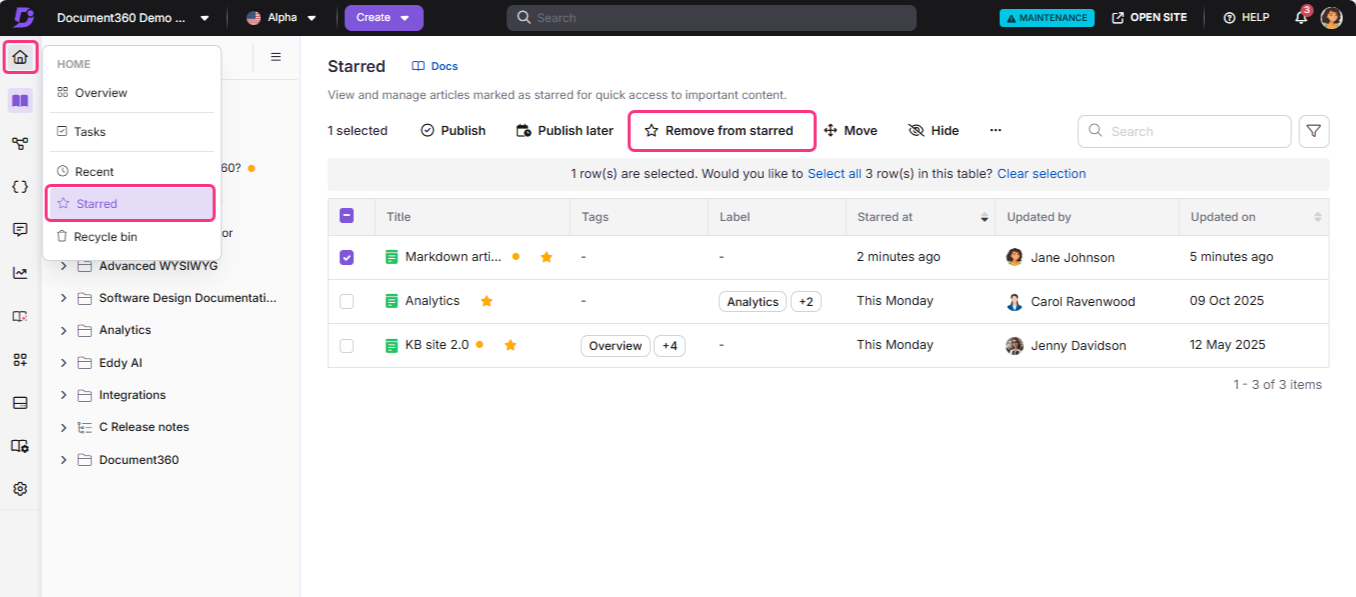
To remove an article from your Starred list, select it on the Starred page and click Remove from starred at the top.
Only the categories and articles you star appear on your Starred page. Articles and categories starred before September 2025 remain visible to all team members. Items starred after that date are personal to the user who starred them.
What happens when you star an article
- The article is added to your personal Starred page, accessible from the left navigation bar.
- Stars are personal. Only the articles and categories you star appear on your Starred page.
- When you star an article, all of its replicated versions are also automatically starred.
- Articles starred before September 2025 remain visible to all team members. Articles starred after September 2025 are personal and visible only to you.
Best practices
- Star articles you edit regularly. The Starred page reduces navigation time for articles you visit frequently. Use it intentionally rather than starring everything.
- Review your Starred list periodically. Remove articles that no longer need quick access to keep the list focused and useful.
- Be aware of the September 2025 behaviour change. If your team previously relied on a shared Starred list, items starred before September 2025 remain shared. New stars are personal.
FAQ
Can other team members see my starred articles?
Articles and categories starred after September 2025 are personal — only you can see them on your Starred page. Articles starred before September 2025 remain visible to all team members.
If I star an article, are its replicated versions also starred?
Yes. When you star an article, all of its replicated versions are automatically starred as well.
How do I remove an article from my Starred list?
Navigate to the Starred page via the Overview icon in the left navigation bar. Select the article you want to remove and click Remove from starred at the top of the page.