You can mark any folder or subfolder in your Drive as starred to pin it to the Starred view in the left navigation pane. Starred folders appear in this dedicated view regardless of where they are located in your Drive hierarchy, giving you instant access to the folders you use most.
Why star a folder
As your Drive grows with more folders and subfolders, navigating to frequently used folders every time becomes repetitive. Starring folders creates a personal shortcut layer that sits on top of your Drive structure without changing it.
Common reasons to star a folder include:
-
Quick access to active project folders. If you are working on a release, a campaign, or a documentation sprint, star the relevant folders so you can reach them in one click rather than navigating through the full tree.
-
Surfacing deeply nested folders. Folders buried several levels deep in the hierarchy can take time to locate. Starring them brings them to the top level of your Starred view without moving them.
-
Bookmarking shared team assets. Star folders that your team references often — such as shared icons, brand assets, or template images — so they are always a single click away.
-
Reducing reliance on search. Instead of searching for a folder name repeatedly, star it once and access it directly from the navigation pane from that point on.
Starring a folder is a personal setting. It applies only to your account and is not visible to other contributors in the project.
Star a folder
To star a folder,
-
Click the Drive icon in the left navigation bar.
-
Hover over the desired folder in the left navigation pane and click the star ☆ icon that appears.
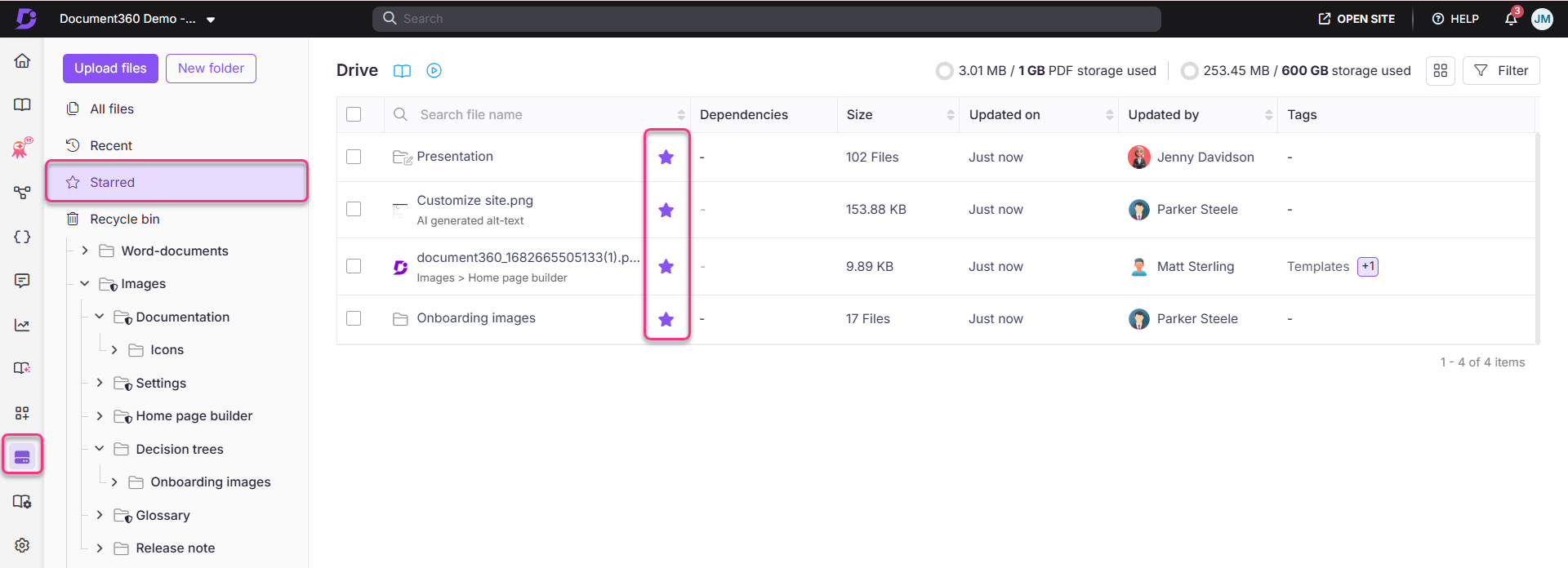
The folder is now starred. A filled star icon appears next to the folder name, and the folder is listed under Starred in the left navigation pane.
Access starred folders
To view all your starred folders in one place,
-
Click the Drive icon in the left navigation bar.
-
Click Starred in the left navigation pane.
All folders you have starred are listed here, regardless of where they sit in the Drive hierarchy.
Remove a folder from Starred
To unstar a folder, use either of the following methods:
-
Hover over the folder in the left navigation pane and click the filled star icon ★ next to the folder name.
-
Navigate to Starred in the left navigation pane, hover over the folder, and click the star icon to remove it.
The folder is removed from the Starred view. The folder itself remains in its original location in the Drive — only the shortcut is removed.
Best practices
-
Star folders that change frequently, not permanently. Starred is most useful as a dynamic workspace. Add folders when a project or task is active and remove them when it wraps up. Keeping the Starred list short ensures it stays meaningful.
-
Do not use Starred as a substitute for good folder structure. If you are starring folders primarily because they are hard to find, that is a signal that the Drive hierarchy needs reorganization. Refer to Move a folder for guidance on restructuring.
-
Star your default folder. If you frequently upload files and need to verify what is landing in your default folder, starring it gives you one-click access to check its contents at any time.
-
Combine with folder colors for faster navigation. Color-coded folders are easier to spot both in the full Drive tree and in the Starred view. Refer to Change folder color to set this up.