When a portal user begins editing an article, Document360 automatically locks it to prevent other contributors from making simultaneous changes. This protects against content conflicts and accidental overwrites when multiple team members are working in the same knowledge base.
A locked article displays a Lock () icon in the editor, indicating it is currently being edited by someone.
If collaborative editing is enabled in your project, the lock and unlock icons and their associated banners are no longer displayed. Articles can be edited by multiple contributors at the same time.
Collaborative editing is rolled out in phases, so if you don’t see it yet, it’s on its way.
When to lock or unlock an article
- Locking happens automatically whenever someone opens an article for editing. No manual action is needed.
- If you finish editing and want to release the article for other contributors before the auto-unlock triggers, manually unlock it.
- If a contributor navigated away without properly closing an article, the lock auto-releases after 15 minutes of inactivity.
Lock an article
An article is locked automatically as soon as a portal user begins editing it. No manual action is needed.
When you open an article for editing:
- Navigate to Documentation () in the left navigation bar.
- Select the article to open it in the editor.
- Click Edit in the top-right corner if the article is published.
After a few moments, a Lock () icon appears at the top of the editor, indicating the article is in an active editing session. Other portal users who open the same article will see it in read-only mode and cannot edit it until the lock is released.
Unlock an article
An article is unlocked automatically when any of the following occur:
- There is no activity for 15 minutes.
- The user editing the article navigates to another article or page in the portal.
To manually unlock an article before the auto-unlock triggers:
- Navigate to the locked article in the knowledge base portal.
- Click the Lock () icon at the top of the editor.
- Select Unlock.
The article is immediately available for other contributors to edit.
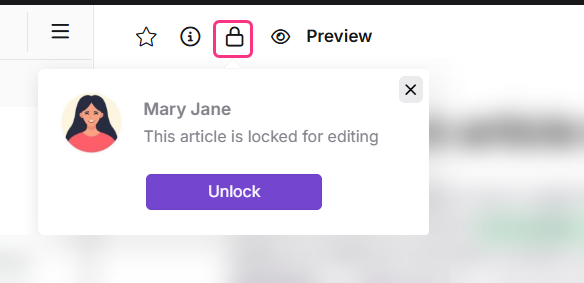
Only the user currently editing the article can manually unlock it. If you need to unlock an article being edited by someone else, ask them to unlock it manually or wait for the 15-minute auto-unlock.
What happens when an article is locked
- Other portal users can view the article but cannot edit it while it is locked.
- The article remains locked for as long as the editing session is active.
- The lock is automatically released when there is no activity for 15 minutes, when the user navigates to another article or page, or when the user manually unlocks it.
Best practices
- Unlock articles when you are done editing. Manually unlock as soon as you finish so other contributors are not blocked.
- Save before unlocking. Ensure your changes are saved (Ctrl+S on Windows or Cmd+S on Mac) before unlocking the article to avoid losing unsaved edits.
- Use the 15-minute auto-unlock as a fallback. If a contributor forgets to unlock, the article will auto-release after 15 minutes of inactivity.
FAQ
How do I know if an article is locked?
A locked article displays a Lock () icon in the editor. When you open a locked article, you will see it in read-only mode and cannot make edits until it is unlocked.
Can I unlock an article that someone else is editing?
No. Only the user currently editing the article can manually unlock it. If you need access to a locked article, ask the editor to unlock it or wait for the 15-minute auto-unlock to trigger.
How long does an article stay locked?
An article stays locked as long as the editing session is active. It is automatically unlocked after 15 minutes of inactivity, when the editor navigates away, or when the user manually unlocks it.
Will I lose my changes if I unlock an article?
Document360 auto-saves content every 5 seconds, so your changes are very unlikely to be lost. To be safe, save manually using Ctrl+S (Windows) or Cmd+S (Mac) before unlocking.
Does locking prevent readers from seeing the article on the knowledge base site?
No. Locking only prevents other portal users from editing the article simultaneously. The published version of the article remains visible to readers on the knowledge base site throughout the editing session.