Collaborative editing is rolled out in phases, so if you don’t see it yet, it’s on its way.
Collaborative editing lets multiple people with edit permissions work on the same documentation article at the same time. Document360 shows all the users who are currently active on an article, syncs their changes as they happen, and keeps a clear, contributor-level record of who changed what.
Who can use it
- Any contributor with edit permissions on the article can join a collaborative editing session.
- It's supported only for articles in the Advanced WYSIWYG editor. It is not available in the Markdown editor.
- Within API documentation, custom (non-spec) articles built in the Advanced WYSIWYG editor support multiple contributors the same way as regular knowledge base articles.
- Interactive decision trees and Step-by-step guides do not support collaborative editing.
How many people can edit an article
Up to 10 contributors can edit the same article simultaneously.
- Reviewers count toward this limit too, and appear in the contributor avatar list like any other active collaborator.
- If the limit is reached, Edit is disabled for the next person to try. That person can still see the published version of the article if one exists, or otherwise a snapshot of the latest saved draft.
See who else is editing
You can
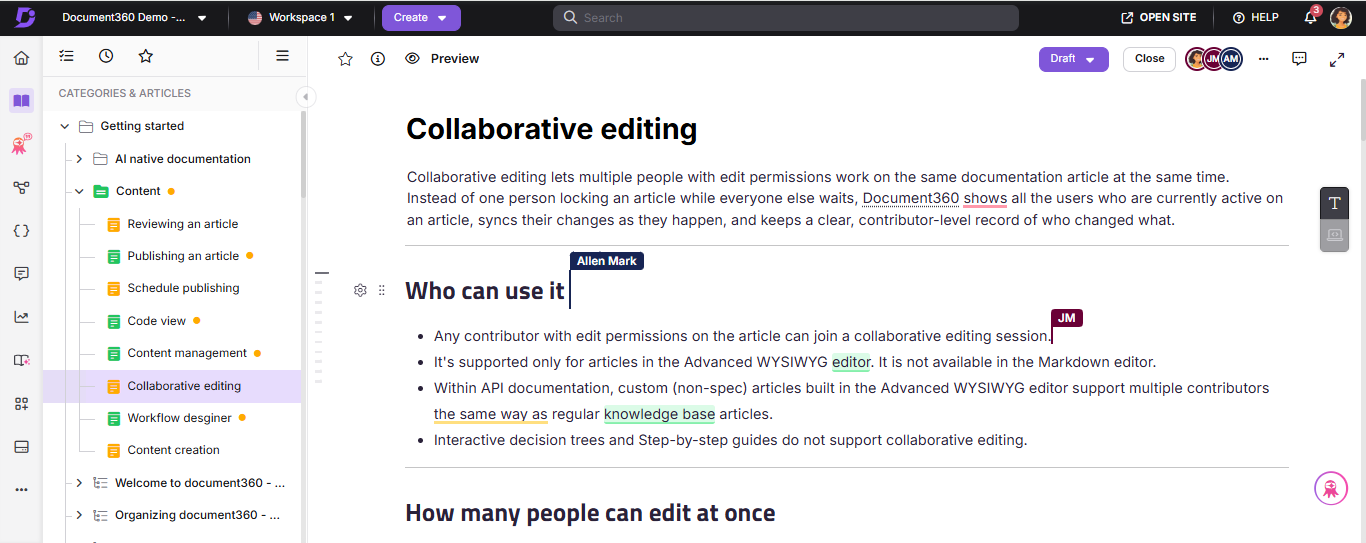
- See all active contributors at the top of the article, each with a colored avatar. Hover over an avatar to view the contributor’s full name.
- See each contributor’s cursor position in real time, displayed in their assigned color, so you can see where everyone is working.
- Open the same article in multiple browser tabs. You’ll appear as a single contributor with one consistent avatar color, while each tab’s cursor position is tracked separately.
Real-time synchronization
- Changes sync to everyone in the session in real time. If two people edit in the exact same spot, the most recent edit is retained.
- If another contributor deletes a paragraph you're currently in, your cursor moves to the start of where that paragraph used to be.
- If your changes can’t be saved because of a connection or server issue, you’ll see a message indicating that you can continue editing offline. You can keep working on the article, and your changes will sync automatically when the connection is restored. You’ll also see a confirmation message when the connection is restored, and other contributors’ cursor positions will update again.
Media, code view, and Eddy AI while collaborating
- You can insert images, videos, or screen captures while other contributors are working on the article.
- You can edit the same media item at the same time as other contributors. This includes replacing the media, resizing it, updating the alt text, and making other changes. You won’t see an indicator when someone else is editing the same media item. If two contributors make changes at the same time, the most recently saved changes are retained.
- Code view is unavailable when more than one contributor is editing the article.
- When a contributor uses Eddy AI to generate or rewrite content, the article becomes read-only for other contributors until the AI operation is complete. They’ll see a message indicating who is using Eddy AI.
- When you translate an article with Eddy AI, the translation uses the latest saved version of the article when the translation starts. If you edit the translated version while another contributor starts a new translation before your changes are saved, the new translation replaces your unsaved changes.
- Inline comments are updated in real time. All contributors can see new comments, highlights, and resolved comments as they happen. Comment filters and the expanded or collapsed state of the comment panel apply only to your view.
- When you select Save as template, only the contributor who started the action enters the template workflow. Other contributors can continue editing the article without interruption.
Publishing while others are editing
- If two contributors select Publish at nearly the same time, the publishing actions are completed one after another. If the second contributor has made new changes, those changes are published as a new version. If there are no new changes, a new version is not created, but the second contributor is recorded as the publisher.
- When an article is published, everyone editing the article sees an Article published notification.
- After publishing, a new draft is created automatically. The contributor who published the article moves to the new draft, while other contributors remain where they were and can continue editing.
- If you don’t have permission to publish the article, the Publish button is disabled. Hover over the button to see why you can’t publish.
Workflow status changes during collaboration
- If the article is moved to a read-only workflow status, all active collaborators can only view the article. A message indicates that the current workflow status is read-only.
- For any other workflow status, you can continue working on the article. You’ll see a Workflow status modified message, and the workflow status updates automatically.
Version history while collaborating
- Only one active draft can exist for an article at a time.
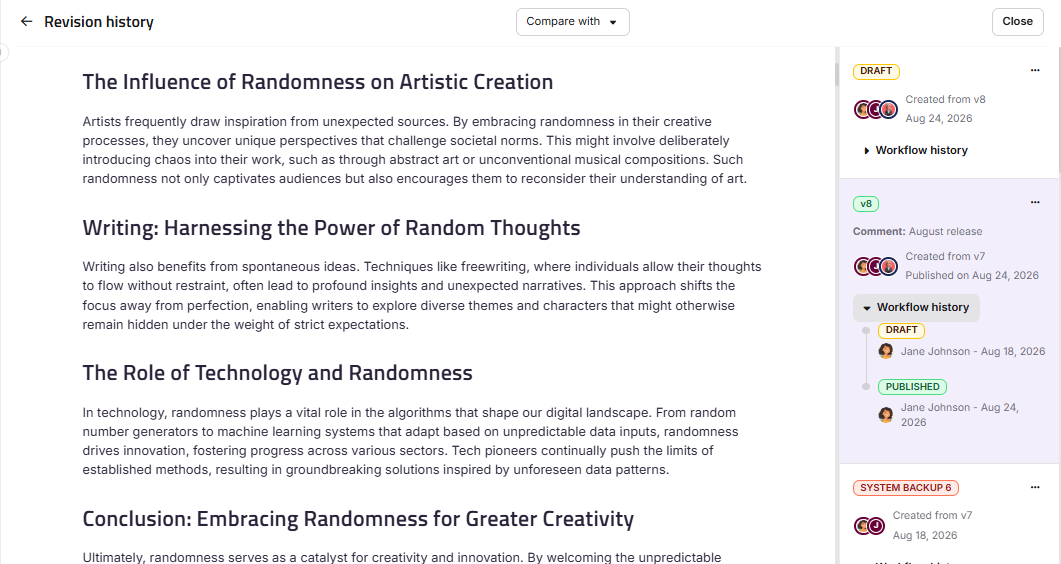
- The Revision history page shows the active draft and highlights each contributor’s additions, deletions, and edits in different colors. Content carried over from the previously published version appears in black.
- Published, Unpublished, and System Backup versions are identified with their respective tags.
- When you select Copy to draft for an older version, it becomes the current draft and replaces the existing draft. A System Backup is created automatically before the replacement, so the previous draft is preserved. All active contributors see a notification that the draft was created from an earlier version. Select Take me to the draft to open the active draft.
- Compare with shows the overall differences between two versions. It does not show changes made by individual contributors.
- When you open Revision history to view or copy an older version, you are no longer considered an active contributor. You become an active contributor again when you return to editing the current draft.
When your changes might get overridden
Some changes can be made to an article outside the editor, such as through automatic business glossary updates, content duplication detection, global find and replace, machine translation, or MCP. When this happens:
- You’ll see a message saying “This article has been updated outside the editor. Please reload to view the latest version.” Select Reload to load the latest content.
- Before you reload, Document360 automatically saves your unsaved changes as a System Backup version. You can restore these changes from Revision history if needed.
- Document360 stops automatically saving your local changes after an external update is detected. Reload the article to continue working with the latest content.
Customer-API-based content updates are handled differently: if you're actively editing an article in the portal, an API request to update that article's content is blocked, and the caller receives an error until editing ends.
What's not supported
Collaborative editing is not available in:
- Markdown editor
- Snippets
- Templates
- Custom pages
- Interactive decision trees
- Step-by-step guides