Revision history in Document360 lets you track, compare, and manage every version of an article from a single panel. When a published article is edited, a new unpublished draft is created automatically. The previously published version is added to revision history and remains live on the knowledge base site until the new draft is published. This lets admins, reviewers, and contributors compare differences between versions and revert to a previous version at any time.
You can have multiple draft versions of an article, but only one draft per article can be actively edited by multiple contributors at a time. To protect your content from being overwritten, Document360 automatically creates System Backup versions in situations such as copying an older version into the current draft, or reloading the editor after the article was updated externally (for example, via the API, MCP, or another integration).
This article describes revision history for articles in the Advanced WYSIWYG editor. Articles in the Markdown editor use a different revision history panel. See Revision history in the Markdown editor.
The in-progress version is labeled Draft in revision history, the article title area, workflow, and confirmation pop-ups. Published versions are assigned version numbers such as v1 and v2. The current draft is not assigned a version number until you publish it. System Backup versions use separate numbers, such as System Backup 1 and System Backup 2.
The version that opens when you select an article depends on the project-level setting in your workspace's general settings. For more information, see General project settings.
Creating a new version does not delete your existing content. You can manually delete unpublished, System Backup, and older published versions. The latest published version can't be deleted.
Selecting Copy to draft for an older version replaces the current draft with that version's content:
- If a draft is already active, for example when other contributors are actively editing, Document360 first saves a System Backup version containing the current draft's content, so nothing is lost, then replaces the draft. All active contributors see a notification that the draft was created from an earlier version, and their view automatically switches to the same new draft. Select Take me to the draft to open the active draft.
- If no draft exists yet, meaning the article is currently published and no one is editing it, Document360 creates a new draft directly from the selected version's content. No System Backup is created in this case, since there's no existing draft to preserve.
When to use revision history
- Track what changed in the current draft before publishing. Each contributor's additions, deletions, and edits are color-coded; content carried over from the previously published version stays in plain text.
- Click Copy to draft on an older version to restore its content into the current draft.
- Use version comparison to review overall content changes during the review and approval process. Comparison shows differences between versions, not a contributor-by-contributor breakdown.
- Use Workflow history to see which stages a version passed through, who was assigned, and whether it was created from an earlier version.
Viewing and restoring older versions
Only one draft can be active at a time. When you restore an older version, its content replaces the current draft.
View an older version
- Navigate to the article in the knowledge base portal.
- Click the More () icon in the article header and select Revision history ().
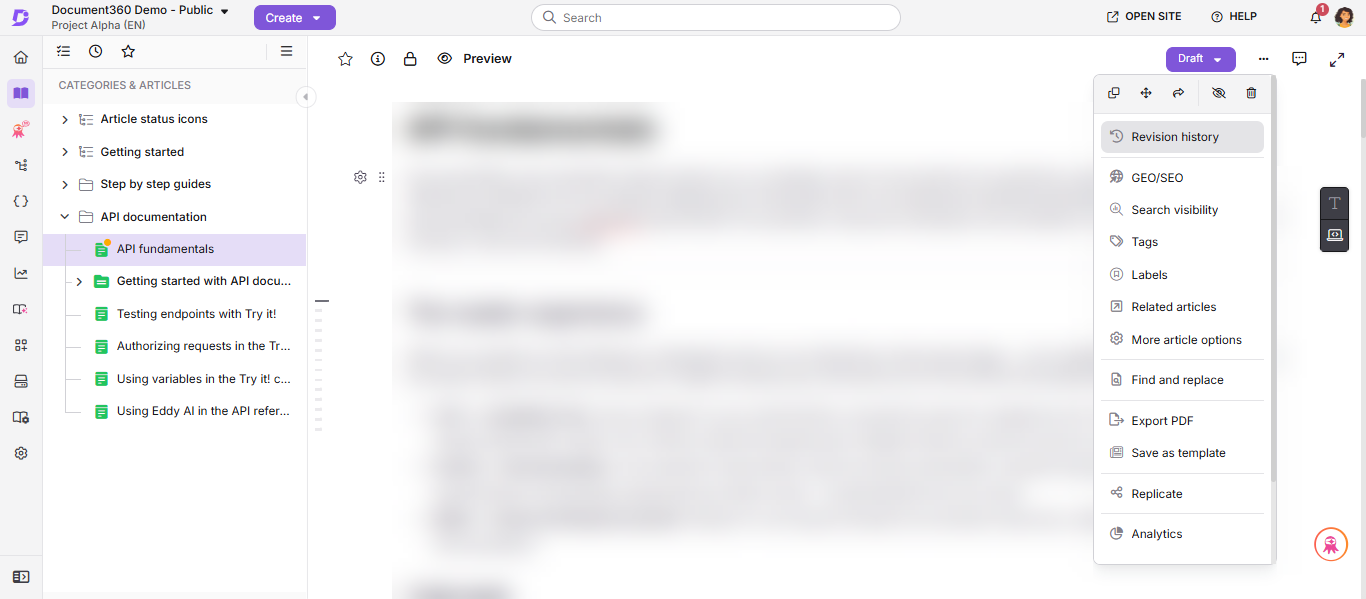
- Click the version you want to view. The selected version opens with its additions, deletions, and edits highlighted. Content that remains unchanged appears as plain text. Hover over highlighted content to see which contributor made the change.
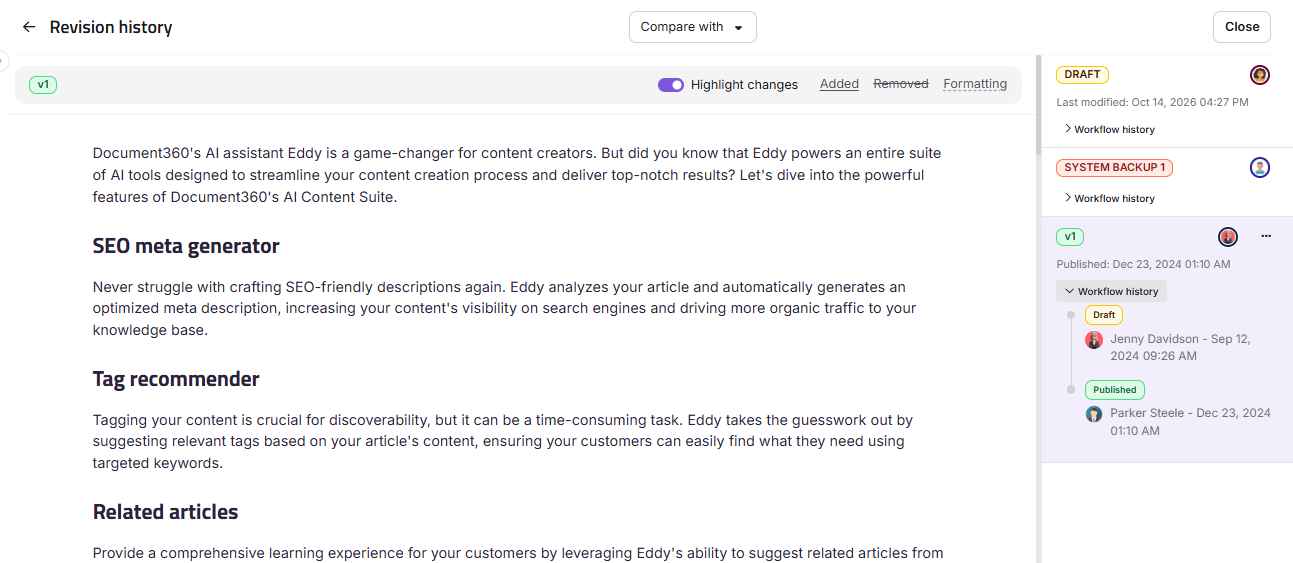
Viewing an older version from Revision history does not make you an active contributor on the article. You become an active contributor again when you return to the current draft editor.
Copy an older version into the current draft
- Navigate to the article in the knowledge base portal.
- Click the More () icon in the article header and select Revision history ().
- Hover over the version you want to restore, click the More () icon, and select Copy to draft.
- Click Confirm on the confirmation pop-up that appears.
- If a draft is already open — for example, other contributors are actively editing — Document360 first saves a System Backup version containing the current draft's content, so nothing is lost, then replaces the draft with the content from the version you selected. Anyone else actively editing sees a message that the draft was created from an earlier version, and their view automatically switches to the same new draft, so everyone ends up working on it together.
- If no draft exists yet — the article is currently published with no one editing — Document360 creates a new draft directly from the selected version's content. No System Backup is created in this case, since there's no existing draft to preserve.
- Make any further edits and publish when ready.
Copy to draft replaces the draft for everyone in the collaborative session at once. It's worth a heads-up to your team before using it on an article others are actively editing.
In the Advanced WYSIWYG editor, Copy to draft replaces the earlier Fork option. Unlike Fork, which created an additional draft, Copy to draft replaces the current draft with the selected version's content. If a draft already exists, it's saved as a System Backup first, so nothing is lost.
From the editor
Clicking Edit on a published article creates the article's next draft.
Article revision actions
| Action | What it does |
|---|---|
| Click the version | Opens a read-only view of that version, with its own contributor-level changes highlighted. To edit an older version, use Copy to draft to bring it into the live draft. |
| Workflow history | Displays the version's status (Published, Unpublished, Draft, or System Backup), creator, timestamp, workflow stages, assignees, and comments, including a note if the version was created from an earlier one. |
| Copy to draft | Replaces the current draft with the selected version's content. If a draft already exists, Document360 backs it up as a System Backup version first. |
| View in KB / Preview in KB | Opens the version on the knowledge base site so you can see how it appears to readers. Published versions show View in KB; other versions, such as drafts, show Preview in KB. |
| Add comments / Edit comments | Adds or edits the comment on that version. Only the team member who published or unpublished the version can add or edit its comment. For everyone else, this option is disabled. Long comments are shortened on the version card; click the comment to view it in full. |
| Version visibility | Opens the Version Visibility modal to control whether a published version appears in the version log on the knowledge base site, and to set a custom version number. |
| Delete forever | Permanently deletes the version. This action cannot be reversed. |
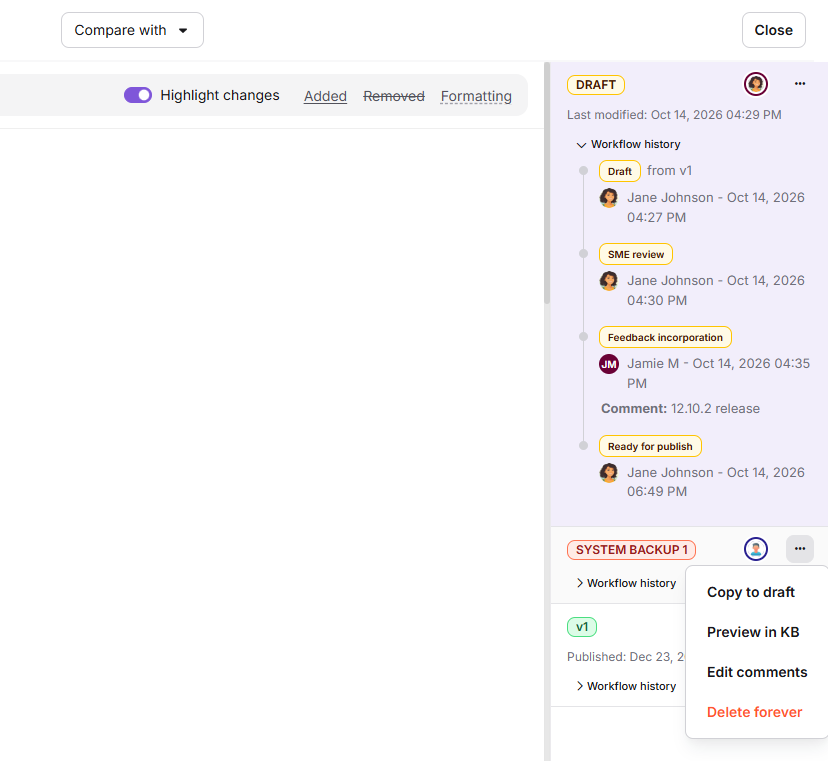
You can't delete the latest published version. Older published versions, unpublished versions, and System Backup versions can be deleted. If an article has only one version and it's published, deletion is disabled entirely, with a message that you cannot delete the only version of the article.
If other contributors are actively working on the article when you delete a version, you'll see a confirmation message letting you know others are currently editing before the deletion goes through. Once you confirm, those contributors see a message that the version was deleted by you, and they're taken to the published version if one exists, or otherwise to the latest view-only version of the draft.
Each version in revision history appears as a card that shows the following details:
| Element | Position | What it shows |
|---|---|---|
| Status badge | Top left | Draft, the version number for published versions (for example, v2), Unpublish, or System Backup. |
| Contributors | Top right | Avatars of everyone who worked on the version. Hover over an avatar to see the contributor's name. |
| Date and time | Below the status badge | The most recent activity on the version, such as when it was published, unpublished, or last modified. |
| Comment | Below the date | The comment added to the version, if any. |
| Visible on KB | Bottom right | Appears if the version is set to display on the knowledge base site. |
Hover over a card to show the More () icon and the actions available for that version.
Manage version visibility
The version visibility setting controls whether a published version appears in the published version history on the knowledge base site. You can also assign a custom version number to each published version for clearer identification.
Version visibility only appears on the knowledge base site if Show published version history is enabled at the project level (Settings > Knowledge base site > Article settings).
- Navigate to the article in the knowledge base portal.
- Click the More () icon in the article header and select Revision history ().
- Hover over the version you want to configure, click the More () icon, and select Version visibility.
- In the Version Visibility modal, toggle Display this version info on knowledge base site on or off.
- If the toggle is on, edit the Customize version number field to set a version label for this entry. The field is pre-filled with a system-generated value (for example, v10).
- Click Save.
The knowledge base site displays the latest 10 published versions for which visibility is enabled, along with the version number, publication date, publisher, and comments. When a new version is made visible and the limit of 10 is reached, the oldest visible version is removed automatically.
Version number validation rules:
| Rule | Detail |
|---|---|
| Maximum length | 20 characters |
| Allowed characters | Letters, numbers, hyphens (-), and underscores (_) |
| Must be unique | Duplicate version numbers are not allowed per article |
Compare article versions
- Navigate to the article in the knowledge base portal.
- Click the More () icon in the article header and select Revision history ().
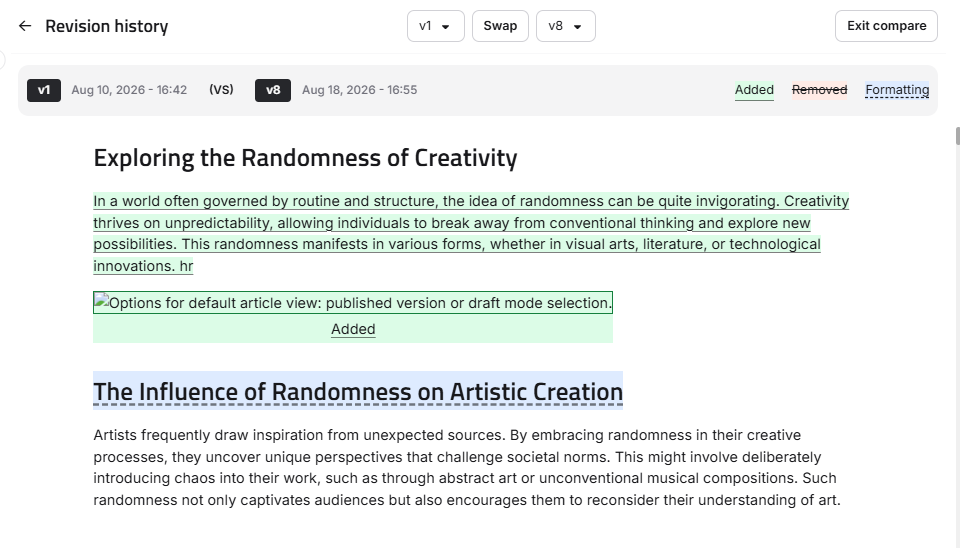
- Click Compare with at the top of the screen, then select the version you want to compare with the current version.
Comparison always shows the overall differences between two versions. It doesn't show the highlighted changes made by contributors. For contributor-level detail, view the specific version instead.
Content highlighting criteria
The comparison view highlights changes between the two versions using color coding.
- Added content: new text is highlighted in green. For images, videos, code blocks, PDFs, and self-closing tags, added content shows a green Added badge. Table additions are highlighted in green.
- Removed content: deleted text is highlighted in red with a strikethrough. For images, videos, code blocks, PDFs, and self-closing tags, removed content shows a red Removed badge. Table removals are highlighted in red.
- Formatting changes: changes to bold, italic, underline, font size, or lists are highlighted in blue. Non-text formatting changes such as table styles or image resizing show a blue Modified badge.
Content block movements and multi-formatting changes (applying italic, bold, and underline to the same content block simultaneously) are not highlighted in the comparison view.
Swap versions: the Swap button at the top of the comparison view reverses the comparison order of the two selected versions. All highlights update in real time. Content previously marked as Added will appear as Removed after the swap. You can also change the versions being compared using the selectors on either side of Swap.
Exit compare: click Exit compare at the top right to return to the main article view. You're taken back to the exact location you were viewing before entering comparison mode.
Revision history in the Markdown editor
Articles in the Markdown editor don't support collaborative editing, so they use the Article revision panel instead of the full-page revision history.
Open the Article revision panel
- Navigate to the article in the knowledge base portal.
- Click the More () icon in the article header and select Revision history ().
The Article revision panel opens on the right, listing each version with its version number, the version it was forked from, contributor, date, and status.
Article revision actions
| Action | What it does |
|---|---|
| Fork | Creates a new draft from the selected version without affecting the published article. |
| Open | Opens the selected version in the editor. |
| Delete | Permanently deletes the version. This action cannot be reversed. |
| Workflow history | Shows the workflow stages, assignees, and dates for that version. |
| Version visibility | Available from the More () icon on a published version. Controls whether the version appears on the knowledge base site and lets you set a custom version number. |
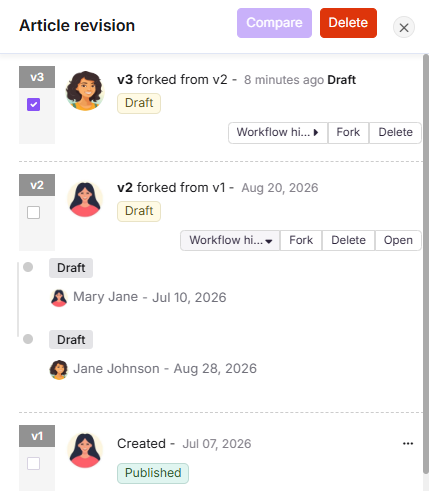
Restore an older version
- In the Article revision panel, click Fork on the version you want to restore.
- Click Yes in the confirmation prompt. A new draft is created with that version's content, and the published article stays live.
- The new draft opens automatically in the editor. Make any changes and publish when ready.
Compare versions
- In the Article revision panel, select the checkboxes for the two versions you want to compare.
- Click Compare.
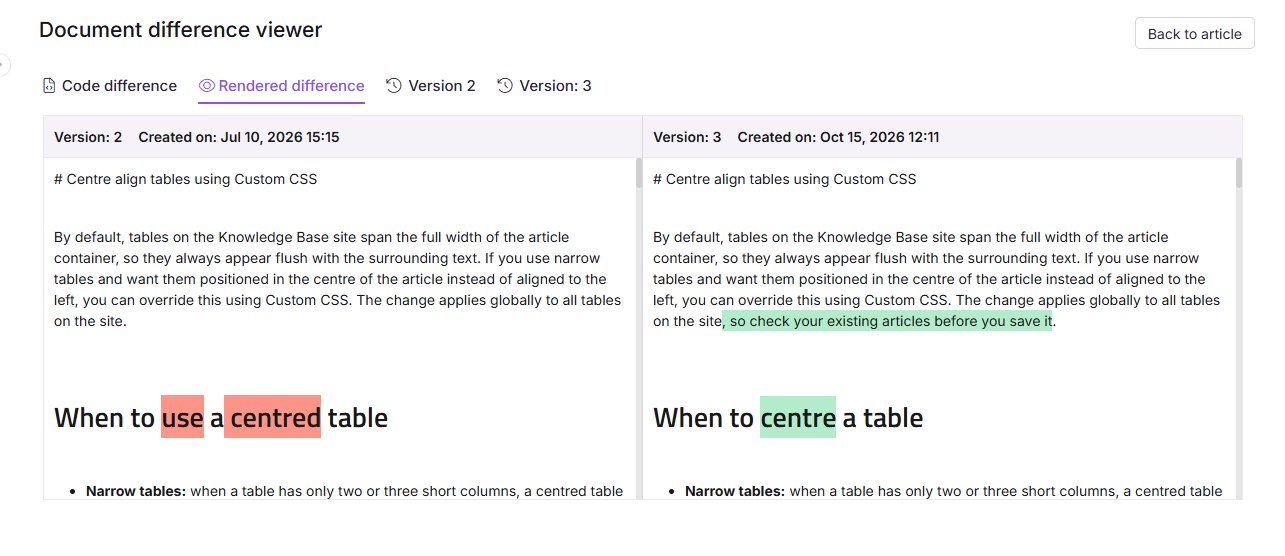
The Document difference viewer opens, showing the older version on the left and the newer version on the right, each with its version number and creation date. - Switch between the tabs to review the changes:
| Tab | What it shows |
|---|---|
| Code difference | The Markdown source of both versions side by side. |
| Rendered difference | Both versions side by side as they appear to readers. |
| Version tabs | One tab for each of the two versions you selected. Each tab shows that version on its own, with the Markdown code on the left and the rendered output on the right. |
Removed content is highlighted in red in the older version, and added content is highlighted in green in the newer version.
- Click Back to article to return to the editor.
Best practices
- Use Copy to draft, not editing directly, when you want to restore an older version — if a draft already exists, it's backed up automatically so nothing is lost.
- Let your team know before using Copy to draft on an article others are actively editing, since it replaces the current draft for everyone in the session.
- Use the comparison view before publishing a major update to verify that only the intended changes are included.
- Delete redundant unpublished or System Backup versions regularly to keep revision history clean and easier to navigate.
- Check Workflow history on a version when reviewing articles in a multi-stage approval process to confirm who has reviewed it and when.
FAQ
Can I restore a previous revision of an article?
Yes. Find the version you want in revision history and click Copy to draft — this replaces the current draft with that version's content, after backing up the current draft if one exists. In the Markdown editor, click Fork on the version instead; a new draft is created and opens in the editor. If the article has never been published, use the Backup and Restore option in Settings instead.
How do I discard current changes and revert to the previous version?
If your changes haven't been published yet, open Revision history, view the previous version to confirm it's the one you want, then use Copy to draft to restore it. In the Markdown editor, you can delete the draft with your unwanted changes, or click Fork on the previous version to start a new draft from it. This works once the article has been published at least once. If it's never been published, use the Backup and Restore option in Settings.
Why does revision history show a team member's name with a recent timestamp even though they haven't made recent changes?
With multiple contributors able to work on the same draft, this is common. A save action updates the timestamp to reflect the latest save, even if no meaningful content changed, and it's attributed to whoever triggered that save. To see exactly who did what and when, click Workflow history on that version, or check the Team auditing log.
Why can't I add or edit the comment on a version?
Only the team member who published or unpublished a version can add or edit its comment. This keeps the publisher's notes from being changed without their knowledge. Comments in Workflow history are not affected.
Can I change the published or last updated date of an article to a past date?
No. The published date and last updated date cannot be modified. The last updated date always reflects the most recent modification, regardless of which version was published.
Where is the Fork option in the Advanced WYSIWYG editor?
In the Advanced WYSIWYG editor, Fork has been replaced by Copy to draft. Hover over the version in Revision history, click the More icon, and select Copy to draft. The Markdown editor still uses Fork.