The Reviewer role helps you collect feedback on articles without letting users change the actual content. Reviewers can open draft articles, leave comments, suggest changes, and update the article's status in the workflow. This is useful for getting input from subject matter experts or stakeholders while keeping the content safe from unwanted edits until it's ready for final approval.
When to use this workflow
- You want a subject matter expert or stakeholder to review a draft article before it is published.
- You need feedback on an article's accuracy or completeness without opening it up for direct editing.
- You want to progress an article through a formal review cycle using Document360's workflow status feature.
Before you begin
- You must have the Reviewer portal role or the Reviewer content role assigned.
- The article must be accessible to you based on your content access permissions.
- Reviewers can review one article at a time.
- When using collaborative editing, a review session remains active only while the article is open. If you navigate away from an article, even to review another article, you need to click Start review again when you return. You can have active reviews on multiple articles at the same time, as long as each article is open in a separate browser tab.
Collaborative editing is rolled out in phases, so if you don’t see it yet, it’s on its way.
To assign a reviewer and move an article into a review stage, see Managing workflow status article. Once you're assigned as a reviewer, use the steps below to begin your review.
How to start reviewing an article
- Navigate to the article from the Categories & Articles pane.
- Click the Start review button at the top right of the editor.
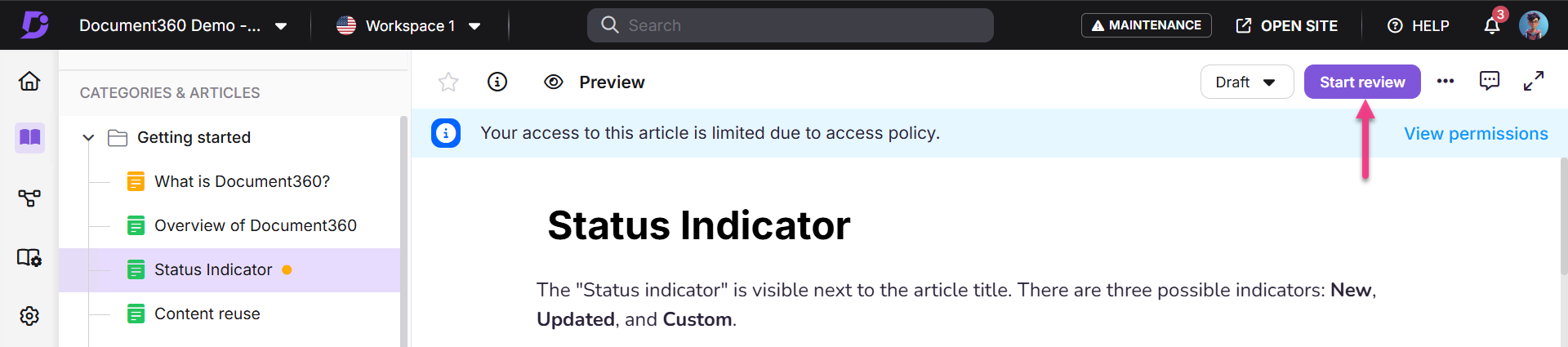
- Reviewers can review only one article at a time. When you start reviewing an article, other users are notified that you are currently reviewing the article.
- When using collaborative editing, up to 10 contributors, including reviewers, can work on an article at the same time. If the limit is reached, Edit is disabled for additional users. Reviewers appear in the contributor list, and editors can continue working while a review is in progress.
Collaborative editing is rolled out in phases, so if you don’t see it yet, it’s on its way.
How to add a comment
- Highlight the desired text and click the floating Comment () icon.
- Enter your comment, then click Post or press Ctrl+Enter to submit.
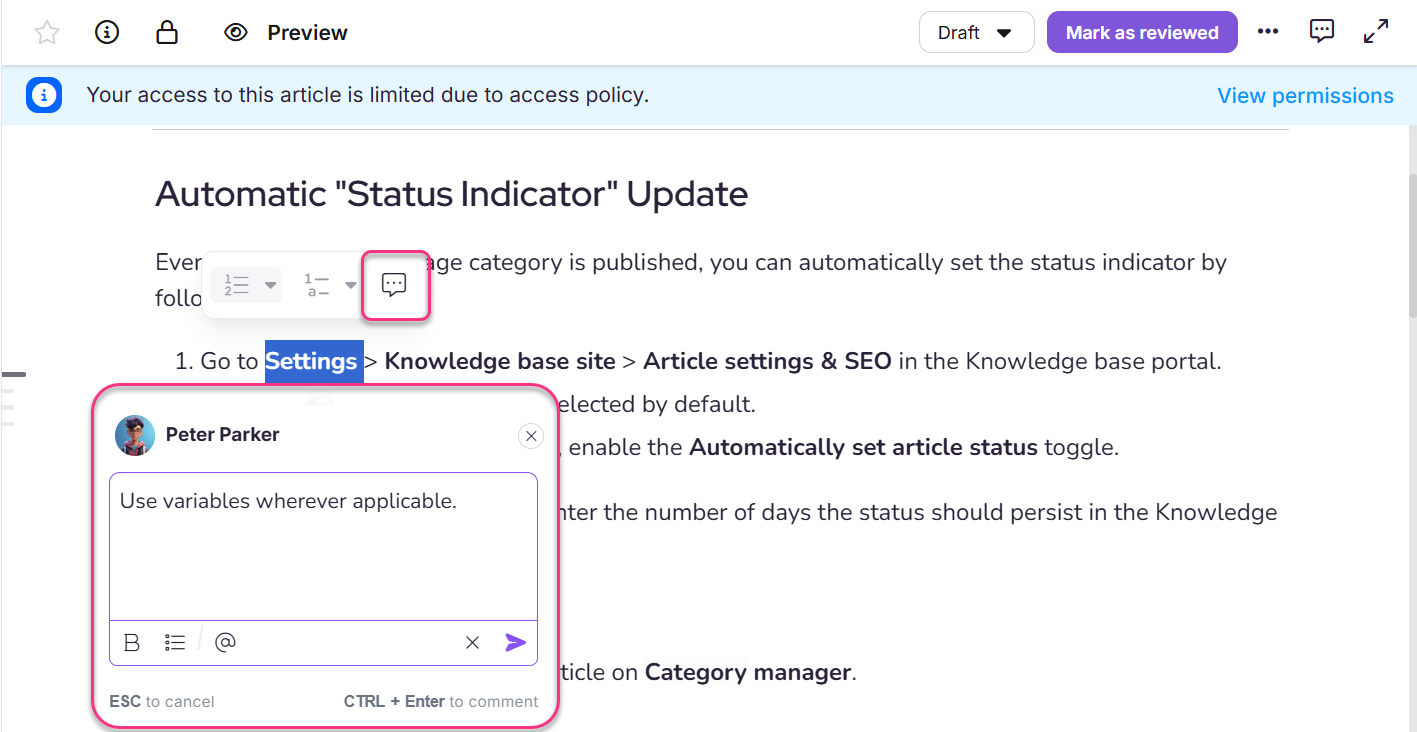
- When you have completed your review, click Mark as Reviewed at the top right.
How to update the workflow status
- Click the Workflow (Draft) dropdown at the top right of the editor.
- Select the appropriate workflow status for the article. The Update workflow status dialog opens.
- Select the next workflow status.
- Assign a team member to review the article.
- Set a due date for the review.
- Add a comment of up to 250 characters (optional).
- Click Set Status to apply the changes.
Considerations
| Item | Detail |
|---|---|
| Review session persistence | When using collaborative editing, navigating away from an article ends your active review session. Reopen the article and click Start review to resume the review. You can review multiple articles at the same time by opening each article in a separate browser tab. |
| Commenting when Read only | When an article's workflow status is set to Read only, no users, including Reviewers, can add comments to the article. |
| Content editing | Reviewers cannot edit article content. They can only comment and update workflow status. |
| Workflow comment length | Workflow status update comments are limited to 250 characters. |
Best practices
- Use Mark as Reviewed when you have finished reviewing to signal to the content team that your feedback is complete.
- Use inline comments on specific text passages rather than general comments where possible — this gives content authors precise context for your feedback.
- Update the workflow status after completing your review to move the article to the next stage in the review cycle, rather than leaving it in its current state.
FAQ
Can Reviewers edit articles?
No, Reviewers can only leave comments and update workflow statuses. They do not have permission to edit the content directly.
Can Reviewers access all articles in the knowledge base?
Reviewers can only access articles that they have been given permission to review. Their access is usually restricted to specific categories or articles.