Hiding an article removes it from the knowledge base site without deleting it. Hidden articles remain fully accessible in the portal for internal use, where they can still be edited, published, and managed, but readers cannot see or access them on the knowledge base site.
Hidden articles are indicated by a strikethrough on the article name in the Categories & Articles pane.
Neither a hidden article nor an unpublished article is accessible via its direct link. The difference is in what happens behind the scenes: hiding leaves the article's workflow status unchanged, so it stays wherever it was in the review process, while unpublishing reverts the article's status to Draft, specifically Unpublished, making it editable through the normal publishing workflow.
When to hide an article
- The article contains internal-only content such as pricing details, internal processes, or team references that should be visible to portal users but not to public readers.
- The article is being updated or reviewed and you do not want readers to see incomplete content.
- You need to temporarily remove an article from the knowledge base site without losing its content or history.
If you are retiring the article rather than removing it briefly, archive it instead. Archiving moves the article out of the category tree and excludes it from portal search and Eddy AI, while hiding keeps it in the portal and in portal search. Refer to Archive articles.
Hide an article
- Navigate to Documentation () in the left navigation bar.
- Hover over the article in the Categories & Articles pane and click the More () icon.
- Select Hide ().
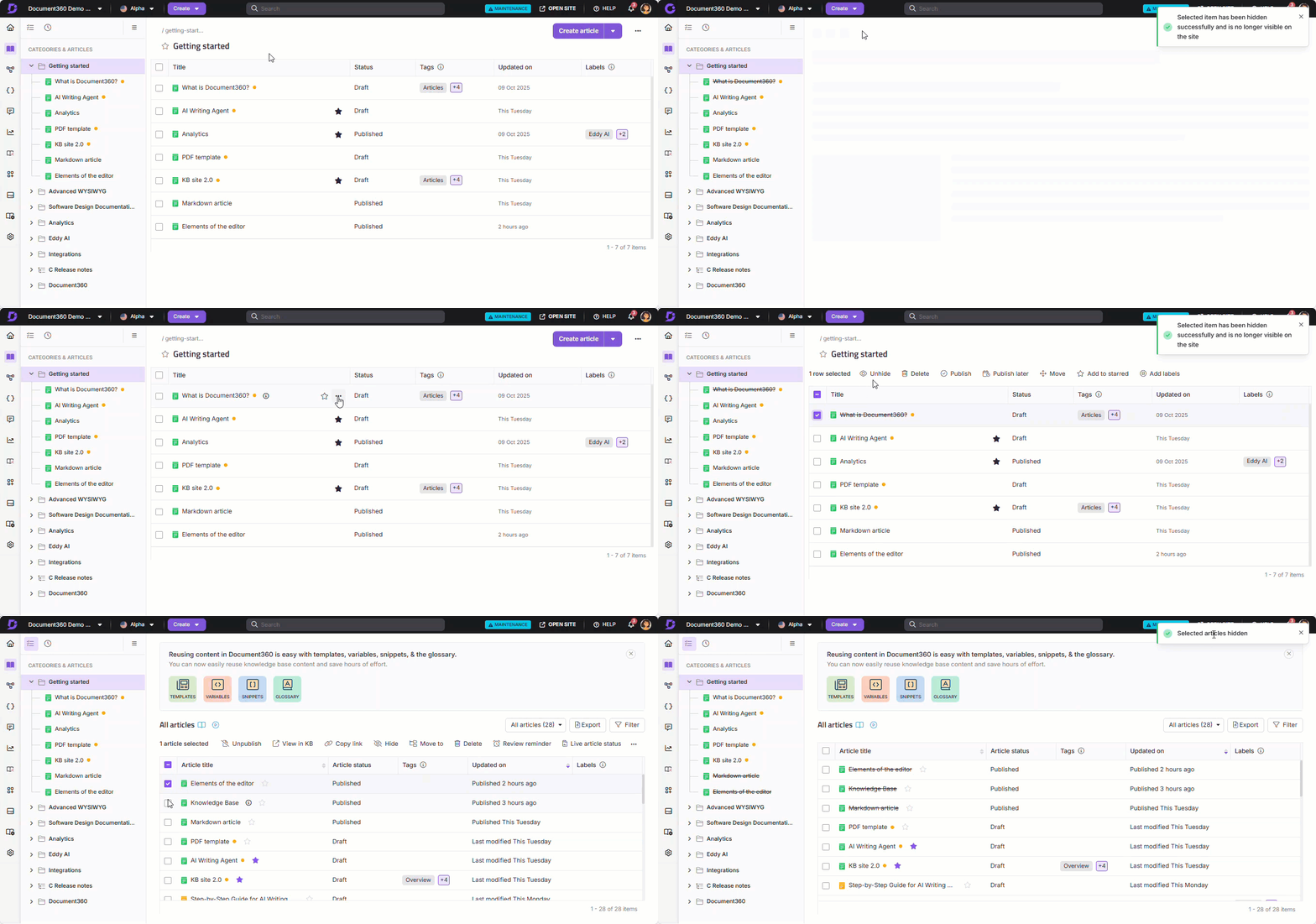
Other ways to hide an article
- From a Folder or Index category (single article): Hover over the article inside the category, click the More () icon, and select Hide ().
- From a Folder or Index category (multiple articles): Select the checkboxes for the articles you want to hide, then click Hide ().
- From the All articles page: Navigate to Documentation () > All articles (). Select the articles and click Hide ().
Unhide an article
Unhiding restores the article to the knowledge base site immediately. The article's content, status, and history are preserved exactly as they were when it was hidden.
- Navigate to Documentation () in the left navigation bar.
- Hover over the hidden article in the Categories & Articles pane. Hidden articles are indicated by a strikethrough on the article name.
- Click the More () icon and select Unhide ().
The article is immediately restored to the knowledge base site.
Other ways to unhide an article
- From a Folder or Index category (single article): Hover over the hidden article inside the category, click the More () icon, and select Unhide ().
- From a Folder or Index category (multiple articles): Select the checkboxes for the hidden articles, then click Unhide ().
- From the All articles page: Navigate to Documentation () > All articles (). Filter by Hidden status to find hidden articles. Select the articles and click Show ().
Use the Status filter on the All articles page to quickly find all hidden articles across your workspace before unhiding them in bulk.
What happens when you hide an article
- The article is removed from the knowledge base site and cannot be accessed by readers, even via a direct link.
- The article remains in the portal and is fully editable.
- Hidden articles are excluded from search results on the knowledge base site. They remain available in portal search.
- The article keeps its existing status in the portal, with a strikethrough added to the article name.
- Unhiding the article restores it to the knowledge base site with its existing content intact.
Hide vs. archive vs. delete vs. unpublish
| Action | Visible on KB site | Stays in the category tree | In portal search | Recoverable |
|---|---|---|---|---|
| Hide | No | Yes, with a strikethrough | Yes | Yes. Unhide at any time. |
| Archive | No | No. Moves to the Archive page. | No | Yes. Unarchive at any time. |
| Delete | No | No. Moves to the Recycle bin. | No | Yes, within 30 days. |
| Unpublish | No | Yes | Yes | Yes. Republish at any time. |
In all four cases the article is removed from the knowledge base site and readers cannot reach it through its direct link. The content is preserved in every case, and all four actions can be reversed.
The key difference is where the article goes. Hiding and unpublishing leave the article in the category tree, so it stays in portal search and your team can still find it while working. Archiving moves it to the Archive page and removes it from portal search and Eddy AI. Deleting moves it to the Recycle bin, where it is permanently removed after 30 days.
Hiding and unpublishing also differ in status. Hiding keeps the article's status intact, while unpublishing changes it back to Draft.
Best practices
- Use Hide for temporary removal. If you need to take an article offline briefly for updates, review, or seasonal reasons, hiding is faster and safer than archiving or deleting.
- Use Archive for retired content. If the article is not coming back soon, archiving removes it from the category tree and from portal search, so it stops appearing in your team's daily work.
- Use Hide for internal-only articles. Articles that should only be visible to portal contributors and not to knowledge base site readers can be kept hidden permanently.
- Filter by Hidden status to audit. Use the All articles page filters to find all hidden articles in your workspace and review whether they should remain hidden, be restored, be archived, or be deleted.
- Do not confuse Hide with Unpublish. Unpublishing changes an article's status to Draft. Hiding keeps the status intact but removes it from the knowledge base site. Choose based on whether you want to continue editing the article as a draft.
FAQ
What is the difference between hiding and deleting an article?
Hiding an article removes it from the knowledge base site but keeps it fully intact in the portal. It can be unhidden at any time with no data loss. Deleting an article moves it to the Recycle bin, where it remains for 30 days before permanent deletion. Use Hide when you want to temporarily or permanently remove content from public view without losing it.
What is the difference between hiding and archiving an article?
Both remove the article from the knowledge base site. A hidden article stays in the category tree with a strikethrough on its name and remains in portal search, so your team can still find and edit it. An archived article is removed from the category tree and moved to the Archive page, and is excluded from portal search and Eddy AI. Use Hide when the article is coming back soon. Use Archive when you are retiring it.
What happens if I archive a hidden article?
The article moves to the Archive page and keeps its hidden setting. When you unarchive it, the article returns hidden, with the strikethrough restored on its name in the category tree, and stays off the knowledge base site until you unhide it. Archiving never publishes an article that was hidden.
Can readers access a hidden article via its direct link?
No. Hidden articles are not accessible via their direct link on the knowledge base site. Readers who follow a link to a hidden article will not be able to view it.
Will hidden articles appear in knowledge base site search results?
No. Hidden articles are excluded from search results on the knowledge base site. They remain available in portal search, so your team can still find them.
Can I hide multiple articles at once?
Yes. You can bulk hide articles from a Folder or Index category or from the All articles page. Select the checkboxes for the articles you want to hide and click the Hide () icon.
How can I hide an article from the knowledge base site while still allowing access via its URL?
The standard Hide feature removes the article from the knowledge base site and blocks direct link access. Archiving does not achieve this either, because archived articles are not accessible by URL. If you need to hide the article from navigation and search while still allowing access via URL, you can use a custom JavaScript snippet to remove the article from the category tree, combined with the Search visibility settings to exclude it from knowledge base search and Eddy AI search.