The Recycle bin page in Document360 is a temporary holding area for deleted articles and categories. When you delete content, it moves to the Recycle bin and stays there for 30 days before being permanently removed. During that window, you can preview, restore, or permanently delete items from the Recycle bin page — giving you control over accidental deletions and a last line of defence before content is gone for good.
When to use the Recycle bin page
Use the Recycle bin page when you need to:
- Recover an article or category that was deleted by mistake
- Preview deleted content before deciding whether to restore or permanently remove it
- Permanently delete specific items before the 30-day retention period expires
- Clear the entire Recycle bin at once when you're certain the deleted content is no longer needed
Access the Recycle bin page
You can open the Recycle bin page from two places in Document360.
Access Recycle bin from the left navigation bar
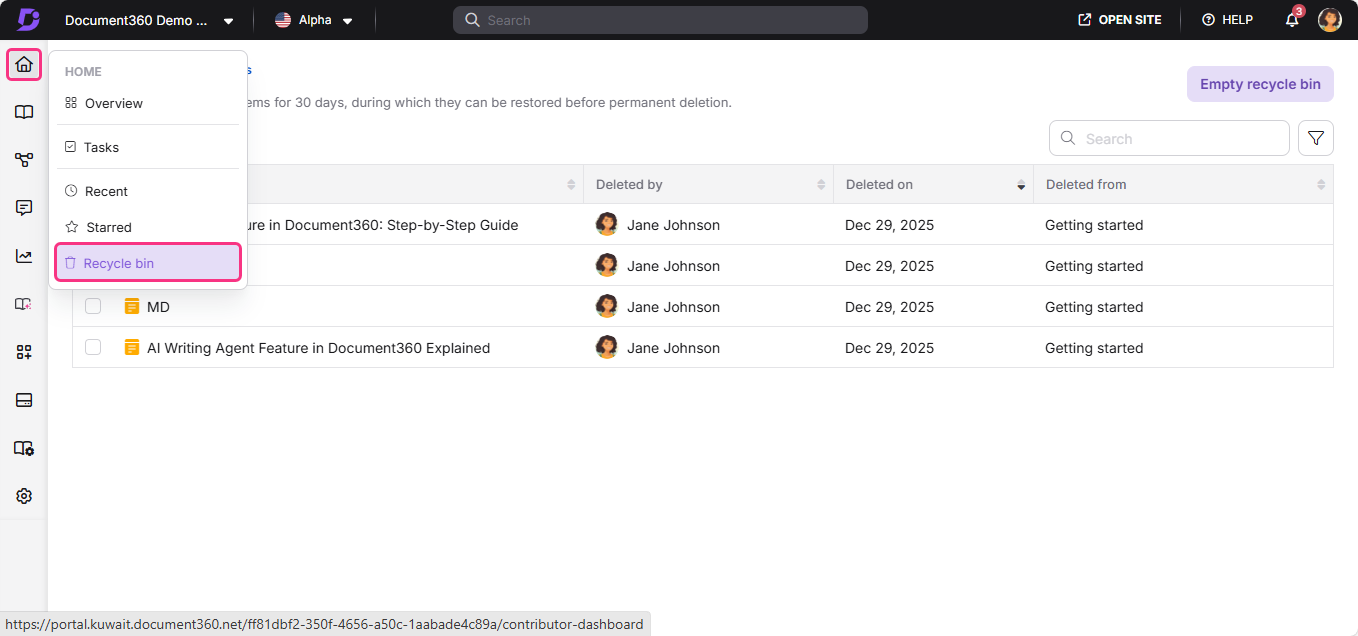
Hover over the Home () icon and click Recycle bin.
Access Recycle bin from the Documentation module
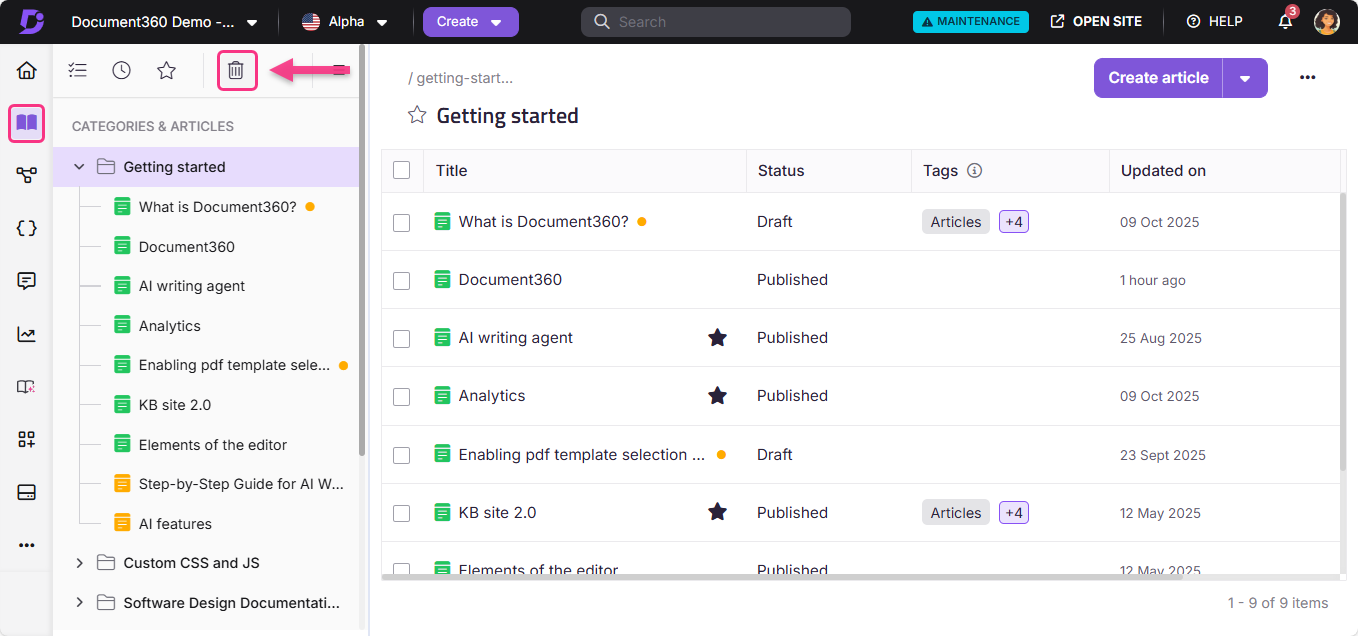
- Navigate to the Documentation () module.
- In the secondary left navigation menu at the top left, click the Recycle bin icon ().
Actions available on the Recycle bin page
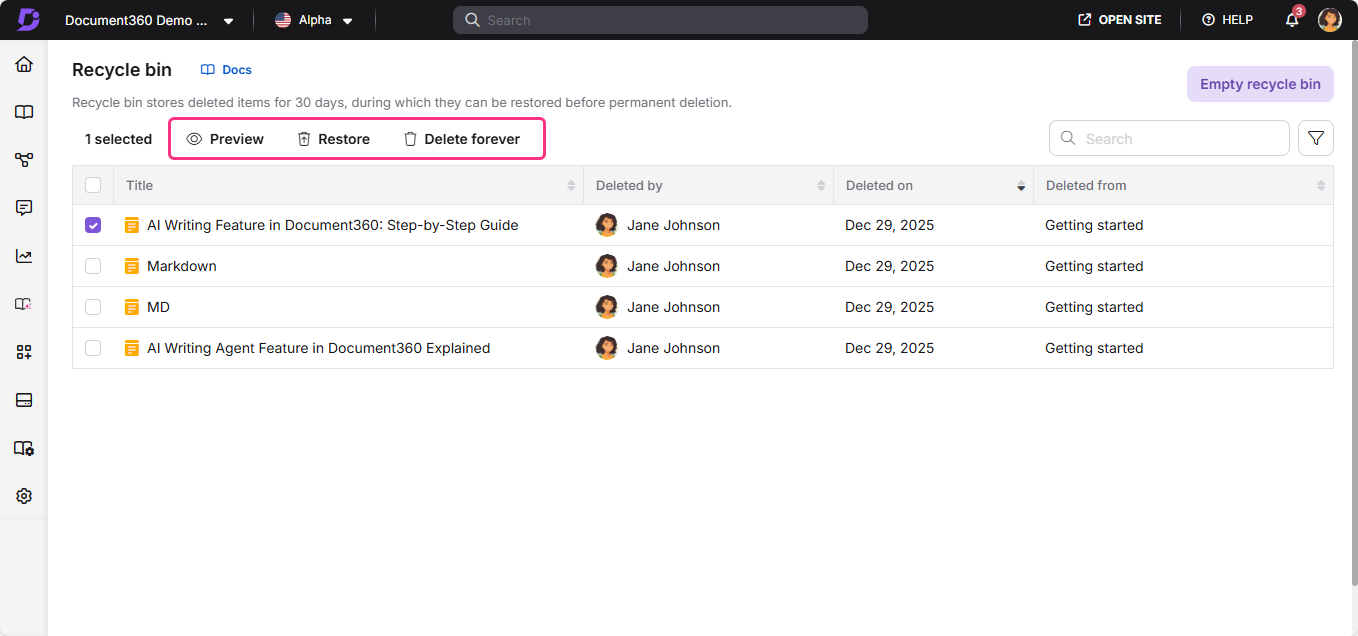
You can perform the following actions from the Recycle bin page:
- Preview: View the contents of a deleted item without restoring it. (Available for individual items only.)
- Restore: Remove the selected item from the Recycle bin and return it to its original location in the category tree.
- Delete forever: Permanently delete the selected item. This action cannot be undone.
- Empty recycle bin: Permanently delete all items currently in the Recycle bin at once. This action cannot be undone.
Delete forever and Empty recycle bin are permanent actions. Content removed this way cannot be recovered. Confirm you no longer need the item before proceeding.
Filters and other features
The Recycle bin page includes search and filter tools to help you locate specific deleted content quickly.
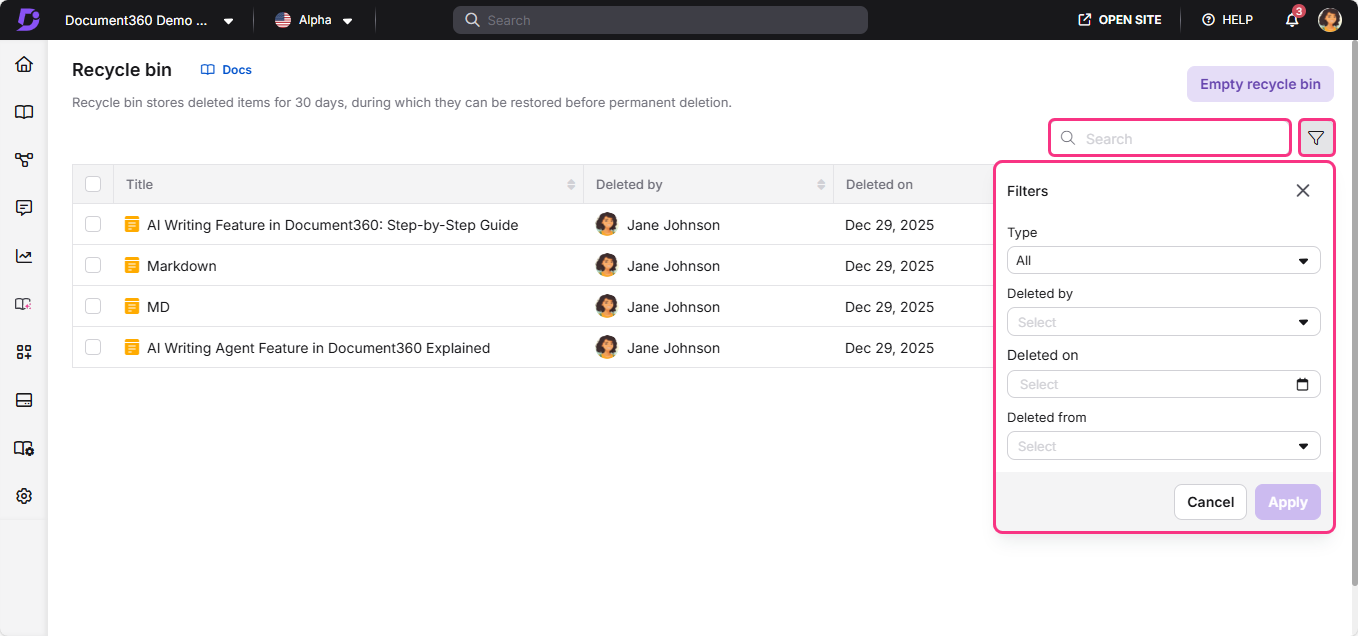
- Search bar — locate deleted articles and categories quickly by title.
- Item metadata — each item shows the user who deleted it, the deletion date, and the original location it was deleted from.
- Filters — narrow down the list using:
- Type (All, Article, Category)
- Deleted by (filter by user)
- Deleted on (filter by date)
- Deleted from (filter by original category location)
Best practices
- Preview before you decide — use the Preview action to check the content of a deleted item before committing to restore or permanently delete it.
- Use the "Deleted from" filter when looking for an article from a specific category — it narrows the list faster than scrolling through all deleted items.
- Don't rely on the Recycle bin as long-term storage — items are auto-deleted after 30 days with no recovery option. If content needs to be kept, restore it promptly.
- Use "Empty recycle bin" only when certain — this action permanently removes all items at once and is irreversible. Scan the list and use Delete forever on specific items if you're unsure about others.
- Check the "Deleted by" filter if content goes missing unexpectedly — it helps identify which team member deleted the item and when.
FAQ
How long are deleted items kept in the Recycle bin?
Deleted items are retained in the Recycle bin for 30 days. After that, they are permanently deleted automatically and cannot be recovered.
Can I restore an article to a different location than where it was originally?
No. The Restore action always returns an article to its original location in the category tree. If you need the article in a different location, restore it first and then use the Move action to relocate it.
Can all team members see the Recycle bin?
Access to the Recycle bin depends on the user's role and permissions in Document360. Not all team members may have permission to view, restore, or permanently delete items. Contact your workspace admin if you cannot access the Recycle bin.
What happens if I delete a category, do the articles inside also go to the Recycle bin?
Yes. When you delete a category, the category and all articles within it are moved to the Recycle bin. You can restore them individually or restore the entire category to recover all its contents.
An article or category is shown as being in the Recycle bin, but I cannot find it there. What should I do?
If the Recycle bin indicates an item exists, but it does not appear when you search or browse the list, first refresh the page and clear your filter and confirm they are not unintentionally excluding it. If the item still cannot be located, it may no longer be recoverable through the Recycle bin. In this case, use the Backup and Restore feature instead:
- Navigate to Settings, then Knowledge base portal, then Backup and Restore.
- Check whether a backup exists from a date before the item was deleted.
- Restore the Documentation element from that backup, selecting the specific article or category you need.
If the item also depends on a deleted category, restore that category first (from the Recycle bin or from a backup), then republish any dependent articles to resolve related 404 errors.