Mirroring an article displays the same article in multiple categories or workspaces without creating separate copies. There's still only one source article: all mirrored instances show identical content, and any update you make to the source is automatically reflected everywhere it appears. You can mirror a single article at a time, or select multiple articles and mirror them together in one operation.
When to mirror an article
- You want to surface a single article in multiple categories where it is relevant, without duplicating and manually maintaining multiple versions.
- You need to make an article from one workspace accessible in another while keeping a single source of truth.
- The same information needs to appear in different parts of your knowledge base and you want updates made once to reflect everywhere.
- You're sharing a set of platform-level or onboarding articles across several categories and want to do it in one operation instead of mirroring each one individually.
Mirror a single article
- Navigate to Documentation () in the left navigation bar.
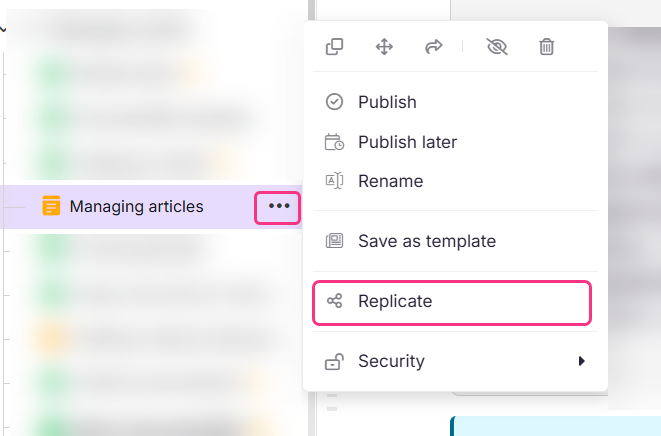
- Hover over the article in the Categories & Articles pane and click the More () icon.
- Select Mirror ().
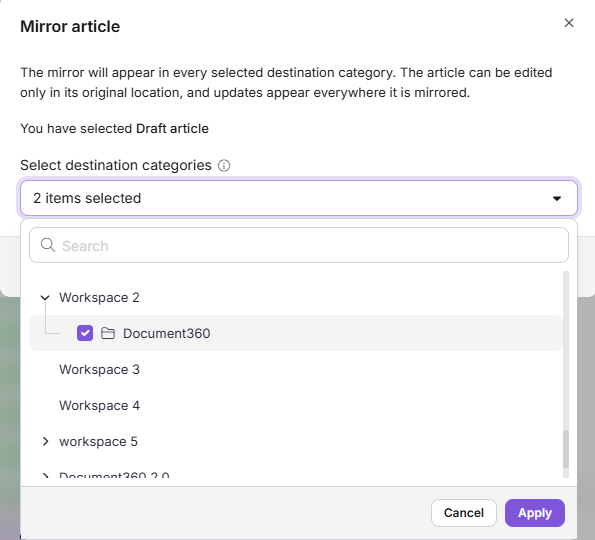
- In the Mirror article dialog, click the Select destination categories dropdown.
- In the list that opens, click the arrow next to a workspace to expand it, then select the checkbox next to each category where you want the article mirrored. Use the Search box to find a category by name.
- Click Apply. The dropdown shows how many categories you selected.
- Click Mirror.
Other ways to mirror a single article
- From a Folder or Index category: Hover over the article inside the category, click the More () icon, and select Mirror (). Select the destination categories, click Apply, and then click Mirror.
- From the article editor: Open the article, click the More () icon at the top right, and select Mirror (). Select the destination workspace and category, then click Mirror.
Mirroring categories is not supported. You can only mirror articles.
Mirror articles in bulk
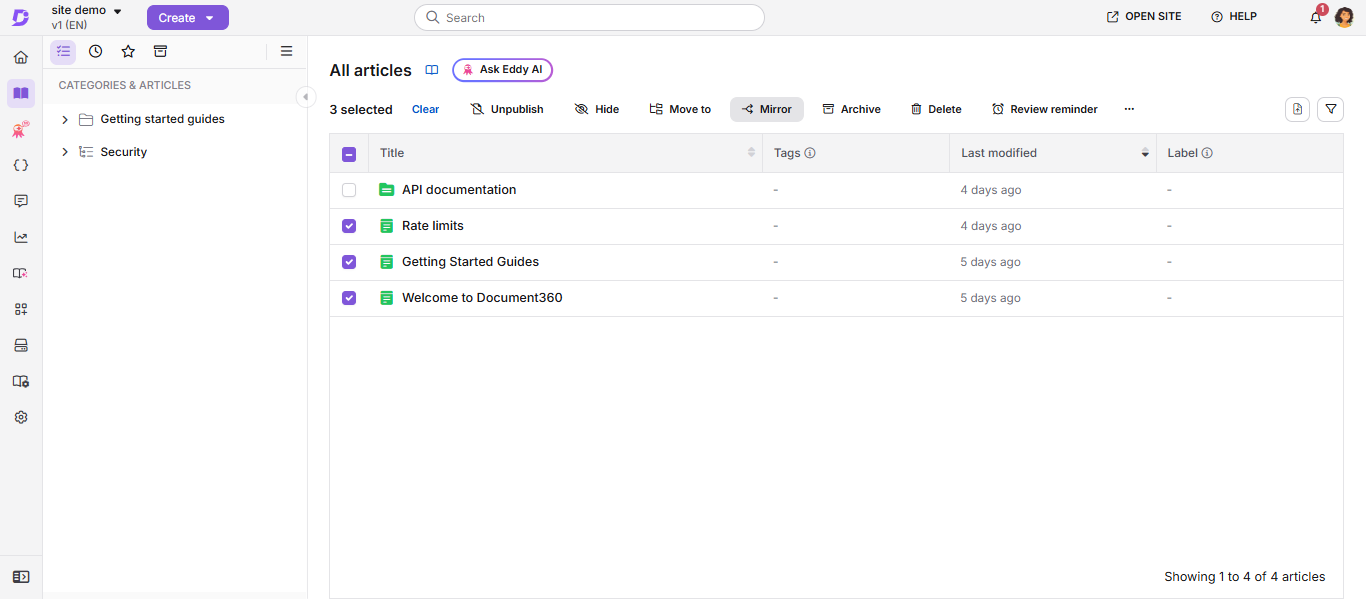
- Navigate to Documentation () and click All articles.
- Select the checkbox on each article you want to mirror.
- Click Mirror () from the bulk action toolbar at the top.
With 0 articles selected, the Mirror button in the toolbar stays disabled.
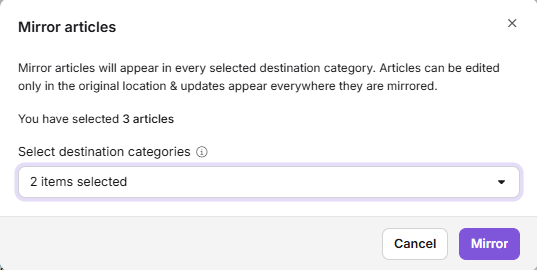
- In the Mirror to panel, review the selected articles count shown at the top.
- Browse or search the category tree to choose a single destination category. You'll only see categories that you have access to.
If any of your selected articles already exist as mirrors in the destination, they're flagged inline with a warning badge and excluded by default. Select an article individually if you want to override this and mirror it.
- Click Mirror to confirm.
If some articles fail to mirror, the toast message shows "X of Y articles mirrored. Z failed. See details." Open the detail panel to see which articles failed and why. The articles that did mirror successfully stay mirrored; they aren't rolled back just because others failed.
What happens when you mirror articles
- You'll see a Mirror icon wherever the article is mirrored. A mirrored article shows a Mirror () icon next to its title in the article tree and the All articles page, so you can tell at a glance that it's a reference rather than an independent article. The source article's icon is darker and the mirrored instances' icons are lighter, so you can also tell the original from its copies. After a bulk mirror, this icon appears both on the new mirrored instances and on the source article itself, since the source now has at least one mirror pointing back to it.
- You can only edit the article from its source location. Every mirrored instance shows the same content as the source, and stays that way automatically, so mirrored instances are read-only. If you need to change the content, open the source article and edit it there; the update is reflected in every mirrored instance right away.
- Mirrored articles behave like regular articles in All articles. You'll find them listed alongside everything else in the All articles view, where you can select them for actions such as Mirror and Move. Use the 'Mirrored articles' filter when you specifically want to see only mirrored content, for example while auditing what's been shared where.
- Mirroring won't affect your search engine ranking. Each mirrored instance carries a canonical tag pointing back to the source article's URL. This tells search engines which version is the original, so your mirrored copies aren't flagged as duplicate content or split your page's ranking.
- Deleting the source deletes every mirror too, permanently. Mirrored instances aren't independent copies, they're pointers to the source. So if you delete the source article, every mirrored instance disappears from its category at the same time, and there's no way to recover them separately. Before deleting an article, use View mirror articles in the Article information popover to check whether it has any mirrors, so you don't lose that content elsewhere.
- A mirror in a private category is marked with a lock instead. If a mirrored article ends up in a private category, its Mirror () icon is replaced with a lock icon, the same way Document360 flags any private article. This is just a visual change: the article's content and functionality work exactly as they would in any other mirrored instance.
- Starring one instance stars all of them. Star a mirrored article, whether it's the source or one of its mirrors, and Document360 automatically stars every other instance of it too. You don't need to star each copy individually.
During a collaborative editing session, if another contributor mirrors the article while you're editing it, you'll see a notification letting you know that it was mirrored. Nothing changes on your end, and only the person who mirrored it is taken to the new location.
See where an article is mirrored
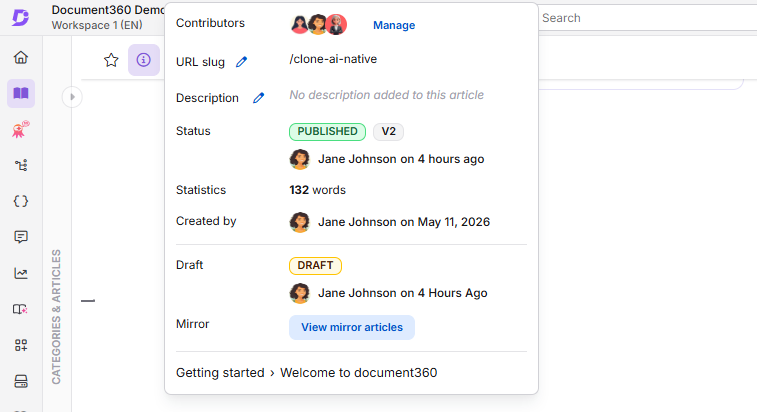
- Find the source article wherever it appears in the portal, for example on the All articles page, a category index page, or in the article editor, and click its Article information () icon.
- In the Mirror row, click View mirror articles.
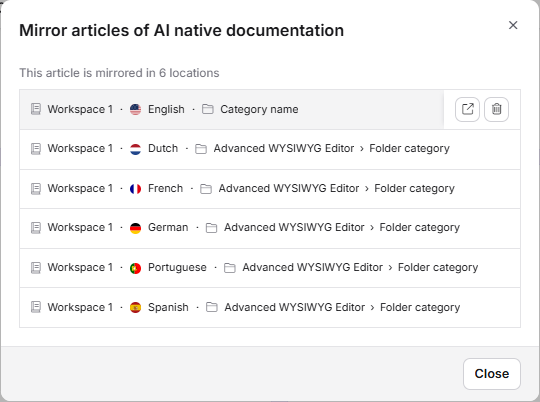
- Review the list. The panel shows how many locations the article is mirrored in. Each row lists the workspace, the language, and the category if there is one.
- Click Back to return to the Article information popover.
Hover over a location in the list to see two actions:
- Open article ( ): Opens the mirrored article in a new tab.
- Delete mirror (): Asks you to confirm in a popup, then deletes that mirrored article. Deleting a mirror removes only that mirrored instance.
If you open the Article information popover on a mirrored article, the Mirror row shows Go to source article instead. Click it to open the source article.
Mirror vs. clone vs. move
| Mirror | Clone | Move | |
|---|---|---|---|
| Original location | Stays in place | Stays in place | Removed |
| Result | Same article appears in multiple locations | Independent copy in the destination | Article exists only in the new location |
| Content sync | Yes, updates to the source reflect everywhere | No, changes do not sync | N/A |
| Appears in All articles page | Yes (filterable via the 'Mirrored articles' filter) | Yes | Yes |
| Use when | You want the same content in multiple categories | You need an independent copy to modify separately | Permanently relocating content |
Best practices
- Use Mirror instead of Clone when you want the content to stay identical across locations. Mirroring eliminates the risk of versions drifting out of sync.
- Be aware of deletion behavior. Deleting the source article removes all mirrored instances. Use View mirror articles to see where an article is mirrored before you delete it. If you need to remove a mirrored instance from one category without affecting others, remove it from that category directly instead of deleting the source.
- Check private category behavior. If you mirror an article into a private category, expect the lock icon to replace the Mirror () icon in the article tree. This is expected and doesn't affect the article's content.
- Use the All articles filter to audit shared content regularly. The 'Mirrored articles' filter option is the fastest way to see everywhere a set of articles has been mirrored.
- Split very large mirror operations yourself. If you regularly need to mirror more than 50 articles, do it in batches rather than forcing one oversized operation.
FAQ
Can I edit a mirrored article?
No. Mirrored instances are read-only, so you can't edit them directly. To change the content, open the source article and edit it there instead. Since every mirrored instance shows the same content as the source, your change is automatically reflected everywhere the article is mirrored.
What happens if I delete the source article?
All mirrored instances are removed from their respective categories, and you cannot recover them independently.
How can I see everywhere an article is mirrored?
Click the Article information () icon next to the source article, then click View mirror articles in the Mirror row. The list shows the workspace, language, and category of every mirrored instance. From a mirrored article, click Go to source article in the same row to open the source.
Do mirrored articles appear in the All articles page?
Yes. You'll find mirrored articles in the All articles page, where you can select them for actions such as Mirror and Move, and use the 'Mirrored articles' filter to isolate them for auditing.
Can I mirror an article to a different workspace?
Yes, for single-article mirror. In the Mirror article dialog, expand the workspace you want in the Select destination categories list and select one or more of its categories. Bulk mirror currently works only within your current workspace.
What happens to mirrored articles when I clone a category or copy a workspace?
Both the Clone category panel and the Copy existing workspace option when you create a workspace include an Include mirrored articles toggle, which is on by default. When it's on, mirrored articles are carried over and stay mirrors linked to their source articles. When it's off, they're left out.
Are bulk mirror actions logged anywhere?
Yes. Bulk mirror and clone-with-mirrors actions are recorded in Team auditing, along with the actor, timestamp, article count, and destination.
Why does a lock icon appear instead of the mirror icon on my mirrored article?
This happens when you place a mirrored article in a private category. The lock icon indicates restricted access and replaces the Mirror () icon in the article tree. Your article's content and functionality are not affected.
Do mirrored articles get included in JSON or HTML project exports?
No. Mirrored articles are excluded from both JSON and HTML project exports.