Cloning a category creates an exact copy of it, including all its subcategories and articles, as new independent content. Unlike moving, the original category stays in place. Unlike mirroring, the clone is fully independent: changes to the original do not affect the clone, and vice versa.
When to clone a category
- You want to use an existing category structure as the starting point for a new product version, rather than rebuilding from scratch.
- You need to copy a category to a different workspace and tailor the content for a new audience without affecting the original.
- You want to experiment with reorganization before committing to changes in the live structure.
- You need a base for a translated version of a category in a different language workspace.
Clone a category
- Navigate to Documentation () in the left navigation bar.
- Hover over the category in the Categories & Articles pane and click the More () icon.
- Select Clone ().
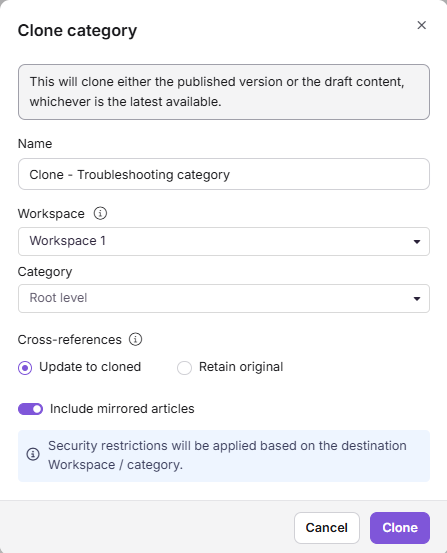
- In the Clone category panel, configure the following:
| Field | Description |
|---|---|
| Name | Enter a name for the cloned category. |
| Workspace | Select the destination workspace. Click Reset to place it under the main workspace. |
| Category | Select the destination category. Click Reset to place it at the root level. |
| Cross-references | Choose how internal links in cloned articles are handled. See Cross-references below. |
| Include mirrored articles | Turn on this toggle to carry the mirrored articles in the category into the clone. They stay linked to their source articles, so they remain mirrors and are not turned into independent copies. Turn off to leave mirrored articles out of the clone. This toggle is on by default. |
- Click Clone.
You can also clone a category from the More () icon inside a Folder or Index category, or by hovering over a specific article or subcategory inside a Folder or Index category and clicking its More () icon > Clone.
Security restrictions from the destination workspace and category are applied to the cloned content.
What happens when you clone a category
- The original category stays in place. Cloning does not move or alter it.
- All subcategories and articles within the category are copied as new, independent articles. Mirrored articles are the exception: they follow your Include mirrored articles setting.
- When Include mirrored articles is on, the mirrored articles in the category are carried into the clone and stay linked to their source articles, so they remain mirrors. When it's off, they are left out of the clone.
- Archived articles and archived subcategories are not copied. The clone contains only the content that is currently in the category tree, and its Archive page starts empty.
- The clone is fully independent. Updates to the original do not sync to the clone, and updates to the clone do not affect the original.
- Internal links in cloned articles are handled based on your Cross-references setting.
Cross-references
The Cross-references setting controls what happens to internal hyperlinks inside cloned articles, specifically links that point to other articles within your knowledge base.
| Option | Behavior | When to use |
|---|---|---|
| Update to cloned (default) | Hyperlinks in cloned articles automatically point to the cloned versions of the linked articles, whether within the same workspace or across workspaces. | Use when the clone should be self-contained and links should reference the cloned content. |
| Retain original | Hyperlinks in cloned articles continue to point to the original articles in the source category. | Use when the clone should still reference the source content, for example, when cloning just one section of a larger knowledge base. |
If a hyperlinked article was not included in the clone and you selected Update to cloned, the hyperlink will still point to the original version of that article.
Archived articles are not included when content is cloned, so links to these articles are not redirected to a cloned copy. Instead, the link continues to point to the original archived article. Because the original article is archived, readers cannot open it from the knowledge base site. As a result, the link remains inaccessible after cloning.
Clone vs. move
| Clone | Move | |
|---|---|---|
| Original | Stays in place | Removed from its current location |
| Result | An independent copy is created in the new location | Category exists only in the new location |
| Links | Updated to cloned or retained as original via the Cross-references setting | Auto-updated via the Auto update referenced links option |
| Use when | You want a copy while keeping the original | You want to relocate content permanently |
Best practices
- Name clones clearly. Add a version suffix or audience indicator to the clone name, for example, "Getting Started - v2" or "Getting Started - Admins", so your team can distinguish it from the original.
- Choose Cross-references carefully. Use Update to cloned when the clone should be self-contained. Use Retain original when the clone should still reference the source content.
- Decide on mirrored articles before you clone. Leave Include mirrored articles on if the clone should keep showing the same shared content as the source articles. Turn it off if you want the clone to contain only the category's own articles.
- Check the Archive page before cloning. Archived articles and subcategories are skipped, so anything you expect to appear in the clone must be unarchived first.
- Review cloned content after creation. Cloned articles are independent from the moment they are created. Review them promptly to update any content that needs to differ from the original.
- Use cloning for new versions, not ongoing maintenance. Once cloned, the two categories are independent. If you need content to stay in sync across categories, use Mirror instead.
FAQ
Can I clone a category across workspaces?
Yes. Use the Workspace field in the Clone panel to select a different destination workspace.
What is the difference between Clone and Mirror?
Clone creates a fully independent copy of the category and its articles. Changes to the original do not affect the clone.
Mirror creates a reference. The same article appears in multiple categories, but it is still a single article. Any update to the source article is reflected everywhere it is mirrored.
Use Clone when you need independent copies. Use Mirror when you want the same content to appear in multiple places without managing duplicates.
What happens to mirrored articles when I clone a category?
It depends on the Include mirrored articles toggle in the Clone category panel, which is on by default. When it's on, the mirrored articles in the category are included in the clone and stay linked to their source articles, so they remain mirrors. When it's off, they are left out of the clone.
If a hyperlinked article was not cloned, what happens to the link?
If the hyperlinked article was not included in the clone and you selected Update to cloned, the hyperlink will still point to the original version of the article. It does not break.
Can I add new articles to a cloned category?
Yes. A cloned category is fully independent. You can add, edit, and delete articles within it just like any other category.
Can I change the type of a cloned category after it has been created?
Yes. You can change the category type at any time after cloning.