Moving a category lets you reposition it within the same workspace or migrate it to a different workspace entirely. When you move a category, all its subcategories and articles move with it.
When to move a category
- You need to reposition a category under a more appropriate parent after your content hierarchy has grown.
- A section of documentation needs to be moved to a different product or audience workspace.
- A category was created in the wrong location and needs to be reassigned.
Move a category
The primary method for moving a category is through the More icon in the Categories & Articles pane. This method supports moves within the same workspace and across workspaces.
- Navigate to Documentation () in the left navigation bar.
- Hover over the category in the Categories & Articles pane and click the More () icon.
- Select Move ().
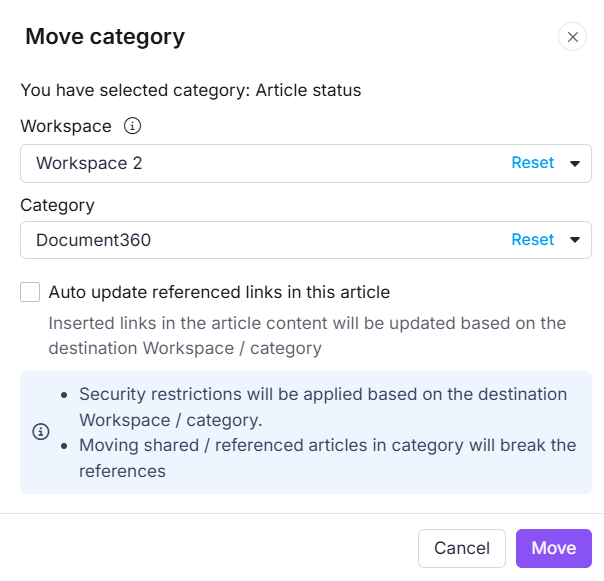
- In the Move category panel, configure the following:
| Field | Description |
|---|---|
| Workspace | Select the destination workspace. Click Reset to place it under the main workspace. |
| Category | Select the destination category. Click Reset to place it at the root level. |
| Auto update referenced links | Enable to automatically update internal links in article content to reflect the new destination. |
- Click Move.
Other ways to move a category
- Drag and drop: Click and drag the reorder handle () next to a category in the Categories & Articles pane to reposition it. Works within the same workspace only.
- From inside a Folder or Index category: Open a Folder or Index category, click the More () icon at the category level, and select Move. You can also select multiple items and click Move () from the bulk action bar.
Drag and drop only works within the same workspace. To move a category across workspaces, use the More () icon method.
What happens when you move a category
- The category is removed from its current location and placed in the destination workspace or category.
- All subcategories and articles within it move together.
- Internal links in article content may break if the destination is a different workspace. Enable Auto update referenced links in the Move panel to update all links automatically.
- Security restrictions from the destination workspace or category are applied to the moved content.
Move vs. clone
Both Move and Clone let you place a category in a new location, but they behave differently.
| Move | Clone | |
|---|---|---|
| Original | Removed from its current location | Stays in place |
| Result | Category exists only in the new location | An independent copy is created in the new location |
| Links | Auto-updated via Auto update referenced links | Updated to cloned or retained as original via the Cross-references setting |
| Use when | You want to relocate content permanently | You want a copy while keeping the original |
Best practices
- Enable Auto update referenced links when moving a category across workspaces. This ensures internal links point to the correct destination and do not become broken.
- Check for replicated articles before moving. If articles in the category have been replicated to other categories, the replicated versions will reference the new location after the move.
- Use drag and drop for quick repositioning within the same workspace. For cross-workspace moves, always use the More icon method to access the full Move panel.
- Do not move a root-level category into one of its own subcategories. Document360 does not allow this.
FAQ
Can I move a category across workspaces?
Yes. Use the More () icon method to open the Move panel, which includes a Workspace field for cross-workspace moves. Drag and drop only works within the same workspace.
Does moving a category also move its subcategories and articles?
Yes. All subcategories and articles within the category are moved to the destination along with the parent category.
What does Auto update referenced links do?
When enabled, Document360 automatically updates all internal links in the article content of the moved category to reflect the new destination. This prevents broken links after a cross-workspace move. It is recommended to enable this option whenever moving across workspaces.
Can I move a root-level category into its own subcategory?
No. Document360 does not allow a root-level category to be moved into its own subcategory.
Are security restrictions applied when moving a category to another workspace?
Yes. Security restrictions from the destination workspace and category are applied to the moved content.