Cloning an article creates an independent copy of it as a new article. The clone starts with the same content as the original but is entirely separate. Changes made to one do not affect the other. You can clone articles within the same workspace or across workspaces.
When to clone an article
- You want to use a well-structured article as a starting point for a similar one without rewriting from scratch.
- You need to clone an article into a different workspace to tailor it for a different product, version, or audience.
- You want to work on a copy of a live article while the original remains published and untouched.
Clone an article
- Navigate to Documentation () in the left navigation bar.
- Hover over the article in the Categories & Articles pane and click the More () icon.
- Select Clone ().
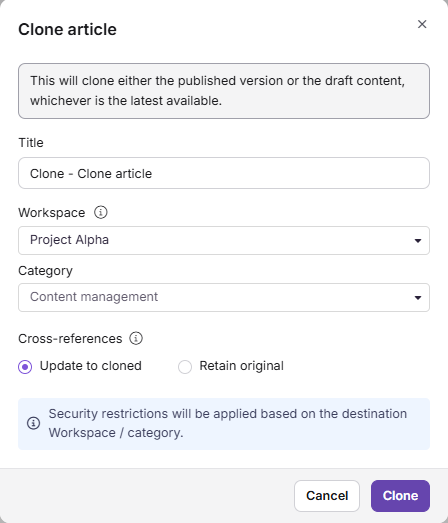
- In the Clone article dialog, configure the following:
| Field | Description |
|---|---|
| Name | Enter a name for the cloned article. |
| Workspace | Select the destination workspace. Click Reset to place it under the main workspace. |
| Category | Select a category in the destination workspace. |
| Cross-references | Choose how internal links within the article are handled. See Cross-references below. |
- Click Clone.
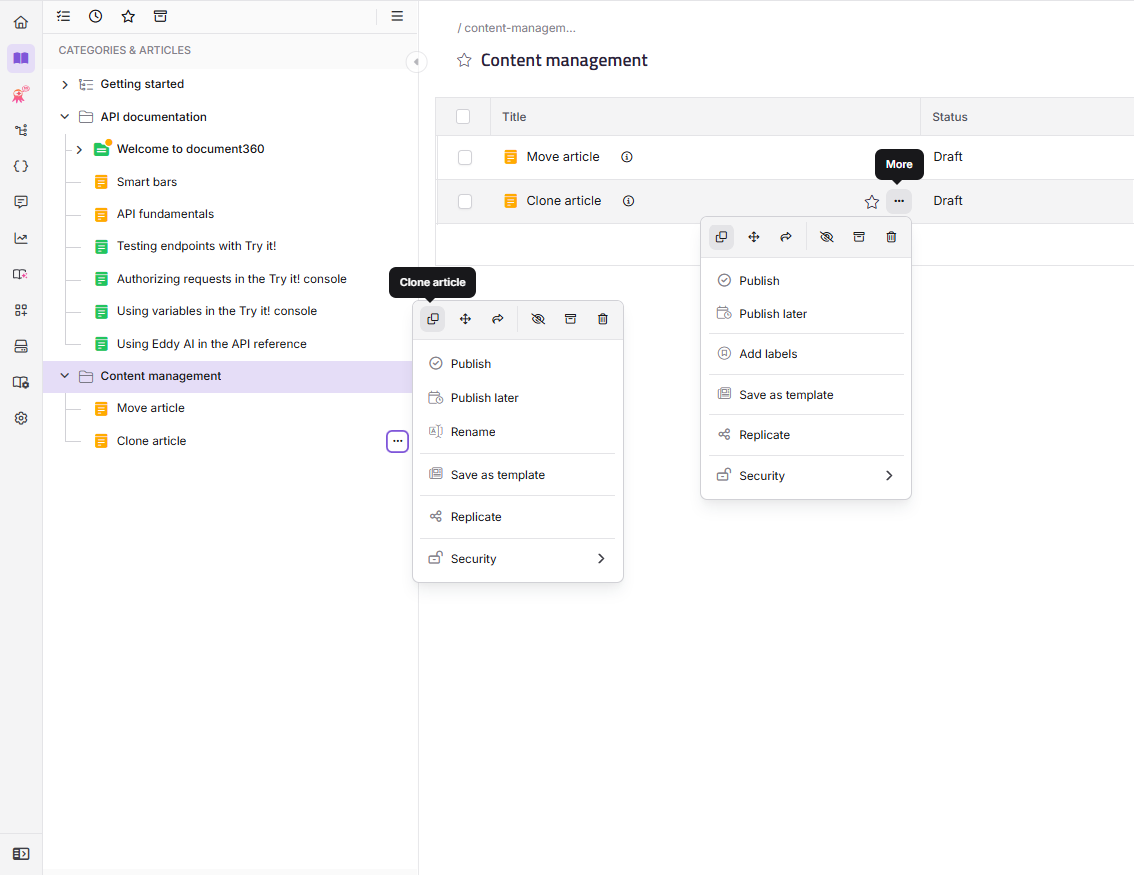
You can also clone an article from within a Folder or Index category. Hover over the article, click the More () icon, and select Clone (). The same Clone article dialog appears.
Security restrictions from the destination workspace and category are applied to the cloned article.
What happens when you clone an article
- A new independent article is created in the destination category or workspace.
- The clone has its own slug, version history, and publish status. It starts as a New (unpublished) article.
- Changes to the original do not sync to the clone, and vice versa.
- Internal links within the article are handled based on your Cross-references selection.
During a collaborative editing session, if another contributor clones the article while you're editing it, you'll see a notification letting you know that it was cloned. Nothing changes on your end. Your editing session continues normally, and the original article stays exactly as it was. Only the person who cloned it is taken to the new location.
Cross-references
The Cross-references setting controls what happens to internal links within the cloned article.
| Option | Behavior |
|---|---|
| Update to cloned (default) | If linked articles were also cloned, links in the cloned article point to the cloned versions. If a linked article was not cloned, the link still points to the original. |
| Retain original | All links in the cloned article continue to point to the original articles, regardless of whether they were cloned. |
Clone vs. move vs. mirror
| Clone | Move | Mirror | |
|---|---|---|---|
| Original location | Stays in place | Removed | Stays in place |
| Result | Independent copy in the destination | Article exists only in the new location | Same article appears in multiple locations |
| Content sync | No — changes do not sync | N/A | Yes — updates to the source reflect everywhere |
| Use when | You need an independent copy to modify separately | Permanently relocating content | You want the same content in multiple categories |
| Appears in All articles page | Yes | Yes | Yes (filterable via the 'Mirrored articles' filter) |
Best practices
- Rename the clone immediately to avoid confusion with the original. A descriptive name helps contributors distinguish the two articles.
- Choose Cross-references carefully when cloning articles that are heavily interlinked. Update to cloned works well when cloning a set of related articles together. Retain original is safer when cloning a single article in isolation.
- Publish the clone only when it is ready. The clone starts as a New article and will not appear on the knowledge base site until published.
- Avoid cloning as a substitute for mirroring. If you want the same article to appear in multiple categories without maintaining two copies, use Mirror instead.
FAQ
Can I clone an article across workspaces?
Yes. Use the Workspace field in the Clone article dialog to select a different destination workspace.
Will changes to the original article reflect in the clone?
No. A cloned article is fully independent. Changes made to the original do not sync to the clone, and changes to the clone do not affect the original. If you need updates to sync automatically, use Mirror instead.
Does cloning an article copy its publish status?
No. The cloned article always starts as a New (unpublished) article, regardless of the original's publish status. You need to publish it separately when it is ready.
What is the difference between Update to cloned and Retain original for cross-references?
Update to cloned means that links within the cloned article will point to cloned versions of the linked articles, if those were also cloned. If a linked article was not cloned, the link still points to the original. Retain original keeps all links pointing to the original articles regardless of whether they were cloned.
Is there a limit to how many times I can clone an article?
Document360 does not limit the number of times you can clone an article. However, each clone counts toward your workspace's article limit.