A callout is a highlighted block designed to draw attention to important information within an article. Callouts stand out visually from surrounding content, making them immediately noticeable to readers.
Document360 provides four built-in callout types — Info, Warning, Error, and Success — each with a distinct color and intended purpose.

When to use callout
- Use Info to provide additional context that is helpful but not critical, or to share a tip or shortcut that makes a task easier
- Use Warning before a step that is irreversible — for example, deleting data, overwriting a configuration, or making a change that affects other users
- Use Error to document a known error state, explain what a specific error code means, or flag actions that will cause a failure if performed incorrectly
- Use Success to confirm that a step has been completed correctly, or to highlight a recommended configuration readers should follow
Insert a callout
In the Advanced WYSIWYG editor:
- Place your cursor where you want to insert the callout.
- Type the slash command
/calloutand press Enter. - Select the callout type from the sub-menu: Info, Warning, Error, or Success.
- Click the title field and enter your callout title.
- Click the content field and enter your callout body text.
Callout types
| Type | Default color | Purpose |
|---|---|---|
| Info | Blue | Provides additional context, helpful tips, or supplementary information. |
| Warning | Yellow | Alerts readers to potential issues, important considerations, or actions that may have unintended consequences. |
| Error | Red | Highlights known errors, failure states, or actions that must be avoided. |
| Success | Green | Confirms a completed step, a positive outcome, or a recommended approach. |
Each callout has a title field and a content field. Both are editable directly in the editor.
Edit callout color
Default callout colors can be changed to match your brand. Color changes apply across the entire knowledge base — not to individual callouts.
To customize callout colors:
- Navigate to Settings in the left navigation bar in the Knowledge base portal.
- Go to Knowledge base site > Site customization > Custom CSS & JavaScript.
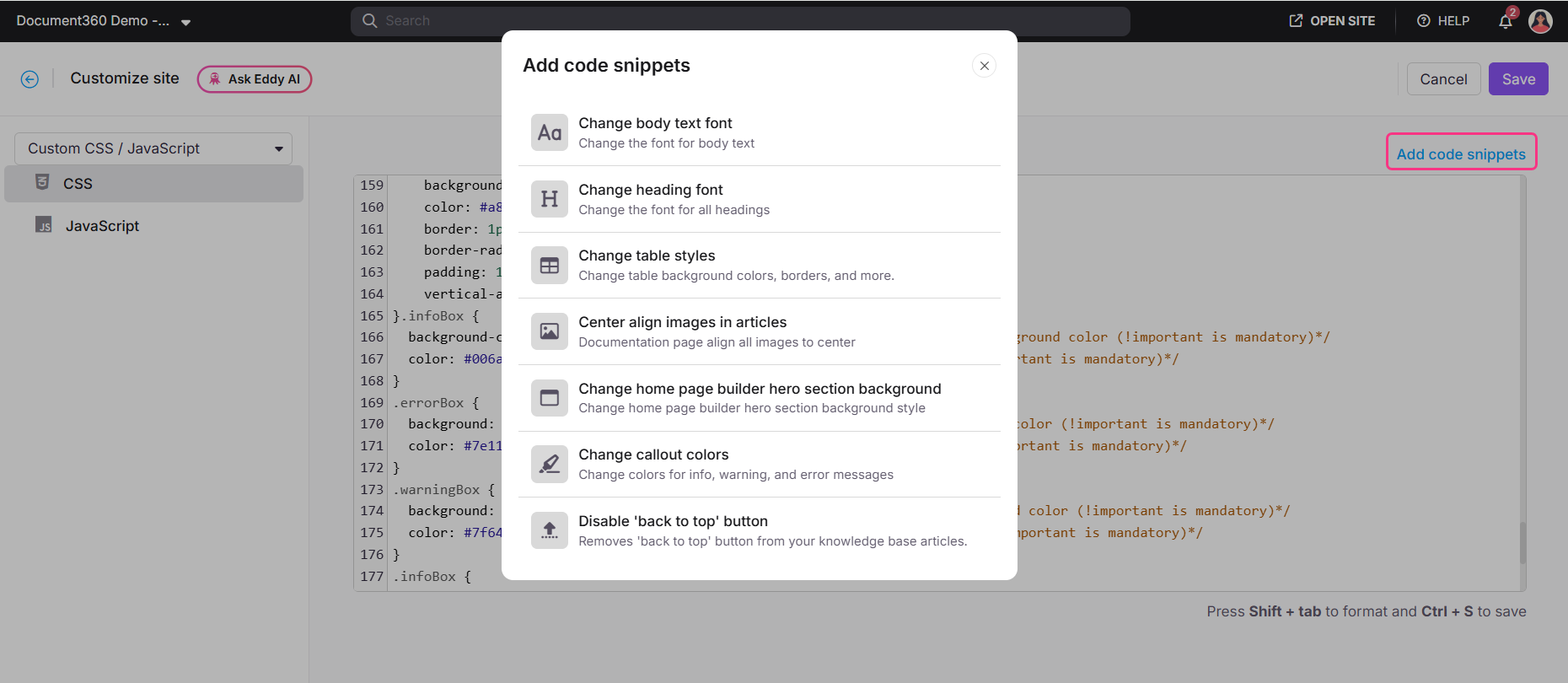
- Click the CSS tab, then click Add code snippets.
- Select Change callout colors from the panel. This takes you to the section where existing callout colors are defined.
- Edit the color values in the code to apply your branding colors.
- Click Save.
- Color changes made here apply to all callouts of that type across the entire knowledge base.
- You can also style callout colors in dark mode. For more information, see the article on How to change the callouts color in dark mode.(#)
Best practices
- Match the callout type to the nature of the message — use Info for context, Warning for risk, Error for failures, and Success for confirmation. Misusing callout types (for example, using Error for a tip) reduces their credibility.
- Keep callout text brief and focused. A callout that is several paragraphs long loses its impact — move lengthy content into the article body and use the callout to summarize or point to it.
- Use callouts sparingly. When every other section has a callout, none of them stand out. Reserve callouts for information that genuinely needs to be highlighted.
- Do not use color alone to convey meaning — the callout label (Info, Warning, Error, Success) already communicates the type, so the content should be self-explanatory even without color.
- Always preview callouts in dark mode after customizing colors to ensure adequate contrast and readability.
FAQ
Can I use a custom color for a single callout without affecting all others?
No. Callout color customization via Custom CSS applies to all callouts of that type across the entire knowledge base. It is not possible to apply a different color to an individual callout instance.
Can I change the callout type after inserting it?
You cannot directly switch a callout from one type to another. Delete the existing callout and reinsert the correct type using the slash command.