Connect Document360 MCP to your preferred AI assistant to work with your knowledge base directly from your AI conversations. Once connected, your AI assistant can search documentation across project versions and languages, retrieve full article content, create and update articles and categories, move content through review workflows, and publish it to your knowledge base site. From finding an article to making it live, the entire content lifecycle can be managed from a single conversation, without switching to the Document360 portal.
The connection uses OAuth authentication and is tied to the Document360 account you sign in with. Every operation follows your existing role-based access control (RBAC), project version, language, and visibility settings, so your AI assistant can only see and do what your account permits. For an introduction to MCP in Document360 and a detailed explanation of the authentication and access model, refer to the MCP overview article.
Document360 supports two connection paths:
- One-click connectors - ChatGPT and Claude are available as built-in connectors. Click Connect on the respective tile in Document360, and complete the authorization in the AI assistant.
- Custom connectors - For Cursor IDE, Copilot, and any other MCP-compatible platform, connect using the MCP server URL or JSON configuration.
Before you begin
Before setting up MCP, ensure the following:
- You have a Project Owner or Admin role. Only these roles can enable or disable MCP for a project.
- You have access to a supported AI assistant: ChatGPT, Claude, Cursor IDE, Copilot, or any platform that supports MCP or custom connectors.
Enable MCP
To enable MCP,
-
Navigate to Settings () in the left navigation bar.
-
Go to AI Settings > MCP.
-
Click Enable MCP.
A confirmation message appears asking whether you want to allow external AI assistants to access your knowledge base. Only Project Owners and Admins can enable or disable MCP for a project.
-
Click Allow Access to proceed.
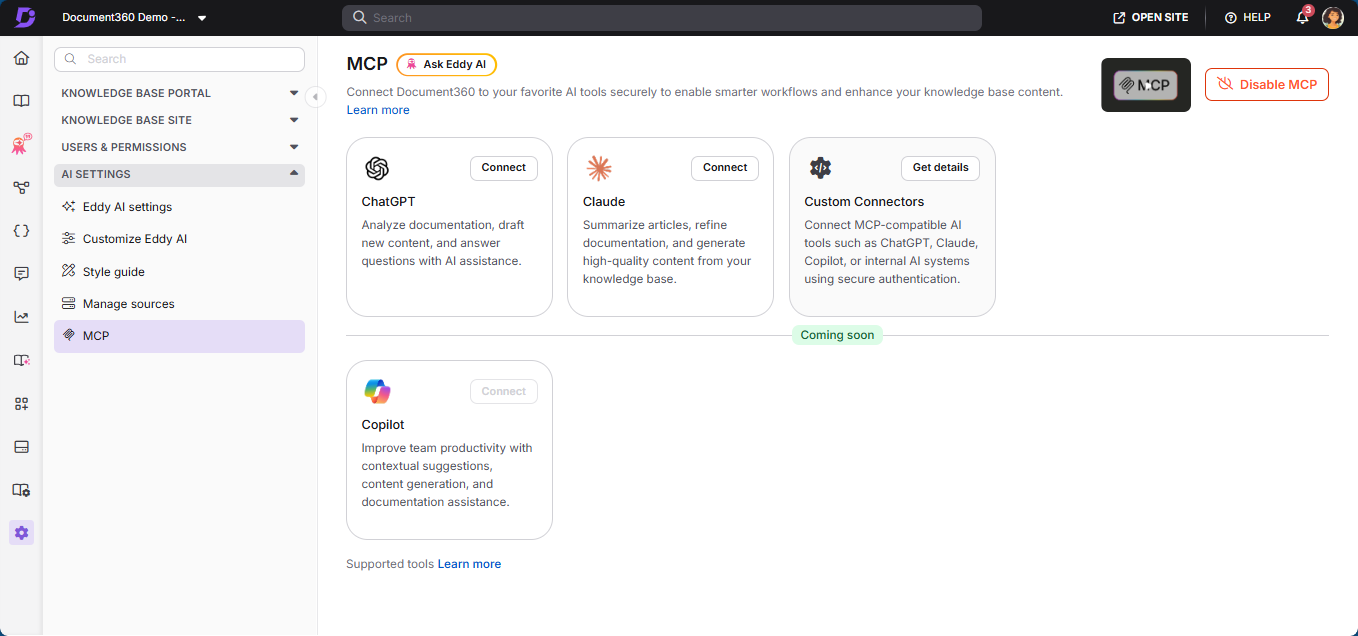
Once enabled, the connector options become available: Connect on the ChatGPT and Claude tiles, and Get details under Custom Connectors.
NOTE
Enabling MCP allows structured access to your knowledge base. Content access continues to follow your existing project version, language, and visibility settings.
Connect your AI assistant
The connection steps vary depending on the AI assistant:
ChatGPT
Connect using the one-click connector from Document360 or by installing the Document360 plugin in ChatGPT.
Learn more →Claude
Connect using the one-click connector from Document360 or from the connector directory in Claude.
Learn more →Custom connectors
Connect Cursor IDE, Copilot, or any other MCP-compatible platform using the MCP server URL or JSON configuration.
Learn more →After connecting
After a successful connection, you can use MCP-supported capabilities through your AI assistant, including:
- Searching and finding documentation across project versions and languages by meaning, by exact text, or by filters such as specific category, status, tag, or update date
- Retrieving full article content by ID or URL, category structures, project versions, and workflow details
- Creating new articles and categories (if write permissions are configured)
- Updating existing articles, categories, and category page content while preserving structure and formatting
- Managing workflows by moving articles and Page categories through review stages, with optional assignees, due dates, and comments
- Publishing and unpublishing articles and Page categories to make content live on your knowledge base site or take it offline
All interactions respect your existing configuration, including project versions, languages, and visibility rules. For a detailed explanation of the available MCP capabilities and how they work in Document360, refer to the Supported MCP tools article.
If the AI assistant returns no results or an error appears, verify that MCP is enabled in Document360 and that the connector is active in your AI assistant. If the issue persists, re-authenticate by disconnecting and reconnecting the connector, or contact Document360 support.
NOTE
The AI assistant can only access content permitted by your project's version, language, and visibility settings.
Disable MCP
To disable MCP:
- Navigate to Settings () in the left navigation bar.
- Go to AI Settings > MCP.
- Click Disable MCP.
- Confirm the action in the dialog that appears.
Once disabled, all active MCP connections will stop functioning and any existing sessions will be terminated. Access tokens are also revoked. If you re-enable MCP, connected AI assistants will need to reconnect.
FAQ
What happens if MCP is disabled?
If MCP is disabled in Document360, external AI assistants will no longer be able to access your knowledge base through the MCP connection.
All active connections will stop functioning, and any existing sessions will be terminated. Access tokens are also revoked, requiring reconnection if MCP is enabled again.
Can I restrict which users connect through MCP?
Yes. Access through MCP is tied to the user account used during OAuth authentication. MCP operations follow Document360's role-based access control (RBAC), so the AI assistant can only access content permitted for that user based on their assigned roles and permissions.
Does enabling MCP allow external tools to access all content?
No. MCP access follows your existing project configuration, including:
- Project versions
- Language settings
- Role-based permissions
- Visibility rules
Restricted or unpublished content remains subject to these rules.
Which AI assistants can connect to Document360 MCP?
Document360 MCP can be connected to AI assistants that support MCP or custom connector configurations. ChatGPT and Claude are available as one-click connectors, while Cursor IDE, Copilot, and other AI platforms can connect through custom connector configurations. Support may vary depending on the AI assistant's implementation and available features.
Which account is recommended for using MCP?
You can connect to MCP using supported AI assistants with either a personal or an organizational account, depending on your setup. This depends on the AI assistant you are using and whether it allows custom connectors.
Is MCP usage restricted to specific devices?
No. MCP is not limited to a specific device. You can use MCP across supported environments and devices, depending on the AI assistant you are using.
Can readers connect to Claude to access and read the article content?
Yes. Readers can connect Claude in the supported manner and access article content through the integration. Readers have read-only access — specifically, they can only retrieve published articles, since their permissions are limited to content that is publicly visible in the knowledge base.