Article templates in Document360 are pre-designed article structures that you and your team can reuse when creating new articles. Instead of building the same layout from scratch each time, templates provide a consistent structure, headings, sections, and placeholder content that writers can fill in directly.
Templates are available to all team members in the project and can be created from scratch, built from an existing article, or cloned from a system template. All templates are managed from the Templates page in Content resources.
Document360 provides two types of templates:
- System templates — Pre-built templates automatically created based on your onboarding use case selection. These can be edited and cloned but cannot be deleted.
- Custom templates — Templates created by your team. These can be edited, cloned, and deleted.
Templates support both the Advanced WYSIWYG and Markdown editors. The editor type is selected at the time of template creation and cannot be changed afterwards.
Use cases
- Troubleshooting articles — Create a template with standard sections such as Symptoms, Cause, and Resolution. Writers fill in the content for each new issue without rebuilding the structure each time.
- Release notes — Use a template with predefined sections for New features, Improvements, and Bug fixes to ensure every release note follows the same format.
- How-to guides — Build a template with an Overview, Prerequisites, Step-by-step instructions, and Related articles sections for consistent how-to documentation across the knowledge base.
- {{ glossary.API}} reference pages — Create a template with sections for Endpoint, Parameters, Request example, and Response example to standardize developer documentation.
- Onboarding new writers — Share templates with new team members so they can start writing immediately without needing guidance on article structure or formatting conventions.
Ways to create a template
There are two ways to create a template in Document360:
Create a template first, then use it to create articles
Build a template from scratch in the Manage templates page. Once saved, it is immediately available for use when creating a new article.
Learn more →Create an article first, then save it as a template
Write and format an article in the editor, then save it as a template directly. This is useful when you already have a well-structured article that others should replicate.
Learn more →Both approaches result in a reusable template available to all users in the project.
Create a new template
To create a new template,
-
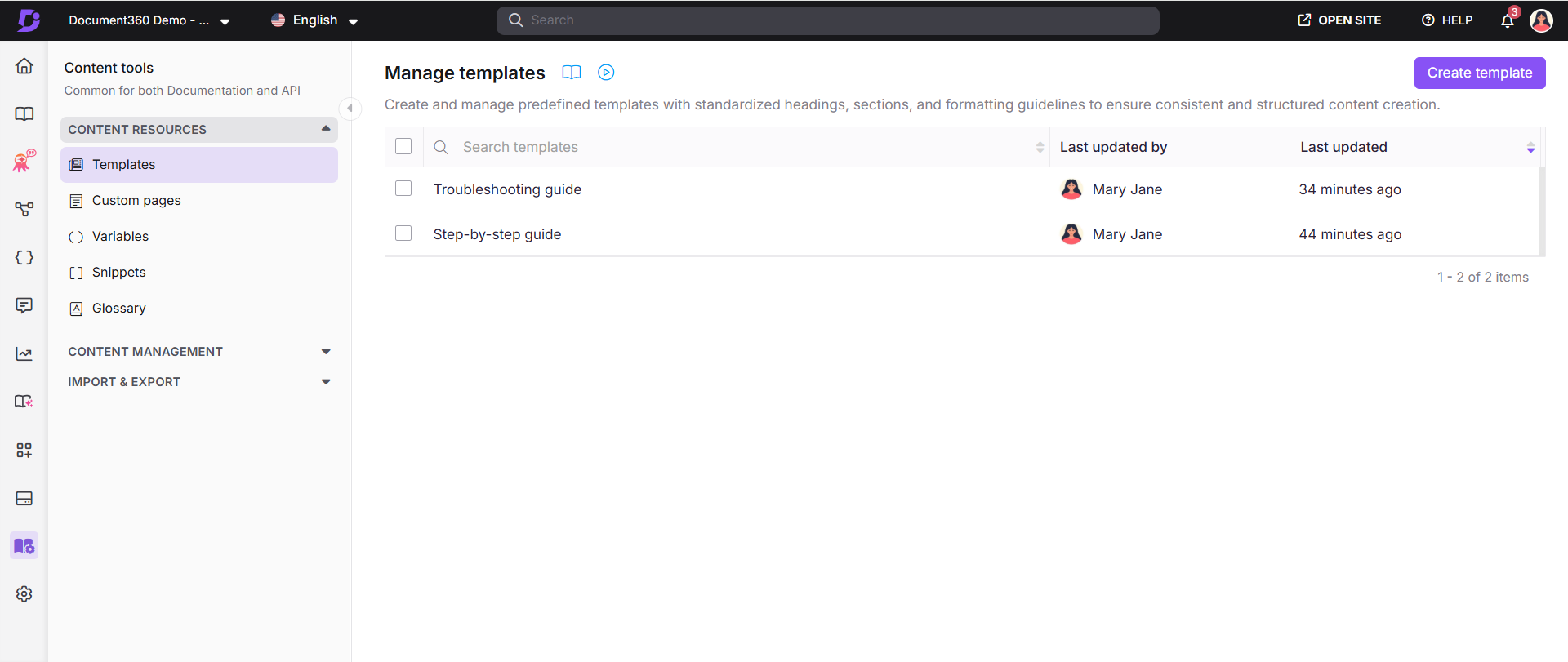
In the left navigation bar, hover over Content tools and select Templates. The Manage templates page will appear.
-
Click Create template in the top-right corner. The Create template panel will appear.
-
Enter a name in the Template name field.
-
Select the editor type — Advanced WYSIWYG or Markdown.
-
Enter an optional description. The character limit is 250 characters including spaces.
-
Click Create. The template opens in the editor.
-
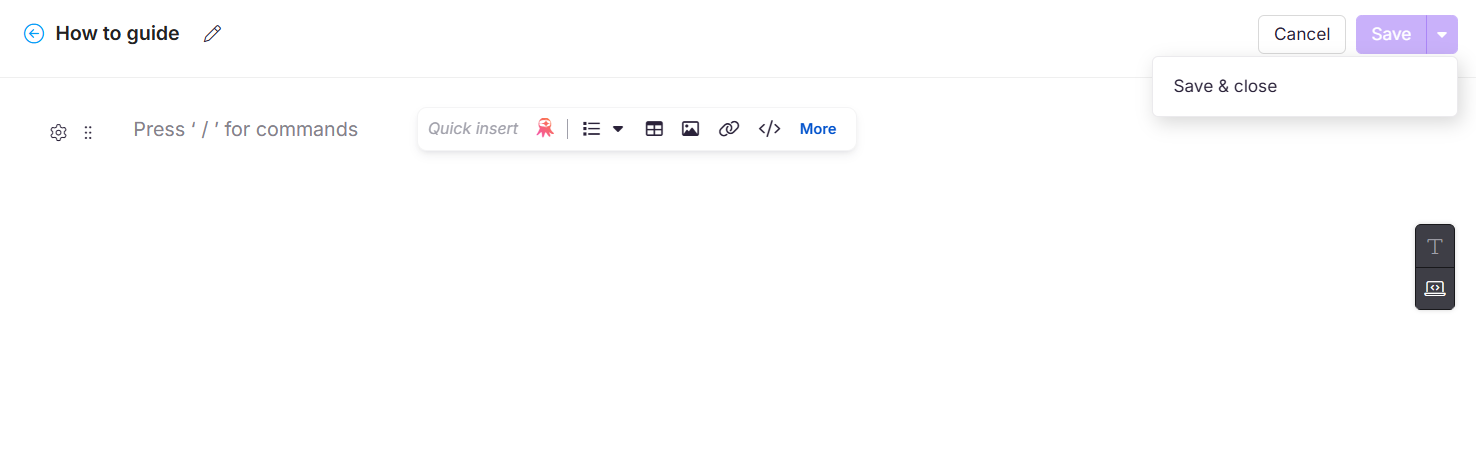
Add and format the content for your template — headings, placeholder text, callouts, tables, or any other elements relevant to the article type.
-
Click Save or Save & close from the Save dropdown when done.
The template is added to the Manage templates page and is immediately available for all users when creating articles.
To create an article using a template, see Create article from template.
Save an existing article as a template
Any article regardless of its current status (Published, Draft, Review, or Hidden) can be saved as a reusable template.
- Open the article in the editor.
- Click the More (⋯) icon in the article header.
- Select Save as template and click Save in the Save as template dialog.
.png)
The article is saved as a template and is immediately available in the template library. Navigate to the Manage templates page in Content tools to view, edit, or delete it.
During a collaborative editing session, only the person who saves the article as a template sees that flow. Other contributors currently editing the article are unaffected and can keep working without interruption.
Collaborative editing is rolled out in phases, so if you don’t see it yet, it’s on its way.
Managing templates
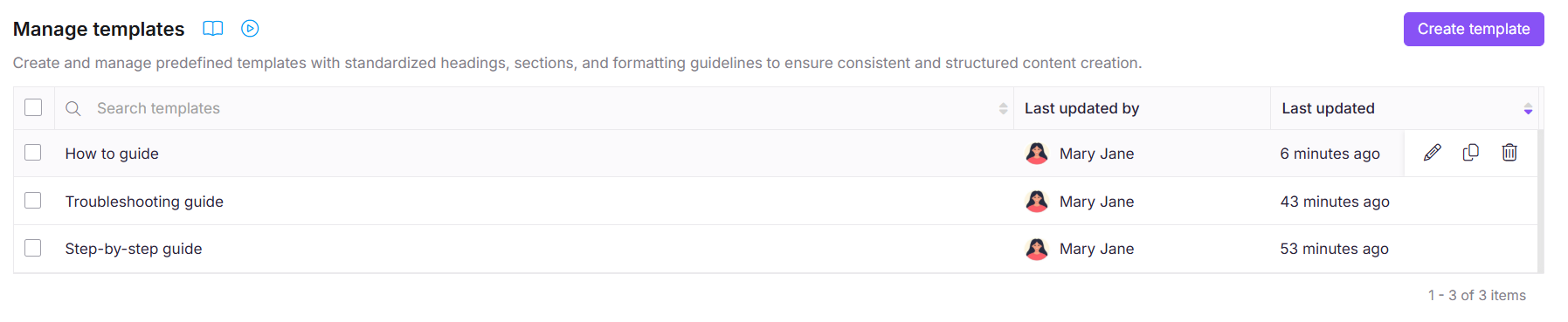
Once templates are created, you can edit, clone, or delete them from the Manage templates page. Navigate to Content tools > Content resources > Templates to access all templates in your project.
Edit a template
- On the Manage templates page, hover over the template you want to edit and click the Edit icon.
- The template opens in the editor. To update the template name or description, click the Edit icon next to the template name at the top.
- Make the required changes in the name, description, or content fields.
- Click Save.
Updating a template does not affect articles that have already been created from it. Those articles will keep the original content from when they were created.
Clone a template
Cloning creates a copy of an existing template that you can modify without affecting the original. This is useful when you want to create a variation of an existing template.
- On the Manage templates page, hover over the template you want to clone.
- Click the Clone icon. A duplicate template is created immediately with the same content and settings.
Templates can only be cloned within the same language. Cloning a template to a different language workspace is not supported.
Delete a template
- On the Manage templates page, hover over the template you want to delete.
- Click the Delete icon and confirm the deletion in the prompt.
System templates cannot be deleted. Deleting a custom template removes it from the library permanently but does not affect any articles already created from it — their content remains unchanged.
Best practices
- Create templates for every recurring article type. If your team writes the same type of article more than once, a template saves time and enforces consistency.
- Use placeholder text in templates to guide writers — for example, "Describe the issue the reader is experiencing" in the Error section of a troubleshooting guide. This reduces ambiguity and speeds up writing.
- Set the editor type carefully. The editor type cannot be changed after a template is created. Choose Advanced WYSIWYG for rich content and Markdown for code-heavy or text-based articles.
- Save polished articles as templates. When a well-written article follows a structure worth repeating, save it as a template directly from the editor rather than recreating it from scratch.
- Clone system templates as a starting point. Instead of building custom templates from blank, clone a system template and modify it — this is faster and gives you a validated base structure.
- Keep template descriptions clear and specific. A good description tells writers when to use the template and what type of article it is for — especially important when the template library grows large.