Articles are the foundation of your knowledge base. Every article in Document360 starts one of two ways:
Create from blank
Start with a clean slate and full control over structure. Best for announcements, release notes, and one-off guid es.
Learn more →Create from template
Use a pre-built structure to skip formatting decisions and keep content consistent. Best for how-tos, troubleshooting guides, and API references.
Learn more →Create from blank
In projects that use the Advanced WYSIWYG editor and the Markdown editor, creating an article from blank opens a new, empty article in the Advanced WYSIWYG editor. This is the most common way to create an article and gives you full flexibility over content and structure.
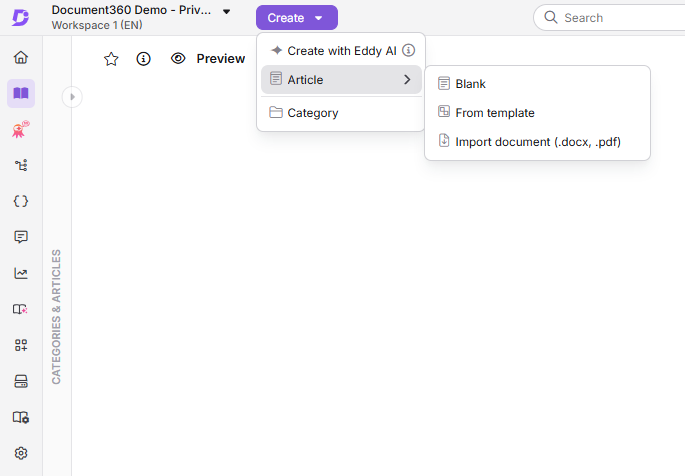
- Navigate to Documentation in the left navigation bar.
- Click the Create dropdown in the top navigation bar and select Article > Blank.
- In the dialog, enter an article Title.
- In the Category dropdown, choose the category where the article should be placed.
- In projects that use the Advanced WYSIWYG editor and the Markdown editor, expand the Advanced section and select your preferred editor type: Advanced WYSIWYG editor or Markdown.
- Click Create to add the article.
You can also create an article using the Flywheel (+) icon by hovering below any article in the category pane, or from the () menu next to a category. If you're inside a Folder/Index type category, click Create article on the right side of the category page. Alternatively, go to the Overview page and click Create article in the Document section.
While creating an article, you can click + Create category in the Category dropdown to add a new category on the spot. In projects that use the Advanced WYSIWYG editor and the Markdown editor, the default editor type is determined by your project's general settings, and you can switch between Advanced WYSIWYG and Markdown at the time of article creation.
:::
Create from template
In Document360, you can create, save, and reuse any article as a template for future articles. When you create a new article using a template, it automatically imports all predefined properties and formatting, saving you time and ensuring consistency across your knowledge base.
For more information on creating and managing templates, read Create template.
- Navigate to Documentation in the left navigation bar.
- Click the Create dropdown in the top navigation bar and select Article > From template.
The template dialog will appear.
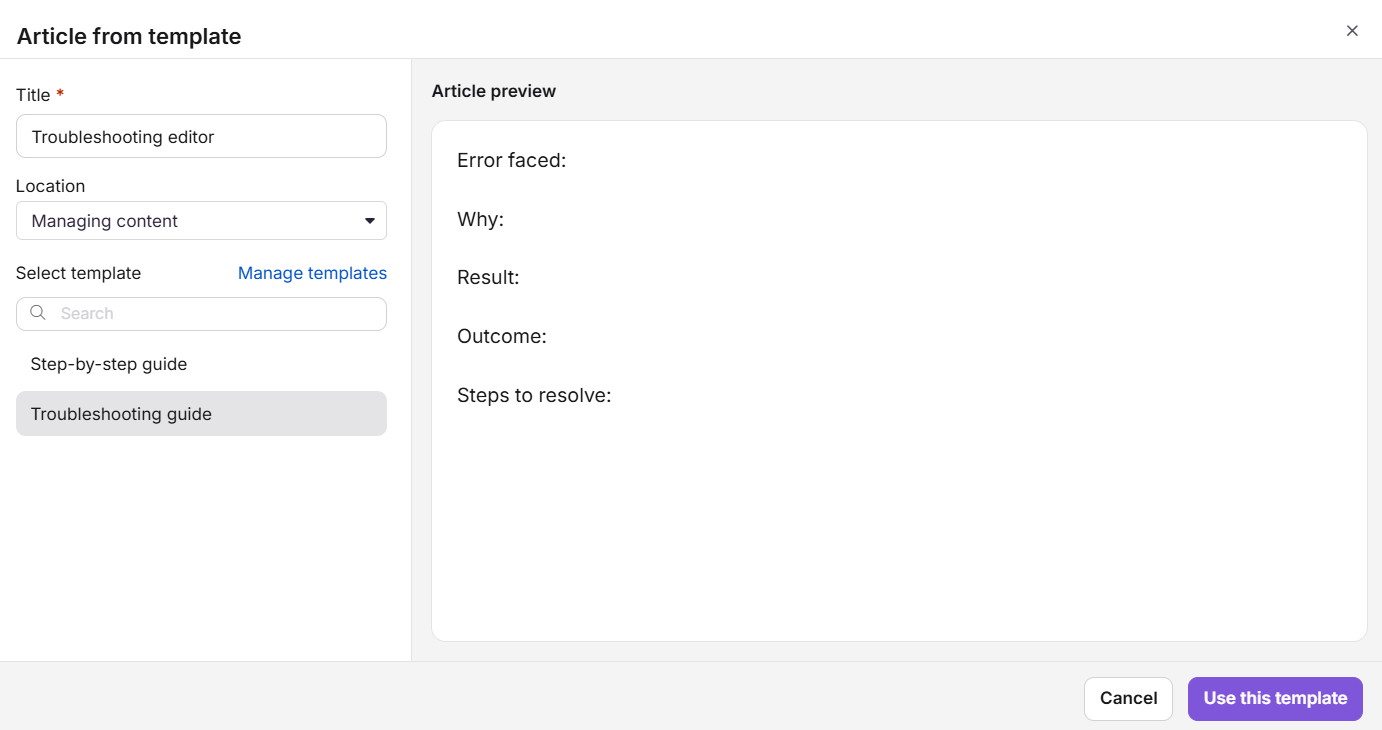
- Enter the article name in the Title field and choose the appropriate category in the Location field.
- Choose a template from the list. You can preview the template content in the right-side pane.
- If no templates have been created, you must first create one. Click Manage templates to go to the Manage templates page and create a template.
- After creating a template, you can use it to create an article. In the dialog, search for or select the required template and click Use this template.
If you select a template from within an already created blank article, the article title you entered is preserved. The template content is applied without overriding the title.
You can also access From template using the Flywheel (+) icon or the More () menu next to a category in the pane. If you're already inside an empty article in the Advanced WYSIWYG editor, the Pick a template option will appear directly on the canvas. Click it to open the template dialog.
Document360 supports collaborative editing, allowing contributors with access to join and edit the article as soon as it is created.
Best practices
- Set the Advanced WYSIWYG editor as your project default in general settings so it is always pre-selected when creating new articles.
- Name your article clearly before creating it — the title automatically generates the URL slug, and changing the slug after publishing can break existing links.
- Use templates for recurring article types to maintain structure and reduce formatting effort across your team.
- Place the article in the correct category during creation — moving articles after publishing requires additional steps and can affect internal links.
- Use the Flywheel icon for the fastest way to create an article directly within a specific part of the category tree.
FAQ
Can I change the editor type after the article is created?
In projects that use the Advanced WYSIWYG editor and the Markdown editor, you choose either Markdown or Advanced WYSIWYG before creating the article. Articles created in Markdown can be converted to Advanced WYSIWYG later, but articles created in Advanced WYSIWYG cannot be converted back to Markdown. In a new project that uses the unified editor, there is no editor type to choose: every article opens in the unified editor, and Markdown and HTML are toggles in the Editor dropdown.
Does Document360 auto-save articles?
Yes. Document360 automatically saves your content every 5 seconds. You can also save manually using Ctrl + S on Windows or Cmd + S on Mac.
What is the character limit for article titles?
Article titles are limited to 150 characters including spaces. The following special characters are not allowed: $, %, *, {, }, ", <, >.