Default domain
When you create a new project in Document360, it automatically assigns a default domain name in this format: project-name.document360.com.
For example, if you name your project Project Greenfield, the assigned domain will be project-greenfield.document360.com.
Editing a Default domain
You can create a more personalized web address that reflects your brand and preference by editing the default web address, which makes it easier for users to find and remember your site.
To edit the default web address,
In the left navigation bar of your Knowledge base portal, navigate to Settings () > Knowledge base site > Custom domain.
Click Edit domain in the Document360 provided domain field.
The Edit subdomain dialog will appear.
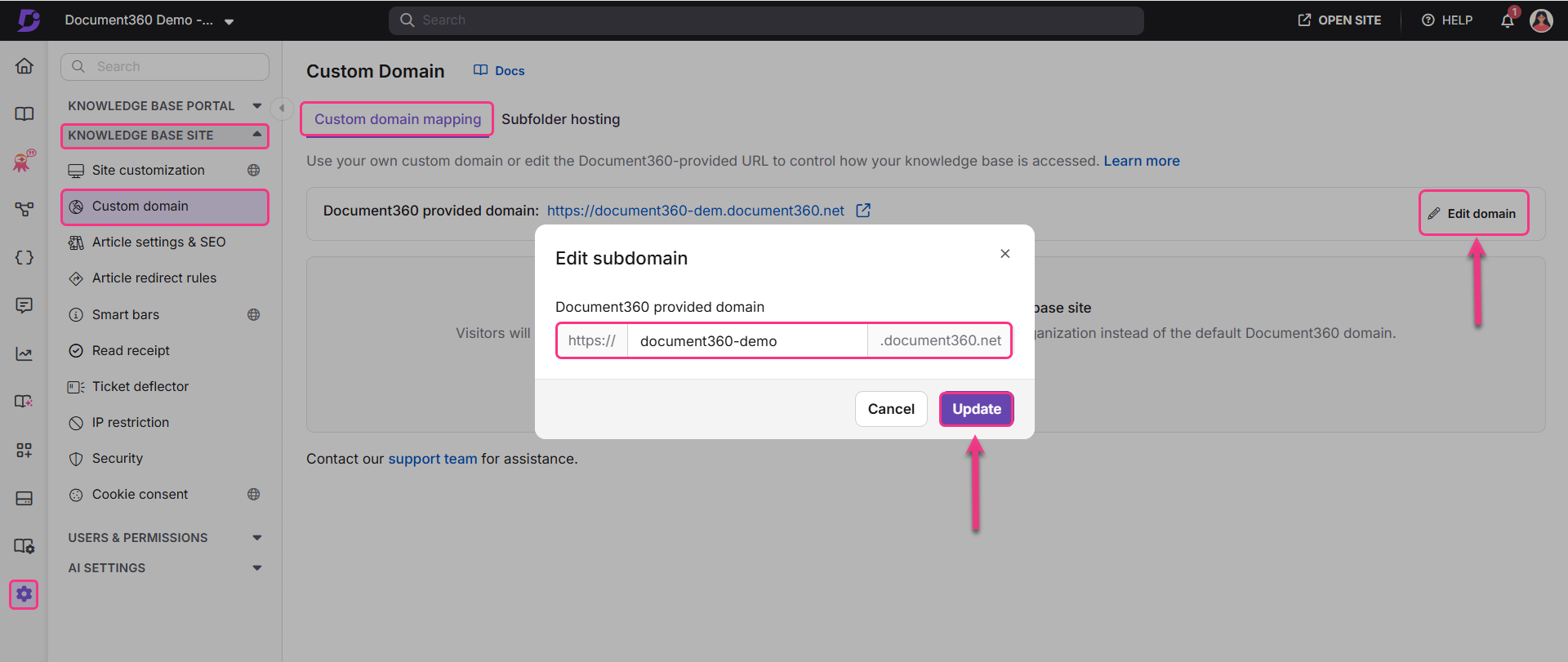
Enter your preferred domain in the field.
If your preferred domain is unavailable, the Update button will be inactive. You will need to try a different domain.
If the domain is already in use, the Update button will remain inactive.
If your preferred domain is available, the Update button will be enabled.
Click Update to update the web address of your Knowledge base site.
NOTE
Document360 provided domain and Custom domain cannot co-exist.
Creating a custom domain
You can strengthen your brand identity and provide a seamless experience for your users by mapping a custom domain to your knowledge base site, replacing the default Document360 URL with a domain that is entirely your own. You can configure a branded custom domain like help.yourcompany.com for your knowledge base site using the following steps:
Adding a custom domain in Document360
To add a custom domain,
In the left navigation bar of your Knowledge base portal, navigate to Settings () > Knowledge base site > Custom domain.
Click Add domain to add a custom domain for your knowledge base site.
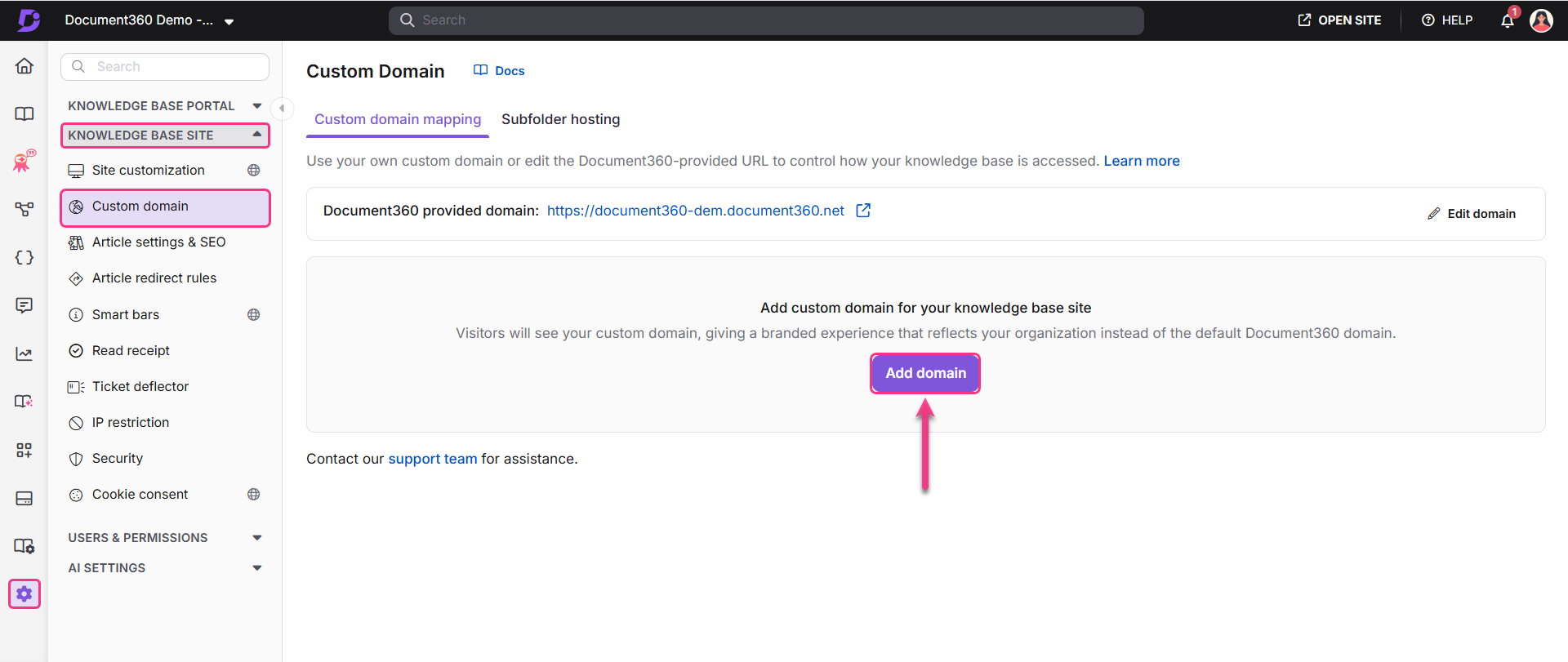
Enter your custom domain name in the Enter your custom domain field and click View configuration.
Your custom domain will be added successfully to Document360.
Configure DNS with Document360
Once you have added a domain to Document360, you will need to configure your DNS to Document360’s server.
To do so, you’ll have to:
.png)
Configuring the TXT record in your domain registrar
Once the domain is added in Document360, you’ll need to configure a TXT record within your domain registrar to link your custom domain to Document360’s servers.
Log in to your domain registrar (e.g., GoDaddy, Namecheap, Google Domains).
Navigate to DNS settings and click add new record.
Select the Record type as TXT Record from the dropdown.
Enter the Host and Value/Target details from Document360 into your domain registrar.
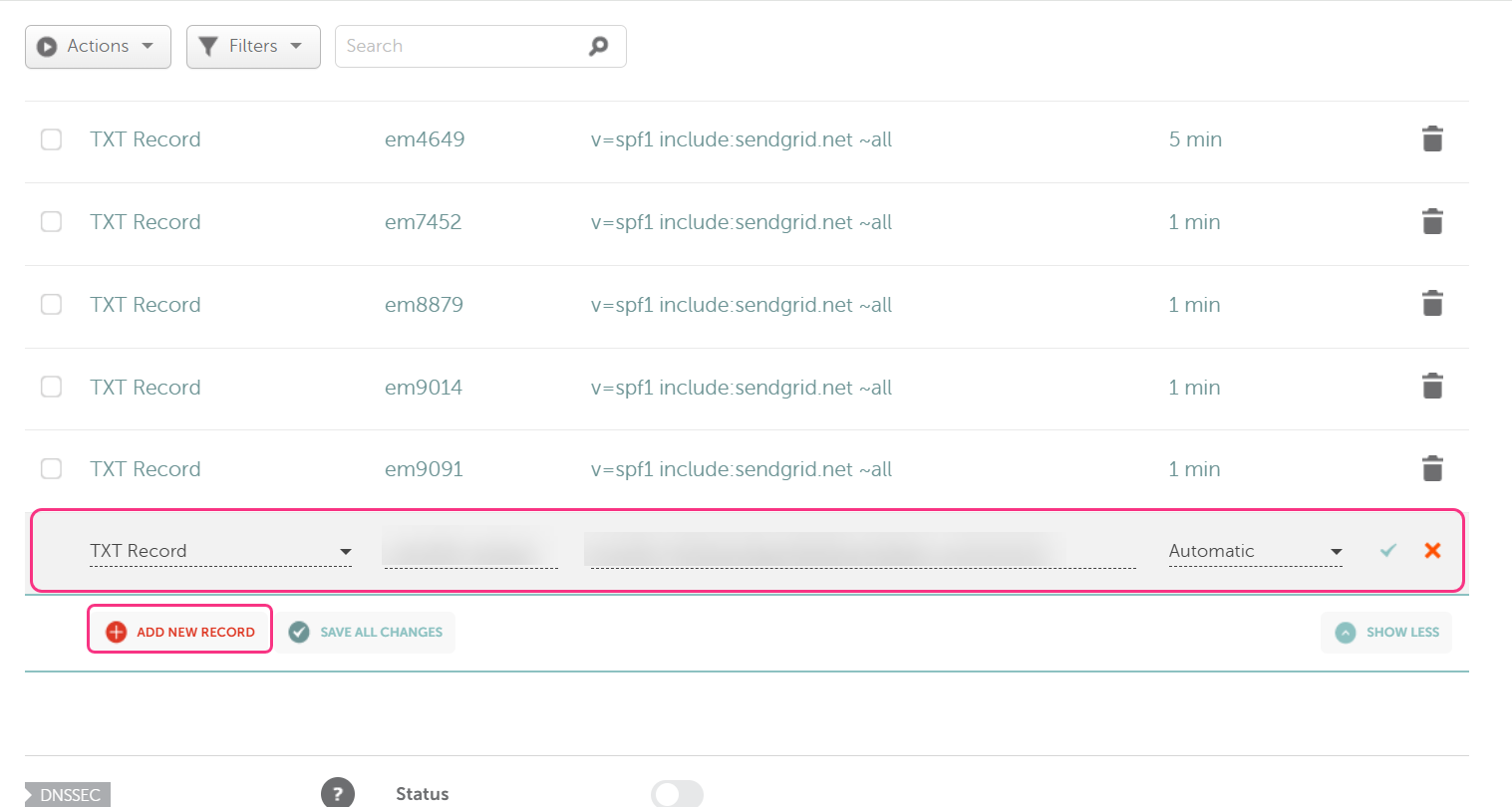
Then, click the Tick icon to save the changes.
Navigate to Document360, and click Verify. The status of the TXT record should change from Pending to Verified.
NOTE
DNS record verification in Document360 may take some time to get verified.
Configure the CNAME record in your domain registrar
Click Add new record and select the Record type as CNAME Record.
Enter the Host and Value/Target details from Document360 into the domain registrar.
Then click the Tick icon to save the changes.
.png)
In Document360, the status of the CNAME record should change from Pending to Verified.
Verify DNS configuration
In Document360, the SSL record type is automatically provisioned upon DNS verification and may take some time to set up.
Click Retry verification.
Once verified successfully, a success message will appear and your custom domain will now be verified and accessible.
.png)
After mapping the custom domain, click the Go to your knowledge base site icon to view the change in the site URL.
NOTE
If there is any issue in configuring the custom domain, check the Troubleshooting steps in the section below in this article.
Update your browser tab title after a domain or project name change
Changing your project name or custom domain does not automatically update the title shown in the browser tab. To update it:
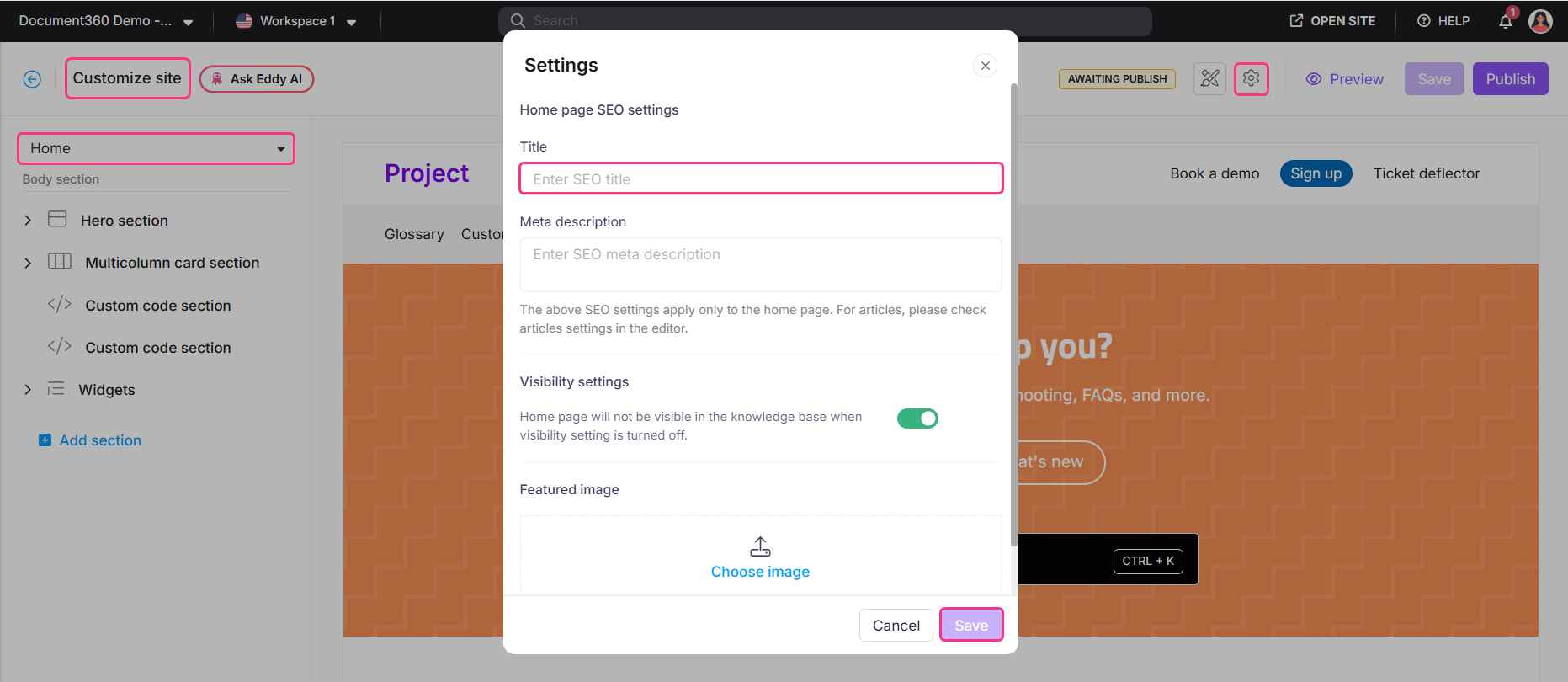
Navigate to Settings > Knowledge base site > Site customization.
Click Customize site button.
Expand the Site header & footer dropdown and select Home.
Click the Settings icon on the Home page.
Update the SEO Title field to reflect your new project or domain name.
Click Save.
NOTE
This setting may require Owner or Admin-level permissions. If the fields are greyed out, contact a user with the appropriate permissions to make this change.
Common domain registrars
Below is a list of some common domain registrars:
NameCheap - Support article
Domain.com - Support article
Google Domains - Support article
Dreamhost - Support article
Hover - Support article
GoDaddy - Support article
Cloudflare - Support article
Bluehost - Support article
Post mapping issues
'Deceptive site ahead' message while accessing the site after successful custom domain mapping.
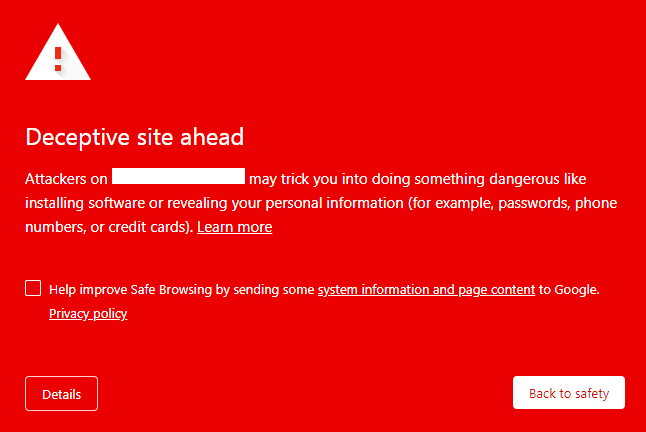
This means that Google has flagged the custom domain you have mapped as unsafe for browsing.
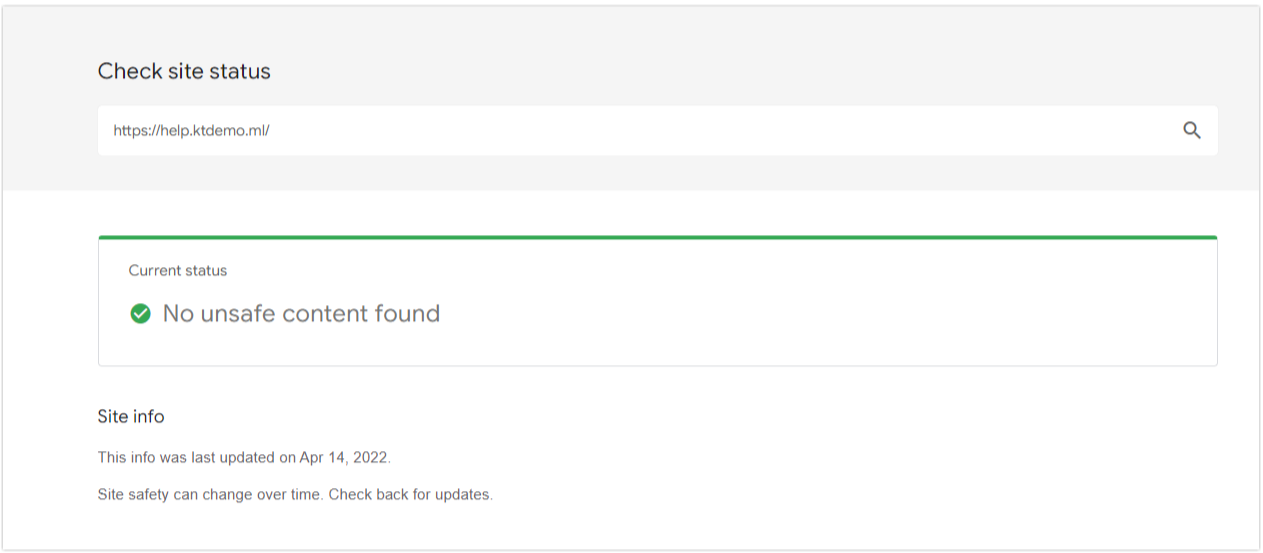
To check the flagged status, use the Safe Browsing site status by Google.
Type in your mapped domain and check if there are any issues.
Resolve and fix the issues detected (Phishing attacks, malware-infested, violating community guidelines, etc.).
Submit a review request from Google Search Console. Google will update the status and remove the warning from your website.
Here is a help article from Google support.
Load balancer
A load balancer distributes incoming traffic evenly across multiple servers, ensuring that your Knowledge base site remains fast and reliable, even during high traffic periods. This helps prevent any single server from being overloaded and enhances the overall performance and security of your site.
Upgrading the load balancer can provide additional benefits, such as improved security features and better traffic management.
Upgrading the load balancer
Navigate to Settings () > Knowledge base site in the left navigation bar in the Knowledge base portal.
In the left navigation pane, navigate to Custom domain > Custom domain mapping.
Click Upgrade.
Verify the custom domain mapping configuration in Document360.
Copy the CNAME record generated in Document360.
Set up the CNAME record in your domain registrar.
Verify the custom domain mapping configuration in Document360.
NOTE
This upgrade does not cause any downtime. However, we recommend this upgrade during your off-business hours
This upgrade is entirely free of cost
Please contact our support team for assistance.
Configuring a custom domain for Apex domains
When configuring a custom domain for Document360, you may want to use your Apex domain (root domain), such as abc.com without a subdomain like www. While configuring subdomains is straightforward, configuring Apex domains requires some extra steps, especially regarding DNS records.
DNS flattening is a method that allows you to use a CNAME record at the Apex (root) domain level, which not all domain registrars support. If your registrar does not support DNS flattening, you won’t be able to add a CNAME record for your Apex domain.
Configuring Apex Domains
If your domain registrar doesn't support DNS flattening (for example, GoDaddy), you can opt for a DNS provider that does, such as Cloudflare. Cloudflare offers free plans that include DNS flattening, enabling you to configure your custom domain for the Apex domain successfully.
For example, let’s say you're using GoDaddy, which does not support DNS flattening. In this case, switching to a DNS provider like Cloudflare will allow you to add a CNAME record for your Apex domain.
NOTE
For more information, read the article on CNAME Flatting from Cloudflare.
Using a custom SSL certificate
Use the SSL certificate provided by Document360 for your domain to ensure secure connections, as it offers automatic and seamless renewal for a smooth experience. Provide the following details to process your request to install a custom SSL certificate:
Common Name (CN): The fully qualified domain name for the certificate.
Organization (O): The legal name of your organization.
Organizational Unit (OU): The department or division within your organization.
NOTE
The certificate is typically valid for 90 days. You will have to renew the certificate on time and provide us with the updated certificate so we can install it on your domain.
FAQ
Do I need an SSL certificate to configure a custom domain?
Document360 automatically provides an SSL certificate for your custom domain when you map it to your project. You do not need to purchase an additional SSL certificate. However, if you prefer to use your own SSL certificate instead of the one provided by Document360, please reach out to our support team at support@document360.com.
Will the custom domain URL reflect in the invitation email sent to readers?
Yes, if the invitation email is sent to readers after the custom domain has been successfully mapped, the email links will point to the custom domain.
What do I do if the CNAME is not verified after updating the DNS?
If the CNAME is not verified after updating the DNS, you will have to reconfigure your custom domain.
Remove the current custom domain configuration.
Re-add the custom domain and update the CNAME on your DNS.
Ensure the CNAME is verified to complete the setup.
Can I configure two custom domains for a single Knowledge base site?
No, it is not possible to configure two custom domains for a single KB site. However, you can set up a redirection from one domain to the other. This way, visitors to the first domain will be redirected to the second domain.
Can I set up multiple domains for a single project in Document360?
Currently, Document360 supports only one custom domain per project.
What is a Naked Domain?
A naked domain is a domain that does not include the "www" prefix. For example, if the domain is example.com, that's a naked domain, whereas www.example.com is not.
By default, most domains will have the "www" subdomain, but a naked domain like yourcompany.com doesn't include this subdomain.
What is a domain registrar?
A domain registrar is a company where you purchase and manage your website’s domain name (e.g., GoDaddy, Namecheap, or Google Domains). This is where you'll update the settings for your custom domain to connect it to Document360.
What is a CNAME record?
A CNAME (Canonical Name) record is a type of DNS setting (DNS, or Domain Name System, is like the internet’s address book, directing users to the right web server). The CNAME connects your custom domain (e.g., help.yourcompany.com) to another address, like the default domain provided by Document360. This ensures that when someone types your custom domain, they are taken to your Knowledge base site.
Why do I need to upgrade to the new load balancer?
It implements SSL offloading, reducing the load on servers and improving security by handling SSL encryption/decryption at the load balancer level.
It includes a web application firewall (WAF) for protection against common web attacks such as SQL injection and cross-site scripting.
It utilizes dynamic traffic management algorithms for optimal traffic distribution and improved performance.
We strongly recommend upgrading to this advanced solution for improved security and reliability.
Is it possible to create a separate domain for each version of my project?
No, it is not currently possible to assign separate domains to individual versions. When you create a new version, you can only customize the path within the existing domain.
Will changing the custom domain affect the widget or existing article links?
No, changing your Knowledge base domain will not affect the widget functionality.
The widget works using an API token, so it continues to function even after a domain change.
Article links in Document360 are usually relative (e.g.,
/docs/article-name), so they won’t break after the domain update.However, if you’ve used full URLs (e.g., https://yourproject.document360.io/docs/article-name), you should review and update them manually.
As a best practice, use relative links wherever possible to avoid issues when updating the domain.
Why am I seeing the Cloudflare Error 1014 – CNAME Cross-User Banned while setting up my custom domain?
This happens when both Document360 and your domain are hosted on Cloudflare. Cloudflare prevents CNAME records across different Cloudflare accounts.
To resolve this:
If you are on a paid Cloudflare account, check whether “Also prevent subdomains” (zone hold) is enabled. Temporarily uncheck it, wait for the domain to verify, then enable it again.
If you are on a free Cloudflare account, zone hold is disabled by default. In that case:
Ensure CNAME records are added and propagated quickly (within 7 days of generating records in Document360).
If verification fails, remove the custom domain from Document360 and reinitiate the configuration.
If issues persist, contact Cloudflare support, as it could be billing-related (e.g., expired card).
Does adding a custom domain change my Document360 portal link?
No. The portal URL (e.g., https://portal.us.aaa.document360.io/dashboard) remains the same. The custom domain applies only to the Knowledge base site, not the admin portal.
Can I customize the structure of my knowledge base URLs?
No, the URL structure in Document360 is fixed. While you can configure a custom domain or modify the article slug, core components such as project version, language, and system-defined paths (for example, /docs/) cannot be changed.
How can I get a cleaner or more user-friendly URL for my knowledge base?
The URL structure in Document360 follows a fixed format:
https://project-name/workspace-name/language-code/article-title
While the core structure cannot be changed, you can make your URL cleaner by:
Editing the default subdomain (e.g., changing liquidityhub-procedure-library.document360.io to orbian-knowledge-base.document360.io). To do so, navigate to Settings > Custom domain > Edit domain.
Configuring a custom domain (e.g., help.yourcompany.com) to fully replace the Document360 subdomain
Renaming the project to reflect a shorter, cleaner name, which also updates the default subdomain
Redirecting or removing the language code from the URL is not supported. Article-level redirection is available but cannot be used to change the URL format itself.
Why is Google Search Console verification not working for my knowledge base site?
Google Search Console verification is supported only for knowledge base sites configured with a custom domain. If your site is hosted on a Document360 subdomain (e.g., yoursite.document360.io), verification will not succeed regardless of the method used, including the HTML meta tag, Google Tag Manager, or Google Analytics approaches.
Document360 subdomains are shared under our platform's root domain. Verifying ownership of a subdomain in Google Search Console could create conflicts with Document360's own branding and SEO, which is why verification is intentionally restricted for subdomain-based sites.
To use Google Search Console with your knowledge base, configure a custom domain for your project first. Once your custom domain is set up, you can proceed with verification using any of the supported methods in Google Search Console.
Will changing the Document360-provided subdomain affect my SSO or SCIM configuration?
No. Changing the Document360-provided subdomain (for example, from usermanual.document360.io to userguide.document360.io) does not affect your existing SSO authentication or SCIM configuration. However, users who access the Knowledge base portal via SSO will need to use the updated subdomain when logging in after the change.