Issue | Likely cause | First step to fix |
|---|---|---|
Incorrect or missing CNAME record | Check CNAME using a DNS lookup tool (e.g., Google Dig, Digwebinterface) | |
www variant not configured in DNS | Use the non-www URL or add a separate CNAME + redirect for www | |
Record not added at the registrar | Add the TXT record exactly as shown in Document360 | |
Incorrect verification code value | Update the TXT record value to match Document360 exactly | |
Duplicate entries causing a conflict | Delete all duplicates, keep only the one matching Document360 | |
DNS propagation still in progress | Wait a few minutes, then retry verification | |
Record missing at the registrar | Add CNAME after TXT verification is complete | |
CNAME pointing to wrong destination | Update "Points to" value to match Document360's CNAME | |
Proxy blocking verification | Switch CNAME to "DNS only" (grey cloud) in Cloudflare | |
TXT/CNAME not yet verified | Complete both DNS verifications first | |
CAA records restricting certificate issuance | Add CAA records for DigiCert, Let's Encrypt, and Google | |
Expired CNAME or DNS propagation delay | Remove and reconfigure the custom domain; re-add CNAME immediately | |
Expired SSL or browser/VPN issue | Check SSL validity; try a different browser or disable VPN | |
CNAME mismatch causing SSL failure | Verify CNAME on dnschecker.org; correct it and reconfigure | |
Custom domain mapping removed from Document360 | Re-add the custom domain under Settings > Custom domain |
Domain verification failed
If you are having issues verifying your custom domain, ensure that the CNAME matches the domain host.
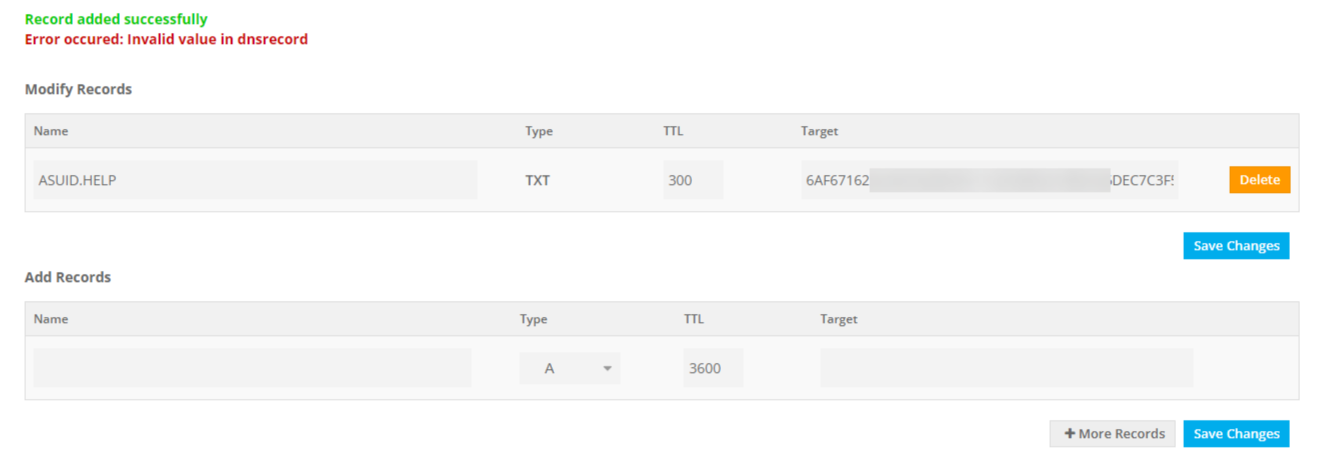
There are chances for any other record to be mapped in the place of CNAME (such as AAAA records). This would also cause an error.
Suggestion: To view your domain's CNAME, and other DNS information, use Digwebinterface or Google's DNS lookup, or any other DNS lookup tool available on the web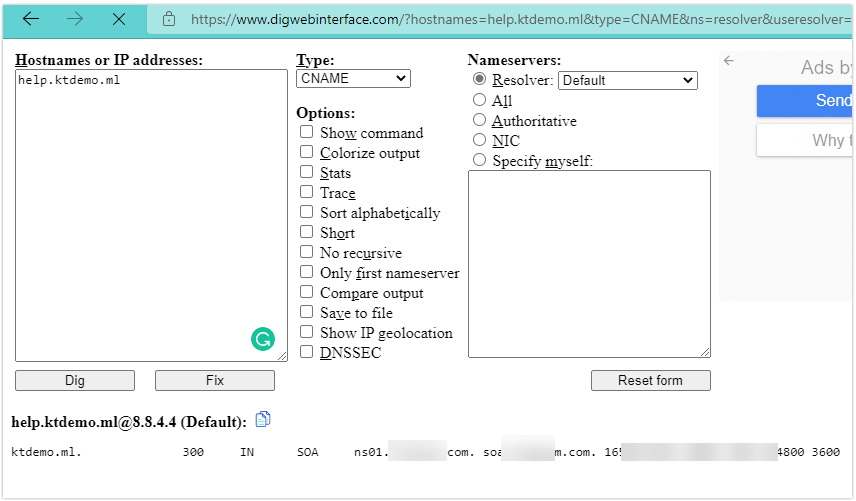
NOTE
For security reasons, some domain registrars can mask/restrict the DNS records from being discovered on the DNS lookup tools. One such example is Cloudflare.
In such cases, you can contact your domain registrar for more information.
Once the correct CNAME is mapped, it might take up to 24 hours for successful mapping.
Unable to Access the Knowledge Base Site
Error: The Knowledge Base site is inaccessible when using a www prefix in the URL (e.g., https://www.support.yourcompany.com/), but works correctly without it (e.g., https://support.yourcompany.com/).
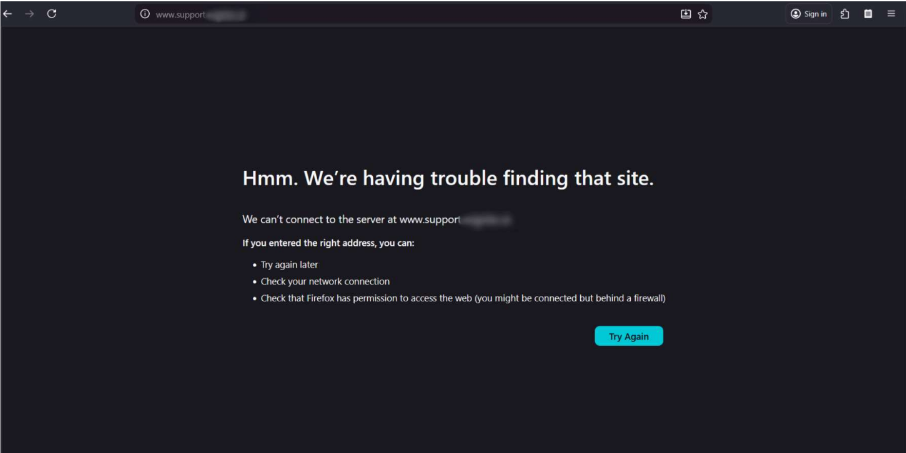
Steps to resolve:
Access the Knowledge Base site using the correct URL, without the www prefix. (e.g., https://support.yourcompany.com/).
Verify your configured domain in Document360:
Navigate to Settings > Knowledge base site > Custom domain
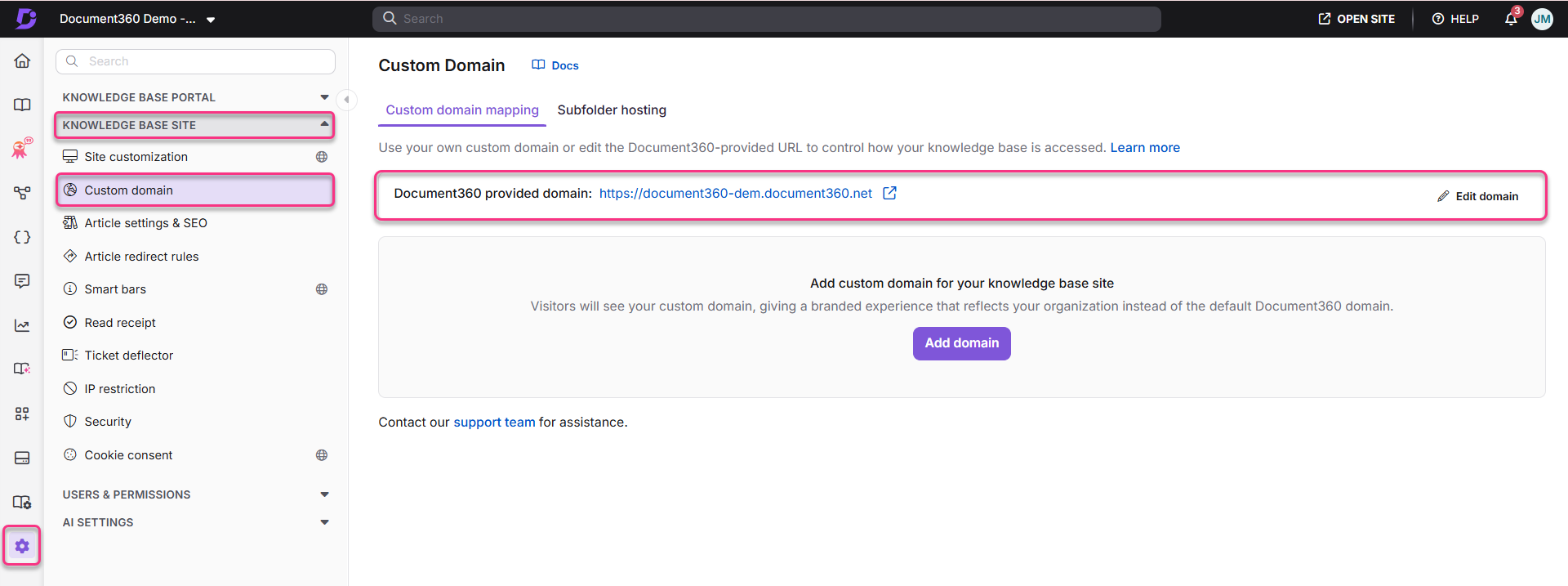
Confirm the exact domain that was set up. Use the URL to access the Knowledge base site.
If you want both the www and non-www URLs to work, contact your DNS administrator to:
Add a separate CNAME record for the www variant
Configure a redirect from www.support.yourcompany.com to support.yourcompany.com
Wait time after DNS records are updated
If the CNAME match and the domain verification issue persist, the TTL (Time-To-Live) can be a possible reason.
If you're updating an existing DNS Record value, it may take time for the configured TTL to reflect globally. If the TTL is set to 3600 for a DNS record, then it may take up to 1 hour (3600 seconds) to reflect the DNS record value for the DNS Name server globally.
CAA restriction set by the domain registrar
Some domain registrars set a restriction that the SSL certificate should be provisioned by a specific CA (Certificate Authority).
For example, if a CAA DNS record has a value of 0 issues "letsencrypt.org", then only the Let's Encrypt (CA) will be able to generate a certificate for the particular custom domain. Other Certificate Authorities (DigiCert, in our case) would see this configuration and would deny generating an SSL certificate.
Check if you have any CAA records configured in the DNS configuration for the custom domain.
TXT Record Errors
TXT record not found
This error occurs when Document360 cannot detect the TXT record for your domain at the registrar.
Steps to resolve:
Log in to your domain registrar and navigate to DNS settings.
Add the TXT record exactly as shown in Document360:
Host:
_doc360-verify.followed by your domainValue: The unique verification code displayed in Document360
Save the record and click Retry verification in Document360.
NOTE
DNS changes may take a few minutes to propagate. If the record was just added, wait a few minutes before retrying.
TXT record mismatch
This error occurs when a TXT record is found, but the value does not match the verification code generated by Document360.
Steps to resolve:
Go to your domain registrar's DNS settings.
Locate the existing TXT record for
_doc360-verify.and check its value.Compare it against the exact value shown in Document360.
Update the value to match exactly — even a single character difference will cause failure.
Save and click Retry verification.
Multiple TXT records detected
This error occurs when more than one TXT verification record exists for the same host, causing a conflict during verification.
Steps to resolve:
Log in to your domain registrar and navigate to DNS settings.
Search for all TXT records with the host
_doc360-verify.Delete all duplicate entries, keeping only the one matching the value shown in Document360.
Return to Document360 and click Retry verification.
TXT record not propagated
This error occurs when the TXT record has been added correctly but has not yet propagated across DNS servers globally.
Steps to resolve:
Confirm the TXT record has been saved correctly at your registrar.
Use Google's DNS lookup tool or Digwebinterface to check if the TXT record is visible.
Wait a few minutes and click Retry verification.
NOTE
DNS propagation typically takes a few minutes but can occasionally take longer depending on your registrar's TTL settings.
Invalid TXT host
This error occurs when the host name of the TXT record has been entered incorrectly at the registrar.
Steps to resolve:
Log in to your domain registrar and locate the TXT record.
Verify that the host is set exactly as shown in Document360 — it should begin with
_doc360-verify.Correct the host name if it differs and save the record.
Click Retry verification in Document360.
CNAME Errors
CNAME record not found
This error occurs when Document360 cannot detect a CNAME record for your domain after TXT verification has passed.
Steps to resolve:
Log in to your domain registrar and navigate to DNS settings.
Add a new CNAME record:
Host: Your custom domain (e.g., help.yourcompany.com)
Points to: The CNAME value shown in Document360
Save the record and click Retry verification.
NOTE
CNAME verification only begins after TXT ownership verification is successfully completed.
Incorrect CNAME target
This error occurs when a CNAME record exists but is pointing to the wrong destination instead of Document360's servers.
Steps to resolve:
Go to your domain registrar's DNS settings.
Locate the existing CNAME record for your custom domain.
Update the Points to value to match the exact CNAME target shown in Document360.
Save and click Retry verification.
CNAME is proxied (Cloudflare)
This error occurs when the CNAME record is routed through Cloudflare's proxy, which prevents Document360 from verifying the record correctly.
Steps to resolve:
Log in to your Cloudflare account and navigate to the DNS settings for your domain.
Locate the CNAME record for your custom domain.
Click the orange proxy icon next to the record to switch it to DNS only (grey cloud).
Save the change and click Retry verification in Document360.
NOTE
Cloudflare's proxy (orange cloud) intercepts DNS resolution, which blocks Document360's verification. Switching to DNS only mode is required for successful verification.
Ownership not verified (CNAME blocked by TXT)
This error occurs when CNAME verification is attempted before TXT ownership verification has been completed.
Steps to resolve:
Return to the DNS records table in Document360.
Ensure the TXT record has been added correctly at your registrar.
Complete TXT verification first — CNAME verification will only proceed once TXT is confirmed.
SSL Errors
SSL provisioning blocked
This error occurs when SSL provisioning cannot begin because DNS verification (TXT and CNAME) has not been completed.
Steps to resolve:
Ensure both the TXT and CNAME records are verified successfully in Document360.
Once both records show a Verified status, SSL provisioning will begin automatically.
SSL provisioning failed
This error occurs when Document360 is unable to issue an SSL certificate for your domain.
Steps to resolve:
Check if any CAA records in your DNS are restricting SSL issuance. Ensure the following entries are present:
@ IN CAA 0 issue digicert.com@ IN CAA 0 issue letsencrypt.org@ IN CAA 0 issue pki.goog
Add any missing CAA entries and click Retry verification.
If the issue persists, contact Document360 support.
SSL still provisioning
This message appears when SSL setup is in progress and has not yet completed.
Steps to resolve:
No action is required — SSL provisioning is automatic.
Wait a few minutes and refresh the page to check the updated status.
If the status does not change after 15 minutes, click Retry verification.
General Verification Errors
Verification already running
This message appears when a verification attempt is already in progress.
Steps to resolve:
Wait for the current verification process to complete.
Do not click Retry verification while verification is running — this may cause a conflict.
Once the process completes, review the status of each record and retry if needed.
Verification incomplete
This error appears when some verification checks have passed but others have failed.
Steps to resolve:
Review the DNS records table in Document360 — failed records will be highlighted.
Fix only the records showing a failed or not verified status.
Records that have already passed do not need to be reconfigured.
Click Retry verification once the failing records are corrected.
Default Domain Errors
Domain already in use
This error appears when the subdomain you entered is already taken by another project.
Steps to resolve:
Enter a different subdomain name in the field.
The Update button will activate once an available name is entered.
Click Update to save the change.
Invalid domain name
This error appears when the subdomain entered contains unsupported characters.
Steps to resolve:
Ensure the subdomain uses only lowercase letters and hyphens.
Remove any special characters, spaces, uppercase letters, or leading/trailing hyphens.
Re-enter the corrected subdomain and click Update.
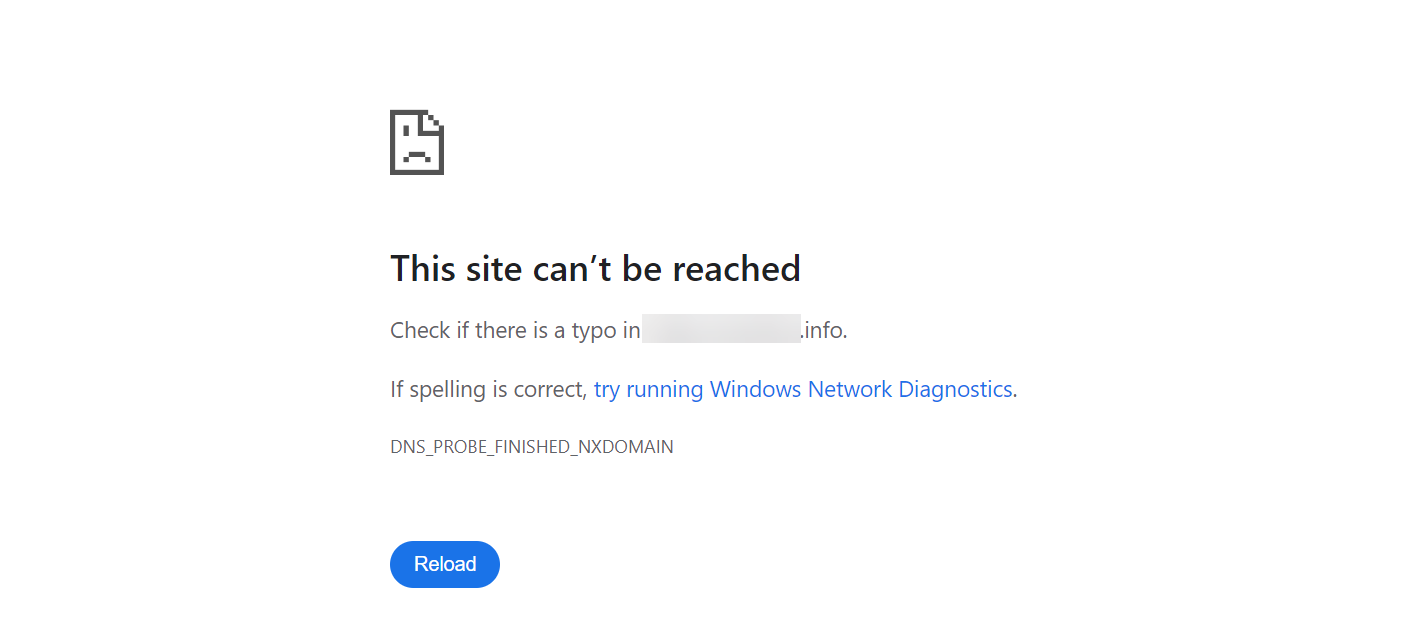
Resolving the error "This site can’t be reached" while configuring a custom domain
Error: This site can’t be reached
This error usually occurs when the CNAME record is not added promptly in your DNS after it's generated in Document360. If there's a delay, the CNAME may expire, leading to a failed domain verification.
Other possible causes include:
DNS propagation delays
Duplicate CNAME entries in your DNS
Missing CAA records for supported SSL providers like Let’s Encrypt, DigiCert, or Google
Steps to resolve:
Check when the CNAME was configured
Confirm whether the CNAME record was added to your DNS immediately after creating it in Document360.
If not, the CNAME might have expired.
Remove and reconfigure the custom domain
Go to your DNS provider and remove the existing CNAME record.
Then, in Document360, delete the existing custom domain entry.
Wait 15 minutes before proceeding.
Add the CNAME record again
Navigate to Settings () > Knowledge base site in the left navigation bar in the Knowledge base portal.
In the left navigation pane, navigate to Custom domain > Custom domain mapping, and create the custom domain again.
Immediately copy the CNAME record and add it to your DNS provider with a TTL (Time To Live) of 5 minutes.
Return to Document360 and click Verify.
Wait a few minutes for the configuration to complete.
Check for DNS propagation
DNS changes typically take 2–4 hours, but in some cases up to 24 hours.
Wait for full propagation before rechecking the domain.
Verify DNS using Google Dig tool
Use Google Dig tool to check if your DNS records are showing correctly.
Look for any duplicate CNAME entries for the same hostname. If found, remove duplicates.
Check for CAA record conflicts
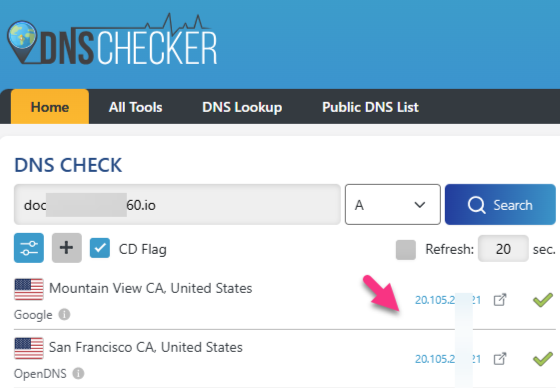
Use dnschecker.org to view CAA records for your domain.
If any CAA records are configured, ensure they allow Document360’s SSL providers:
@ IN CAA 0 issue digicert.com
@ IN CAA 0 issue letsencrypt.org
@ IN CAA 0 issue pki.goog
Add these CAA entries to your DNS if missing.
If the issue persists after following these steps, please contact the Document360 support team for further assistance: Contact Document360 Support
Resolving errors such as “Your connection is not private” or “Your connection is not secure” while accessing the Knowledge base site
This error typically occurs due to the following reasons:
Issue: SSL certificate expired
Check if the SSL certificate has expired.
Visit the Knowledge base site and click the View site information option in the URL bar.
Click Connection is secure to view the SSL certificate details.
B. If the SSL Certificate has not expired, then try the below troubleshooting steps:
Try accessing the site from a different browser to rule out browser-specific issues.
Deactivate any website extensions in your browser and check again.
Verify if all users are experiencing the same issue to identify if it is user-specific or system-wide.
Clear your browser cache or switch to another browser, as this often resolves the problem.
C. VPN connection
Deactivate your VPN and try accessing the site again:
If deactivating the VPN resolves the issue, the VPN might be causing the problem.
Contact your IT team for further assistance.
D. DNS records issue
There may be issues with the DNS resolver if the DNS records have not been updated successfully.
Use a DNS checker (e.g., DNS Checker) to verify the DNS records.
Confirm if all the records have been updated successfully.
If the records are not properly synced, contact your DNS provider or domain registrar to ensure the DNS zone is correctly configured and synced for the domain.
If the issue persists after following these steps, please contact the Document360 support team for further assistance: Contact Document360 Support
Resolving the “Secure Connection Failed - SSL_ERROR_NO_CYPHER_OVERLAP” error while configuring a custom domain
Error: Secure Connection Failed - SSL_ERROR_NO_CYPHER_OVERLAP
This error usually indicates that the SSL certificate couldn’t be issued due to a mismatch in the CNAME configuration. If the custom domain does not point to the correct Document360 domain, SSL validation fails, resulting in the error.
Steps to resolve:
Go to dnschecker.org.
In the search bar, enter your custom domain and select CNAME from the dropdown.
Verify the result:
The CNAME value should match the exact CNAME provided in the Document360 portal during domain setup.If the CNAME is incorrect:
Remove the current custom domain from your Document360 project.
Correct the CNAME record in your DNS provider by adding the one provided in Document360.
Wait a few minutes, then reconfigure the custom domain in Document360 and verify again.
Once the correct CNAME is in place and verified, the SSL certificate will be issued successfully, resolving the error.
Search returns no results after migrating to a new data center or reconfiguring the project
Issue: All users are unable to search for articles on the Knowledge base site. Search, Advanced Search, and Eddy AI Search all return no results, even though articles are published and accessible.
Cause: This can happen when the custom domain mapping has been removed from Document360, commonly after a data centre migration or project reconfiguration. Even if the CNAME record still exists in your DNS (keeping the custom domain URL accessible), the search feature will not function unless the custom domain is actively mapped within Document360.
How to identify: In the Knowledge base portal, click Open Site icon. If it loads the default Document360-provided domain (e.g., yourproject.document360.com) instead of your custom domain, the custom domain mapping has been removed.
Steps to resolve:
Navigate to Settings > Knowledge base site > Custom domain and check whether your custom domain is listed. If it is missing, proceed with the steps below.
Go to your DNS provider and remove the existing CNAME record for the custom domain.
In Document360, navigate to Settings > Knowledge base site > Custom domain, and re-add the custom domain.
Copy the new CNAME record generated by Document360 and add it to your DNS provider.
Return to Document360 and click Verify to complete the mapping.
Once verified, test the search on your custom domain to confirm it is working as expected.
NOTE
Removing the old CNAME record from DNS (step 2) before reconfiguring is essential. If the existing CNAME record is not removed first, it will conflict with the new one and the mapping will fail.