Hotspots are interactive markers that you can place on a video at specific timestamps in an Interactive Demo. They are designed to highlight key moments, guide viewers through important actions, and provide contextual information exactly when it is most relevant.
Use cases
- Product walkthroughs - Draw attention to a specific button, field, or UI element as it appears on screen, so viewers understand what to click and why.
- Training and onboarding - Guide new users step-by-step through a workflow, adding explanatory text at each stage without requiring a live presenter.
- Feature highlights - Showcase new or underused features by annotating exactly when they appear in the demo, ensuring they are not missed.
- Accessibility - Pair hotspots with AI voiceover narration to create audio-guided demos for users who benefit from spoken instructions.
Adding a Hotspot
- Navigate to Add elements in the right pane.
- Click Hotspot. In the Hotspots dialog, review the list of existing hotspots (if any).
- Click Add new to add a hotspot.
- Drag the hotspot to the desired position.
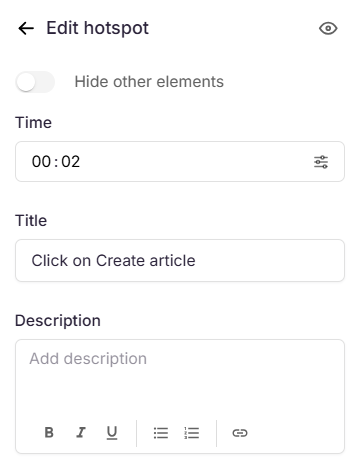
- Use the eye icon in the top-right to show or hide the hotspot. Hidden hotspots won't appear to readers but aren't deleted.
- Enable Hide other elements to hide all other elements while you configure the hotspot.
- In the Time field, enter the desired time. Use the Select exact frame option for precise adjustments.
- Enter a title in the Title field.
- Enter the description in the Description field.
Note
Select the content in the Description field to access basic formatting tools: Bold (), Italics(), Underline , Ordered list (), Unordered list (), and Hyperlink().
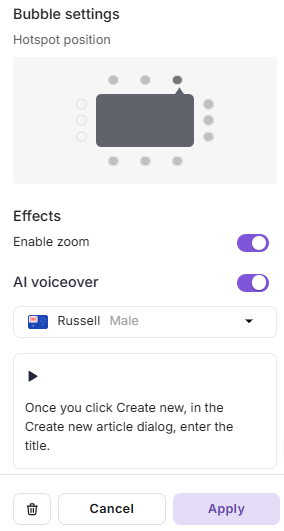
- Under Bubble settings, adjust the hotspot position by choosing the exact grid point from the given options.
- In the Effect section, turn on the Enable zoom toggle if required.
- To add voice narration, turn on the AI voice over toggle.
- Select the desired voice and enter the content in the text field.
- Click the Play button in the text field to preview it in the selected voice.
- Click Apply to save the hotspot.
Managing hotspots
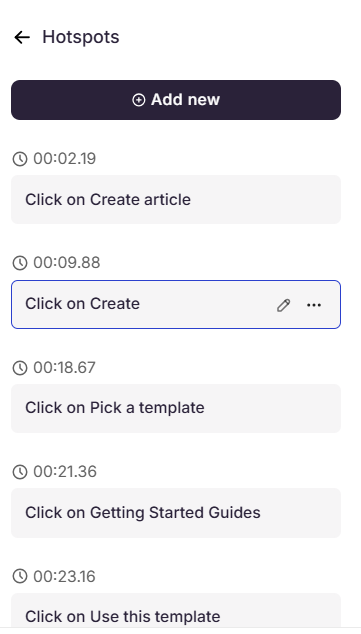
Once hotspots have been created, you can manage them directly from the Hotspots panel. Hover over any hotspot entry in the list to reveal the following options:
- Edit - Click the Edit icon to reopen the hotspot configuration panel and modify any settings, including the time, title, description, bubble position, or effects.
- Delete - Click the More icon and select Delete to remove.
Best practices
- Place hotspots at the moment of action - Align each hotspot with the exact frame where the click, input, or transition occurs so the annotation feels natural and timely.
- Keep titles concise - Aim for five words or fewer. Use the Description field for any additional context.
- Avoid clustering - Space hotspots far enough apart so viewers have time to read each one before the next appears.
- Preview voiceover before saving - Use the Play button to listen before clicking Apply. Adjust phrasing or punctuation to improve cadence.
- Match bubble position to content - Anchor the bubble to a corner or edge so it does not obscure the UI element it describes.