Document360 Engage is where you create and manage all your step by step guides, explainer videos, and interactive videos in one place. Use it to find content across your project, see which articles use it, translate it into your knowledge base languages, and clone or delete it without opening each article.
When to use Document360 Engage
Use Document360 Engage when you want to:
- Create content without opening an article first. Start a step by step guide, explainer video, or interactive video directly. You can reuse explainer videos and interactive videos in any article.
- Find content you have already created. Filter by type, language, contributor, translation status, created date, or updated date instead of searching article by article.
- Check where content is used before you change it. See every article that uses a video or demo, so an edit or delete doesn't surprise other authors.
- Make content available in more languages. Translate one or several items into your knowledge base languages in a single action.
Before you begin
- To create content, install the Document360 AI Capture extension. For browser-specific steps, see Install Document360 AI Capture extension.
- Users with the Owner or Admin portal role, or the Editor content role, have access to Document360 Engage by default. To give access to other users, select the Document360 Engage permission (View, Update, and Delete) in a custom content role. For more information, see Custom content roles.
- You see only the step by step guides in categories you have access to.
Open Document360 Engage
To open Document360 Engage, click Document360 Engage () in the left navigation bar of the Knowledge base portal.
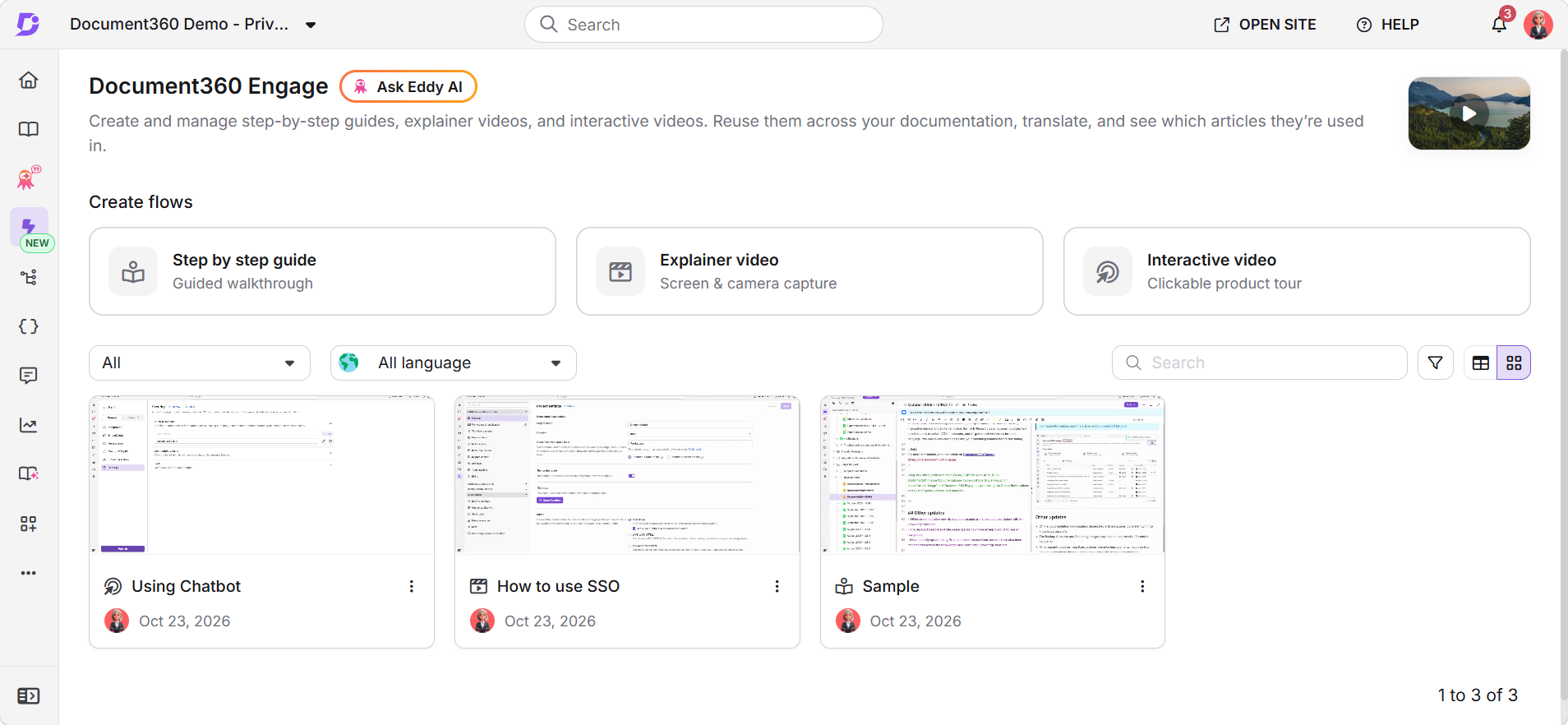
The page lists every step by step guide, explainer video, and interactive video you can access. For each item, the list shows:
| Column | What it shows |
|---|---|
| Title | The name of the item. |
| Type | Step by step guide, Explainer video, or Interactive video. |
| Linked to | The number of articles that use the item. Click it to see the articles. |
| Language | The language of the item. |
| Last updated | The user who last updated the item, and when. |
To switch between the list layout and the card layout, use the view icons at the top right of the list.
Create a guide, video, or demo
Under Create flows, click the type of content you want to create. The recording flow is the same as when you start from the Editor.
Step by step guide
Record a workflow as a click-by-click walkthrough that readers follow step by step.
Learn more →Explainer video
Record your screen, with or without your camera, and edit the video before you reuse it.
Learn more →A few things work differently depending on the type:
- Step by step guide: Before you record, enter a Title, select a Workspace and Category, and click Create. The guide is saved in the workspace and category you select.
- Explainer video and interactive video: Before you record, enter a title and select the language. Videos and demos don't belong to a category, so you can reuse them in articles across any category and workspace.
For explainer videos and interactive videos, you don't have to record in your project's default language. You can select any language you have access to before you start recording.
Once saved, the item appears in the Document360 Engage list. You can insert explainer videos and interactive videos into any article.
Find content
To find a specific item, enter its title in the Search box above the list.
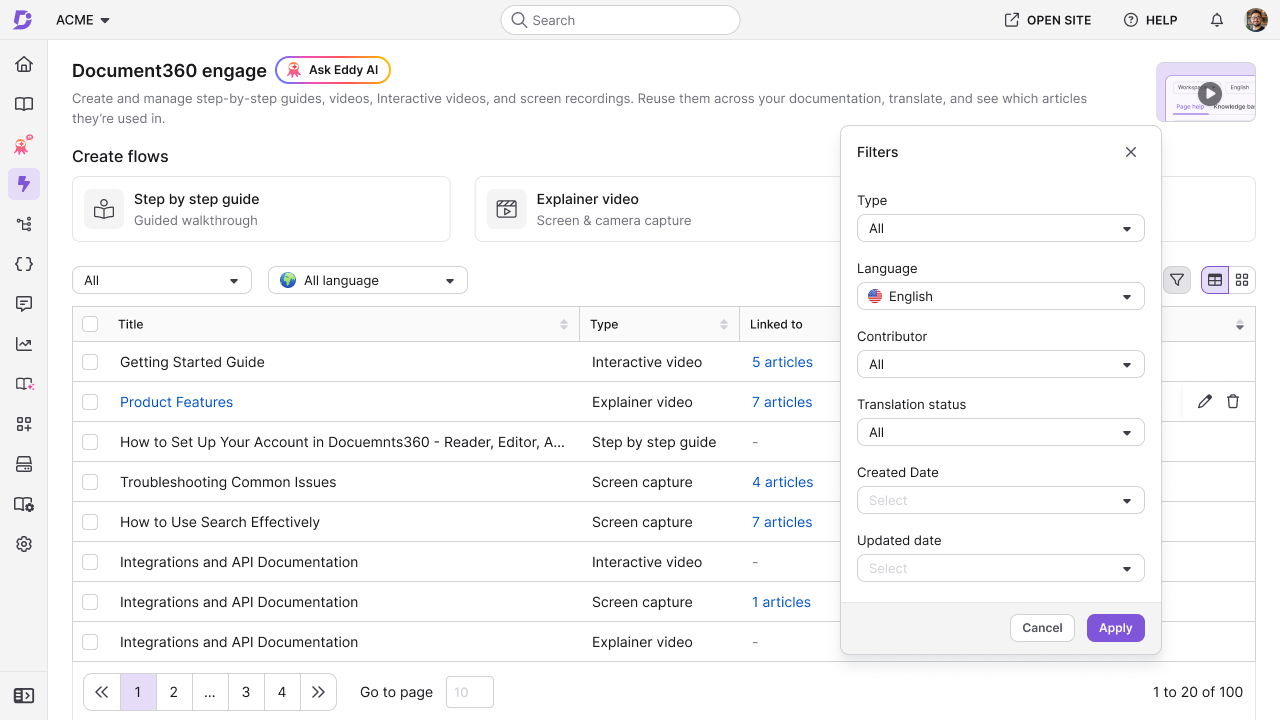
To narrow the list,
- Select a type from the Type dropdown, or a language from the Language dropdown, above the list.
- For more options, click the Filter () icon. The Filters panel opens.
- Set one or more of the following filters:
| Filter | Use it to find |
|---|---|
| Type | Step by step guides, explainer videos, or interactive videos |
| Language | Items in a specific language |
| Contributor | Items created or updated by a specific user |
| Translation status | Translated items, which are translated into at least one other language, or items that Need translation |
| Created date | Items created in a date range |
| Updated date | Items updated in a date range |
- Click Apply.
Example: To find English demos that haven't been translated yet, set Type to Interactive video, Language to English, and Translation status to Need translation.
Edit an item and see where it's used
To edit an item, hover over it and click the Edit () icon. In the card layout, click the More () icon and select Edit. The item opens in its editor.
To see the articles that use an item, click the count in the Linked to column of the list.
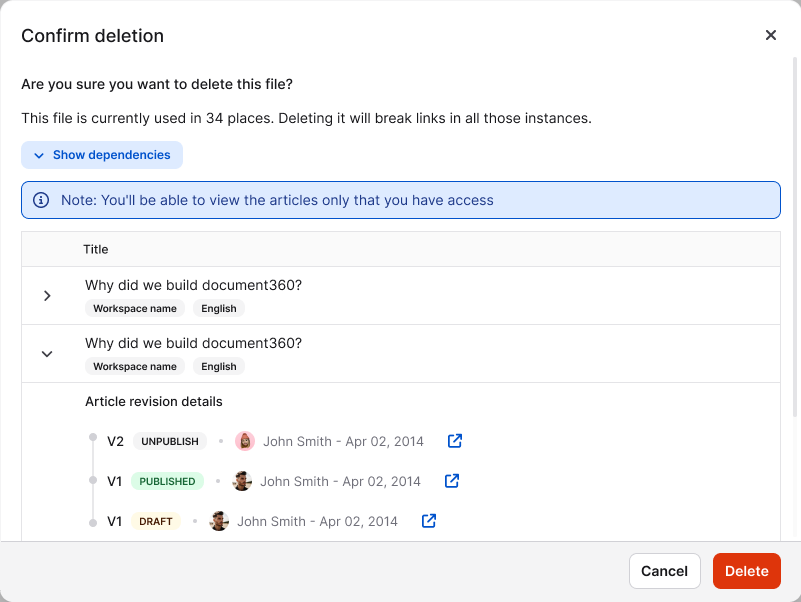
The linked articles list shows each article with its workspace and language. Expand an article to see its revision details, including each version's status (Draft, Published, or Unpublished), the contributor, and the date. Click the Open () icon next to a version to open the article.
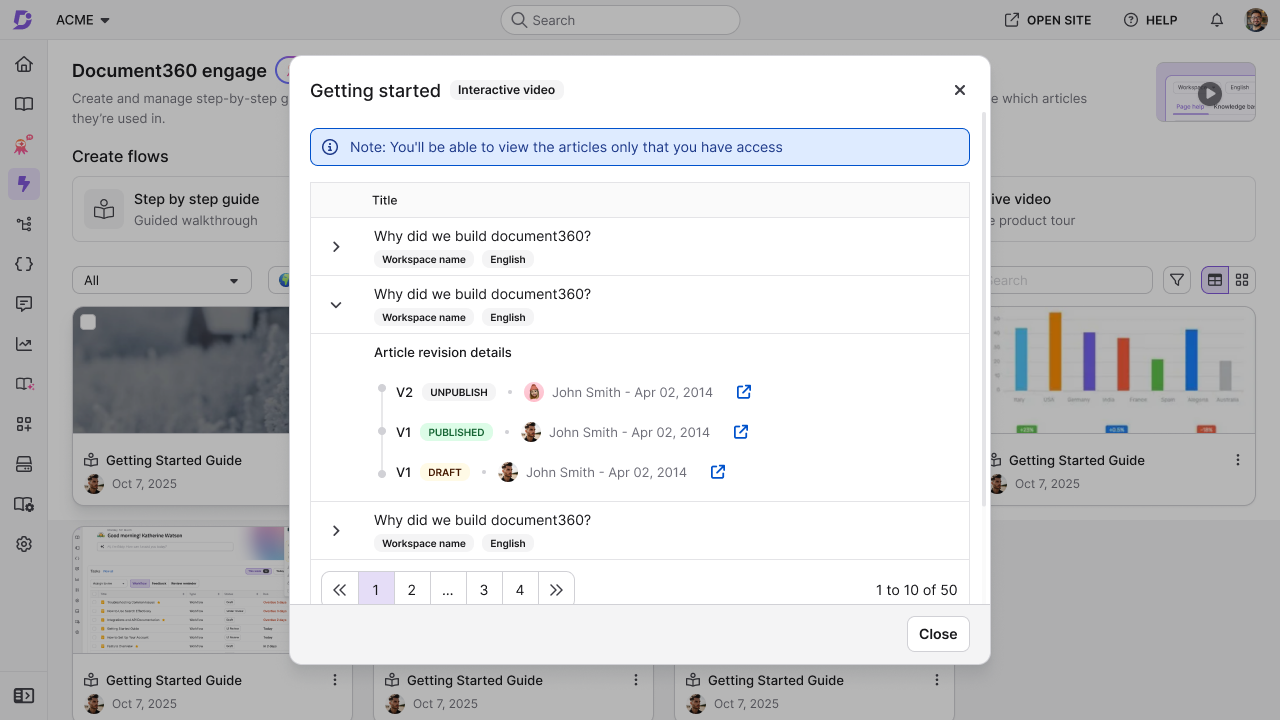
You see only the linked articles you have access to.
Reuse a video in an article
When you insert an existing explainer video or interactive video into an article, the article uses that video. It doesn't create a copy. Any edit you make to the video, from Document360 Engage or from any article that uses it, appears everywhere the video is used.
If the video isn't available in the article's language, it's inserted in the default language.
If you remove the video from an article, only that article is affected. The video stays in Document360 Engage.
Translate content
You can translate guides, videos, and demos into any language set up for your knowledge base. Translation applies to the call to action, AI voiceover, text, and subtitles in the item, as well as hotspot titles and descriptions in interactive videos.
Readers see the version that matches the language they select on the knowledge base site. If an item isn't translated into that language, readers see the default language version.
Translation uses Eddy AI translation credits, counted in characters. When you select languages, Document360 shows the number of characters to be translated. To check how many characters you have available, go to Settings > Knowledge base portal > Workspace & localization. If you don't have enough credits, you can't translate the item. Contact Document360 support to add more. For more information, see Translate with Eddy AI.
Translate items
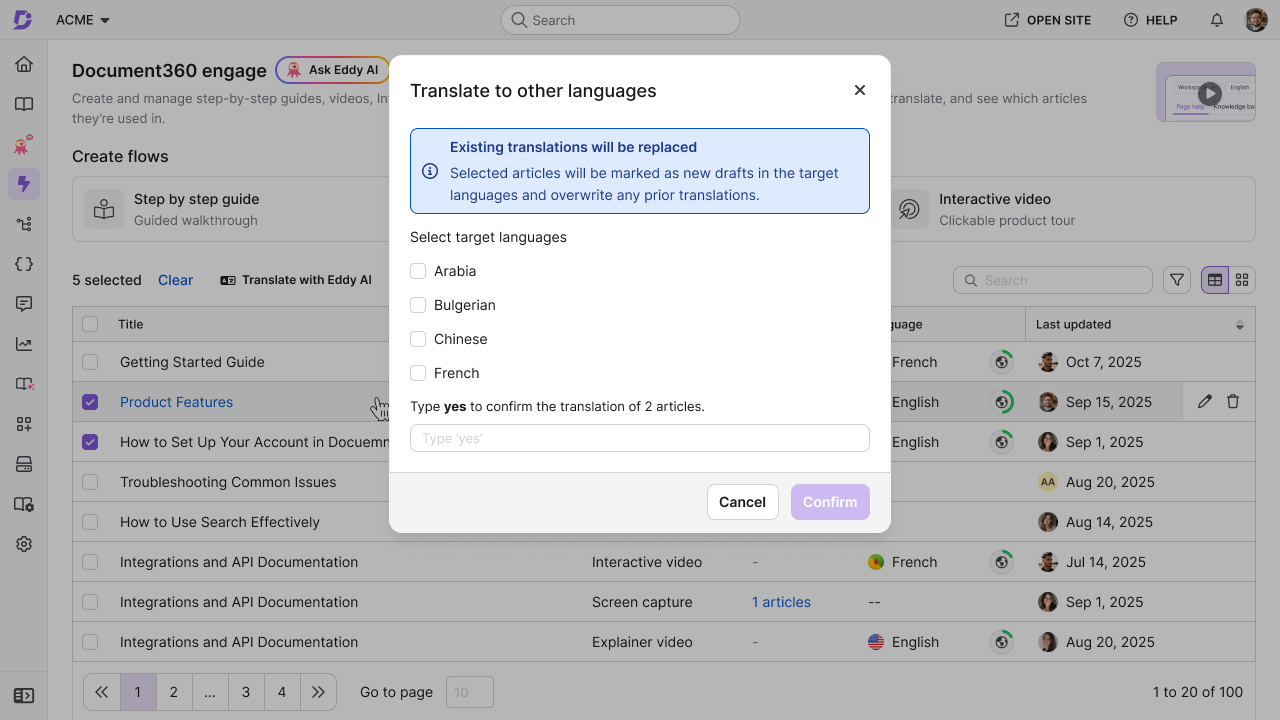
To translate one or more items,
- Select the checkbox next to each item you want to translate.
- Click Translate with Eddy AI above the list. The Translate to other languages dialog opens.
- Select the languages you want to translate the items into.
- Type yes to confirm.
- Click Confirm.
To translate a single item, you can also hover over it, click the More () icon, and select Translate with Eddy AI.
If an item is already translated into the language you select, translating it again overwrites the existing translation. Translated step by step guides are saved as new drafts in the target languages.
Update a translation
When you change the original item, translate it again into the same languages so the translated versions match. The new translation is based on the default language version and replaces the existing translation, including any changes made directly in the translated version.
Clone an item
To clone an item,
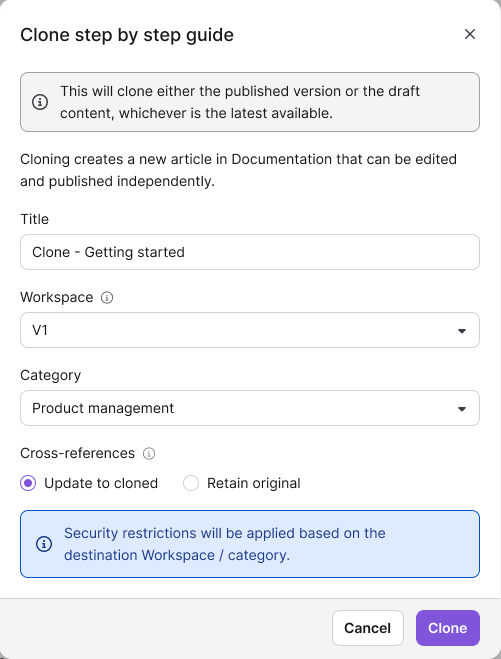
- Hover over the item, click the More () icon, and select Clone.
- Complete the clone dialog:
- Explainer video or interactive video: Enter a Title. The clone is a separate copy that you can edit without affecting the original.
- Step by step guide: Enter a Title, and select the Workspace and Category. Under Cross-references, select Update to cloned or Retain original. The clone is a new article in Documentation, based on the latest published or draft version of the guide, whichever is latest available.
- Click Clone.
When you clone an article, category, language, or workspace that contains a video or demo, the clone uses the same video or demo. It doesn't create a new copy.
Delete an item
To delete one item, hover over it, click the More () icon, and select Delete. To delete several items, select their checkboxes and click Delete above the list.
The Confirm deletion dialog shows how many places use the item. Click Show dependencies to review the articles before you continue, then click Delete.
Deleting an explainer video or interactive video is permanent. It doesn't go to the Recycle bin, and all its language versions are deleted together. Every article that uses it loses the content.
When you delete a step by step guide, it moves to the Recycle bin, the same as an article. You can restore it from there. For more information, see Recycle bin page.
FAQ
Can I still create guides, videos, and demos from the Editor?
Yes. Content you create from the Editor also appears in Document360 Engage.
Why can't I see a step by step guide that a teammate created?
Document360 Engage shows only the step by step guides in categories you have access to. Ask your project Owner or Admin to check your category access.
Can I restore a deleted guide, video, or demo?
You can restore a step by step guide from the Recycle bin. Explainer videos and interactive videos are deleted permanently and can't be restored.
Can I delete only one language version of a video or demo?
No. Deleting an item deletes all its language versions together.
Can I find guides, videos, and demos using the Knowledge base portal search?
Yes. Portal search matches the title and description of each item, and shows only the content you have access to.