The Document360 AI Capture is a browser extension required to create step by step guides, capture screens, record videos, and create interactive demos in Document360. The extension is supported on Google Chrome, Microsoft Edge, and Brave, and needs to be installed only once.
Install the extension on Google Chrome
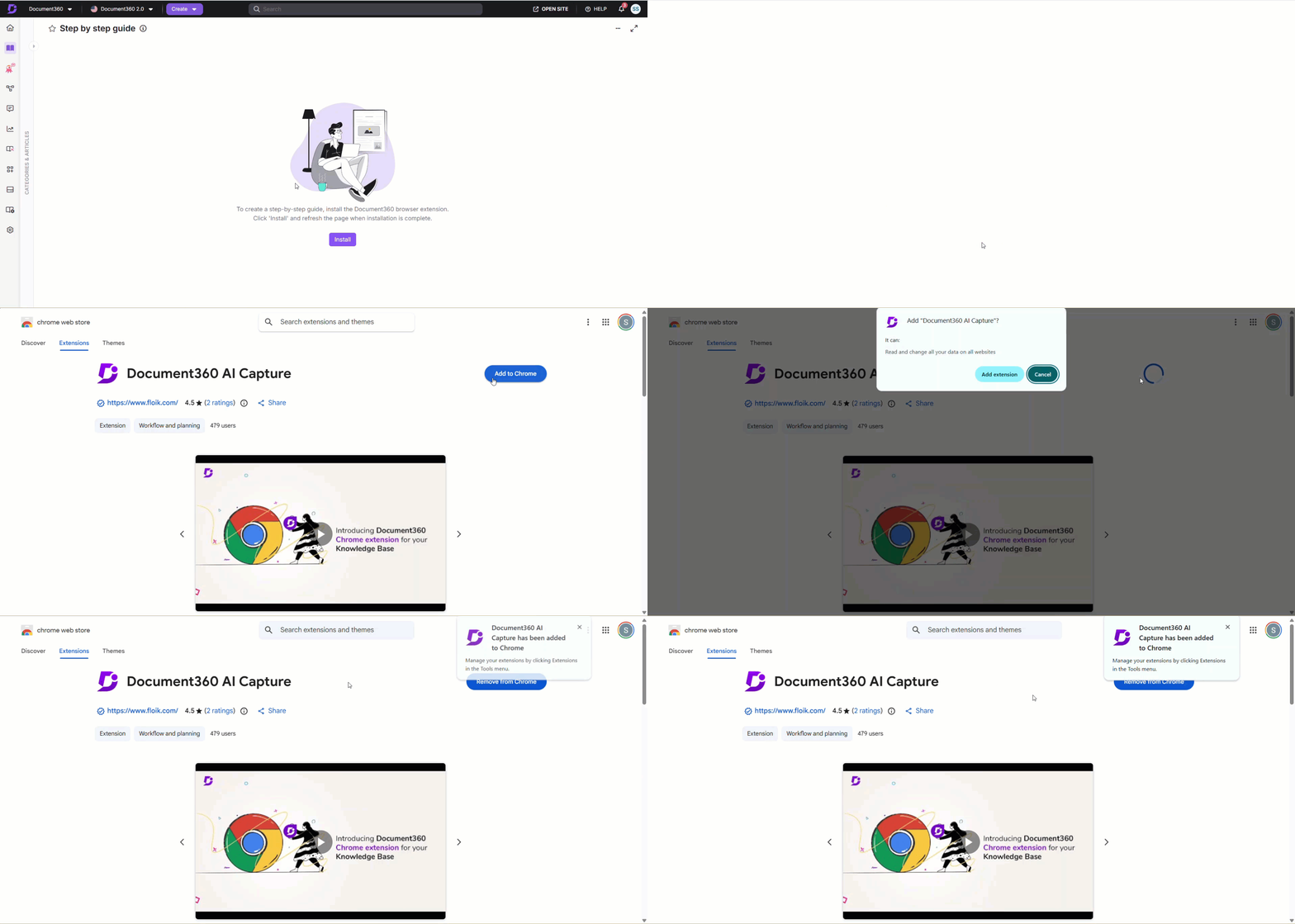
To install the extension on Chrome,
- Click Install when prompted in the Knowledge base portal. This redirects you to the Chrome Web Store.
- Click Add to Chrome.
- In the confirmation dialog, click Add extension.
- A notification confirms "Document360 AI Capture has been added to Chrome." Return to the Knowledge base portal to continue.
Install the extension on Microsoft Edge
Edge installs the extension from the Chrome Web Store. When you do this, Edge will ask you to allow extensions from outside the Microsoft Edge Add-ons store.
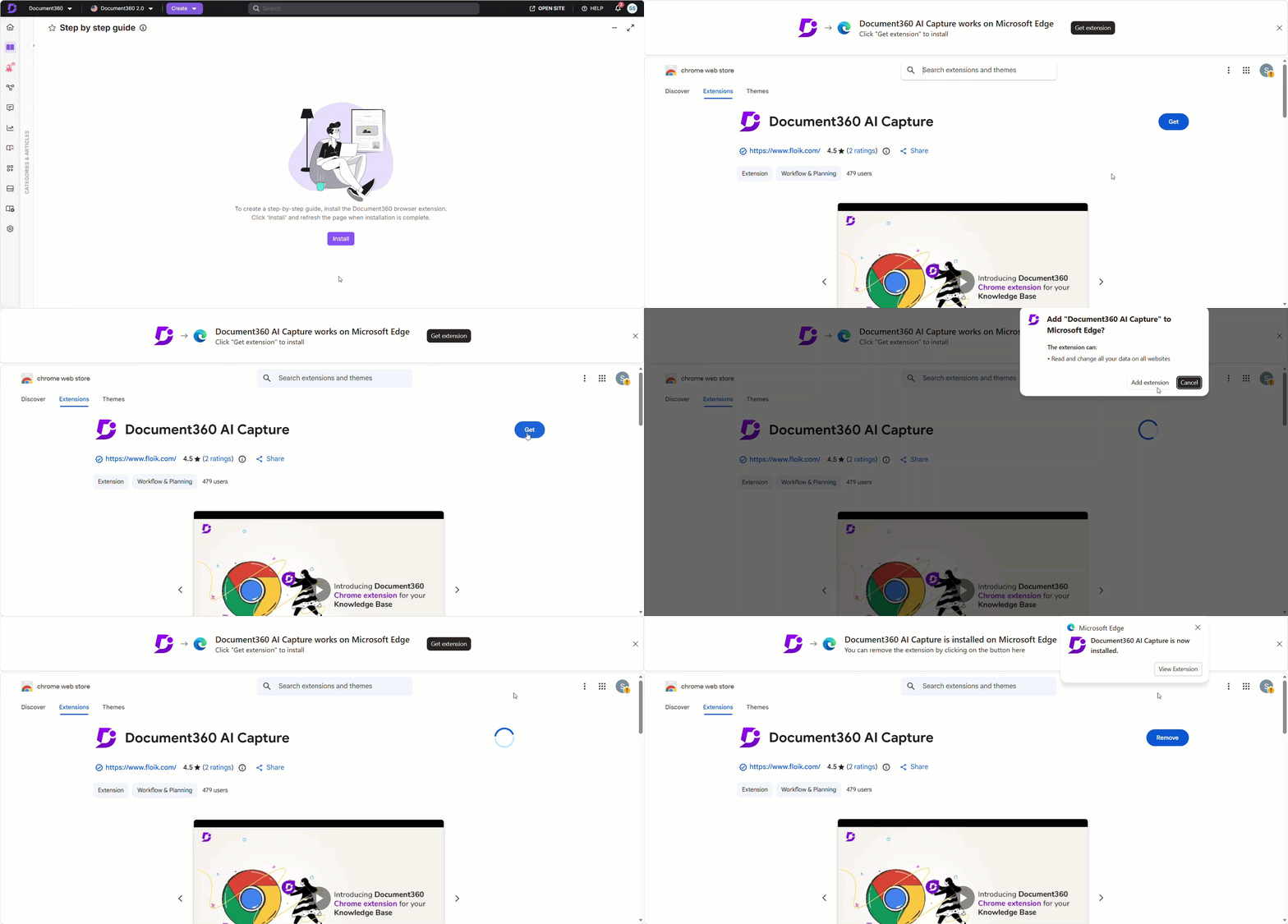
To install the extension on Edge,
- Click Install when prompted in the Knowledge base portal. This redirects you to the Chrome Web Store.
- Click Get on the extension page.
- In the Allow extensions from other stores dialog, click Allow.
- In the confirmation dialog, click Add extension.
- A notification confirms "Document360 AI Capture is now installed." Return to the Knowledge base portal to continue.
Install the extension on Brave
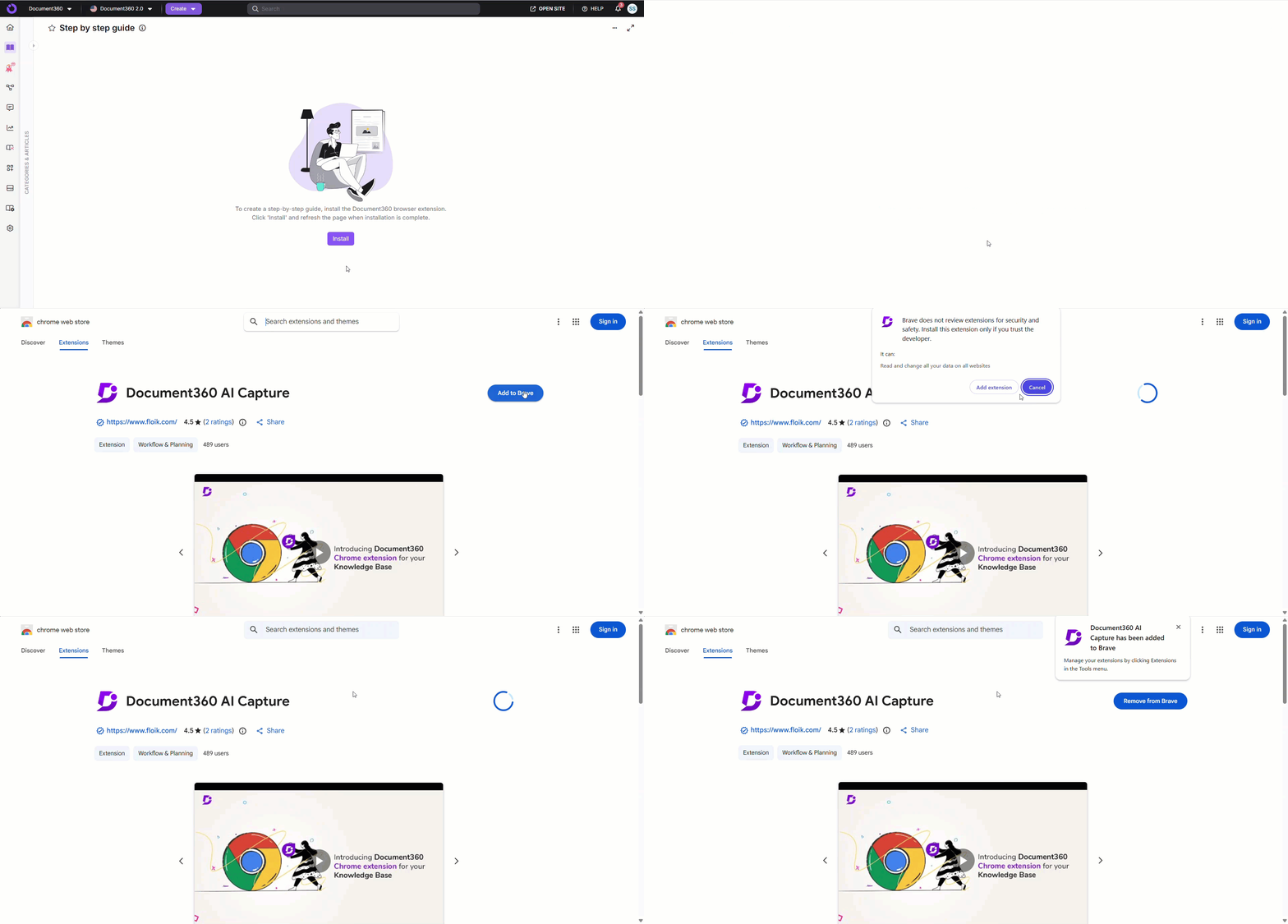
To install the extension on Brave,
- Click Install when prompted in the Knowledge base portal. This redirects you to the Chrome Web Store.
- Click Add to Brave.
- In the confirmation dialog, click Add extension.
- A notification confirms "Document360 AI Capture has been added to Brave." Return to the Knowledge base portal to continue.
FAQ
Do I need to install the extension every time I use Document360?
No. The extension is a one-time installation per browser. Once installed, it is available every time you use Document360 in that browser.
Can I use the extension across multiple browsers?
Yes, but you need to install it separately in each browser from the Chrome webstore.
The Install prompt does not appear. What should I do?
The extension may already be installed. Check your browser's extensions list and look for Document360 AI Capture. If it is installed but disabled, enable it and return to the Knowledge base portal.
Why does Edge show an "Allow extensions from other stores" warning?
The Document360 AI Capture extension is hosted on the Chrome Web Store, not the Microsoft Edge Add-ons store. Edge displays this warning whenever you install an extension from a third-party store. It is safe to click Allow to proceed.