After recording an interactive demo in the Editor, it opens automatically in the Interactive demo editor so you can enhance it before inserting it into your article. You can also reopen the editor anytime by selecting the demo in the article and clicking Edit.
If you haven't recorded a demo yet, see Recording interactive demo.
What you can do in the Interactive demo editor
Each tool in the editor is covered in detail in its own article, to learn more about each tool click the links below.
- Call to action - Add buttons that link to URLs or display messages during playback
- Hotspots - Add guided tooltips at click points to walk readers through each step
- Blur - Mask credentials, PII, or sensitive UI elements at specific timestamps
- Spotlight - Draw attention to key areas of the screen during playback
- Highlight - Emphasize specific elements with a color overlay at set time ranges
- Image - Insert images or emojis into the demo at specific timestamps
- Text - Add text overlays to annotate or label parts of the recording
- Camera - Overlay a camera recording on top of the demo
- Crop - Resize and reframe the demo to fit your article layout
- Trim - Cut unwanted sections from the start, middle, or end
- Music - Add background music with fade in/out and pause on interaction options
- Voice - Add AI voiceover in multiple languages or enable auto-generated subtitles
- Annotation - Add contextual notes, insights, announcements, or alerts at specific timestamps
- Zoom - Magnify a selected area of the screen at specific timestamps to focus attention on fine detail
Managing added elements
In the Added elements section, you can view all elements applied to the demo:
- Click Edit () to modify an element
- Click Delete () to remove it
Click Close to save all changes.
Formatting the demo in the article
Once inserted, select the demo to access these formatting options:
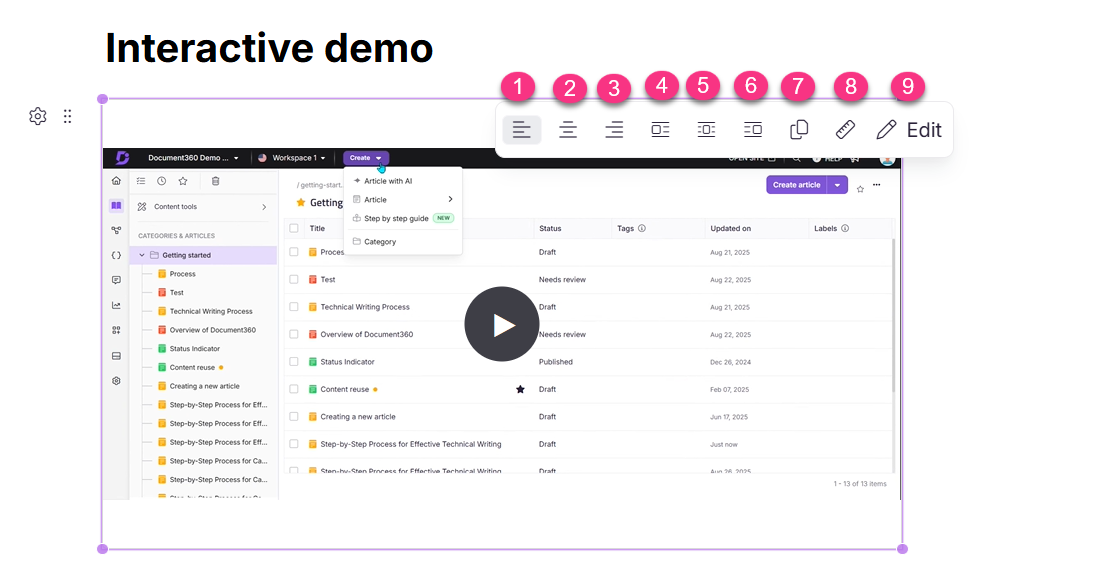
| Option | Description |
|---|---|
| Align left / Center / Align right | Controls horizontal alignment |
| Inline left / Inline block / Inline right | Places the demo inline within the text |
| Resize | Adjusts the demo dimensions |
| Copy | Copies the demo for reuse in another article within the same project |
| Edit | Reopens the Interactive demo editor |
FAQ
Will articles with an interactive demo appear in portal search results?
Yes. Articles containing an interactive demo appear in portal search results if there is a match in the article title or content.