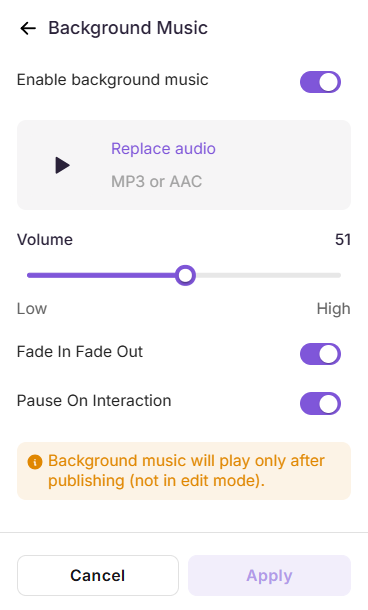
The Music feature lets you add ambient background music to your video, helping set the tone and improve the overall viewing experience.
Note
Background music plays only after publishing. It will not play in edit mode.
Add background music to explainer video or interactive video
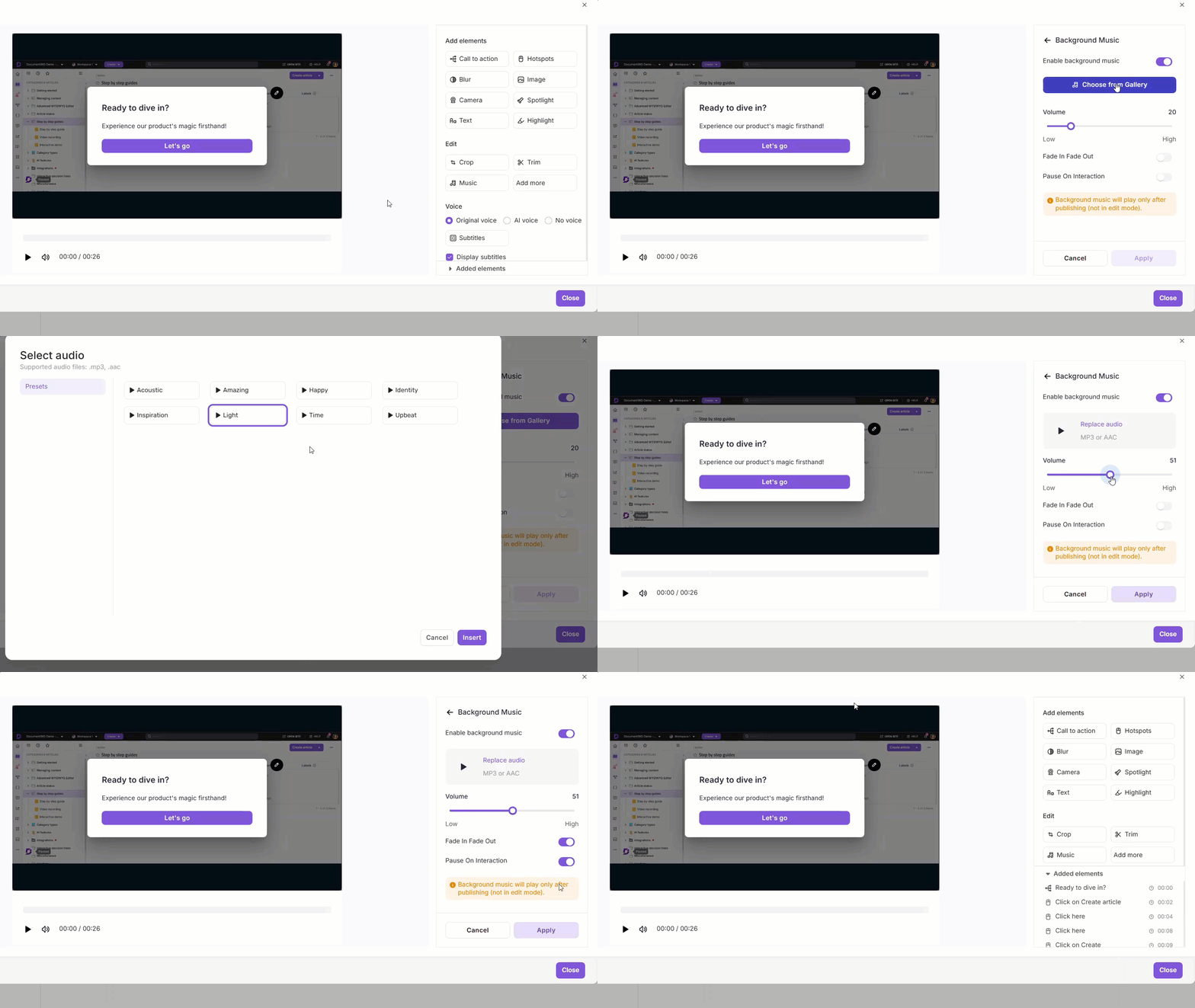
- In the right pane, go to Background Music.
- Enable the Enable background music toggle.
- Click Choose from Gallery to open the audio picker.
- Select a preset track from the available options (e.g., Acoustic, Happy, Upbeat). Supported formats:
.mp3,.aac - Click Insert to add the selected track.
- Use the Volume slider to adjust the audio level.
- Enable Fade In Fade Out for a smoother listening experience.
- Enable Pause on Interaction to pause the music when the viewer interacts with the video.
- Click Apply.
Managing background music
- To change the track, click Replace audio and select a different one.
- To remove background music, disable the Enable background music toggle.