The Trim feature allows you to remove unwanted segments from any part of a recorded video. Unlike traditional video editors where trimming cuts from the start or end only, Trim supports removing multiple segments from anywhere within the video, keeping only the content that is relevant to your audience.
Trim a video or interactive demo
- Navigate to the Edit section in the right pane.
- Click Trim.
- Click Add now to define a new trim segment.
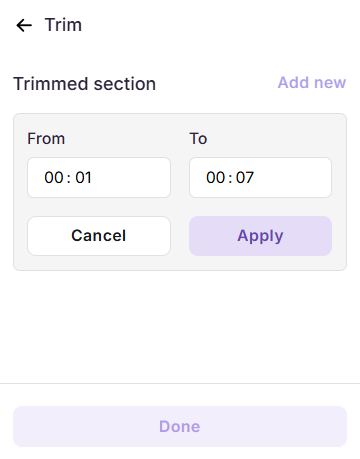
- In the Trimmed section panel, set the time range for the segment you want to remove:
- From - enter the start time of the segment to be trimmed.
- To - enter the end time of the segment to be trimmed.
- Click Apply to confirm the trim segment.
Managing trim segments
Once one or more trim segments have been applied, they are listed in the Trim panel under Trimmed section, each displaying the trimmed time range.
- Add another segment - Click Add new at the top-right of the Trimmed section to define an additional time range.
- Edit a segment - Click any listed segment to reopen the From/To fields and modify the time range. Click Apply to save changes.
- Delete a segment - Hover over a trim segment, click the three-dot menu, and select Delete.
Best practices
- Use precise From and To values - Avoid inadvertently trimming content that is still relevant. Review the video in preview before finalizing.
- Trim before adding overlay elements - Trimming after adding time-based elements such as Text, Blur, or Highlight may cause their configured timestamps to fall outside the remaining video duration.
- Preview after clicking Done - Confirm all trimmed segments have been removed as expected and the remaining content flows naturally.