The Call to Action (CTA) element lets you add interactive buttons to your explainer video or interactive video. Use it to guide viewers toward a specific action such as visiting a URL, exploring a next step, or making a decision, directly within the demo experience.
You can add a title, description, one or more buttons, and even an AI voiceover to make the demo more engaging.
Adding a Call to action
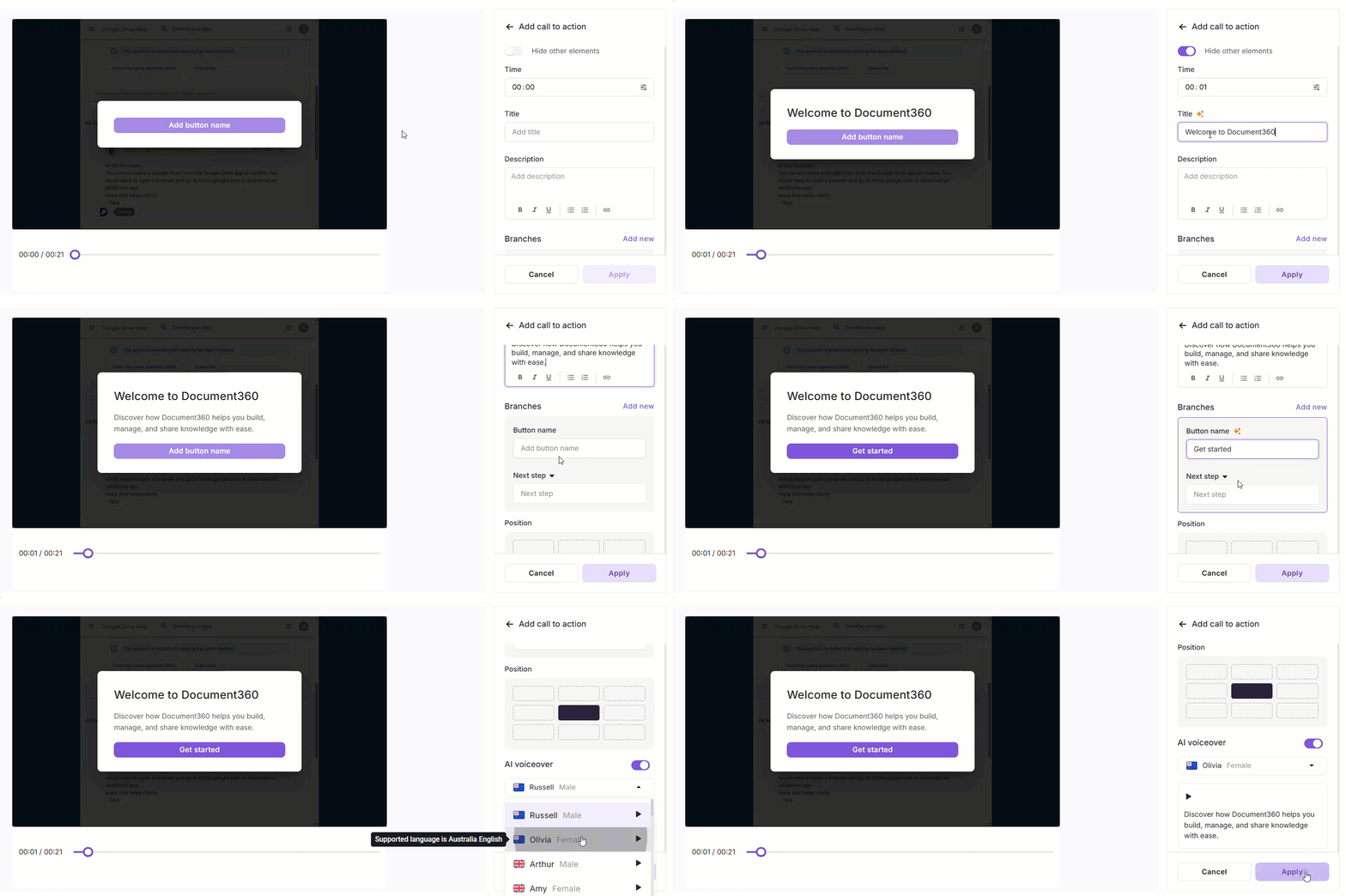
- In the right pane, click Call to action.
- Enable Hide other elements to hide every other element while you configure the call to action.
- Set the timestamp using the Time field or drag the video slider.
- Enter a Title and Description for the CTA popup.
Select the content in the Description field to access basic formatting tools: Bold (), Italics(), Underline , Ordered list (), Unordered list (), and Hyperlink().
-
In the Branches section, enter a Button name and select an action type:
Action What it does External URL Opens a destination link in the browser Next step Displays a message or information for the viewer -
Click Add new to include additional buttons.
-
Under the Position section, choose where the CTA appears on the screen.
-
To add a voiceover, enable the AI voiceover toggle:
- Select a voice from the dropdown.
- Enter the narration script in the text field.
- Click the Play ( ) icon to preview the audio.
-
Click Apply.
Use cases
- Product demos - Direct viewers to a free trial or pricing page using an External URL button.
- Onboarding flows - Use Next step buttons to walk users through a guided sequence.
- Decision points - Offer multiple paths (e.g., "See pricing" vs. "Book a demo") so viewers choose their own journey.
- Feature highlights - Add a voiceover to narrate what the CTA is asking the viewer to do.
Managing call to actions
Once added, all CTAs are listed under the Call to action panel in the right pane. Each entry shows the timestamp and the title of the CTA.
- Add another CTA: Click Add new at the top of the panel.
- Edit a CTA: Click any CTA in the list to edit it. The editor reopens with the existing configuration. Make your changes and click Apply to save or Cancel to go back. Use the Delete icon to remove it.
- Delete a CTA: Hover over CTA, click the three-dot menu, and select Delete.
Call to actions in other languages
If you translate the explainer video or interactive video into other languages, each language version has its own call to action content. The following can differ by language:
- Title and description
- Button names
- AI voiceover script and voice
The button actions, position, and timestamp stay the same in every language.
To create the language versions, translate the video or demo from Document360 Engage. To adjust a translated call to action, open that language version in the editor and edit the call to action as usual. When you translate, the AI voiceover script is translated and the voice changes to match the new language automatically.
Best practices
- Keep the title short. One clear line works best. Avoid vague labels like "Click here."
- Limit to 2–3 buttons. Too many choices can overwhelm viewers. Focus on the most important actions.
- Match button names to outcomes. Use action-oriented labels like "Start free trial" or "See how it works" instead of generic terms like "Next" or "OK."
- Use Next step for in-demo guidance. Reserve External URL for actions that take users outside the demo.
- Preview the voiceover before applying. Always use the Play icon to check pacing and pronunciation before saving.