Document360's built-in screen recorder lets you record your screen directly from the Editor or from Document360 Engage. You can record your screen alone or alongside your camera, and insert the video straight into your article.
Before you begin
The screen recorder requires the Document360 AI Capture extension. The extension only needs to be installed once and is supported on Google Chrome, Microsoft Edge, and Brave.
Setting up the recorder
To set up the screen recorder,
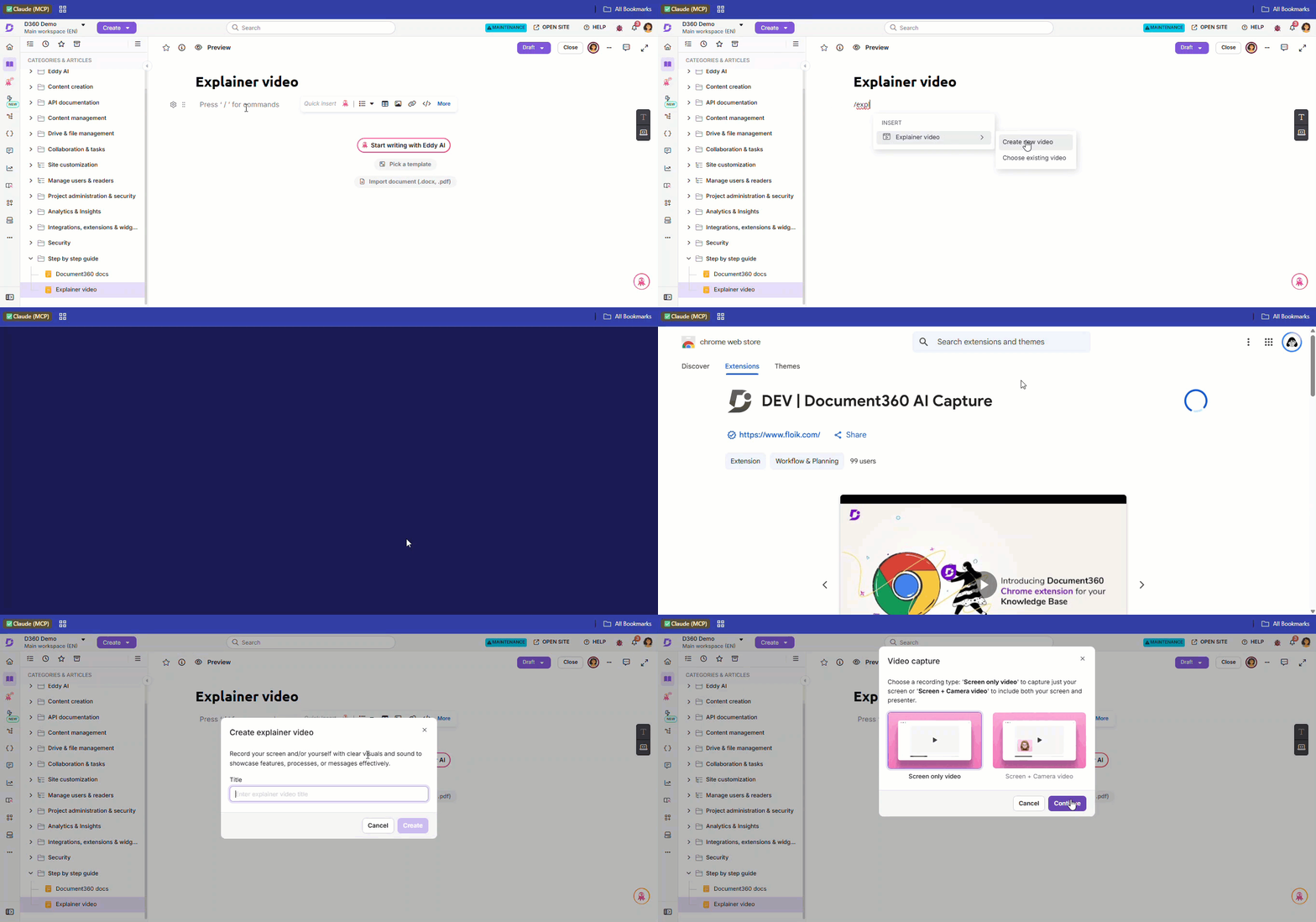
- Navigate to the desired article in the Advanced WYSIWYG editor.
- Type the Slash command
/Explainer video, then select Explainer video > Create new video.
To insert an explainer video you have already recorded, select Choose existing video instead. - If you haven't installed the Document360 AI Capture extension, click Install.
Follow the on-screen steps in your browser to complete the installation.
For browser-specific installation steps, see Installing the Document360 AI Capture extension.
- Once installed, return to the Knowledge base portal.
Recording from Document360 Engage
You can also record a video without opening an article first.
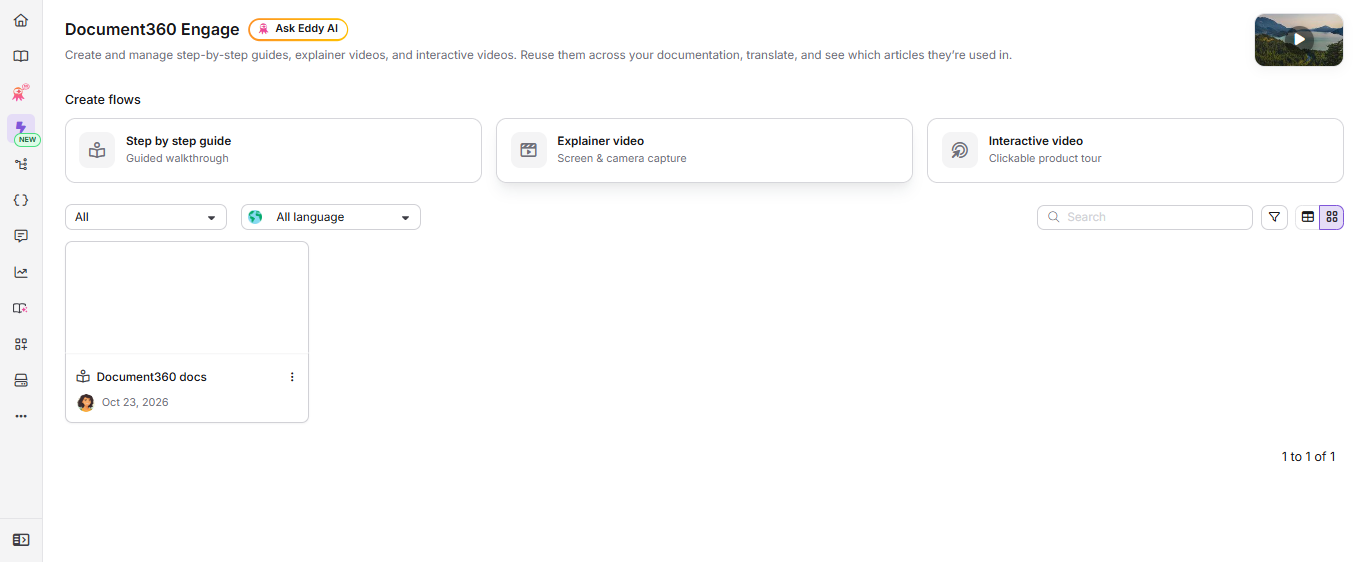
- Click Document360 Engage () in the left navigation bar.
- Under Create flows, click Explainer video.
-
Follow the steps in Recording the screen.
The video isn't added to any article yet. It appears in the Document360 Engage list, and you can insert it into any article when you need it. For more information, see Document360 Engage.
Recording the screen
When you create a new explainer video, the Create explainer video dialog opens.
- In the Title field, enter a name for the video.
- In the Language dropdown, select the language you want to record in. It's set to your project's default language, and you can select any language you have access to.
- Click Create.
- The Video capture panel will appear. Select one of the following recording types and click Continue:
- Screen only video: Captures only the screen.
- If you select Screen only video, the Screen only video panel will appear.
- Select the desired audio from the dropdown, if required. If no audio is needed, select No audio.
- Click Next.
- Screen + Camera video: Captures both the screen and the presenter via the camera.
- If you select Screen + Camera video, the Screen + Camera video panel will appear.
- Select the desired camera and audio options from the dropdown menus.
- Click Next.
- Screen only video: Captures only the screen.
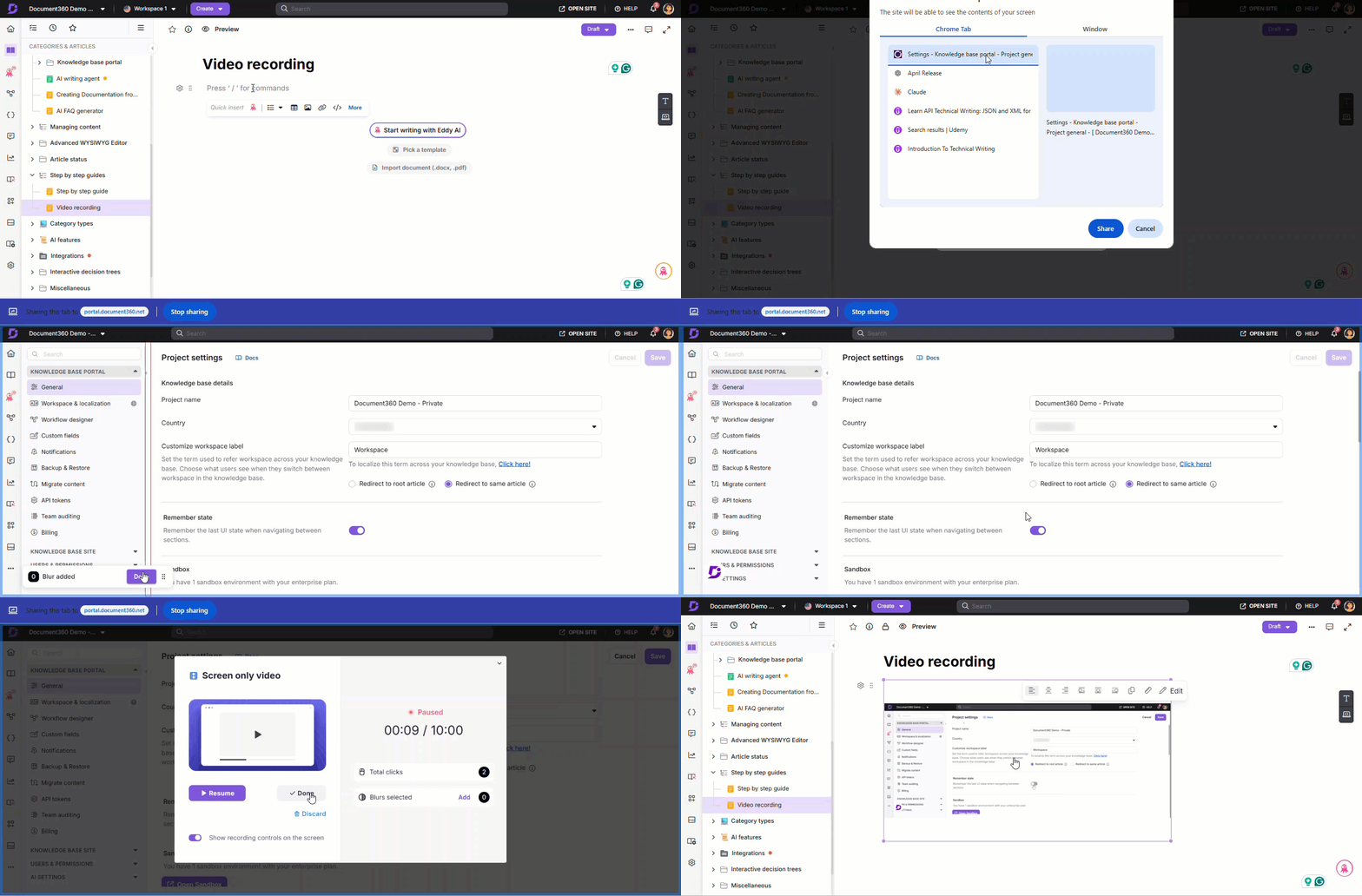
- Select the screen to capture:
- Browser tab: Records only the selected browser tab.
- Window: Records only the selected window.
- Click Share. The selected screen will appear along with the Screen recording panel.
- Choose the recommended resolution (16:9, 4:3, or 1:1).
- Optionally, before starting:
- Click Add in the Blur selected section to hide sensitive areas.
- Enable Show recording controls on screen if needed. A Document360 logo appears at the bottom left; clicking it pauses the recording. This logo will also be visible in the explainer video.
- Click Start capturing to begin recording. A recording can be up to 5 minutes long.
- Click Discard to cancel and return to the previous screen.
During recording, mouse clicks and interactions will be captured, with click indicators displayed for easier video editing.
- Click Pause to pause the recording and Record to resume.
- To stop recording, click Stop sharing in the floating panel or Stop recording in the Screen recording panel.
After recording, the video takes a few moments to process. Once ready, it opens in the video editor and appears in Document360 Engage. If you started from an article, the video is also inserted into the article.
Best practices
- Plan before recording: Outline the steps you want to capture to avoid unnecessary retakes.
- Use blur before recording if you know sensitive content will appear. It's easier than adding it in the editor later.
- Choose 16:9 resolution for articles viewed primarily on desktop.
- Record in a quiet environment if using the original voice option.
- Keep recordings focused: Shorter, task-specific videos are easier for readers to follow than long walkthroughs.
What's next
Once your video is recorded, you can enhance it before publishing. See Editing video to add elements, trim, and add voiceovers.