The Tabs feature in the Advanced WYSIWYG editor lets you organize related content into separate tabs within a single article. Use tabs to present complex or lengthy information in a structured way, so readers can navigate directly to what they need without scrolling through the entire page.
When would you use tabs
- Use tabs to present the same process across multiple platforms or operating systems — for example, installation steps for Windows, macOS, and Linux side by side
- Use tabs to show the same API call or code snippet in multiple languages without stacking multiple code blocks
- Use tabs to separate content by audience type — for example, Admin and End User instructions within the same article
- Use tabs to organize distinct configuration options or settings that share the same context but apply to different scenarios
- Use tabs to reduce page length on content-heavy articles where each section is self-contained, and readers are unlikely to need all sections at once
Creating tabs
Type the slash command /tabs and press Enter. A default tab structure with two tabs will appear in your article.
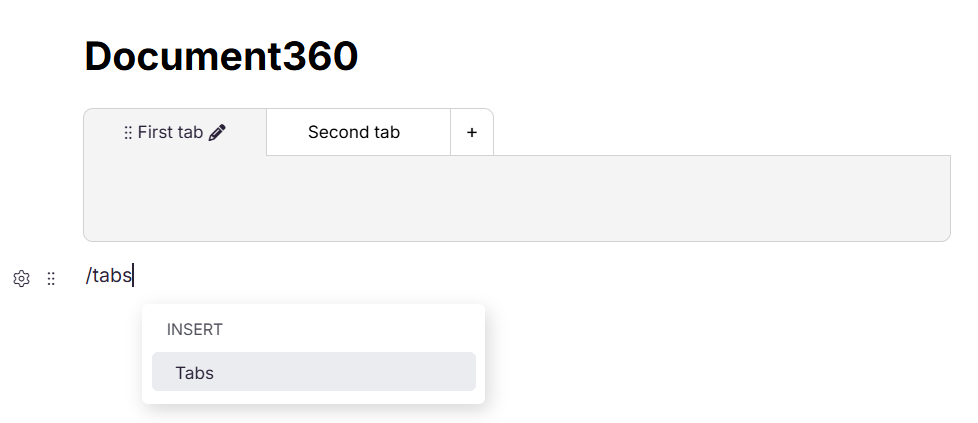
Adding additional tabs
Hover over the tab bar and click the + button, then enter a name for the new tab. Repeat as needed to create multiple tabs.
- The tabs feature requires a minimum of two tabs to function.
- A maximum of 10 tabs can be created within a single tab structure.
Supported elements inside tabs
You can add the following elements to your tab content:
- Eddy AI Writer — Generate AI-powered content directly in your tabs.
- Text formatting — Use headings (H2, H3, H4), bullet lists, numbered lists, and checklists.
- Images and videos — Insert, resize, and manage images or videos.
- Tables — Add and customize rows and columns.
- Hyperlinks — Insert and format links for easy navigation.
- Callouts and private notes — Add callouts or private notes visible only to specific users.
- Code blocks and inline code — Display code snippets or inline code for technical references.
- Variables and snippets — Reuse content across tabs using snippets and variables.
- Glossary terms — Add terms with definitions visible when hovering or clicking.
- Other enhancements — Use emojis, dividers, accordions, and LaTeX equations.
Editing tabs
Click the Edit icon next to the tab name, and you can perform the following actions.
.png)
Changing tab names
Hover over Change tab name, then enter the new name (up to 50 characters). The updated name will automatically reflect in the tab.
Duplicating tabs
Click Duplicate tab from the menu. A new tab will appear next to the original with the same title, content, and color.
Deleting tabs
Click Delete tab from the menu. Deleted tabs can be restored using Undo (Ctrl + Z).
If your content block contains only two tabs, you cannot delete either tab.
Customizing tabs
Changing tab background and border color
Select the tab content block, then click Tab background color or Tab border color from the customization options. Use the color picker to select a color using preset colors, HEX values, or RGB values. Click Clear in the color picker to remove any applied color.
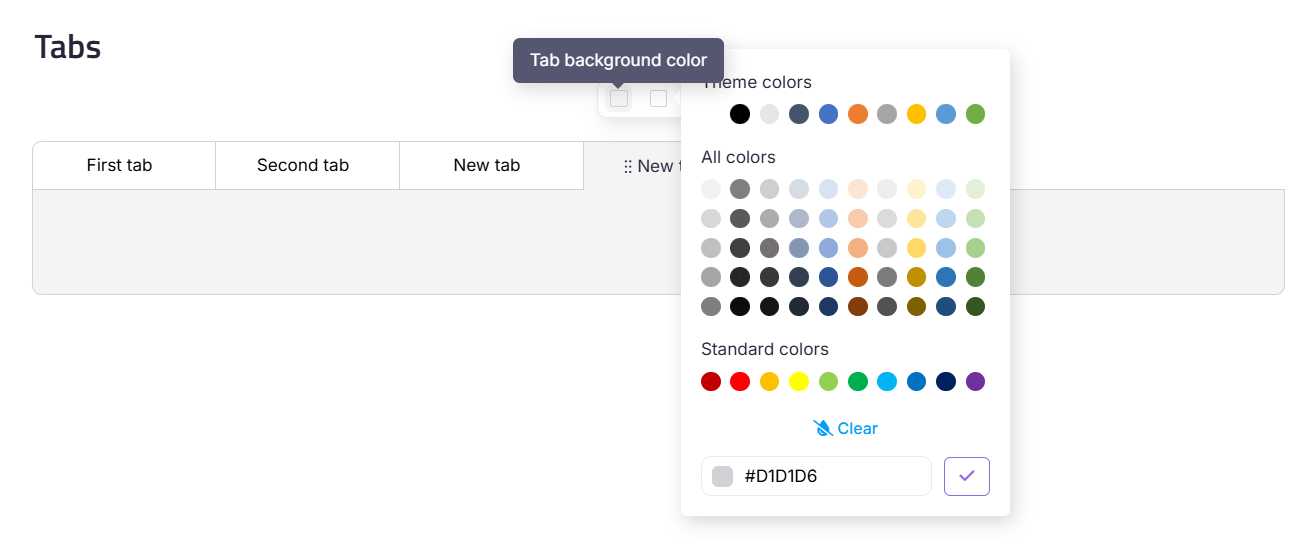
The selected background or border color applies to the entire tab content block. It is not possible to apply different colors to individual tabs.
Moving tabs
-
Hover over the six-dot drag icon to the left of the tab name, click and hold it, drag the tab to the desired position, then release to drop it.
-
If your list of tabs extends beyond the visible area, drag the tab toward the dark grey area near the right or left arrow to scroll and access hidden sections.
-
Drag until a blue line appears in the center of the target tab's position, then drop. The list will automatically realign.
For better control, drag tabs slowly and make small adjustments to avoid accidental replacements.
Viewing tabs in the Knowledge base site
- You can switch between tabs without needing to refresh the page.
- Tab colors, titles, and layouts appear the same across the knowledge base site, widgets, and extensions.
- Tabs work seamlessly on mobile devices.
- When exporting an article with tabs as a PDF, tab contents appear sequentially with each tab's title displayed as a heading.
Use cases / Examples
- Platform-specific instructions — Show installation steps for Windows, Mac, and Linux side by side so readers only read the tab relevant to them.
- Role-based content — Separate instructions for Admins, Editors, and Viewers within the same article, avoiding the need for three separate articles.
- Code in multiple languages — Show the same API call in Python, JavaScript, and cURL, letting developers pick their preferred language.
- Before and after comparisons — Show the state of a configuration before and after a change, making it easy for readers to compare.
Best practices
- Keep tab names short and descriptive — readers should immediately understand what each tab contains without opening it. Tab names support up to 50 characters, but shorter is better.
- Use tabs only when content is parallel and mutually exclusive — readers should only need one tab at a time. If readers need to read all tabs in sequence, a single scrolling article is more appropriate.
- Avoid using more than five tabs in a single block where possible — too many tabs can make navigation confusing, especially on mobile.
- Use consistent content structure across tabs — if one tab has an intro, steps, and a note, apply the same structure to all tabs so readers know what to expect.
- Do not rely on tabs for content that needs to be discoverable via search — headings inside tabs are not included in the article's table of contents and may have limited search visibility.
FAQ
Can I create tabs within another tab?
No, nested tabs are not supported. You cannot create tabs inside other tabs. This ensures the layout and functionality of the editor remain consistent.
Can I include tab headings in the table of contents?
No, headings within tabs will not be included in the table of contents on the knowledge base site.
Can I add page breaks inside a tab?
No, the page break option is inactive within tabs to preserve the layout and structure of the content.
Can I use tabs inside other editor components?
No, tabs cannot be created inside certain editor controls like tables, accordions, or callouts. This restriction ensures proper functionality and layout consistency.