A divider is a horizontal line used to visually separate sections of content within an article. Dividers help break up long articles into distinct sections, improving readability without requiring additional headings.
Three styles are available: Solid, Dotted, and Dashed.
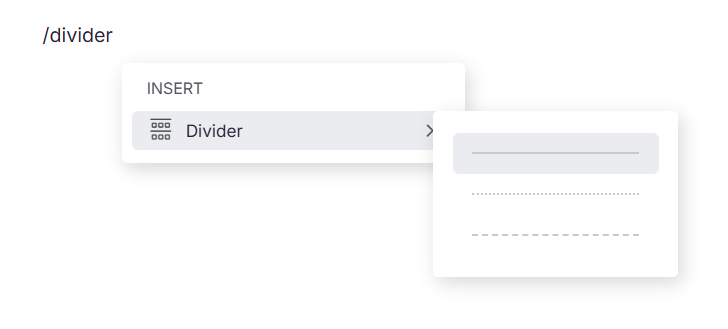
When would you use each style
Solid
- Between major sections of a long article where a clear, definitive break is needed
- After an introduction, before the main content begins
- Before a related articles or see also section at the bottom of an article
Dotted
- Between supplementary or secondary content and the main body; for example, between a note and the next topic
- In onboarding guides or consumer-facing documentation where a softer visual break is preferred
Dashed
- Between steps that are related but belong to different phases of a process
- Where content is grouped loosely and a subtle visual cue is preferred over a strong separator
Insert a divider
- Place your cursor where you want to insert the divider.
- Type
/dividerand pressEnter. - A sub-menu appears showing the three available styles.
- Select your preferred style — the divider is inserted as a full-width horizontal line at the cursor's position.
NOTE
Dividers cannot be repositioned using movable blocks. To move a divider, delete it and reinsert it at the correct location.
Divider styles
| Style | Appearance | Default |
|---|---|---|
| Solid | A continuous, unbroken horizontal line. | Yes |
| Dotted | A horizontal line made up of evenly spaced dots. | No |
| Dashed | A horizontal line made up of evenly spaced dashes. | No |
NOTE
Dividers cannot be repositioned using movable blocks. To move a divider, delete it and reinsert it at the correct location.
Best practices
- Use dividers sparingly — headings (H2, H3, H4) are the primary way to structure content. Dividers should complement heading structure, not replace it.
- Do not use dividers between every section — reserve them for places where a visual break genuinely aids readability, such as between a long procedure and a reference table that follows it.
- Keep divider style consistent across your knowledge base. If your articles use solid dividers, avoid mixing in dashed or dotted dividers without a clear reason.
- Avoid placing dividers immediately before or after a heading — the heading itself already signals a section break. A divider in this position adds visual clutter without adding clarity.
- If you need to reposition a divider, delete it and reinsert it — dividers cannot be moved using movable blocks.