Variables let developers store a value once and reuse it across every endpoint in your API reference. Instead of copying the same ID or token into each request manually, a developer saves it as a variable and refers to it with a {{placeholder}} wherever it is needed. This makes it much easier to move between related endpoints while testing, without re-entering the same values each time.
For example, a developer might save a workspace ID as a variable on one endpoint, then reuse it on several other endpoints — such as when listing a workspace's categories and then creating a category within it — without looking the ID up again.
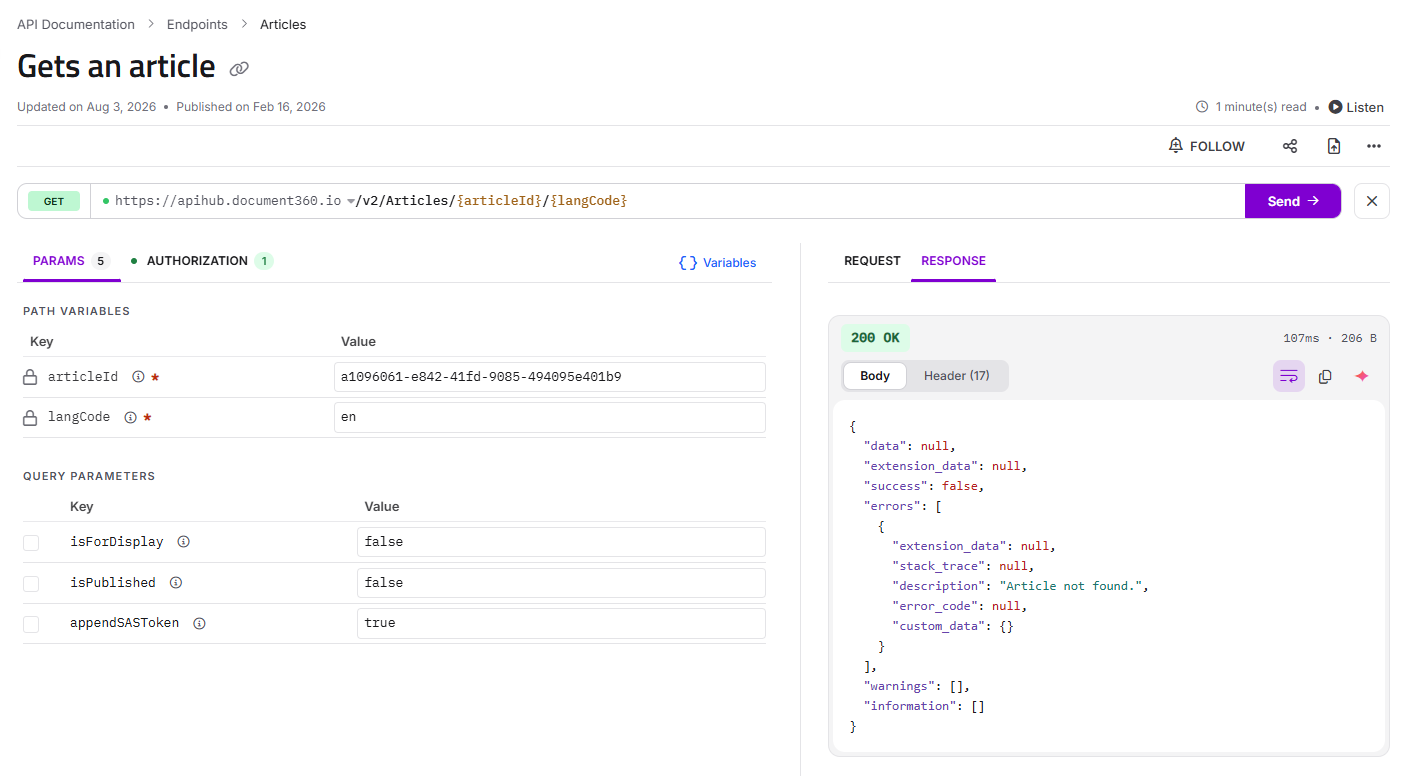
This article explains how to create, use, and manage variables in the Try It! console. For a general overview of the console, see Testing endpoints with Try it!
Two ways to create a variable
You can create a variable either from a value in an endpoint's response, or manually through the Manage variables dialog.
From a response value
The quickest way to create a variable is to capture it directly from a response you have already received.
- Send a request from Try It! so that a response appears in the Response panel.
- In the response, select the value you want to reuse — for example, an
idreturned by the endpoint. - A Variable name prompt appears. Enter a name for the variable and save it.
The selected value is stored under that name and is immediately available to use in any endpoint. This is useful when a value you need for later requests — such as the ID of a record you just created — is returned in a response.
Using the Manage variables dialog
You can also create and edit variables directly.
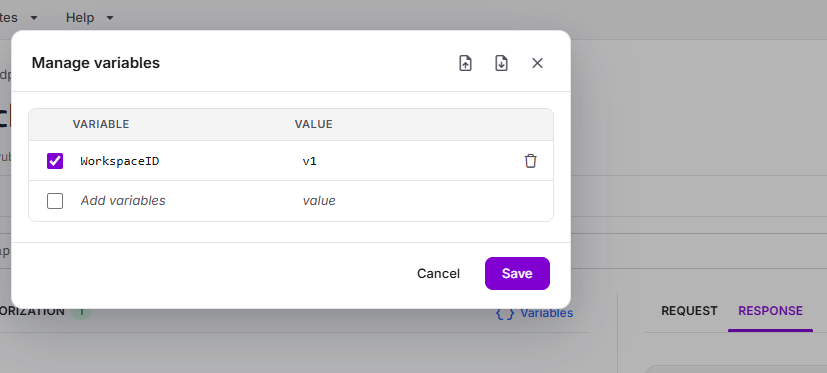
- In the Try It! console, click Variables to open the Manage variables dialog.
- In the Variable column, enter a name in the Add variables field.
- In the Value column, enter the value for that variable. A new blank row appears automatically so you can add another.
- Click Save.
Using a variable
Once a variable exists, you can insert it into any field in the request builder — a path or query parameter, a header, or the request body — by referencing it with double curly braces:
{{variableName}}
For example, if you have a variable named workspaceId, entering {{workspaceId}} in a path parameter tells Try It! to substitute the stored value when the request is sent.
Placeholder vs resolved value
There is an important difference between where you enter a variable and where you see it resolved:
- In the request body editor, the variable stays as its
{{placeholder}}— this is what you type and edit. - In the Request panel (the live request preview), the variable is shown resolved to its actual value — this is what will actually be sent.
This lets you keep your request readable with named placeholders while still confirming, in the Request preview, exactly what values are going to the server.
Managing variables
Open the Manage variables dialog at any time (click Variables in the console) to review, edit, or remove your variables.
- View all variables — every variable you have added in the session is listed with its name and value.
- Edit a variable — change the name or value directly in the row.
- Remove a variable — use the remove control on the row to delete a variable you no longer need.
Variables are saved across sessions. They persist even if you close the browser and come back later. You do not need to export and re-import them to retain them between sessions.
Exporting and importing variables
The Manage variables dialog provides Import and Export controls so you can save a set of variables and reuse them later.
- Export variables as JSON — downloads your current variables as a JSON file. Keep this file to restore the same variables in a future session.
- Import variables from JSON — loads variables from a previously exported JSON file into the current session.
A typical workflow is to build up a set of variables while testing, export them at the end of a session, and import them the next time you return — so you do not have to recreate common values like IDs and tokens from scratch.
FAQ
Can I use the same variable on different endpoints?
Yes. That is the main purpose of variables. Once created, a variable is available across every endpoint in the API reference, so you can reuse a value like a workspace ID or token as you move between related endpoints.
Why does my request body still show {{placeholder}} instead of the value?
{{placeholder}} instead of the value?That is expected. The request body editor shows the variable as its {{placeholder}}, while the Request preview panel shows it resolved to the actual value that will be sent. Check the Request preview to confirm the resolved values.
How do I create a variable from a value the API returned?
Send a request so a response appears, select the value in the Response panel, and enter a name in the Variable name prompt that appears. The value is saved as a variable and can be reused in other endpoints.