Eddy AI is built into your published API reference, so developers can ask questions about an endpoint and get answers without leaving the documentation. Rather than piecing together how an endpoint works from the parameters, schema, and code sample alone, a developer can ask Eddy directly — how the endpoint behaves, what authentication it needs, or for a code sample in a specific language — and get an answer grounded in that endpoint's own specification.
This article explains how developers use Eddy AI in the API reference, and how to enable it for your API documentation. For a general overview of the reader experience, see API fundamentals.
Where to find Eddy AI
Eddy AI is available directly from the panels on an endpoint page. Look for the Ask Eddy AI icon on each of the following:
- Code panel — ask about the request sample, for example to explain it or convert it to another language.
- Request panel — ask about the request you are building in Try It!.
- Response panel — ask about the response, such as what a particular field or status means.
Clicking the icon opens the Eddy AI panel, already scoped to the endpoint you are viewing.
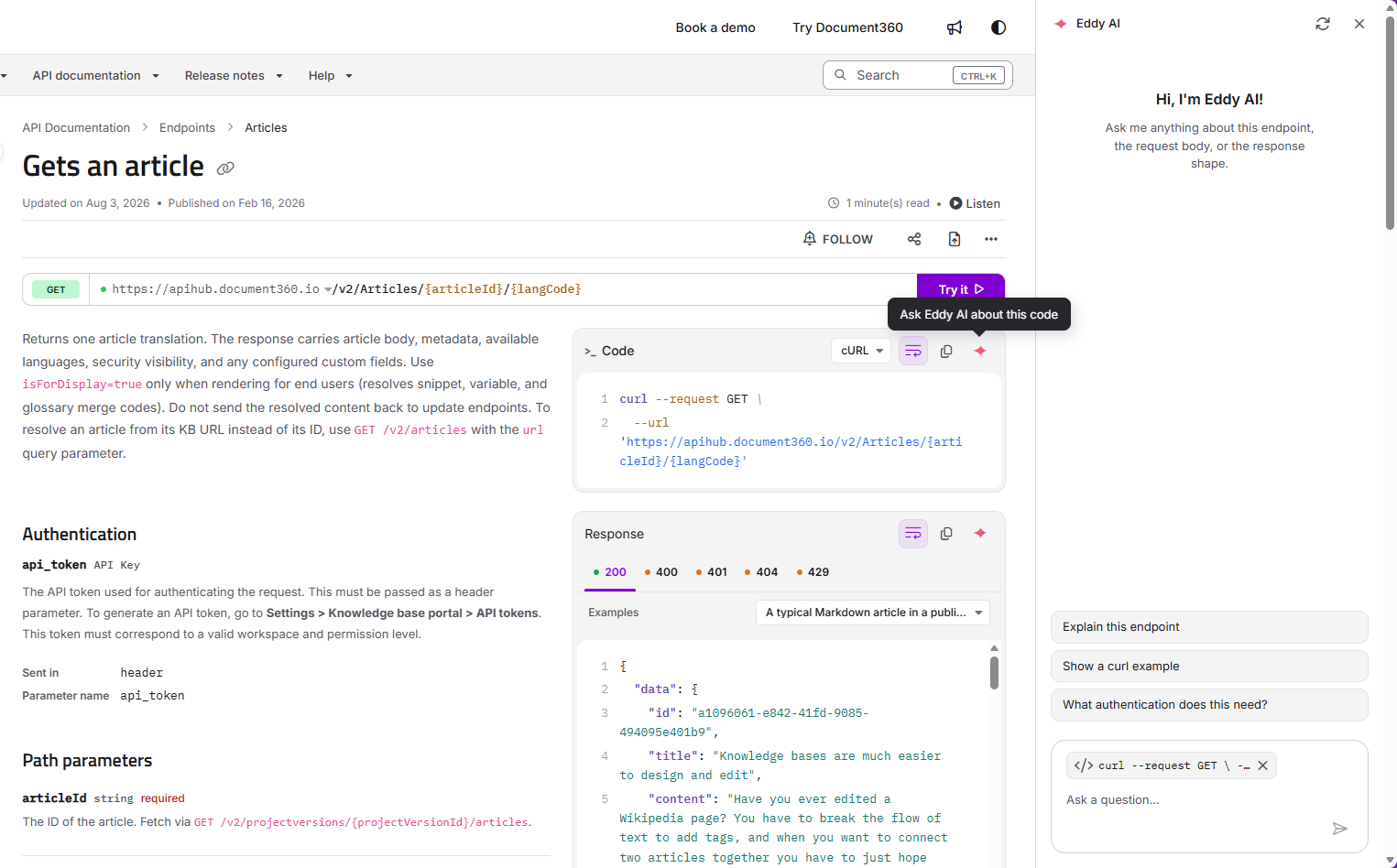
Asking a question
When you open Eddy AI, you can either choose one of the suggested prompts or type your own question.
The suggested prompts are:
- Explain this endpoint
- Show a curl example
- What authentication does this need?
To ask something else, type your question in the Ask a question... field and submit it. Eddy answers using the current endpoint's specification, so its responses reflect that endpoint's real path, parameters, authentication, and schema — not generic examples.
For instance, asking for a request sample in a particular language returns a ready-to-use snippet built for that endpoint, including its correct URL and authentication, with a control to copy the code.
Enabling Eddy AI for your API documentation
Eddy AI must be enabled for your API documentation before it appears in the published reference. This is configured by an admin in the Knowledge base portal.
- Go to Settings > AI settings > Eddy AI settings.
- Under the Search suite section, select the API documentation checkbox.
- Save your changes.
Once enabled, the Ask Eddy AI icon appears on the endpoint panels in your published API reference.
Things to keep in mind
- Eddy AI answers are scoped to the endpoint. Responses are generated from the specification of the endpoint you are viewing, so they reflect that endpoint's actual details rather than generic examples.
- AI usage consumes credits. Depending on your plan, Eddy AI usage can count toward your project's AI credit allowance. Check your plan's AI credit terms if you expect heavy use.
FAQ
Where does Eddy AI appear in the API reference?
The Ask Eddy AI icon appears on the Code, Request, and Response panels of an endpoint page. Clicking it opens the Eddy AI panel scoped to that endpoint.
What can I ask Eddy AI?
You can use one of the suggested prompts — Explain this endpoint, Show a curl example, or What authentication does this need? — or type your own question. Eddy answers using the current endpoint's specification, so its answers reflect that endpoint's real path, parameters, and authentication.
Why don't I see the Ask Eddy AI icon in my API reference?
Eddy AI must be enabled for API documentation first. An admin can turn it on under Settings > AI settings > Eddy AI settings by selecting the API documentation checkbox in the Search suite section.