The Drive in Document360 lets you organise your knowledge base assets — images, files, and attachments — into folders and subfolders. Creating a well-structured folder hierarchy makes it easier to locate files, maintain consistency across your knowledge base, and avoid broken image or file links in articles.
Before you begin
- To add subfolders, you need at least two root-level folders already created in Drive, or one root-level folder that is expanded.
- Deleting a root-level folder also deletes all its subfolders and files — this can break image and file links in any article referencing those files.
Add a new folder
There are two ways to do this:
Using the 'New folder' option to add a folder
-
Navigate to Drive () in the left navigation bar of the knowledge base portal.
Existing folders and subfolders are displayed in a tree-view style on the left navigation pane. -
Click the New folder option at the top left.
A New folder dialog appears. -
Enter the Folder name.
-
The folder location is set to Root level by default. Use the Folder location dropdown to select a different location if needed.
-
Click Create.
.png)
Using the '+' option to add a folder
-
Navigate to Drive () in the left navigation bar of the knowledge base portal.
Existing folders and subfolders are displayed in a tree-view style on the left navigation pane. -
In the left navigation pane, hover over the space between folders until the Flywheel (+) icon appears.
-
Click the + icon.
A New folder popup appears. -
Enter the desired folder name.
-
The default location is Root level. To add a root-level folder from anywhere in Drive, use the folder location dropdown and click Reset.
-
Click Create.
.png)
Add a subfolder
There are two ways to do this:
Using the 'More' option to add a subfolder
-
Navigate to Drive () in the left navigation bar of the knowledge base portal.
-
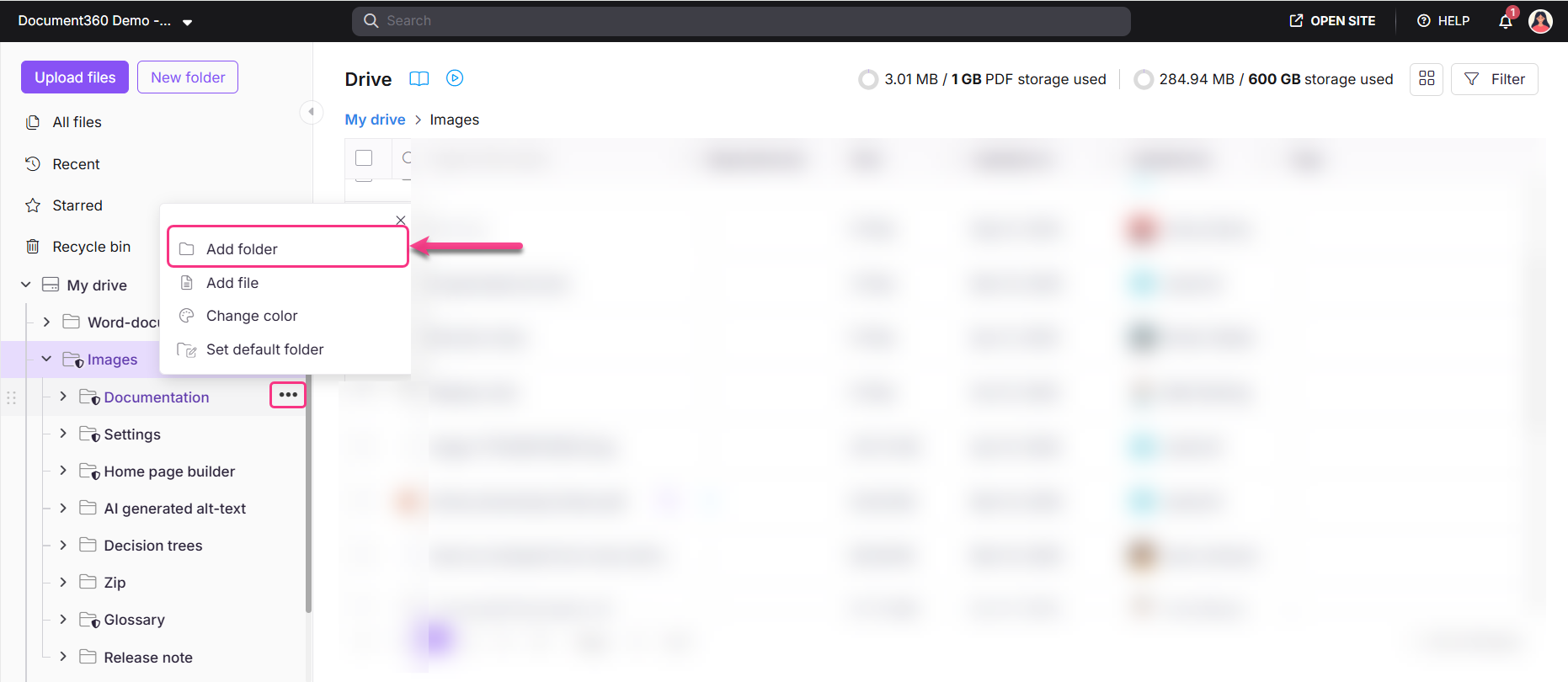
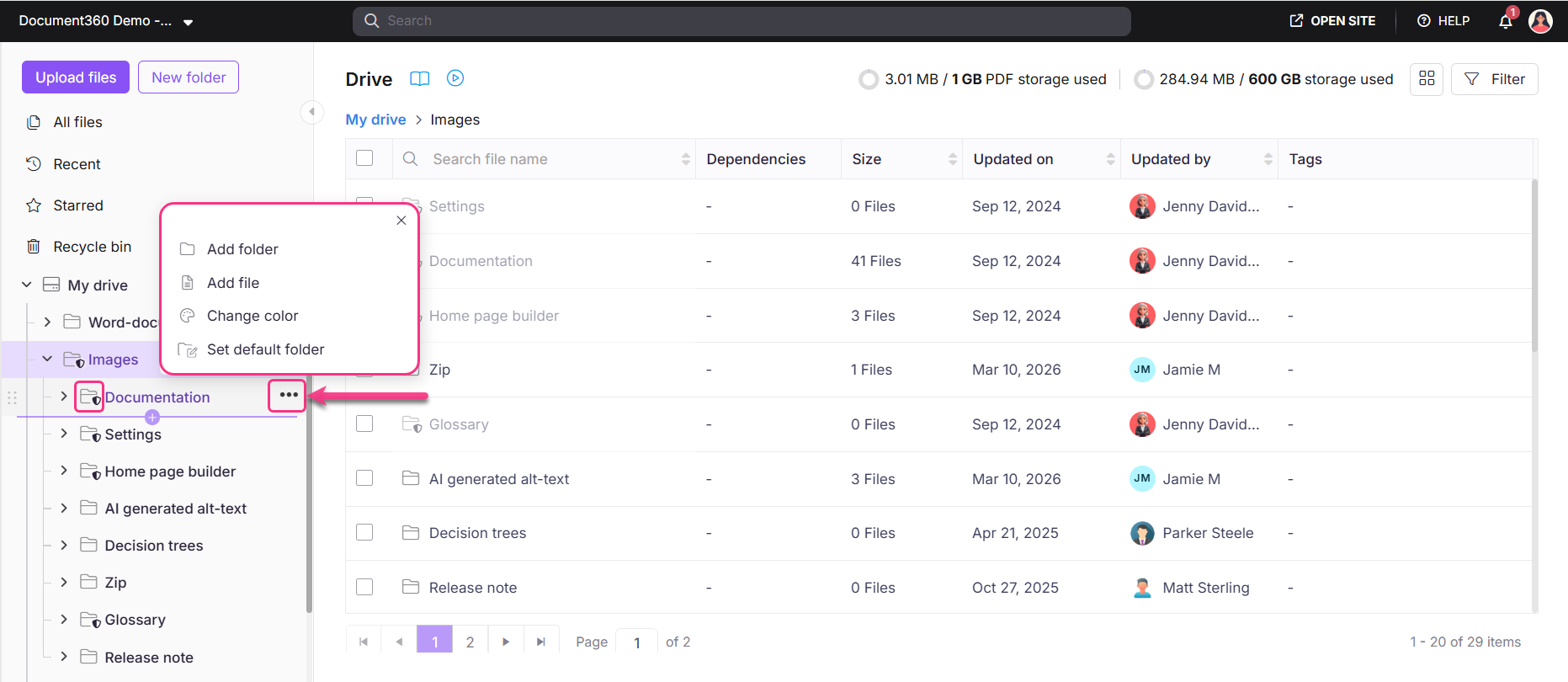
Click the More () icon next to the folder where you want to add a subfolder, then select Add folder.
The New folder dialog appears. -
Enter the Folder name.
-
The folder location defaults to the folder you selected. Use the location dropdown to change it if needed.
-
Click Create.
Using the '+' option to add a subfolder
-
Navigate to Drive () in the left navigation bar of the knowledge base portal.
-
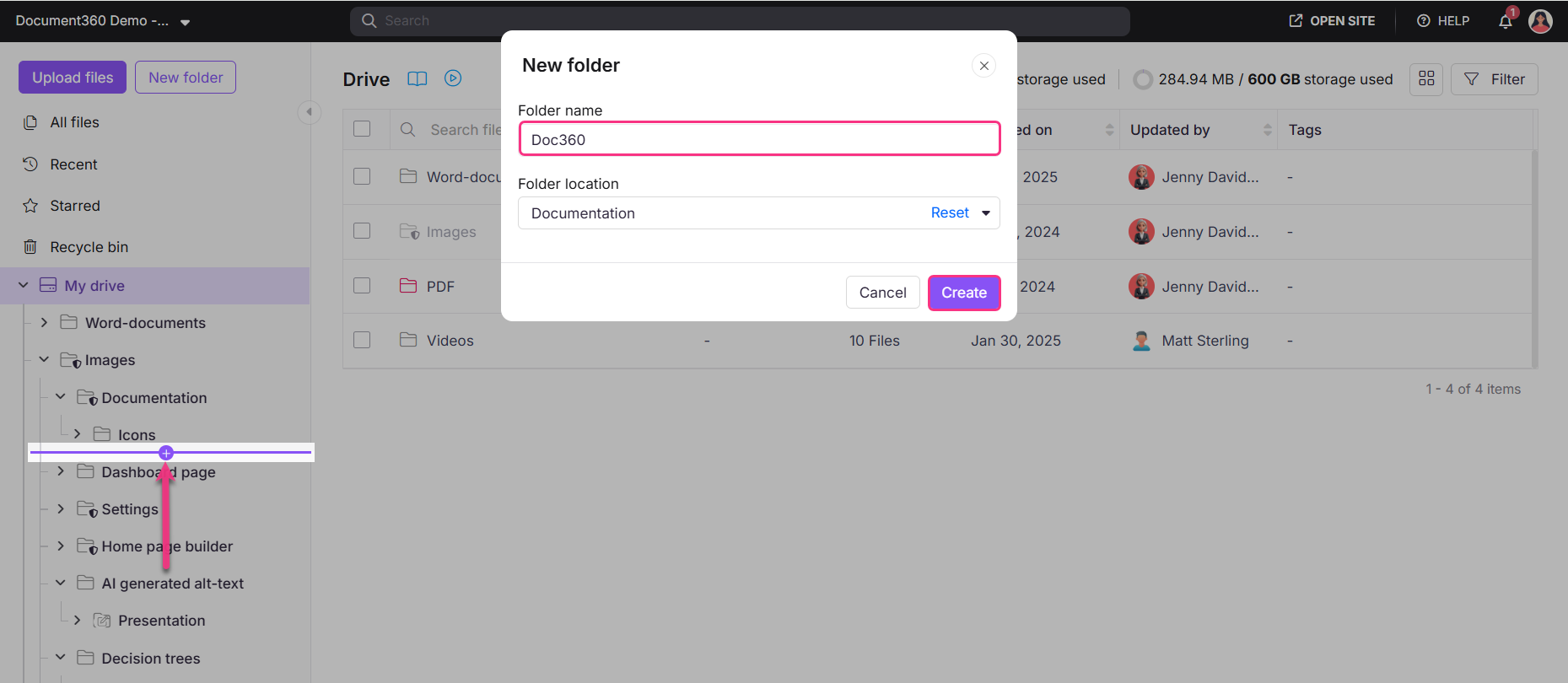
In the left navigation pane, hover over the space between folders until the + icon appears.
-
Click the + icon.
A New folder dialog appears. -
Enter the desired folder name. The default location is the folder where you clicked +. Use the location dropdown to add the subfolder anywhere in Drive.
-
Click Create.
Ensure the root-level folder is expanded (the arrow on its left side points downward) before adding a subfolder. If the folder is collapsed, the new folder will be created at the same level instead of nested inside it.
Deleting a root-level folder permanently deletes all its subfolders and files. This can cause broken images and file links in any articles referencing those files.
Best practices
- Mirror your knowledge base structure. Keep Drive folders aligned with your knowledge base categories and subcategories so assets are intuitive to find for anyone on your team.
- Name folders consistently. Use a clear, descriptive naming convention (for example,
release-notes-assetsoronboarding-images) to avoid ambiguity. - Review before deleting. Before removing a root-level folder, check whether any articles link to files inside it to prevent broken links.
FAQ
Can I add a subfolder without creating a root-level folder first?
No. You need at least one root-level folder in Drive before you can add a subfolder. Create a root-level folder first using either the New folder option or the + icon, then add subfolders inside it.
Why is the 'Add folder' option greyed out for some folders?
Certain folders in Drive are System folders. Actions such as adding a folder, adding a file, renaming, changing color, setting a default folder, and removing are restricted for System folders. These restrictions cannot be changed.
What happens to articles if I delete a folder?
Deleting a root-level folder also deletes all its subfolders and files. Any articles that reference those files will have broken images or file links. Always review article dependencies before deleting a folder.
Can I move a subfolder to a different root-level folder?
You can select a different location using the Folder location dropdown when creating a folder. To move an existing subfolder, use the folder's More () menu options available in Drive.