Folders in Document360 help you organize articles and content within your knowledge base. You can create a folder hierarchy, set defaults, apply colors and tags, and manage folders in bulk from the Drive. This article gives an overview of folder management and links to detailed guides for each action.
In this section
| Article | Description |
|---|---|
| System folders | Learn about the default folders Document360 creates automatically and their limitations. |
| Add a folder | Create a new folder in your Drive to organize articles. |
| Set a default folder | Set a folder as the default destination for new articles. |
| Move a folder | Relocate a folder using drag and drop or the More options menu. |
| Rename a folder | Change a folder's display name. Note that the folder slug does not change when you rename. |
| Change folder color | Apply a color to a folder to distinguish it visually in the Drive. |
| Star a folder | Mark folders as starred for quick access from the Drive. |
| Remove folders | Remove or permanently delete folders, and restore them from the Recycle bin. |
Bulk folder actions
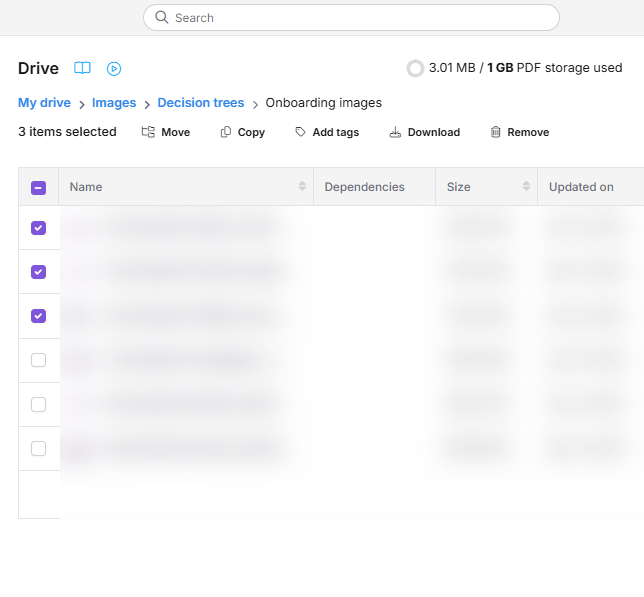
You can perform actions on multiple folders at the same time. This is useful when you want to move, copy, tag, download, or remove a large number of folders at once.
To perform a bulk action on folders,
- Click the Drive () icon in the left navigation bar.
- Select one or more folders using the checkboxes in list view or grid view.
- Click the action you want to apply from the toolbar that appears at the top.
The following bulk actions are available:
| Action | Description |
|---|---|
| Move | Relocate the selected folders to a different folder in your Drive. |
| Copy | Create a copy of the selected folders and their contents. |
| Add tags | Apply one or more tags to the selected folders for easier categorization and filtering. |
| Download | Download the selected folders to your local storage. |
| Remove | Delete the selected folders and move them to the Recycle bin. |
Removed folders can be restored from the Recycle bin before they are permanently deleted. Refer to Remove folders for more information.
Folder breadcrumb
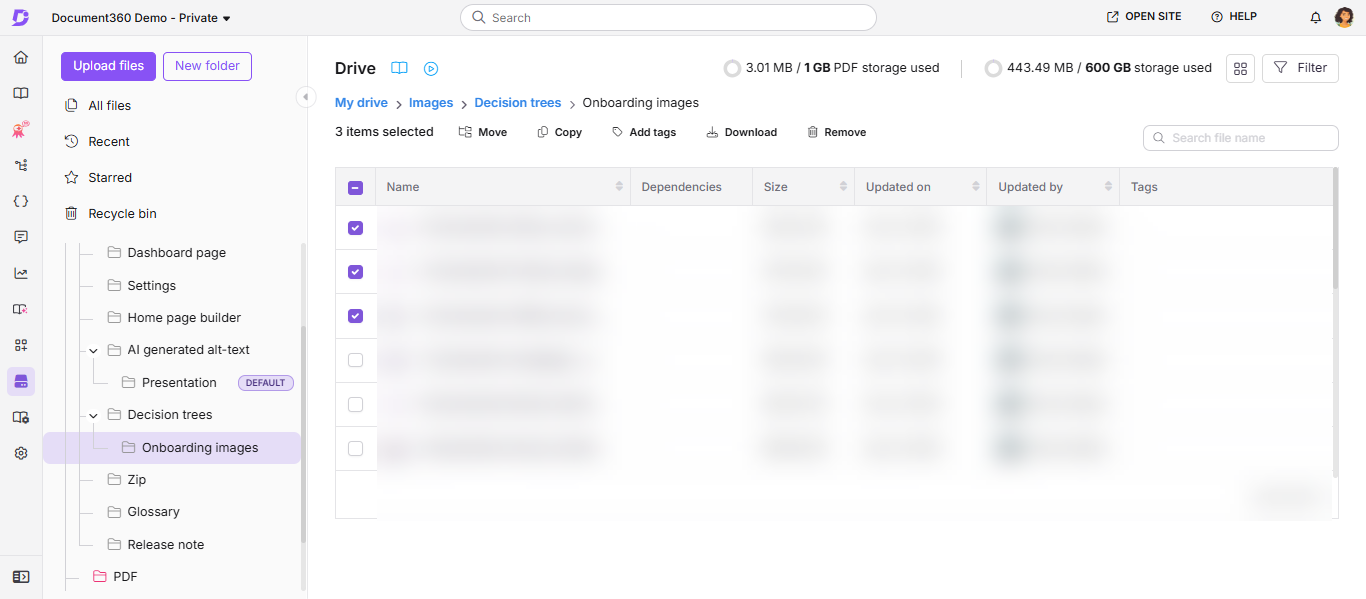
The breadcrumb trail at the top of the Drive panel shows the full path from the root directory to the folder you are currently viewing. Use it to track your location within a nested folder hierarchy and navigate between levels quickly.
- Click any folder name in the breadcrumb to navigate directly to that folder.
- The last item in the breadcrumb represents your current folder and is not clickable.