System folders are built-in folders that come with every Document360 project by default. They support core platform functionality and have certain restrictions that distinguish them from regular folders you create.
What are system folders
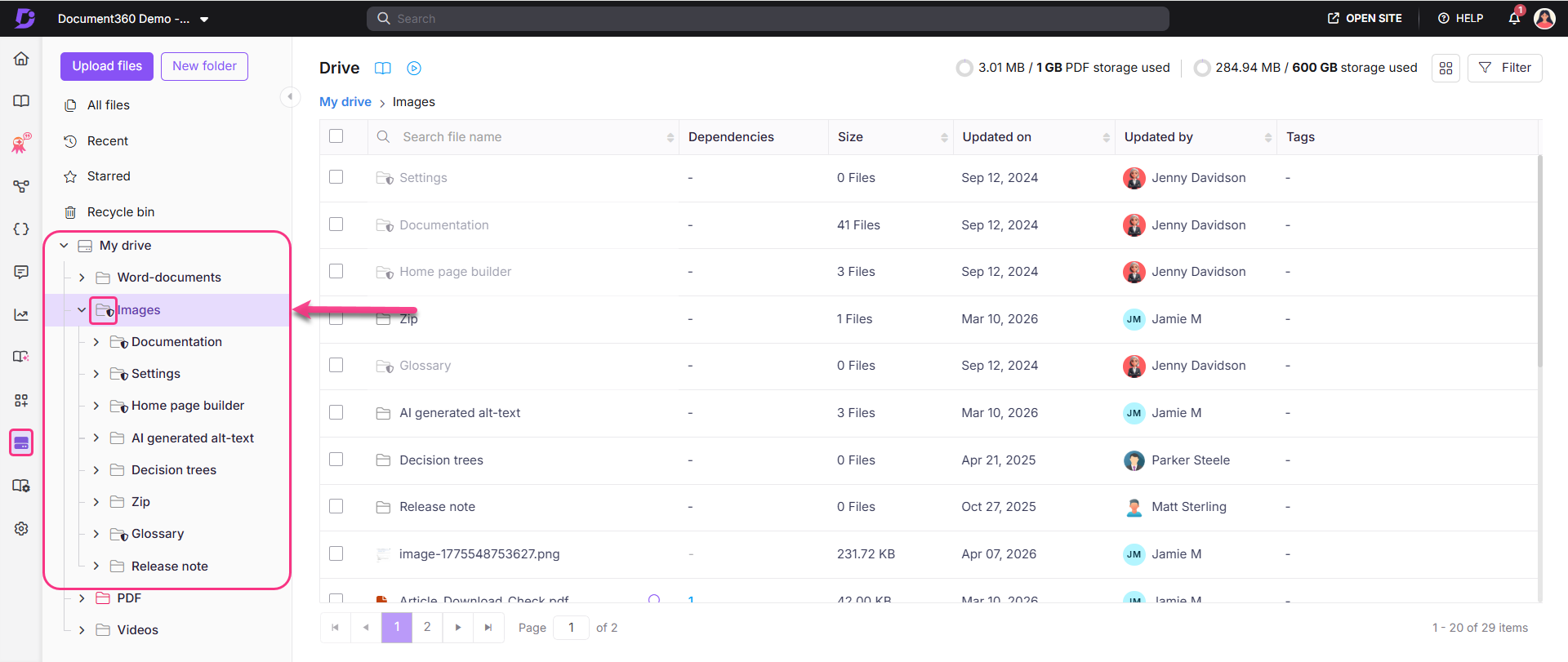
System folders are identified by the shield () icon next to their name in the Drive navigation pane. Unlike regular folders, they cannot be deleted, moved, reordered, or renamed, but you can work within them freely.
The only system folder in Drive is Images, which contains the following built-in subfolders:
| Subfolder | Purpose |
|---|---|
| Documentation | Stores images used in knowledge base articles |
| Settings | Stores images used in project settings |
| Home page builder | Stores images used in homepage customization |
| Glossary | Stores images used in glossary entries |
These subfolders are also system folders and carry the same restrictions as the parent Images folder.
Before you begin
- System folders cannot be deleted, moved, reordered, or renamed.
- Files inside system folders behave like any other file in Drive — they can be added, moved, copied, replaced, downloaded, or deleted.
What you can do inside system folders
Although system folders themselves are restricted, you can perform the following actions within them:
| Action | Description |
|---|---|
| Add file | Upload files directly into the system folder |
| Add folder | Create subfolders inside the system folder to further organize your files |
| Change color | Apply a color to the folder for visual organization in the navigation pane |
| Set as default folder | Make this folder the default destination for new uploads |
Setting a folder as the default means all new file uploads will land in that folder automatically unless a different destination is selected at upload time.
Best practices
- Do not delete files from system folders unless necessary — Files in subfolders like Home page builder, Settings, and Glossary are tied to specific areas of your knowledge base. Deleting them may remove visuals from those areas without warning.
- Use subfolders to stay organized — If you upload a large number of files to the Documentation subfolder, create additional subfolders within it to group files by topic, version, or content type.
- Set the most-used folder as default — If your team uploads most files to a specific subfolder, setting it as the default reduces the number of steps needed at upload time.
- Use folder colors for quick identification — Applying distinct colors to frequently used system subfolders makes them easier to spot in the navigation pane, especially in large Drive libraries.