Eddy AI can automatically generate file names for the images you upload to Drive, following a naming convention you define. This helps keep image file names consistent, descriptive, and easy to search for across your entire knowledge base, without relying on every team member to remember and apply the same naming rules manually.
You can define your own naming convention as a set of plain-language rules. Eddy AI uses these rules whenever it generates a file name for an image, whether you're using Generate during upload or renaming an existing file.
Before you begin
- You need the appropriate permissions to access Settings > AI Settings to configure the naming convention.
- The naming convention only applies to image files (JPG, JPEG, PNG, and WEBP). It has no effect when generating names or alt text for other file types.
- Setting up or changing the convention doesn't rename any existing files in Drive. It only affects names Eddy AI generates after the convention is saved.
Why set up a naming convention
Document360 provides a starter naming convention by default. Customizing it for your organization gives you:
- Consistency across your team. Everyone uploading images ends up with names that follow the same pattern, instead of names that depend on who uploaded the file.
- Faster search and reuse. Descriptive, predictable names make it easier to find the right image later, especially as your Drive grows.
- Less manual renaming. Once the convention is set up, Eddy AI applies it automatically whenever you use Generate, so you don't have to think through the rules every time.
- Cleaner knowledge base overall. Image names stop being an afterthought (screenshot-2026-03-01.png) and start carrying useful information about what they contain.
Configure the naming convention
-
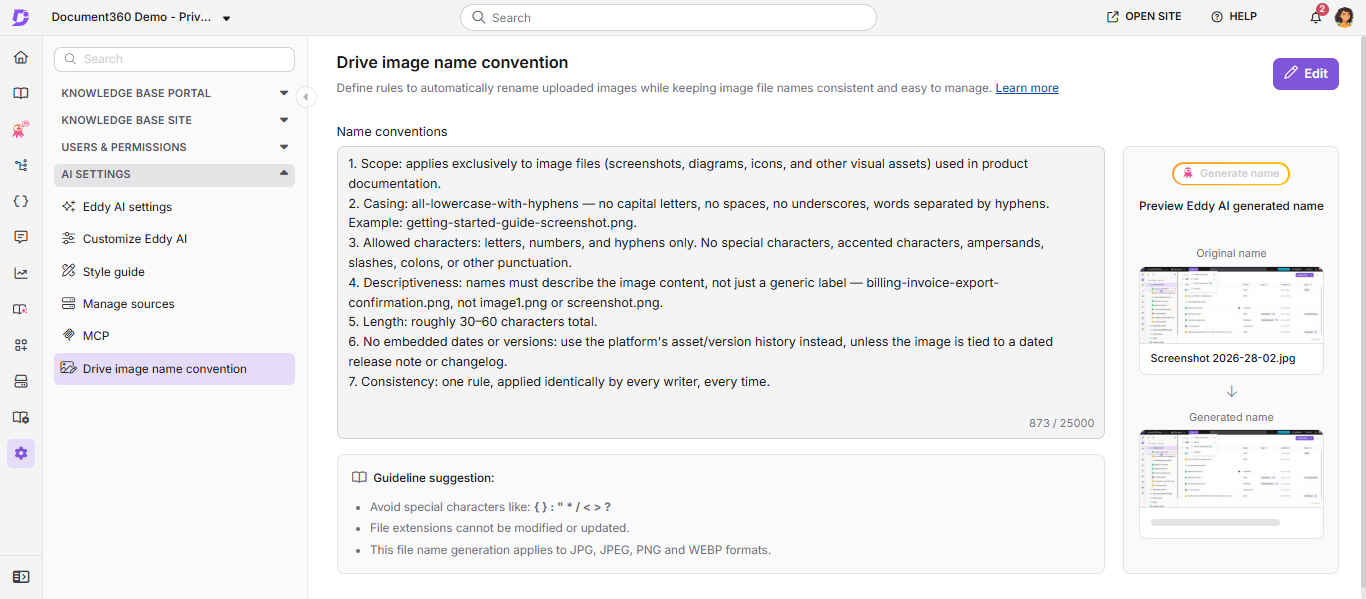
Go to Settings () > AI Settings > Drive image name convention ().
-
Click Edit.
-
The Name conventions box comes pre-filled with a starter set of rules. Review them and edit as needed for your organization. For example, you can specify the file types the convention applies to, the casing style (uppercase, lowercase, or title case), which characters are allowed, how descriptive the name should be, an ideal length, and whether dates or version numbers should be avoided.
NOTE- This convention only applies to image files (JPG, JPEG, PNG, and WEBP). It has no effect on other file types uploaded to Drive.
- The Name conventions box has a 25,000 character limit.
-
Refer to the Guideline suggestion panel for a recommended set of rules if you're not sure where to start.
-
To confirm Eddy AI is interpreting your rules correctly, go to the Preview Eddy AI generated name section and click Generate name. Eddy AI generates a sample file name based on your current rules, so you can check the result before saving.
NOTEGenerate name is only available while you're in Edit mode.
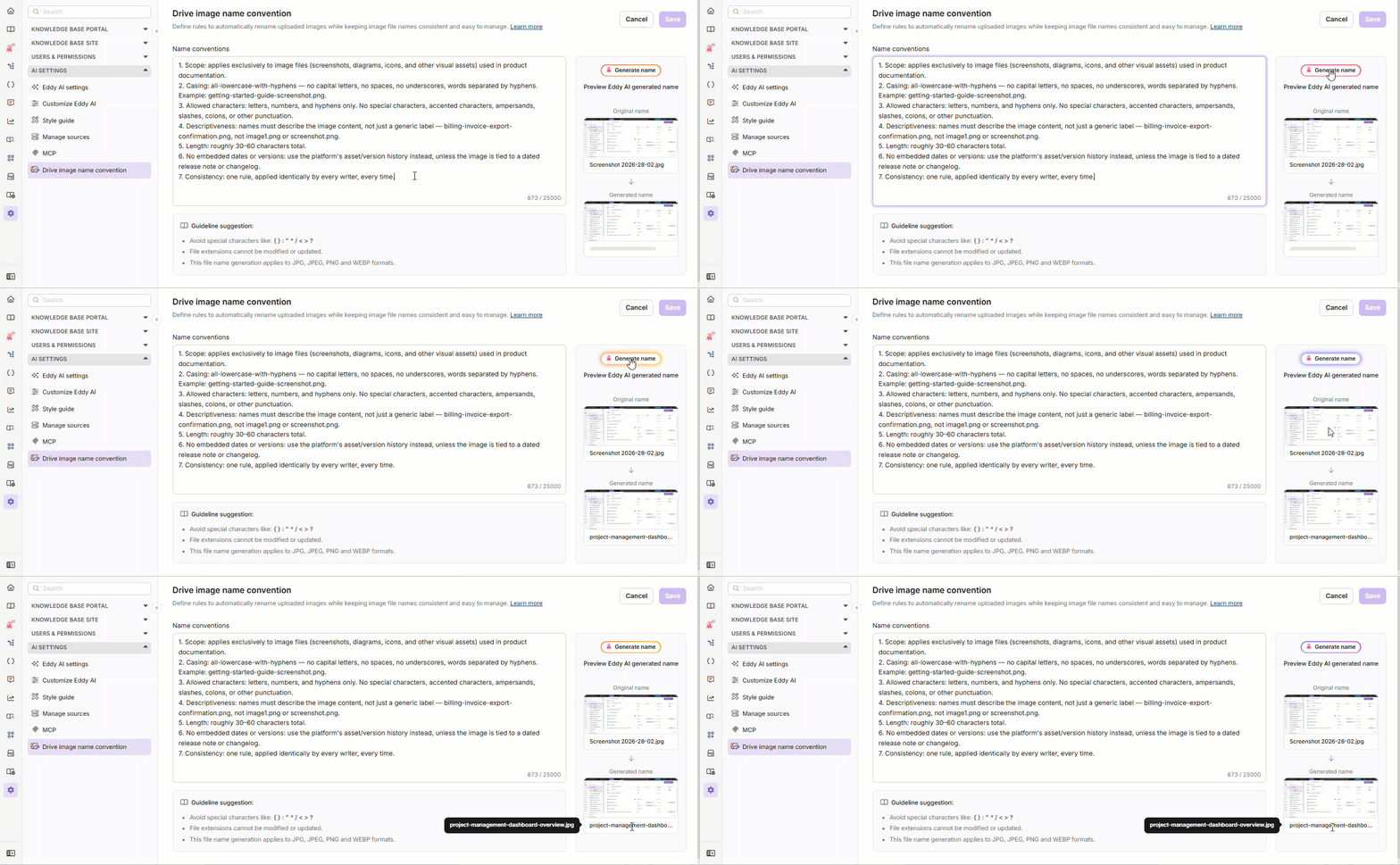
6. Click Save.
The Name conventions box can't be saved empty. If you clear all the rules and click Save, Document360 keeps your previous rules in place, even though the confirmation message indicates the update was successful. To remove rules entirely, leave at least one behind.
Best practices
- Keep rules unambiguous. Vague rules (like "make it descriptive") give Eddy AI room to interpret differently each time. Be specific about casing, character restrictions, and length so generated names stay consistent.
- Use the preview before saving. Generate a sample name after every change to your rules, so you catch unexpected results before they affect real uploads.
- Align with Drive's character rules. Your naming convention should stay within what Drive itself allows in a file name, so generated names never get blocked when applied.
FAQ
Does the naming convention apply automatically to every upload?
No. Eddy AI only generates a name following your convention when you click Generate for an image, either during upload or when renaming an existing file. Files aren't renamed automatically just because a convention is configured.
Does this convention apply to file types other than images?
No. The naming convention only applies to image files (JPG, JPEG, PNG, and WEBP). Eddy AI's Generate option isn't available for other file types.
What happens if I don't customize the predefined naming convention?
Eddy AI keeps following whatever rules are currently saved in the Name conventions box, whether that's the predefined starter rules or your own customized version.
Can I edit the naming convention after saving it?
Yes. Click Edit at any time to update the rules. Changes only affect names Eddy AI generates going forward; files already renamed aren't affected retroactively.