Renaming a file in Document360 Drive changes its display name without affecting the file itself. Its content, location, and CDN URL all stay the same, so any existing links or embeds continue to work.
Keeping your file names clear and consistent matters as your Drive grows. Files often land with generic names like Screenshot_2026-09-23.png or system-generated ones like Copy of File (1).png. You can rename them anytime without breaking any article that references the file. For image files, you don't even have to name them yourself. Eddy AI can analyze the image and suggest a name based on its content, following your AI drive images naming rules.
Why rename files
You may need to rename a file when:
- Improving discoverability. The original file name, often an auto-generated or generic one, doesn't reflect what the file actually contains.
- Keeping Drive organized. Files copied or restored with a system-generated suffix, like "Copy of" or "(1)", need a clearer name.
- Following a naming convention. Your team has a naming standard and an existing file doesn't match it.
- Cleaning up generic file names. Files often arrive with names that mean nothing on their own, screenshots saved with a random number, images downloaded from the web with a string of digits, or export files with auto-generated names. Instead of renaming the file on your computer, you can name it directly in Document360.
Before you begin
- The new file name must be unique across your entire Drive. If a file with that name already exists anywhere in the project, the rename is blocked with the error message File name already exists.
- The file extension can't be changed. Only the name portion is editable.
- File names can't exceed 150 characters or contain the characters
\ / : * ? " < > |.
Rename a file
You can name a file when you upload it, or rename it later once it's already in Drive, using the top menu bar, the file context menu, or the File details panel.
Rename a file while uploading it
The File name field behaves differently depending on how many files you upload at once.
Uploading a single file
- Open Drive () from your Document360 project.
- Click Upload files and select the file from your device, or drag and drop the file directly into Drive.
- In the File name field, edit the name before uploading. For image files, click Generate to have Eddy AI suggest a name based on the image content, following your AI drive images naming rules.
- Click Upload.
Uploading multiple files
When you upload more than one file at once, each file appears as its own card and its name isn't directly editable by default.
-
Open Drive () from your Document360 project.
-
Click Upload files and select the files from your device, or drag and drop multiple files directly into Drive.
-
For each file, click the pencil icon that appears on hover to edit the name manually, or click the Eddy AI icon next to the file name and choose File name, Alt text, or Both.
-
Click Upload.
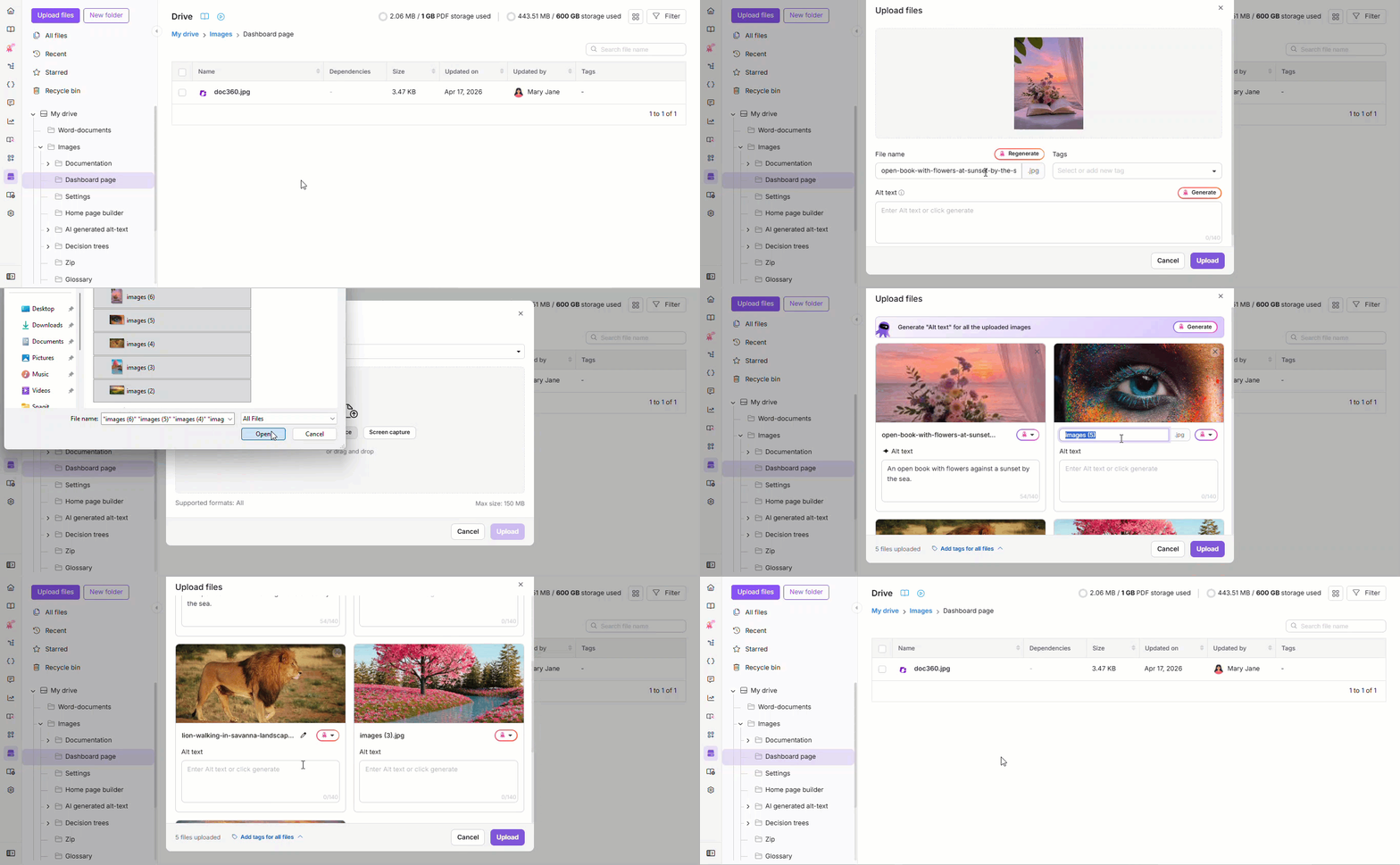
- To generate alt text for every uploaded image in one action, click Generate next to Generate "Alt text" for all the uploaded images at the top of the dialog.
- The Eddy AI dropdown and the Generate button are only available for image files. Other file types can only be renamed manually.
- If the file's name, whether its default name or one you enter manually, collides with an existing file anywhere in Drive, the upload is blocked with the error message File name already exists. Document360 does not auto-append a number in this case. Change the name to proceed.
Rename a file from the top menu bar
-
Open Drive () from your Document360 project.
-
Select the checkbox next to the file you want to rename.
Rename is only available in the toolbar when exactly one file is selected.
-
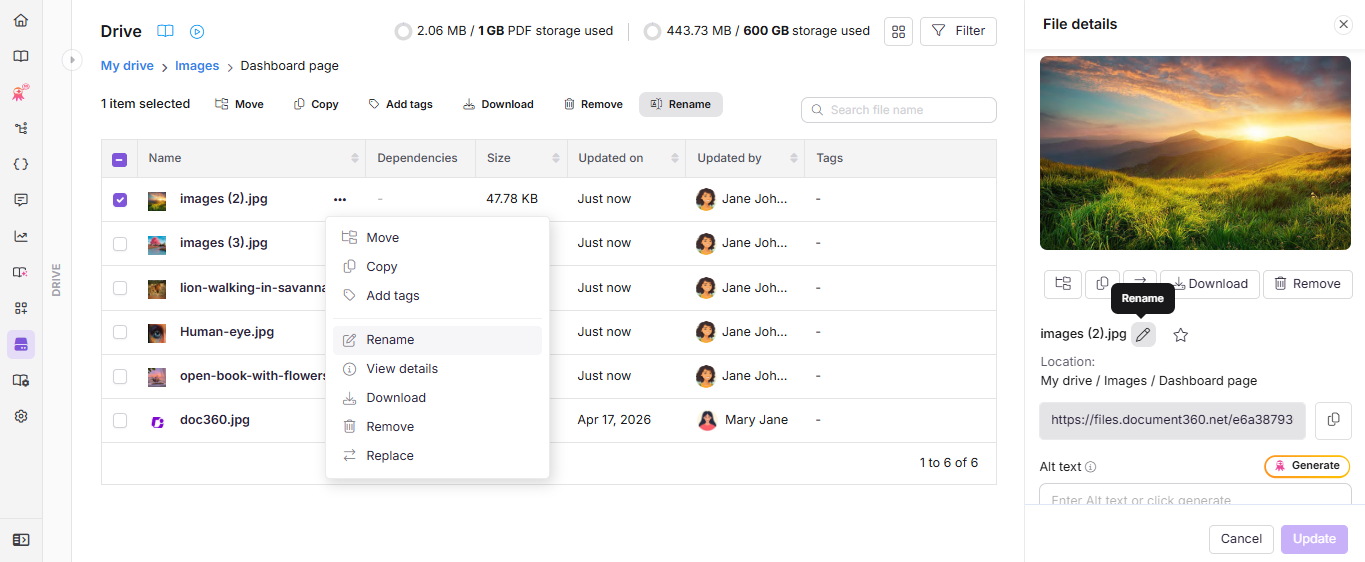
Click Rename in the top menu bar. The Rename file dialog appears.
-
In the File name field, enter the new name.
-
Click Rename.
Rename a file from the file context menu
- Open Drive () from your Document360 project.
- Hover over the file you want to rename and click the More () icon.
- Click Rename. The Rename file dialog appears.
- In the File name field, enter the new name.
- Click Rename.
Rename a file from the file details panel
- Open Drive () and click the file you want to rename to open its File details panel. You can also open the File details panel by hovering over the file, clicking the More () icon, and selecting View details.
- Click the pencil icon next to the file name.
- In the File name field, enter the new name.
- Click Rename.
If a file with the same name already exists anywhere in Drive, renaming fails with the error message File name already exists. Unlike restoring a file from Recycle bin, Document360 does not automatically append a number to resolve the conflict.
Best practices
- Rename intentionally. Since renaming a file doesn't change its CDN URL, it's a safe way to clean up unclear or auto-generated names without breaking existing article links.
- Use Generate for images with unclear names. Instead of renaming a screenshot or downloaded image on your computer before uploading, upload it as-is and click Generate to have Eddy AI suggest a clear, convention-following name.
- Check dependencies before renaming. If a file is referenced across multiple articles, confirm the new name still makes sense in every context it's used, since the display name may also appear in alt text or captions.
FAQ
Does renaming a file change its CDN URL?
No. Renaming only changes the display name. The CDN URL and any article references stay the same.
Can I rename multiple files at once?
Not after upload. Rename in the top menu bar and File details panel only works when exactly one file is selected. During upload, however, you can set names for multiple files individually using the pencil icon or the Eddy AI dropdown on each file.
What happens if I rename a file to a name that's already in use elsewhere in Drive?
Document360 checks for name uniqueness across your entire Drive. If another file anywhere in the project already has that name, the rename is blocked with the error message "File name already exists." Unlike restoring a file from Recycle bin, Document360 does not auto-append a number to resolve the conflict. Choose a different name instead.
What happens if I restore a file from Recycle bin and its name already exists?
Unlike a manual rename, restoring a file from Recycle bin auto-increments the name instead of blocking the restore. For example, suppose you delete example.png, then upload a new file also named example.png. If you later restore the deleted example.png from Recycle bin, Document360 renames the restored file to example(1).png to avoid the conflict with the file already in Drive. This is the only scenario where Document360 auto-appends a number. Everywhere else, rename and upload both block with File name already exists.
Can two files in different folders share the same name?
No. File names must be unique across your entire Drive, regardless of which folder they're in.
What characters are allowed in a Drive file name?
This depends on where you're naming the file.
If a file's original name, as it exists on your computer, contains +, %, #, or =, the upload is rejected immediately. Rename the file on your computer and try again.
If you edit the File name field during upload, the same +, %, #, and = characters are blocked, along with \, /, :, *, ?, ", <, >, and |.
If you rename a file that's already in Drive, only \, /, :, *, ?, ", <, >, and | are blocked, and the name can't exceed 150 characters. Unlike upload, +, %, #, and = are allowed here.
Can I change a file's extension by renaming it?
No. The extension is fixed and isn't part of the editable name field.