Tags and alt text help you organize, find, and make your Drive files more accessible. Tags group and filter files across your media library, while alt text improves accessibility and SEO for images used in your knowledge base.
Why add tags and alt text
- Faster file discovery — Tags let you search and filter files in Drive without relying on filenames or folder structure alone.
- Consistent organization — File tags and article tags share the same tag library, so tagging files with the same terms you use in articles keeps your content taxonomy consistent.
- Better accessibility — Alt text on images ensures screen readers can describe visuals to users who cannot see them.
- Improved SEO — Search engines index alt text, making image-rich knowledge base articles more discoverable.
Before you begin
- Alt text can only be added to image files. Non-image file types do not have an alt text field.
- Bulk alt text is only available during upload. After a file is uploaded, alt text can only be added or edited one file at a time.
- File tags and article tags share the same tag library. Tags you create here will also appear when tagging articles, and vice versa.
- There is no limit on the number of tags per file.
Add tags and alt text after upload
There are two ways to add tags in Drive:
- Add tags to a single file
- Add tags to multiple files at once
Add tags to a single file
Use this method to add tags, edit tags, remove tags, or add alt text to one file at a time.
-
Open Drive () from your Document360 project.
-
Select the file you want to tag.
-
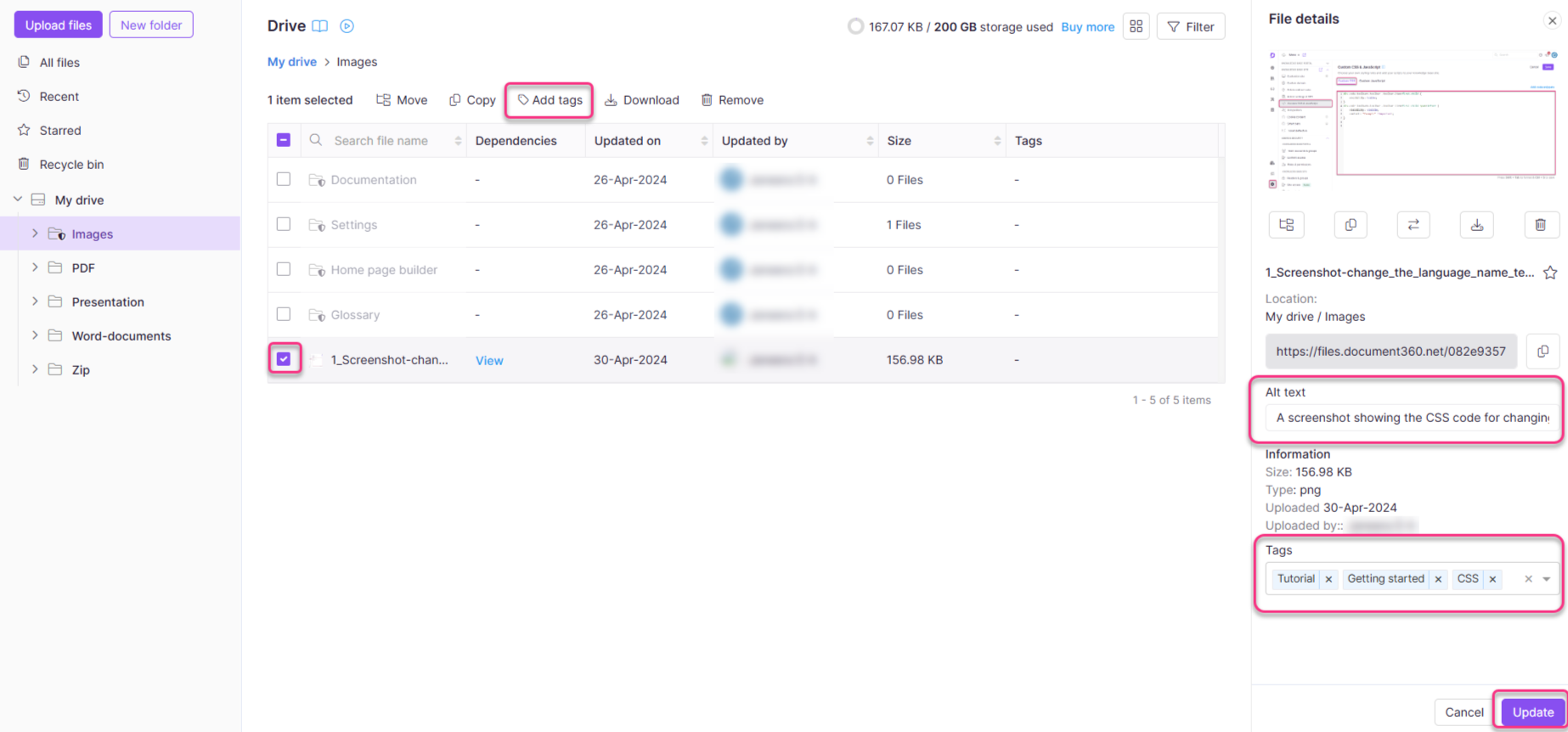
Click Add tags in the top menu bar.
The File details panel appears.
-
In the Tags field, add new tags or select from existing ones. To remove a tag, click the × next to it.
-
If the file is an image, add descriptive text in the Alt text field, or click Generate to have Eddy AI suggest alt text for you.
-
Click Update.
Add tags to multiple files
Use this method to add tags to several files at once. Note that alt text cannot be bulk-added after upload.
-
Open Drive () and select the files you want to tag.
-
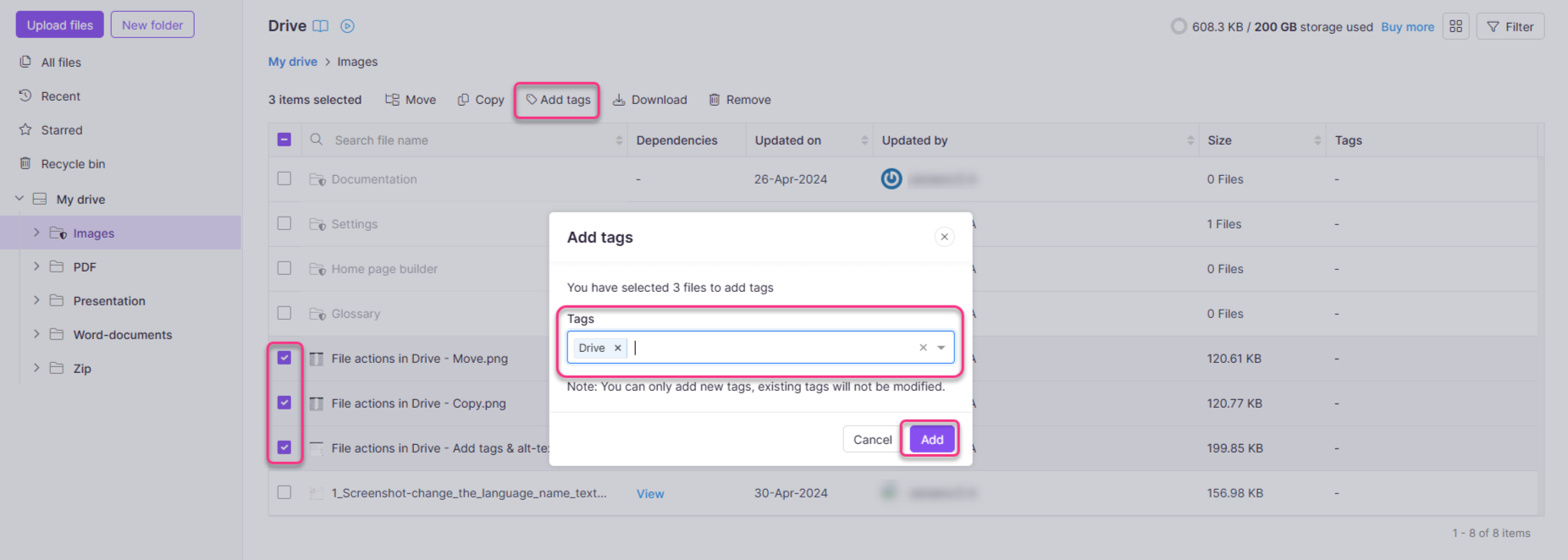
Click Add tags in the top menu. The Add tags dialog appears.
-
In the Tags field, enter the relevant tags. You can either add existing tags or create new tags.
-
Click Add.
The tags are added to all selected files. Any existing tags on those files are preserved.
File tags and article tags share the same library in Document360. A tag created here will appear across both Drive and article tag fields throughout your project.
Add tags and alt text during upload
When you upload files to Drive, you can add tags to any file type to make it easier to find later. You can also add alt text yourself, or for images, let Eddy AI suggest alt text and a file name for you.
Tags: use Add tags for all files at the bottom of the upload panel to apply the same tags to every file in the batch, regardless of file type. Select existing tags, or type a new one to create it. This is a manual entry, not AI-generated.
Alt text: for images, Eddy AI can suggest alt text and a file name for you. How you generate it depends on whether you're uploading one image or several:
- Uploading a single image: the File name field and the Alt text field each have their own separate Generate button, so you generate them one at a time.
- Uploading multiple images: each image tile has its own Eddy icon dropdown with File name, Alt text, and Both, so you can generate either or both for that image individually. To generate alt text for every image in the batch at once, use the Generate button in the banner at the top of the upload panel.
Drive supports a wide range of image file types, but Generate is available only for JPEG, JPG, PNG, and WEBP images. You can still add alt text manually to any image file, regardless of format. Generated file names and alt text draw from the same AI credit allowance. If your organization has a naming convention configured for image files, generated file names will follow that convention. See Drive image name convention to set one up.
Best practices
- Tag at upload — Adding tags during upload is the only opportunity to bulk-add alt text. Make it a habit to tag and add alt text before files are used in articles.
- Use consistent tag names — Since file and article tags share the same library, use a naming convention that works across both contexts. Avoid duplicates like "screenshot" and "screenshots".
- Write meaningful alt text — Describe what the image shows, not what it is. For example, "Dashboard showing monthly active users by region" is more useful than "screenshot" or "image".
- Use tags to complement folders — Folders define location; tags define context. A file in a "Q1 2025" folder can also be tagged "onboarding" and "feature-release" for cross-category retrieval.
- Audit tags periodically — Since tags are shared with articles, unused or misspelled tags in Drive can clutter the tag library project-wide. Clean them up regularly.
FAQ
What is alt text in Document360 Drive, and how is it used?
Alt text (alternative text) in Document360 Drive is a brief description of an image's content. It is used primarily for accessibility purposes, helping visually impaired users understand the context of images embedded in articles. Alt text should be descriptive yet concise, providing meaningful information about the image.
- Specify alt text for each image to ensure accessibility compliance and improve user experience.
- Alt text can be set during the upload process or edited later through image properties in Document360 Drive.
- Each alt text can be up to 140 characters long.
Can I use Generate for a PDF or other non-image file?
No. Generate is only available for JPEG, JPG, PNG, and WEBP images. Drive supports other image formats too — you can still add alt text to those manually — and for non-image file types, you can still add tags and a file name manually.
Does generating a file name or alt text use my AI credits?
Yes. Generated file names and alt text draw from the same AI credit allowance as alt text generation elsewhere in Document360 — there's no separate limit for file names.
Can I generate alt text for every image in a batch at once, or only one at a time?
Both. Use the Generate button in the banner at the top of the upload panel to generate alt text for every image in the batch in one go. To generate a file name, alt text, or both for just one image, use that image's own Eddy icon dropdown.
Can I generate an alt text or file name suggestion after a file has already been uploaded?
Yes. For alt text, open the file's File details panel and click Generate next to the Alt text field. For a file name, use Rename from the file's menu, then click Generate file name.
Why does my generated file name look different from what I expected?
If your organization has a naming convention configured for image files, Eddy AI follows that convention when generating a file name (for example, uppercase with hyphens) rather than a generic suggestion. Check with your admin, or your naming convention settings, to see the style being applied.