The Document360 style guide module lets you define writing rules that Eddy AI applies automatically when generating articles. It controls tone, structure, SEO metadata, and tagging conventions, so every article your team produces — whether written by a human or generated by AI — follows a consistent standard. This is especially useful when multiple writers contribute to the same knowledge base, or when a single writer works across different time frames.
The style guide serves as the control center for:
- Content depth and structure
- Tone and language style
- SEO metadata (title, description)
- Tags and FAQ generation
Only Admins and Owners have access to manage the Style guide module.
When to use the style guide
Use the style guide whenever you want Eddy AI to produce content that matches your organization's voice and documentation standards. Common scenarios include:
- Multi-author teams — Enforce a shared tone and structure so articles from different writers are indistinguishable in style.
- High-volume AI generation — Apply consistent SEO patterns, heading structures, and tag rules across all AI-generated drafts.
- Multilingual workspaces — Create language-specific guides so Eddy AI generates content in the correct language and style for each locale.
- New contributors — Give new writers a quality baseline by having Eddy AI generate first drafts that already match your standards.
Before you begin
- You must have the Admin or Owner role in your knowledge base project.
- Your project must have the AI settings module enabled.
- The style guide governs content generated or modified by the AI writing agent (Eddy AI). It does not validate, restrict, or flag manually written content.
Create and manage a style guide
Create a style guide
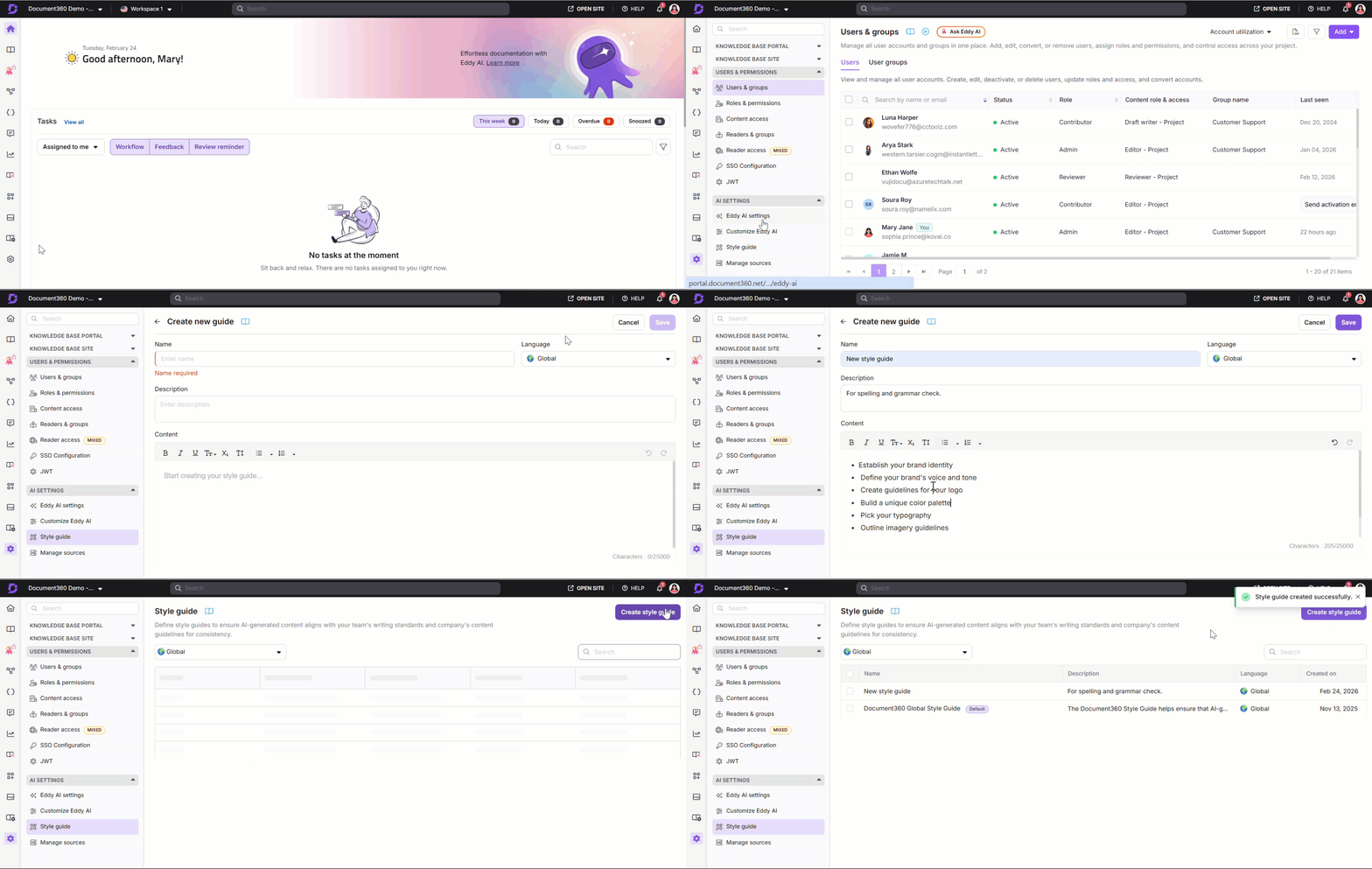
- Navigate to Settings () in the left navigation bar of your Knowledge base portal.
- In the left navigation pane, go to AI settings > Style guide.
- Click Create style guide.
- Enter the Name and Description of the style guide in the respective fields.
- Enter the Content of the style guide. A maximum of 25,000 characters is supported.
- Apply basic formatting to your style guide content using the toolbar options. To remove all formatting at once, use the clear formatting action.
- Use Undo () and Redo () if you need to revert changes.
- Click Save.
View the style guide list
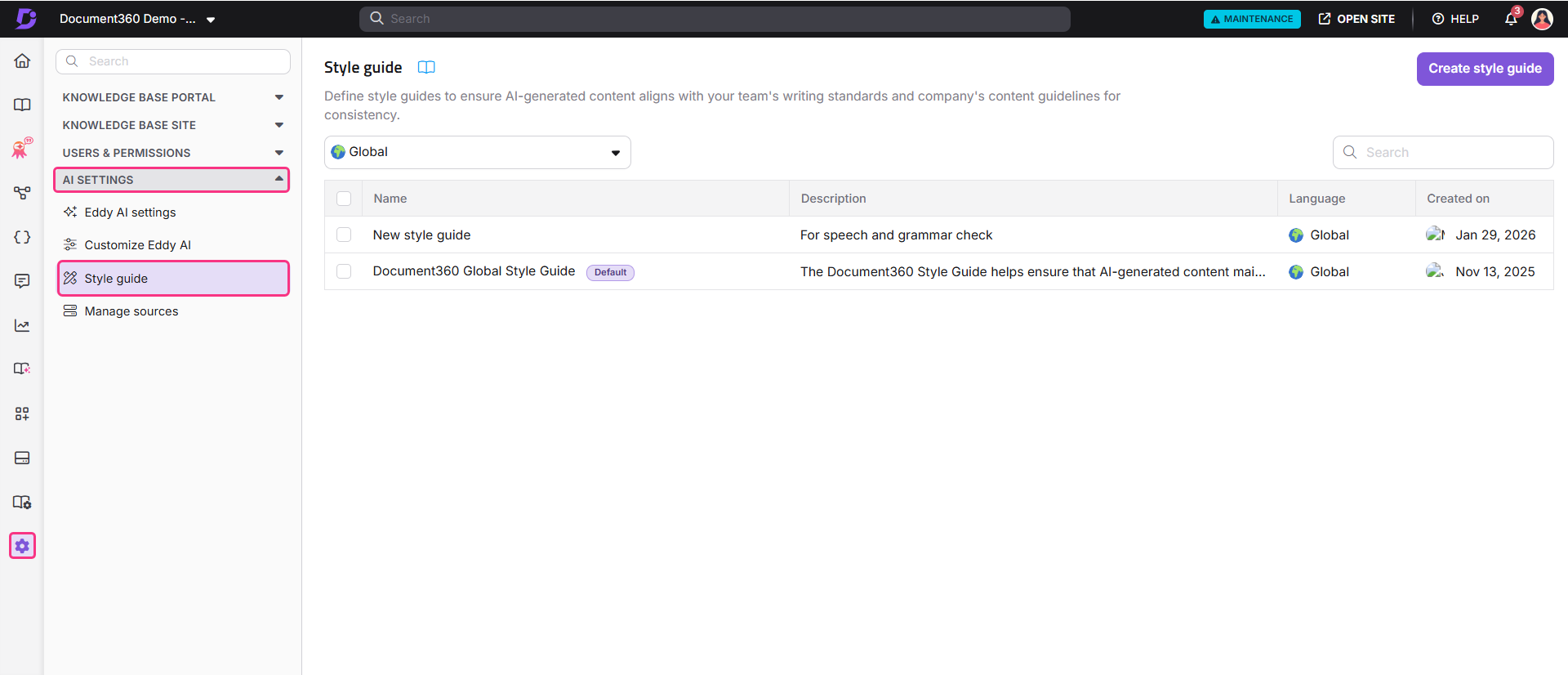
The Style guide overview page lists all style guides you have created, showing:
- Name of the style guide
- Description
- Language
- Created on (date of creation)
Pre-defined guides, including the Document360 Style Guide (default), are available automatically when you create a project. These are based on predefined rules for formatting, SEO, tagging, and writing standards.
Default style guide selection
- If your workspace includes only English, the default style guide is the Document360 Style Guide.
- If your workspace includes multiple languages, the Document360 Global Style Guide is used by default for any language that does not have its own language-specific style guide.
Language-specific guides
- When you create the first style guide for a specific language, it is automatically set as the default for that language.
- If multiple style guides exist for the same language, the one created first remains the default unless you change it manually.
How defaults affect content
- For each article, the default style guide for that article's language is applied during content generation. If no language-specific style guide exists, the Document360 Global Style Guide is used.
- If the default style guide specifies a different authoring language than the workspace language, the generated content follows the style guide's language. For example, a Spanish workspace with an English-configured default style guide will produce content in English.
Edit, clone, or delete a style guide
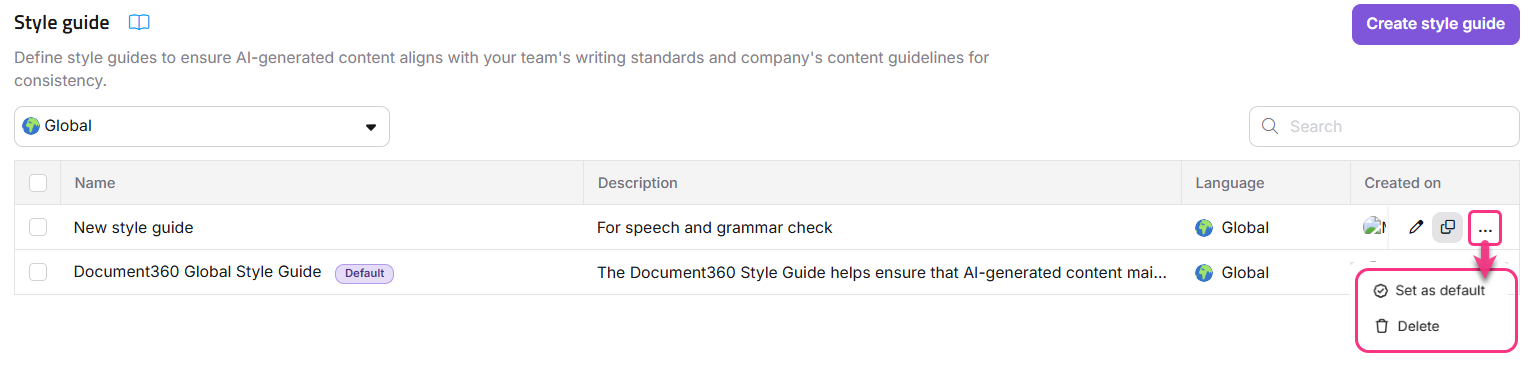
- Hover over any style guide in the list.
- Click Edit () to modify the style guide, then click Save.
- Click Clone () to create a duplicate. Make the necessary updates and save the copy.
- Click the More () icon for additional options:
- Set as default — Sets this style guide as the default. This option is disabled for the guide already set as default.
- Delete — Click Delete and confirm in the prompt to remove the style guide.
- To bulk delete, select the checkboxes of the style guides you want to remove and click Delete.
- Style guide content supports a maximum of 25,000 characters. This limit applies only to the style guide configuration and does not affect article publishing or knowledge base storage.
- When generating an article from a video with screenshots enabled, you cannot select a template or style guide - a default structure is applied automatically.
Best practices
- Write in the language your articles will be published in. If the style guide specifies English grammar and wording but your workspace is configured for Spanish, Eddy AI will generate content in English — not Spanish.
- Create one style guide per major content type. For example, maintain separate guides for how-to articles, release notes, and troubleshooting docs to keep tone and structure appropriate for each.
- Keep style guide content focused and structured. Clear, specific instructions — such as "use second-person voice" or "limit paragraphs to four sentences" — produce more consistent results than broad direction.
- Set a default guide for each language in multilingual projects. Without a language-specific guide, Eddy AI falls back to the Global Style Guide, which may not reflect your locale-specific conventions.
- Use the clone feature when experimenting. Duplicate your active guide before making major changes so you can revert without rebuilding from scratch.
- Review AI-generated articles against the style guide. Even with a guide applied, periodic spot-checks ensure the output continues to match your evolving standards.
Stronger enforcement with templates
The style guide is a governance layer for AI-assisted content; it shapes what Eddy AI produces but doesn't block non-compliant content from being published, whether AI-generated or manually written. For broader, harder enforcement across your knowledge base, combine the style guide with:
- Article templates, predefined structure, headings, tone, and formatting that authors start from
- Pre-approved content blocks and reusable snippets for standardized messaging
- Review and approval workflows that gate publishing until content is checked
These give every author, human or AI, the same starting point and a checkpoint before anything goes live.
FAQ
Is it possible to delete a default style guide?
No, a default style guide cannot be deleted.
Where can I use the style guide while using the AI writing agent?
You can apply a style guide when generating an article through the Article Writer panel. Click the Preference () icon to select your preferred style guide. By default, the system style guide configured in your settings is applied. You can choose a different custom style guide from the Style Guide dropdown. Style guide preferences can be set in the following cases:
- When creating a new article
- When generating an article from a video without including screenshots
- When generating an article from media transcripts or a text file
How does the Global Style Guide work in multilingual projects?
The Global Style Guide acts as the default for any language supported by Eddy AI that does not have its own language-specific style guide. Once you create a language-specific guide for a language, that guide becomes the default for that language automatically.
Can I create language-specific style guides?
Yes. You can create separate style guides for all languages supported by Eddy AI. Translation is not built in — you author guides manually in each language. When a language-specific guide exists, the AI writing agent uses it automatically when generating content in that language.
Can I create articles without applying a style guide?
Yes. You can generate articles with the AI writing agent without selecting any style guide. In those cases, Eddy AI applies its default formatting and structure to the generated content.
Does the style guide validate or block manually written articles?
No. The style guide checker only applies to content generated by the AI Writing Agent. It does not scan, validate, or restrict manually authored content, and it cannot prevent an author from publishing content that doesn't follow the guide. Use templates and review workflows for enforcement across manually written content.