Connect ChatGPT to your Document360 knowledge base to work with your documentation directly from your ChatGPT conversations. Once connected, ChatGPT can search documentation, retrieve article content, create and update articles and categories, move content through review workflows, and publish it to your knowledge base site - with every operation following your Document360 roles and permissions.
You can establish this connection in two ways:
- From the Document360 portal - Start the connection from the MCP settings page in Document360. Best when you are already working in the portal.
- From ChatGPT - Install the Document360 plugin from the ChatGPT plugin directory. Best when you are setting up from ChatGPT, and the plugin is automatically available in your chats after installation.
Both methods result in the same connection.
Before you begin
- Ensure MCP is enabled in your Document360 project. For the steps to enable MCP, refer to the Connect MCP to your AI assistant page.
- You must have a ChatGPT account. Make sure you are signed in to the ChatGPT account you want to connect. The MCP connection is tied to the ChatGPT account that is active when you connect.
- MCP access follows your Document360 role-based permissions. ChatGPT can only access content permitted for the account you authenticate with.
Connect from the Document360 portal
To connect ChatGPT from Document360,
- Navigate to Settings () in the left navigation bar.
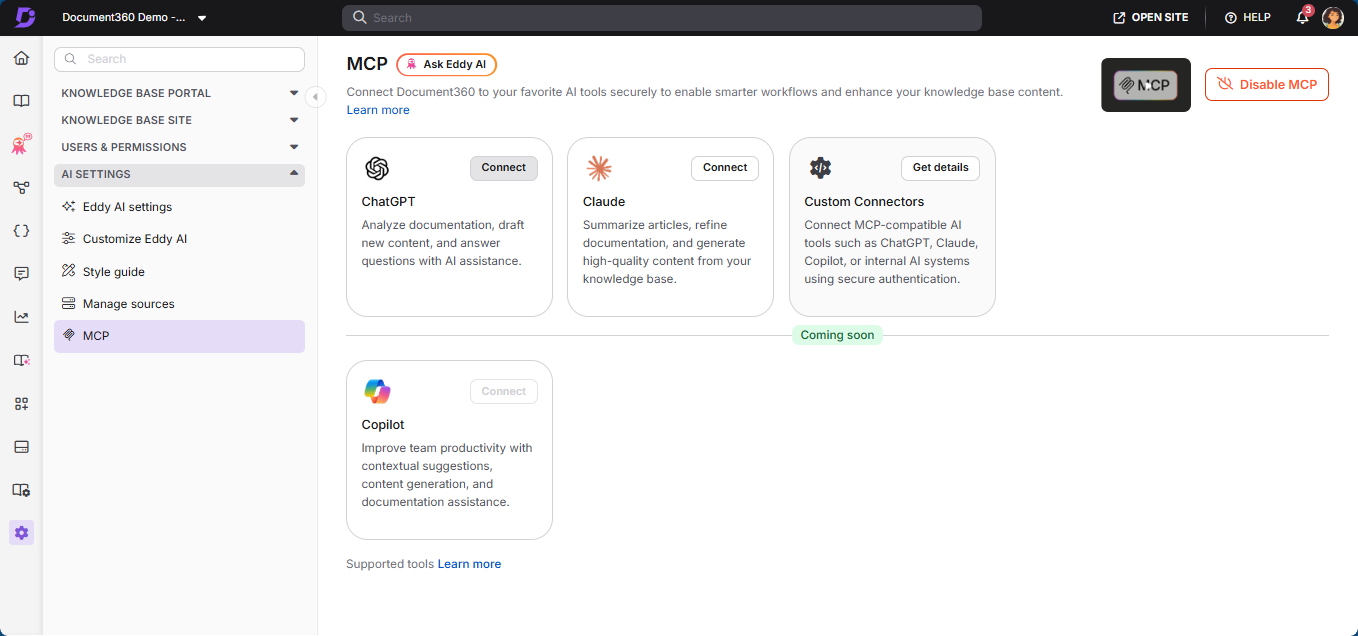
- Go to AI Settings > MCP.
- On the ChatGPT tile, click Connect.
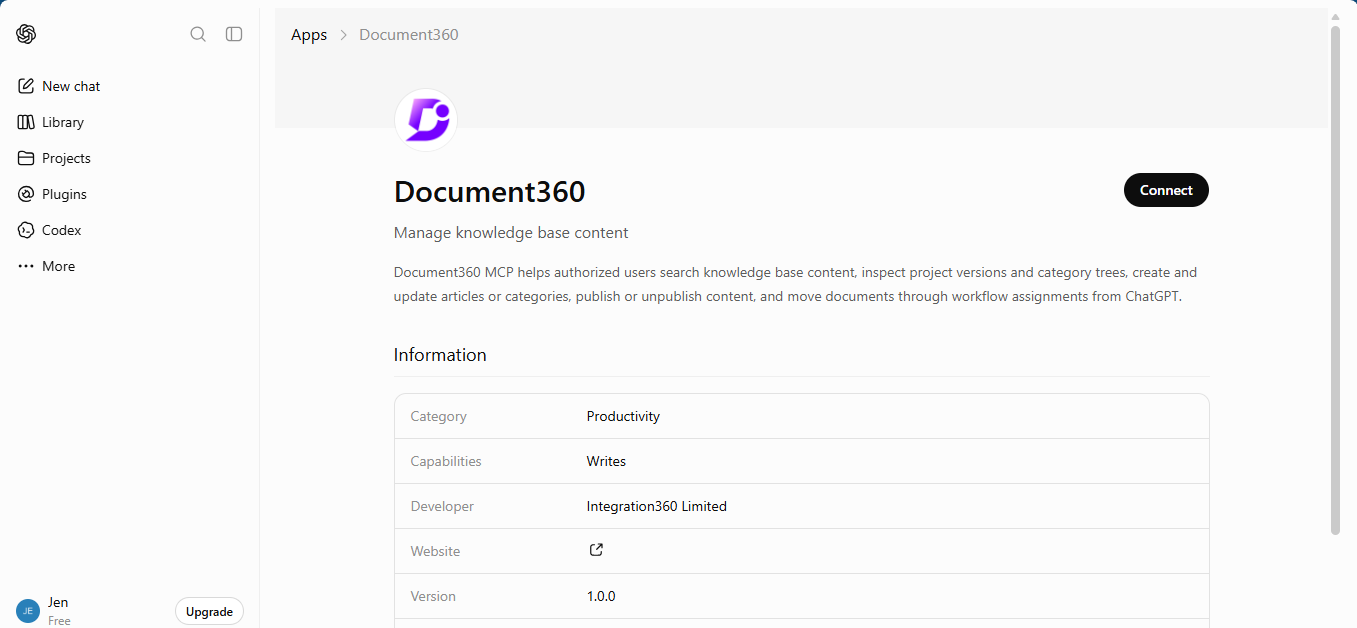
You will be redirected to the Document360 plugin page in ChatGPT.
- Click Connect.
A dialog appears prompting you to sign in with Document360.
- Click Sign in with Document360.
- In the Connect with Document360 MCP page, select the desired project from the dropdown.
- Select the I understand and trust this URL checkbox.
- Click Continue.
You will be redirected to ChatGPT with a confirmation that the connection was successful. - Click Start chat to begin a conversation.
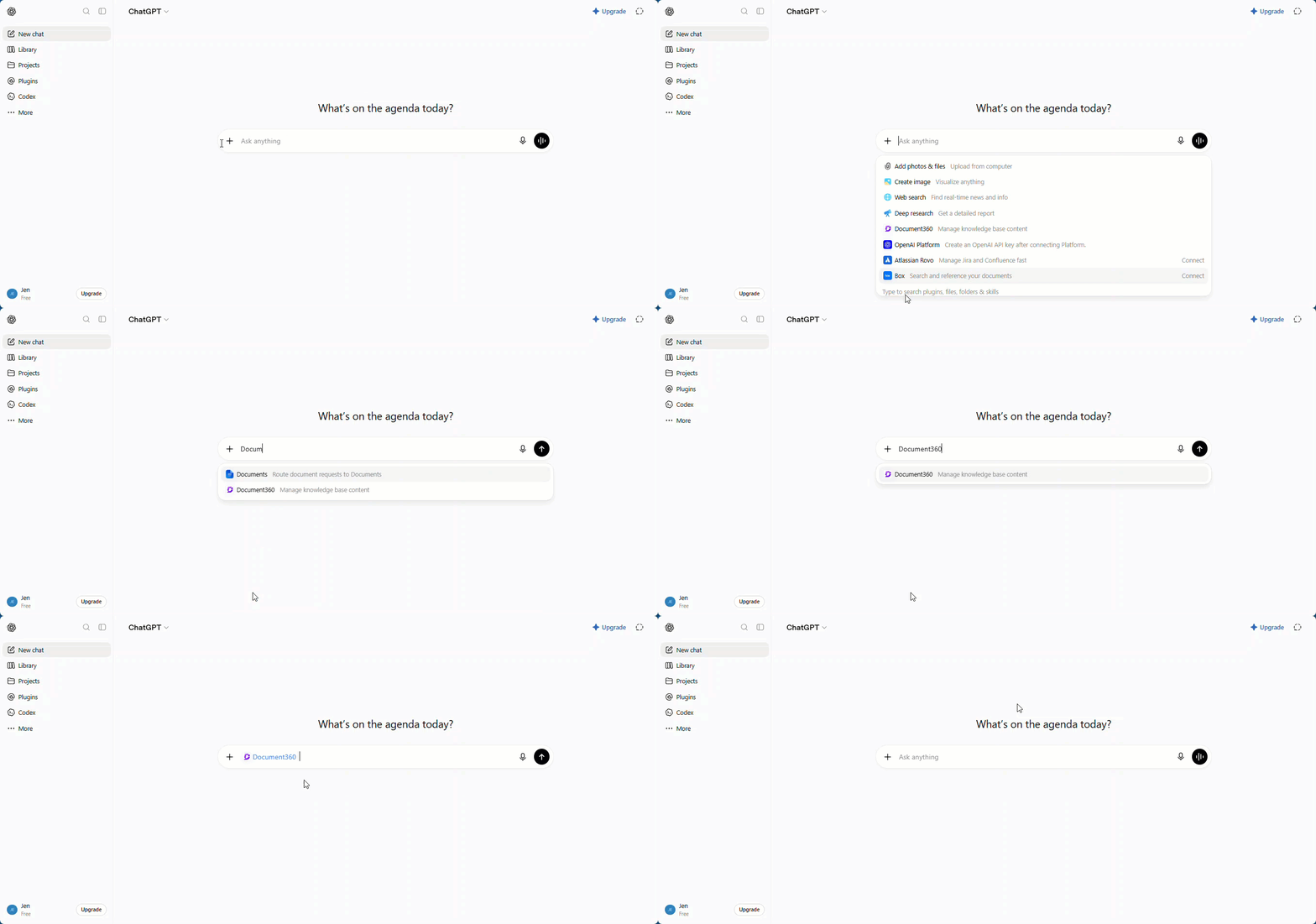
- In the message box, click the add icon (+).
- Search for Document360 and select the plugin.
- Enter your prompt to start working with your knowledge base.
Connect from ChatGPT
To connect directly from ChatGPT,
- Log in to your ChatGPT account.
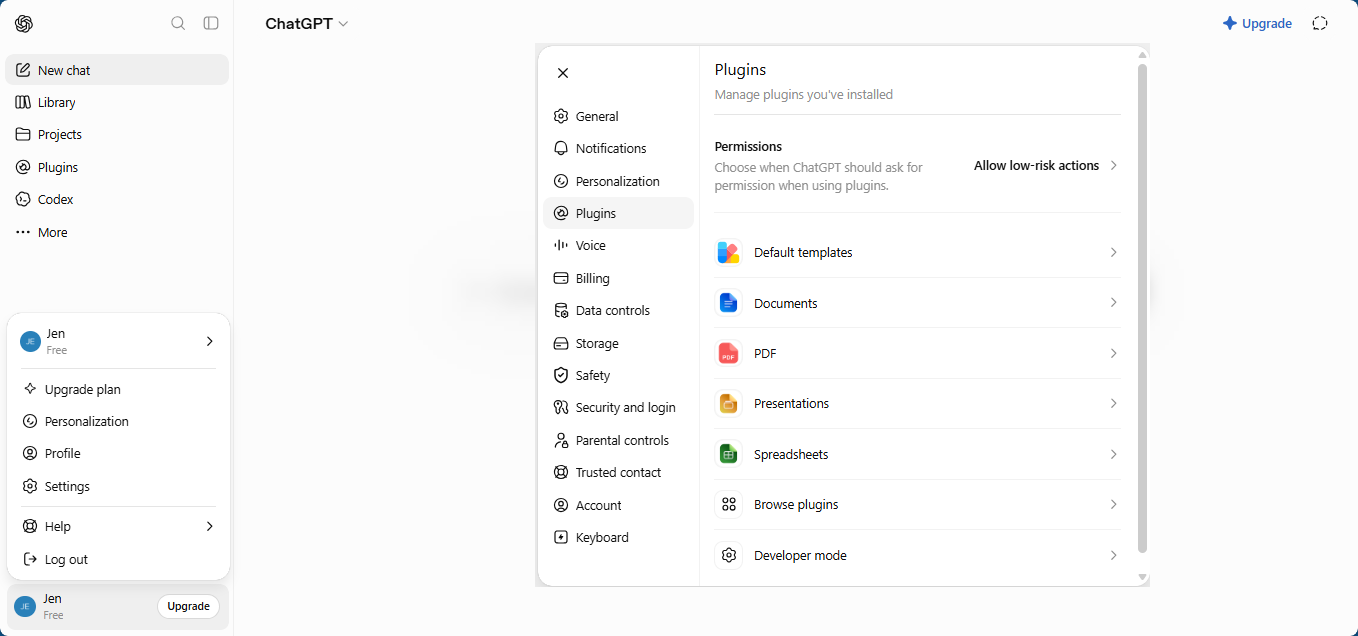
- Navigate to Settings > Plugins in the left navigation.
- Click Browse plugins.
-
In the search bar, search for Document360.
-
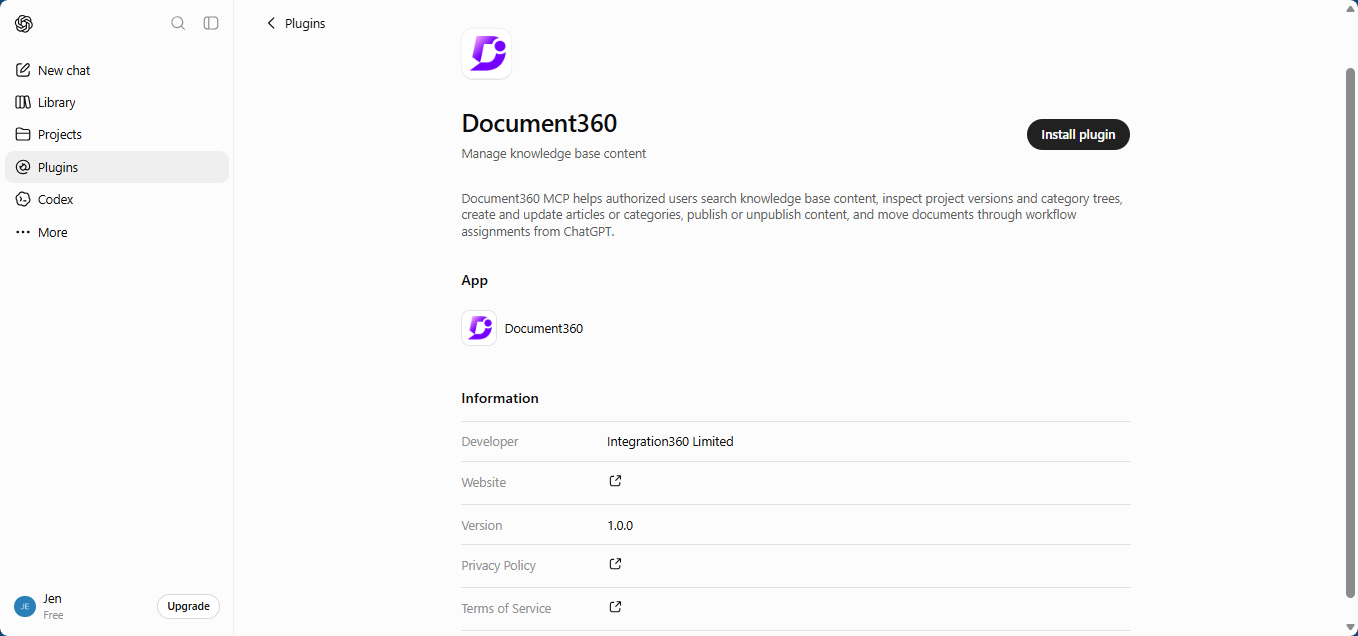
Click the Document360 tile.
-
Click Install plugin.
A dialog appears prompting you to sign in with Document360.
- Click Sign in with Document360.
- In the Connect with Document360 MCP page, select the desired project from the dropdown.
- Select the I understand and trust this URL checkbox.
- Click Continue.
Once connected, click Try in chat to start a conversation. The Document360 plugin appears in the message box automatically; enter your prompt to start working with your knowledge base.
Manage the connection
After connecting, you can manage the Document360 plugin's permissions, tools, and connection status from ChatGPT.
To access the plugin settings, go to Settings > Plugins and select Document360.
Set permissions
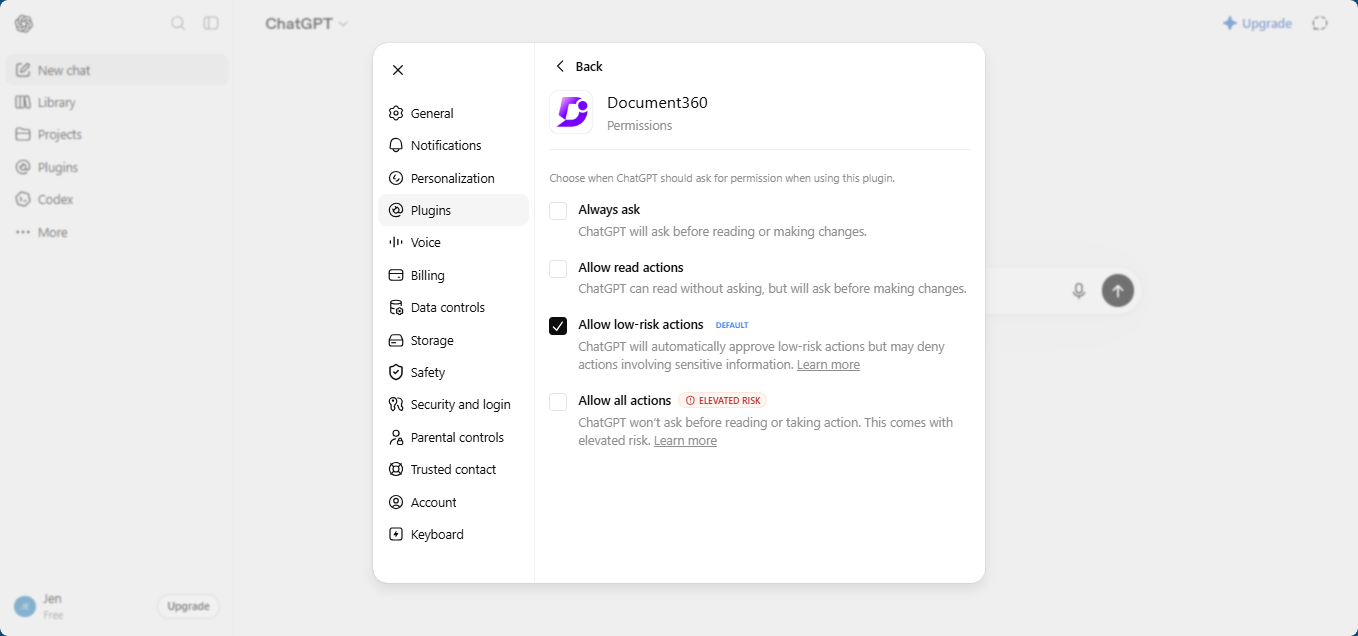
Choose when ChatGPT should ask for your permission before using the Document360 plugin:
| Permission | Behavior |
|---|---|
| Always ask | ChatGPT asks before reading or making changes. |
| Allow read actions | ChatGPT reads without asking, but asks before making changes. |
| Allow low-risk actions (default) | ChatGPT automatically approves low-risk actions but may deny actions involving sensitive information. |
| Allow all actions | ChatGPT does not ask before reading or taking action. This option carries elevated risk. |
View available tools
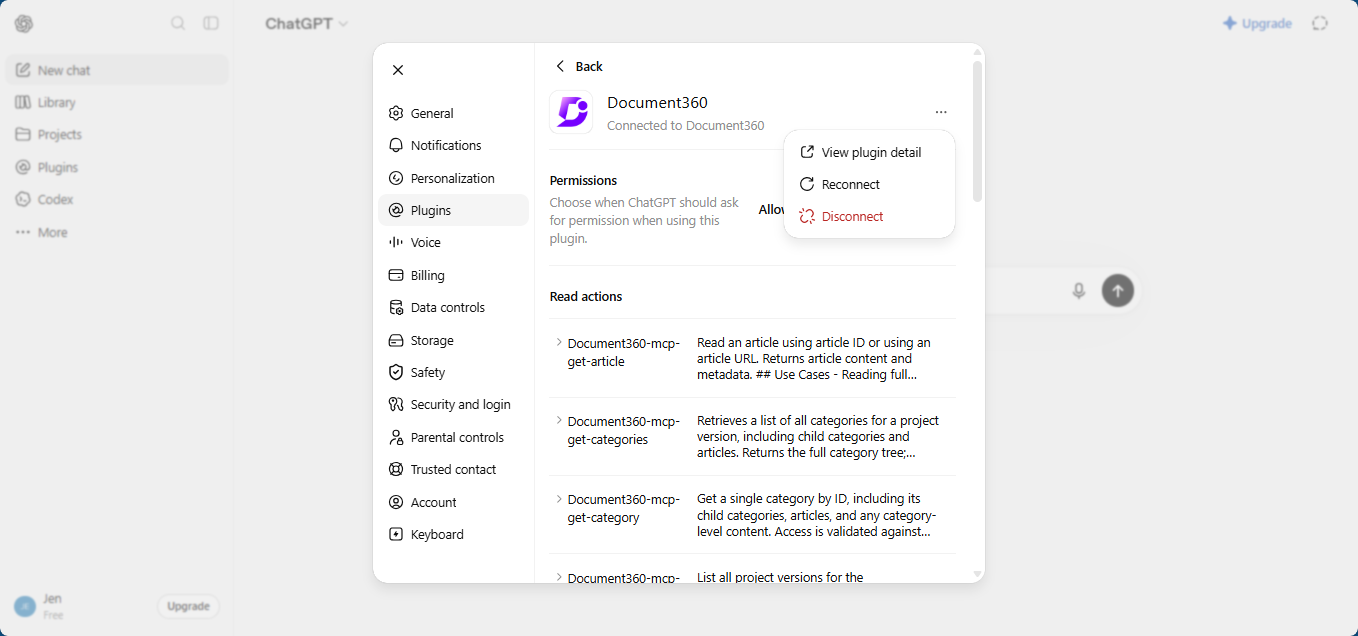
In the plugin settings, you can view the full list of Document360 MCP tools available to ChatGPT, grouped by read and write actions. For a detailed explanation of each tool, refer to the Supported MCP tools article.
Get new MCP tools
When Document360 releases new MCP tools, ChatGPT might not detect them automatically. To refresh the available tools:
- Go to Settings > Plugins and select Document360.
- Click the more options icon () and select Reconnect.
- In the Connect with Document360 MCP page, select the project, select the I understand and trust this URL checkbox, and click Continue.
The plugin reloads and picks up any newly added tools.
Disconnect or uninstall
- Disconnect: Click the more options icon () and select Disconnect.
Disconnecting takes effect immediately without a confirmation prompt. To restore access, reconnect the plugin.
- Uninstall: On the Document360 plugin page, click the more options icon () and select Uninstall. This removes the plugin from your ChatGPT account. [VERIFY: does uninstalling also revoke the Document360 connection, or does it remain listed until disconnected?]
Verify the connection
To confirm that ChatGPT can access your knowledge base:
- Start a new chat and add the Document360 plugin from the message box.
- Enter a prompt that asks ChatGPT to fetch or search your documentation. For example, ask it to find an article by title or summarize a specific topic from your knowledge base.
If the connection is successful, ChatGPT returns results sourced from your Document360 knowledge base. For more prompts you can try, refer to the MCP use cases article.
If ChatGPT returns no results or an error, verify that MCP is enabled in Document360 and that the plugin is connected, then reconnect the plugin if needed.