Connect Claude to your Document360 knowledge base to work with your documentation directly from your Claude conversations. Once connected, Claude can search documentation, retrieve article content, create and update articles and categories, move content through review workflows, and publish it to your knowledge base site - with every operation following your Document360 roles and permissions.
Currently, there is no confirmed timeline for the availability of a direct Claude connector in the US region. Document360 has submitted the necessary Multi-Cloud Platform (MCP) request to Anthropic and is awaiting approval. Users are encouraged to stay updated through official Document360 announcements for any changes or updates regarding this feature.
You can establish this connection in two ways:
- From the Document360 portal - Start the connection from the MCP settings page in Document360.
- From Claude - Add the Document360 connector from the connectors directory in Claude.
Both methods result in the same connection. Both take you directly to a chat session once connected.
Before you begin
- Ensure MCP is enabled in your Document360 project. For the steps to enable MCP, refer to the Connect MCP to your AI assistant page.
- You must have a Claude account on a paid plan.
- MCP access follows your Document360 role-based permissions. Claude can only access content permitted for the account you authenticate with.
Connect from the Document360 portal
To connect Claude from Document360,
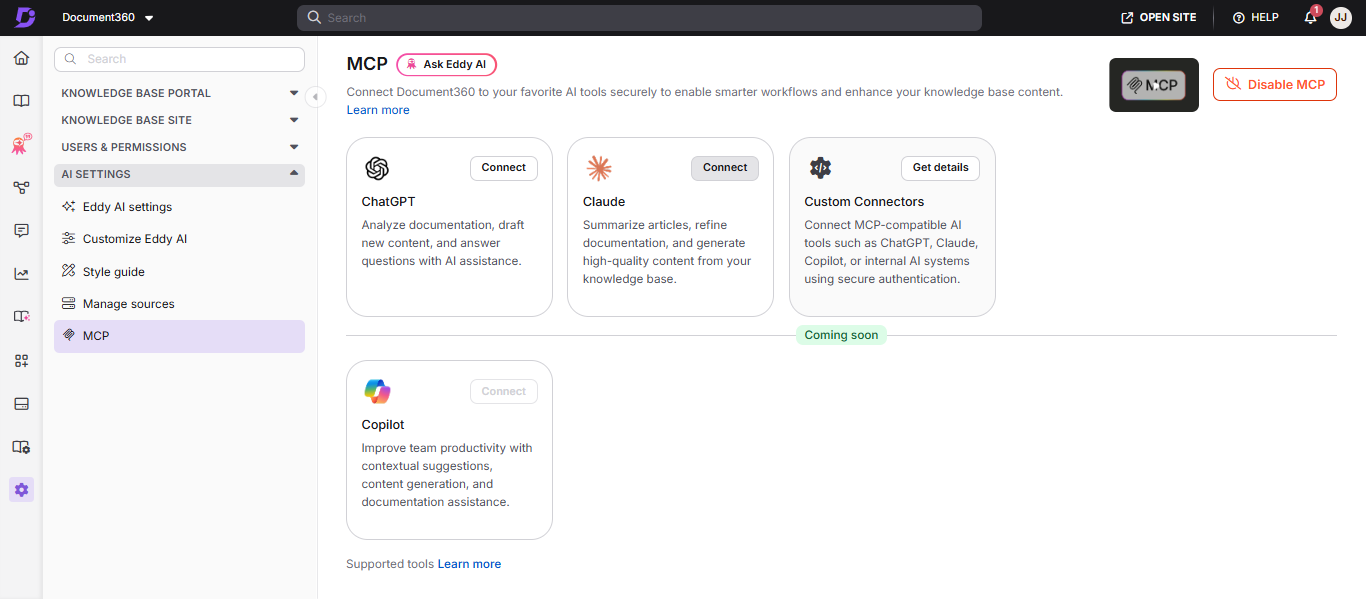
- Navigate to Settings () in the left navigation bar.
- Go to AI Settings > MCP.
- On the Claude tile, click Connect.
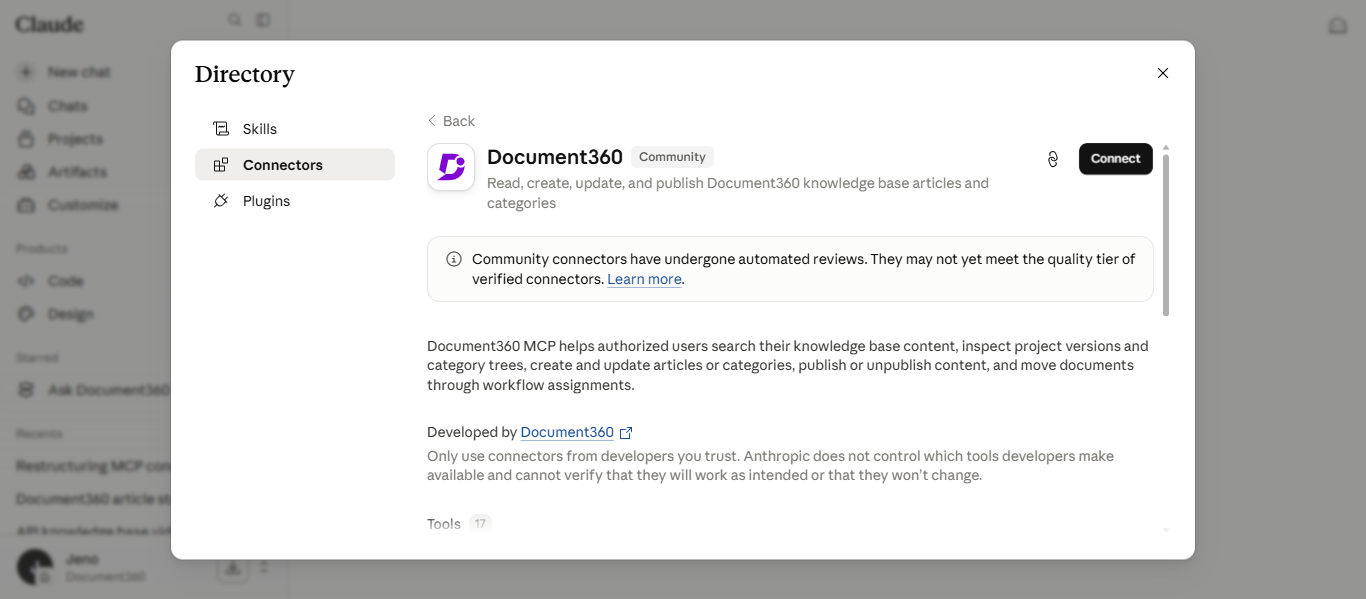
You will be redirected to the Document360 connector in Claude, prompting you to connect.
-
Click Connect.
-
In the Connect with Document360 MCP page, select the desired project from the dropdown.
-
Select the I understand and trust this URL checkbox.
-
Click Continue.
You will be redirected to a Claude chat session. The connection is now active; enter a prompt to start working with your knowledge base.
Connect from Claude
To connect directly from Claude,
- Open Claude.
- Click your profile and navigate to Settings.
- Go to Connectors.
- Click Browse.
- In the search bar, search for Document360.
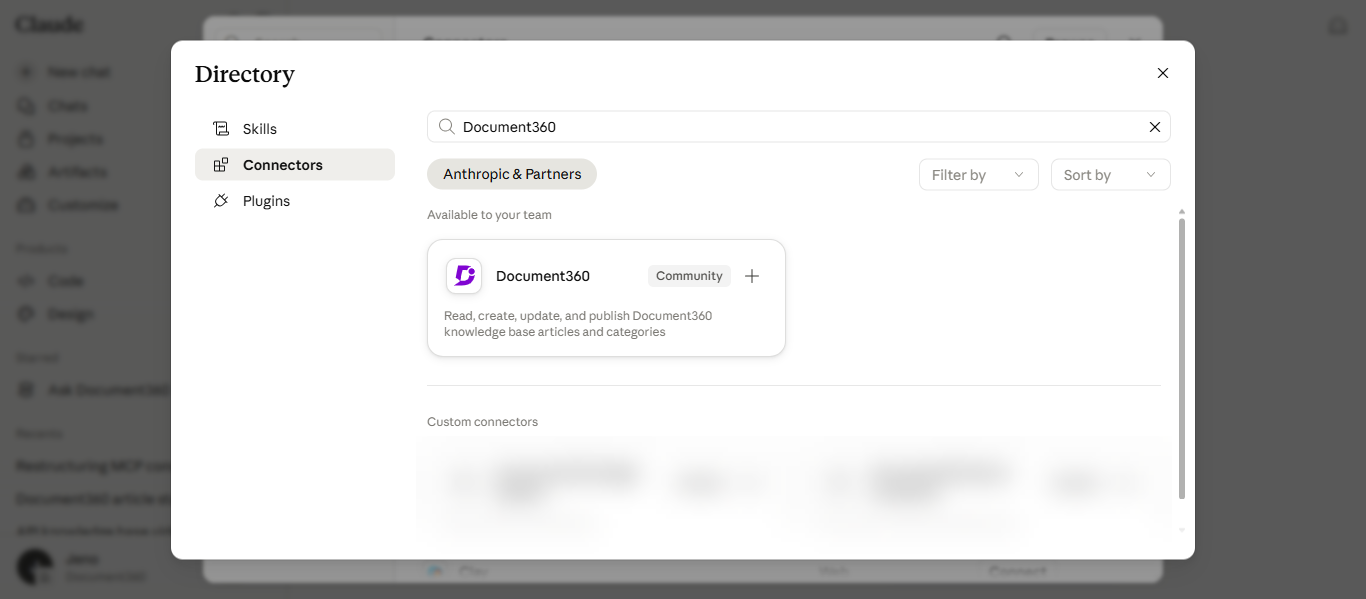
- Open the Document360 connector and click Connect.
- In the Connect with Document360 MCP page, select the desired project from the dropdown.
- Select the I understand and trust this URL checkbox.
- Click Continue.
You will be redirected to a Claude chat session. Enter a prompt to start working with your knowledge base.
Manage the connection
After connecting, you can manage the Document360 connector's tools, permissions, and connection status from Claude.
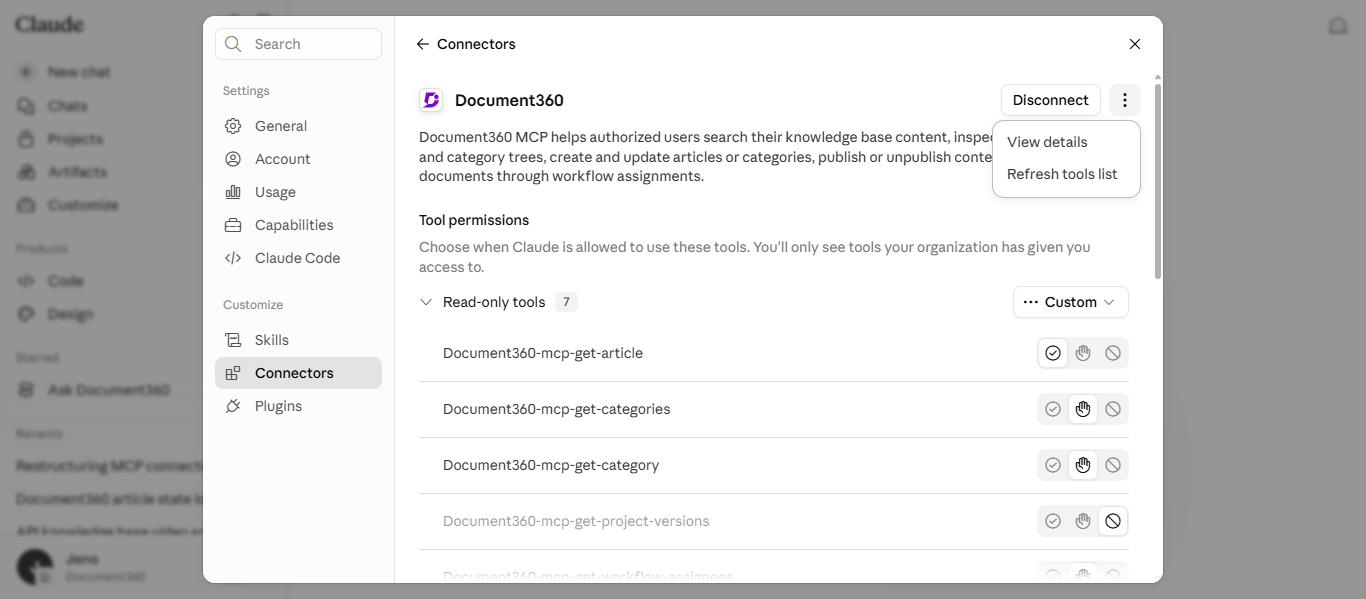
Go to Settings > Connectors and select Document360.
Set tool permissions
The Document360 connector's tools appear on the connector page, grouped by type (for example, Read-only tools, Write/delete tools) with the number of tools in each group. Under Tool permissions, you can control when Claude is allowed to use each tool.
You only see the tools your organization has given you access to. The tools available also depend on your Document360 role and permissions.
Each tool can be set to one of the following:
| Permission | Behavior |
|---|---|
| Always allow | Claude uses the tool without asking for approval. |
| Ask every time | Claude asks for your approval before each use. [VERIFY: exact label of the middle icon] |
| Blocked | Claude cannot use the tool. |
You can set a permission for an entire group using the group's dropdown, or set each tool individually using the icons next to it. Setting different permissions across the tools in a group shows the group as Custom. This lets you, for example, allow read tools such as get-article and get-categories to run automatically while blocking or requiring approval for other tools.
View connector details
Click the more options icon ( ) and select View details to open the connector's information page. This page includes the author, the connector URL (used when connecting through a custom connector), and links to the documentation, support, and privacy policy. For a detailed explanation of each tool, refer to the Supported MCP tools article.
Get new MCP tools
When Document360 releases new MCP tools, Claude may not detect them automatically. To refresh the available tools:
- Go to Settings > Connectors and select Document360.
- Click the more options icon ( ) and select Refresh tools list.
The connector updates to include any newly added MCP tools without requiring a full reconnect.
Disconnect
- Go to Settings > Connectors and select Document360.
- Click Disconnect.
- In the confirmation dialog, click Disconnect to confirm, or Cancel to keep the connection.
Once disconnected, Claude can no longer access your knowledge base until you reconnect.
Once disconnected, Claude can no longer access your knowledge base until you reconnect.
Verify the connection
To confirm that Claude can access your knowledge base:
- Start a new chat in Claude.
- Enter a prompt that asks Claude to fetch or search your documentation. For example, ask it to find an article by title or summarize a specific topic from your knowledge base.
If the connection is successful, Claude returns results sourced from your Document360 knowledge base. For more prompts you can try, refer to the MCP use cases article.
If Claude returns no results or an error, verify that MCP is enabled in Document360 and that the connector is active in Claude, then refresh the tools list and try again.