A sitemap is a file that lists all the publicly accessible pages and files on your knowledge base site. Search engines such as Google, Bing, and Yahoo read this file to discover, crawl, and index your content more effectively. Instead of relying solely on following links across your site, crawlers use the sitemap to get a complete picture of your content structure in one place.
Document360 automatically generates an XML sitemap for your knowledge base site. You do not need to create or maintain it manually.
Sitemap URLs are only available for public and mixed public projects. Private projects are not indexed by search engines and do not have an active sitemap.
Types of sitemaps
There are three main types of sitemaps. Document360 uses an XML sitemap.
| Type | Description | Best for |
|---|---|---|
| XML sitemap | A machine-readable file designed for search engine crawlers. Lists page URLs along with metadata such as last modified date. | SEO and search engine indexing. |
| HTML sitemap | A human-readable page that lists links to all pages on a site. | Large sites with complex navigation. |
| Visual sitemap | A diagram-style map used during site planning and architecture. | Web project planning. |
When to use the sitemap
- Submit your sitemap to Google Search Console and Bing Webmaster Tools after setting up or launching your knowledge base so search engines can discover your content faster.
- Reference the sitemap URL when troubleshooting indexing issues. It confirms which pages are being surfaced to crawlers.
- Pair the sitemap with your Robots.txt file to give crawlers a clear, consistent signal about what to index and what to skip.
How a sitemap looks
A basic XML sitemap lists individual page URLs along with their last modified date. Document360's sitemap follows this structure:
<?xml version="1.0" encoding="UTF-8"?>
<urlset xmlns="http://www.sitemaps.org/schemas/sitemap/0.9">
  <url>
    <loc>http://www.example.com/foo.html</loc>
    <lastmod>2018-06-04</lastmod>
  </url>
</urlset>
Sitemaps can also include additional metadata beyond URLs, such as page priority and change frequency, to help crawlers make better decisions about how often to revisit pages.
Access the sitemap in Document360
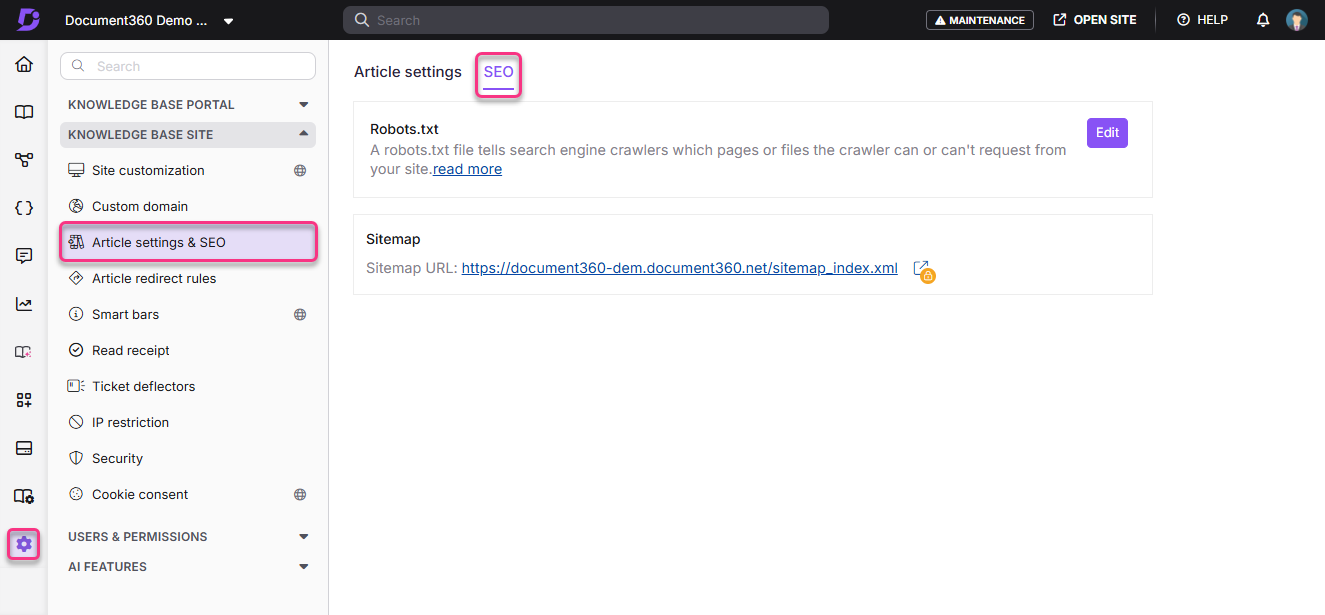
- Navigate to Settings () in the left navigation bar.
- Go to Knowledge base site > Article settings and SEO > SEO tab.
- Locate the Sitemap URL field.
- Click the URL to view your sitemap in the browser.
Pairing the sitemap with Robots.txt
The sitemap and Robots.txt file work together to give search engine crawlers a complete picture of your knowledge base.
- The sitemap tells crawlers what pages exist and should be indexed.
- The Robots.txt file tells crawlers which pages or sections to skip.
Including your sitemap URL inside your Robots.txt file makes it easier for crawlers to find both files in one place. Add the following line to your Robots.txt file:
Sitemap: https://yourdomain.com/sitemap.xml
This ensures crawlers always have a direct reference to your sitemap, even if they do not check Google Search Console or Bing Webmaster Tools directly.
Learn about configuring Robots.txt →
Best practices
- Submit your sitemap to Google Search Console after launching your knowledge base to accelerate indexing of new content.
- Always reference your sitemap URL in your Robots.txt file so crawlers can find it without relying on manual submission.
- Avoid the
<sitemapindex>format. Use direct page URLs in your sitemap instead. - Check your sitemap regularly after major content restructuring, such as renaming categories or changing slugs, to confirm URLs are accurate.
FAQ
Why do I need a sitemap for my knowledge base?
A sitemap helps search engines discover and index all the pages in your knowledge base efficiently, including pages that may not be linked directly from your homepage or navigation. Without a sitemap, some articles may take longer to appear in search results or may not be indexed at all.
What is the difference between a sitemap and Robots.txt?
A sitemap tells crawlers which pages exist and should be indexed. Robots.txt tells crawlers which pages to skip. Use the sitemap to surface content to search engines and Robots.txt to control what they should not access.
Does Document360 update the sitemap automatically when I publish new articles?
Yes. Document360 automatically updates the sitemap when articles are published, unpublished, or deleted. You do not need to regenerate or resubmit the sitemap manually after every change, though resubmitting in Google Search Console after major restructuring can speed up reindexing.
Why is my sitemap URL not available?
Sitemap URLs are only generated for public and mixed public projects. If your project is set to Private, the sitemap URL will not be available. Go to Settings () > Users and permissions > Reader access to review your project visibility settings.
What should I do with the sitemap URL after accessing it?
Submit the sitemap URL to Google Search Console so Google can crawl and index your knowledge base content. You can also submit it to Bing Webmaster Tools for Bing indexing. Google's sitemap guide →