The Advanced WYSIWYG editor supports inserting emojis directly into article content. Emojis can be used to add visual cues, convey tone, or make consumer-facing and onboarding content more approachable and engaging.
How to use emojis
- Add an emoji at the start of a callout title to reinforce the callout type visually — for example, ⚠️ before a warning
- Use emojis in H2 or H3 headings in onboarding or consumer-facing articles to make sections visually distinct and easier to scan
- Use emojis such as ✅ or 🔧 in checklists to add context beyond the checkbox itself
- Use emojis such as 🟢, 🟡, or 🔴 within tables to indicate status visually alongside text labels
- Use emojis in onboarding guides or getting started articles to make content feel less formal and more engaging
Insert an emoji
In the Advanced WYSIWYG editor:
- Place your cursor where you want to insert the emoji.
- Type
/emojiand pressEnter. - The emoji picker opens — browse or search for the emoji you want.
- Click the emoji to insert it at the cursor's position.
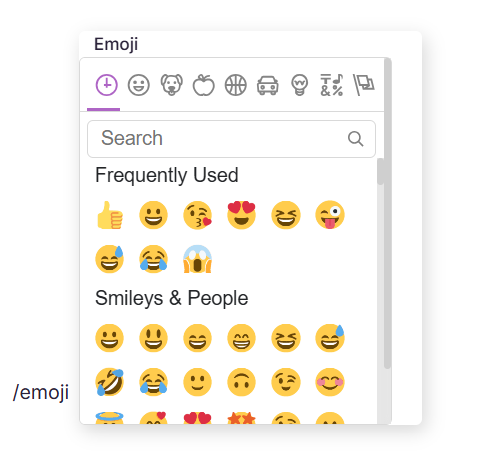
You can also copy an emoji from any external source or your operating system's emoji panel and paste it directly into the editor.
Emojis inserted via the editor render on the knowledge base site. Appearance may vary slightly depending on the reader's operating system, browser, and device — emoji rendering is controlled by the system font, not Document360.
Insert an emoji in the Markdown editor
The Markdown editor does not have a built-in emoji picker. Copy the desired emoji from an external source and paste it directly into the Markdown content.
FAQ
Will emojis look the same for all readers?
Not necessarily. Emoji appearance is controlled by the reader's operating system and browser, not Document360. The same emoji may look slightly different on Windows, macOS, iOS, and Android.
Are emojis included when exporting an article as PDF?
Emoji rendering in PDF exports depends on the font and system used for PDF generation. Test your specific emojis in a PDF export to confirm they appear as expected before publishing.