LaTeX is a typesetting system widely used for writing mathematical expressions, scientific notation, and complex equations. In Document360, the Advanced WYSIWYG editor supports LaTeX, allowing you to render properly formatted mathematical and scientific content directly within your articles.
LaTeX expressions in Document360 are rendered visually in the editor and on the knowledge base site — readers see the formatted output, not the raw syntax.
When would you use this
- Render equations in technical or academic knowledge bases, such as formula references, calculation guides, or physics documentation
- Document chemical formulas, constants, and scientific expressions that cannot be accurately represented with standard text formatting
- Express mathematical models, statistical formulas, or algorithmic notation in developer or API documentation
- Render step-by-step mathematical workings clearly in training materials or educational content
- Express financial formulas such as compound interest, depreciation, or risk models using proper mathematical notation
Insert a LaTeX expression
In the Advanced WYSIWYG editor:
- Navigate to the desired article in the Advanced WYSIWYG editor.
- Type the slash command
/LaTeXand press Enter. - An Insert LaTeX expression panel appears.
- Enter your LaTeX syntax in the input field.
- Click Insert to add the rendered expression to your article.
.png)
To insert spaces within a LaTeX formula: Use \; (a backslash followed by a semicolon) between terms to add spacing.
Do not include a space between $ and the LaTeX syntax when writing expressions.
Edit a LaTeX expression
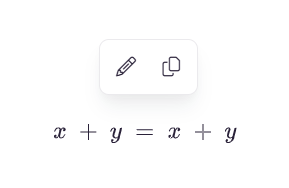
- Click on the LaTeX expression in the editor.
- Click the Edit (pencil) icon that appears.
- The Insert LaTeX expression panel opens with the existing syntax.
- Make the required changes and click Update.
Delete a LaTeX expression
- Click on the LaTeX expression in the editor.
- Click the Remove (trash bin) icon that appears.
The expression is removed from the article.
Common LaTeX syntax reference
| Expression | LaTeX syntax | Output |
|---|---|---|
| Fraction | \frac{a}{b} |
a/b formatted as a fraction |
| Square root | \sqrt{x} |
√x |
| Superscript (exponent) | x^{2} |
x² |
| Subscript | x_{i} |
xᵢ |
| Sum | \sum_{i=1}^{n} |
Σ notation |
| Greek letters | \alpha, \beta, \gamma |
α, β, γ |
| Infinity | \infty |
∞ |
| Integral | \int_{a}^{b} |
∫ notation |
For a full list of LaTeX commands, refer to standard LaTeX documentation resources.
Best practices
- Always preview your LaTeX expression before publishing to confirm it renders correctly on the knowledge base site.
- Keep expressions concise — break complex multi-step equations into separate LaTeX blocks with plain-text explanation between them, rather than combining everything into a single expression.
- Add a plain-language explanation alongside complex expressions for readers who may not be familiar with LaTeX or mathematical notation.
- Use
\;to add spacing within formulas for better readability — do not add spaces between$and the syntax. - Test expressions after any article-level editor changes, as switching editors may affect how LaTeX is rendered.
FAQ
How do I add spacing inside a LaTeX formula?
Use \; between terms to insert a space. Do not use standard keyboard spaces, as they are not recognized within LaTeX syntax.
Can I use LaTeX inside tabs and snippets?
Yes. LaTeX expressions can be added inside tabs and snippets in the Advanced WYSIWYG editor.