Fonts in Document360 operate at two levels - the project level and the article level. Project-level fonts apply across your entire knowledge base site and determine the default typography for all articles, navigation, headers, and controls. Article-level fonts let writers apply specific fonts to selected content within individual articles, overriding the project default for that content only.
Understanding how these two levels interact is important when you change fonts. Content that uses the project default updates automatically when you change the project font. Content with manually applied fonts at the article level remains unchanged regardless of what you do at the project level.
This article covers how to configure fonts at both levels, how to understand font rendering behavior, how font availability changes affect your existing setup, and what options you have if your required font is not available in Document360.
Configuring fonts at the project level
Project-level font settings apply to your entire knowledge base site. To configure fonts:
- Navigate to Settings () in the left navigation bar of the Knowledge base portal.
- In the left navigation pane, navigate to Knowledge base site > Site customization.
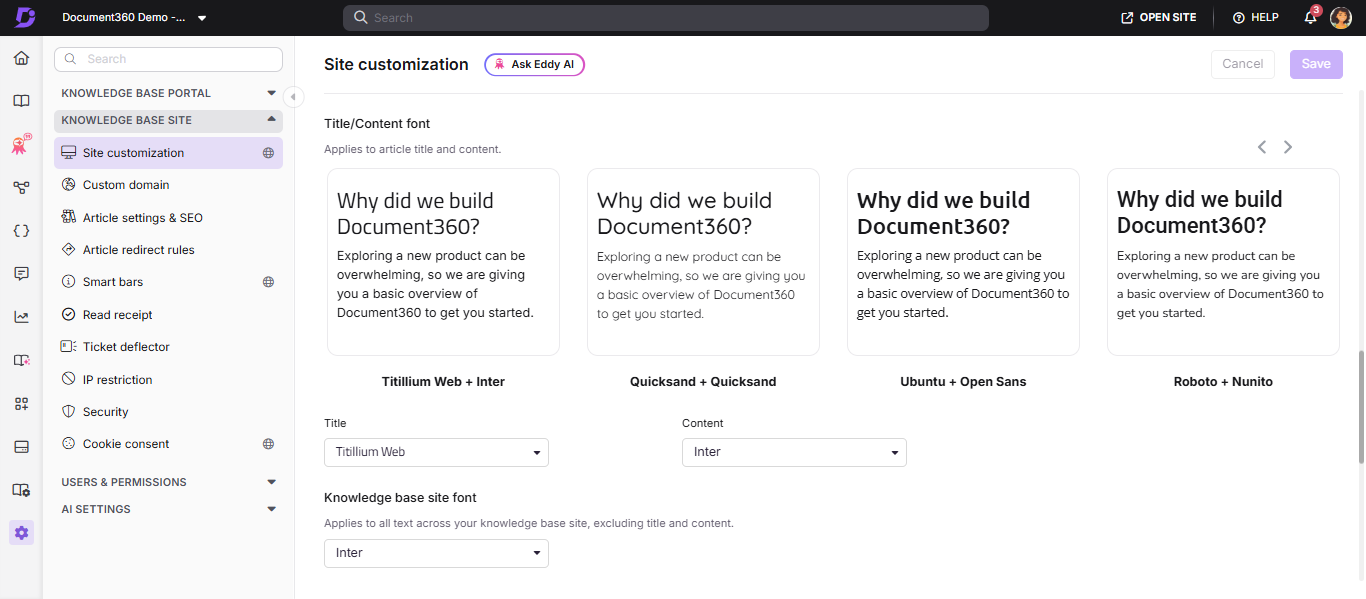
- Locate the Fonts section.
- Select from the available font combinations provided by the system.
- To create your own combination, click Have a specific font combination in mind? You can configure the following:
- Article titles - applies to headings in your articles.
- Article content - applies to the body content of your articles.
- Site font - applies to navigation, headers, and other interface elements.
- Click Save to finalize your customizations.
For more information on setting the article font pairing and site font, see Colors and Typography.
Configuring fonts within an article editor
You can also apply fonts at the article level for specific content. Fonts applied this way affect only the selected content - they override the project-level default for that text.
To change fonts within an article:
- Open the desired article in the editor.
- Select the text you want to modify.
- Use the formatting options ( ) in the toolbar.
- Choose the required font from the available options.
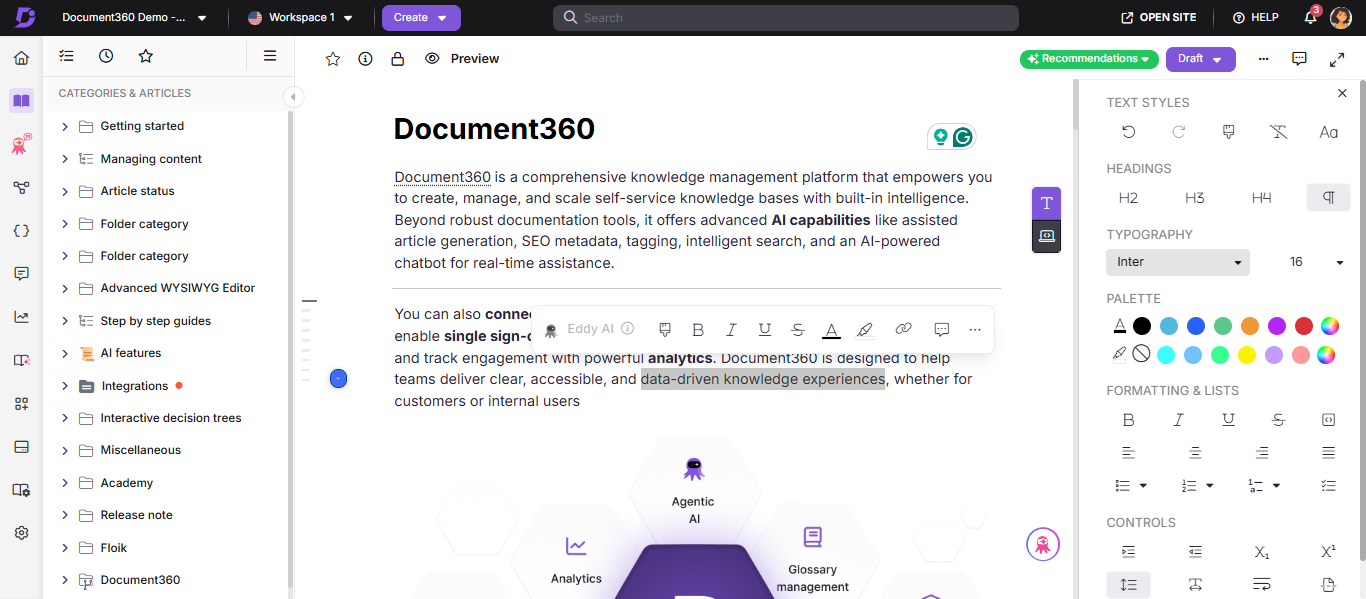
Fonts applied directly within the article editor affect only the selected content. Project-level font changes apply only to content that uses the default font settings.
Understanding font rendering behavior
The way fonts behave across your knowledge base depends on whether the content uses the default project-level font or has manual overrides applied at the article level. The following scenarios illustrate how font changes propagate.
Scenario 1: No manual font overrides
If a project is set to Font A at the project level, and all article content uses the default font, changing the project font from Font A to Font B automatically updates all article content to Font B. Nothing is locked - everything inherits the project-level setting.
Scenario 2: With manual font overrides
If a project is set to Font A, but some words or lines in an article were manually changed to Font B or Font C using the font dropdown in the editor, then changing the project font from Font A to Font D results in the following:
- Content using the default font (Font A) updates to Font D.
- Content with manually applied fonts (Font B, Font C) remains unchanged.
This is because manually applied fonts override the project-level default.
Summary
| Font type | Behaviour | Effect of project font change |
|---|---|---|
| Default (project-level) | Dynamic | Updates automatically across all articles using the default font |
| Manually applied (editor-level) | Static | Remains unchanged regardless of project-level font settings |
Changes to font availability
As part of ongoing improvements to ensure cross-browser consistency, long-term platform support, and better performance, Document360 has standardized the fonts available in the knowledge base editor. As a result, a small set of fonts has been removed and replaced with suitable alternatives.
These replacement fonts are metrically compatible, meaning they are designed to closely match the original fonts in terms of character width, line spacing, and overall readability and layout.
How this affects existing projects
If your project is using one of the removed fonts, the font will appear in the format Font A / Font B, where Font A is the removed font and Font B is the replacement fallback. A tooltip will be displayed indicating that font rendering may vary based on system support - the original font may appear where available; otherwise, the fallback font will be used.
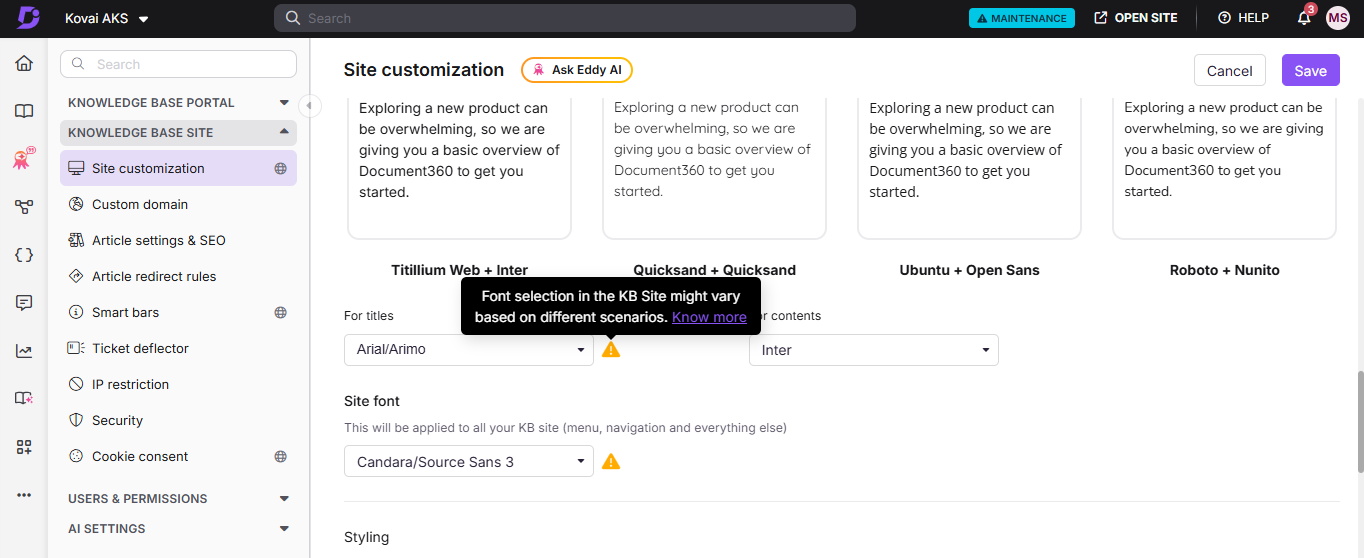
This ensures a smooth transition without breaking existing configurations.
How this affects new projects
If you have not previously used these fonts, no action is required. Only the currently supported fonts will be visible in the font selection options.
What you can do next to manage your font preferences
In most cases, no action is required. If you still need to align with specific preferences or brand guidelines, consider the following options:
Method 1: Choose from available fonts
Choose from the curated set of fonts available in Document360, giving you flexibility to match your preferred style or brand guidelines.
Method 2: Use a licensed font
If your organisation requires a specific font for branding purposes:
- Purchase the appropriate font license.
- Share the font hosting URL with the Document360 team.
- The font can then be configured for consistent usage across your knowledge base.
Method 3: Use custom CSS/JavaScript
If you are familiar with custom styling, you can configure fonts using custom CSS/JavaScript in Document360.
Navigate to Settings () > Knowledge base site > Site customization > Custom CSS & JavaScript, and add the following:
@font-face {
font-family: 'Your Font Name';
font-style: normal;
font-weight: 300 800;
font-stretch: 100%;
src: url('Font URL');
unicode-range: U+0000-00FF, U+0131, U+0152-0153, U+02BB-02BC, U+02C6, U+02DA, U+02DC, U+0304, U+0308, U+0329, U+2000-206F, U+20AC, U+2122, U+2191, U+2193, U+2212, U+2215, U+FEFF, U+FFFD;}
FAQ
Why do I see two fonts (Font A / Font B) in the font selection?
This indicates that the original font (Font A) has been replaced with a fallback font (Font B). Depending on system support, either the original or fallback font may be displayed on the knowledge base site.
Will my existing content be affected by the font availability change?
No. Your content will remain unchanged. Articles created in the past, currently being edited, or newly created will continue to work as expected. However, the way fonts are displayed may vary slightly depending on system support.
Can I continue using the old fonts?
If the font is available on your system, it may still appear and you can continue using it. However, since it is no longer supported in Document360, it is recommended to use the fallback or other available fonts.
If I replace a font, will it update all articles?
It depends on where the font change is applied. If you update the font from project-level font settings, the change applies across the knowledge base wherever the default font is used. If you change the font inside an individual article, only the selected content in that article is updated. Any content where a font was manually applied inside the editor will continue to use that selected font unless changed again.
Why didn't some content update when I changed the project font?
Content that uses the default project font updates automatically when the project font settings are changed. However, any content where a font was manually applied inside the article editor remains unchanged, because manual font formatting overrides the default font setting.
Do I need to update my fonts after the font availability change?
No, in most cases, no action is required. The fallback fonts have been carefully selected to be metrically compatible with the original fonts, ensuring a very close match in terms of layout, spacing, and readability.
Why don't I see Font A / Font B in my project?
This is expected behavior. If you don't see the Font A / Font B format, it means your project is not using any of the removed fonts. Only projects that were already using those fonts will see this format. For all other projects, only the supported fonts will be displayed in the font selection options.