Article access control in Document360 lets you manage who can view and edit specific articles and categories, both in the knowledge base portal and on the knowledge base site. Access is managed independently for portal users and knowledge base site readers, giving you precise control over content visibility at the article level.
When to use
- Restrict a sensitive article to specific portal users or user groups without affecting the rest of the category.
- Make an article private on the knowledge base site while keeping others in the same category publicly accessible.
- Deny access to a specific article for a user or reader even if they have category-level access.
Access article security settings
There are two ways to access the article security settings.
- From the article header: Open the article in the knowledge base portal. Click the More () icon in the article header and select Security.
- From the category tree: Hover over the article or category in the Categories & Articles pane. Click the More () icon and select Security.
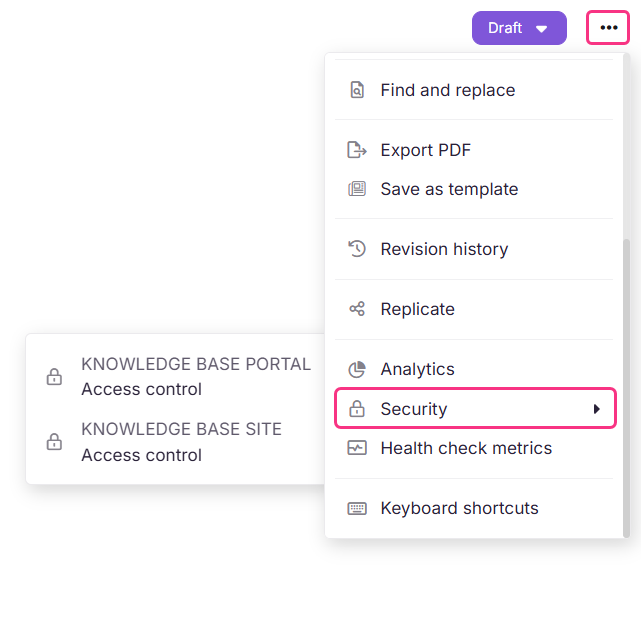
Both locations show the same two options:
Knowledge base portal
Manage access for portal users and user groups. Controls who can view and edit the article or category in the knowledge base portal.
Learn more →Knowledge base site
Manage access for readers and reader groups. Controls who can view the published article on the knowledge base site. Available for private and mixed projects only.
Learn more →Knowledge base portal access control
Portal access controls which portal users and user groups can view and edit the article or category in the knowledge base portal.
Select Knowledge base portal from the Security options. The Assign content access: Knowledge base portal panel appears.
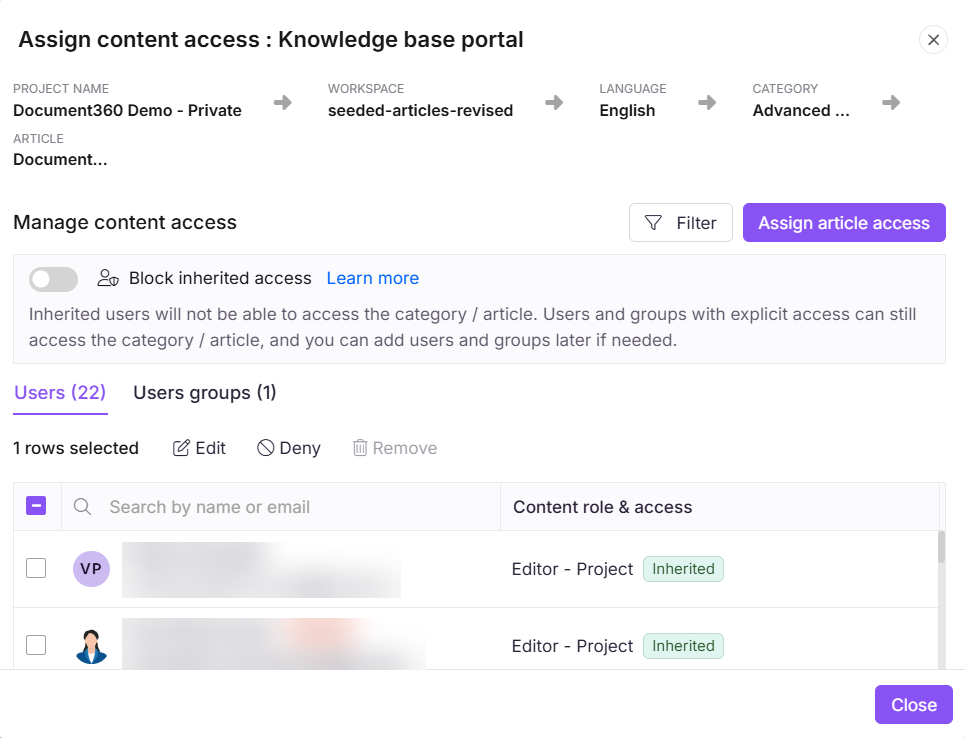
| Element | Description |
|---|---|
| Breadcrumb | Shows the content hierarchy: Project name, Workspace, Language, Category, and Article. |
| Block inherited access | Toggle to override inherited permissions. When enabled, only users and groups explicitly assigned to this article can access it. Inherited users are excluded. See Block inheritance → |
| Filter | Filter the users list by role or access type. |
| Assign article access | Opens the Assign article access panel to add users or user groups. |
| Users tab | Lists all portal users who have access to the article, with their content role and whether access is Inherited or explicitly assigned. |
| User groups tab | Lists all user groups with access to the article. |
| Content role and access | Shows the user's role level, for example Editor - Article or Editor - Workspace, and whether access is Inherited or explicitly set. |
Actions available per user:
- Edit: Change the user's content role for this article.
- Deny: Deny access to this article for the user. The user will no longer appear in the list. To restore access, click Assign article access and add them again.
- Remove: Remove the user's explicit access assignment, reverting to inherited access.
Content access assignment at the article and category level is available only for Contributor and Editor roles. Reviewer accounts do not appear in the article or category level access list. To grant a Reviewer access to content, assign their access at the user level from Users & Groups.
Assign article access to users
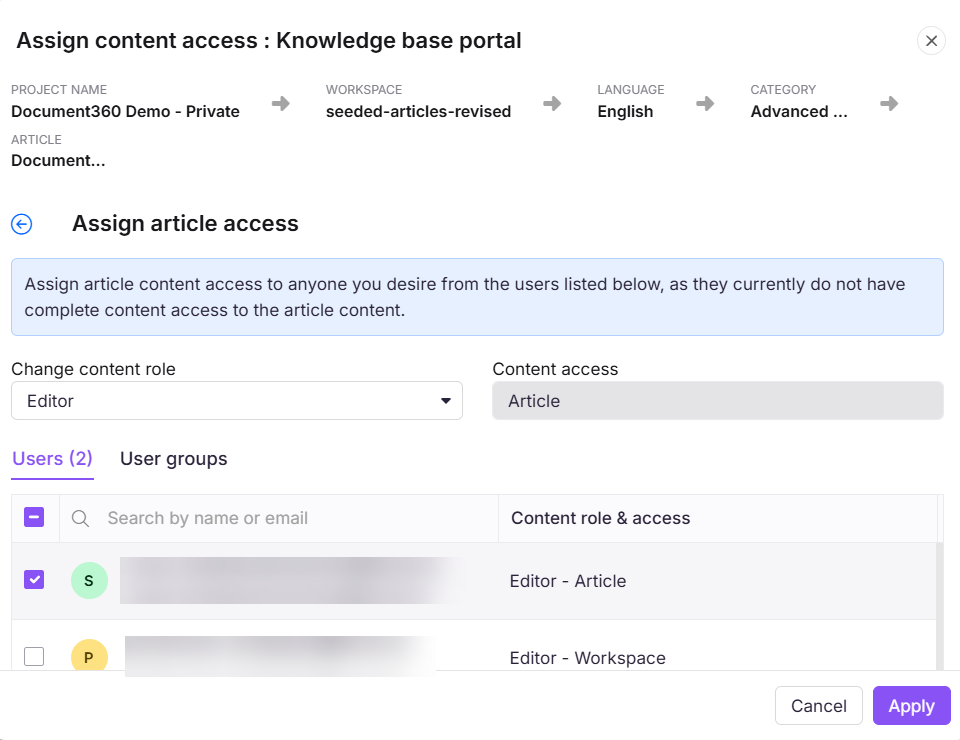
Click Assign article access in the panel. The Assign article access dialog opens.
| Element | Description |
|---|---|
| Change content role | Select the content role to assign. Available roles: Editor, Draft writer, Reviewer, SEO Optimization Specialist, Localization manager, Localization administrator. |
| Content access | Displays the access scope being assigned at the article level. |
| Users tab | Lists users who do not currently have complete content access to the article. Search by name or email. |
| User groups tab | Lists user groups available to assign. |
| Content role and access | Shows each user's current role and access level. |
Select the users or user groups, set the content role, and click Apply.
Knowledge base site access control
Site access controls which readers and reader groups can view the published article on the knowledge base site. This option is only available for private and mixed projects.
This option is inactive if the knowledge base Reader access is set to Public.
Select Knowledge base site from the Security options. The Assign content access: Knowledge base site panel appears.
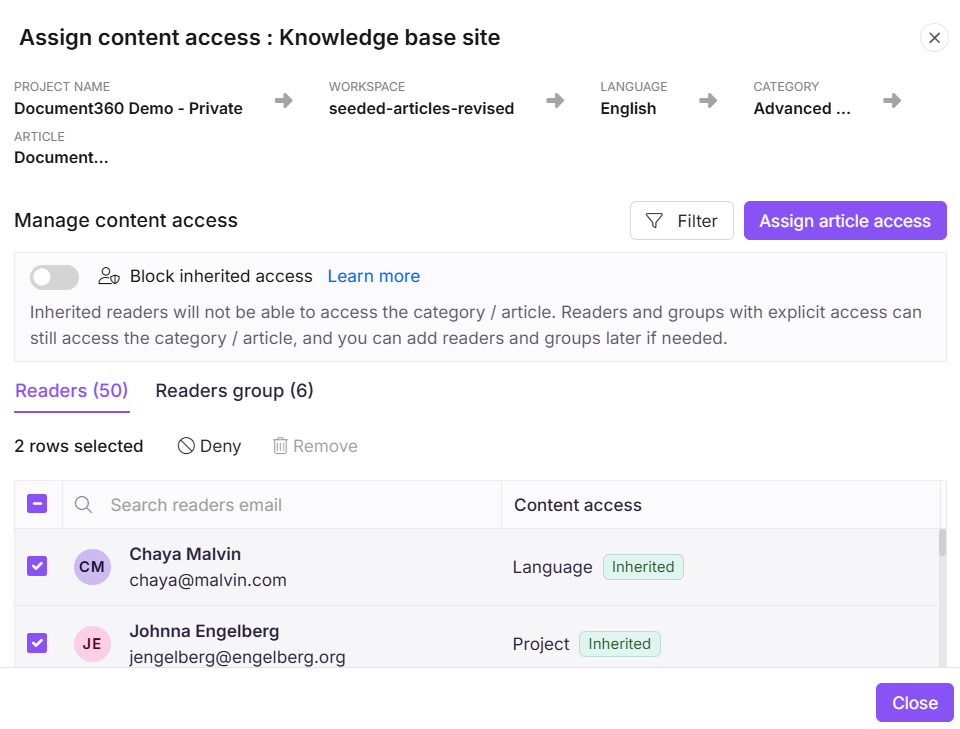
| Element | Description |
|---|---|
| Breadcrumb | Shows the content hierarchy: Project name, Workspace, Language, Category, and Article. |
| Block inherited access | Toggle to override inherited permissions. When enabled, inherited readers cannot access the category or article. Readers and groups with explicit access can still access it. See Block inheritance → |
| Filter | Filter the readers list by access type or reader group. |
| Assign article access | Opens the Assign article access panel to add readers or reader groups. |
| Readers tab | Lists all readers who have access to the article, with their content access level and whether it is Inherited or explicitly assigned. |
| Reader groups tab | Lists all reader groups with access to the article. |
| Content access | Shows the reader's access level, for example Language or Project, and whether it is Inherited or explicitly set. |
Actions available per reader:
- Deny: Deny access to this article for the reader. The reader will no longer appear in the list. To restore access, click Assign article access and add the same reader account again.
- Remove: Remove the reader's explicit access assignment, reverting to inherited access.
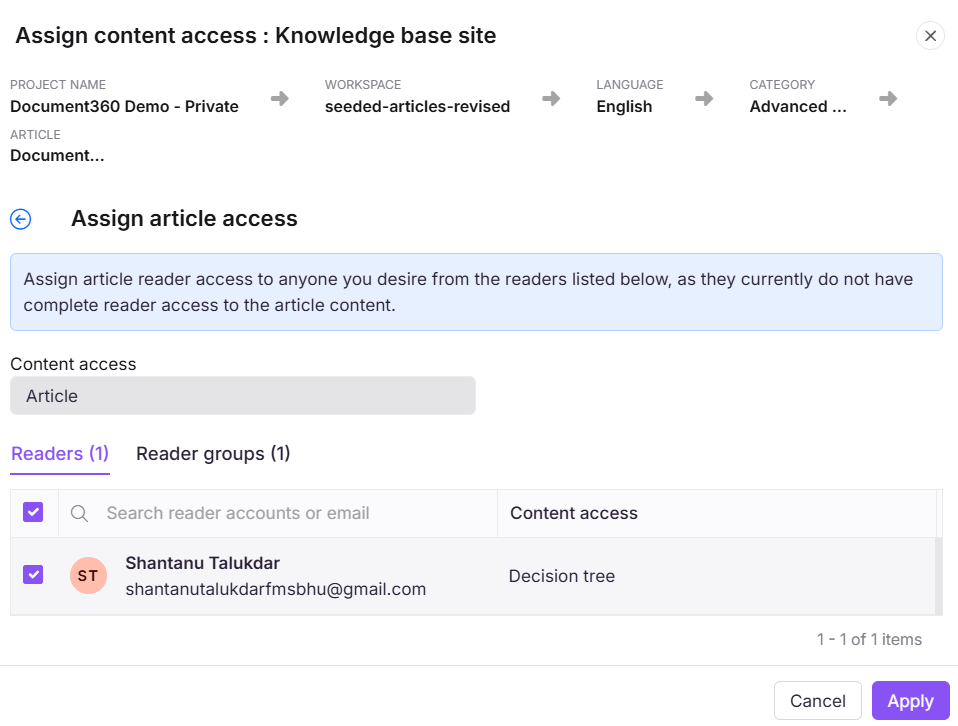
Assign article access to readers
Click Assign article access in the panel. The Assign article access dialog opens.
| Element | Description |
|---|---|
| Change content role | Select the content role to assign to the selected readers. |
| Content access | Displays the access scope being assigned at the article level. |
| Readers tab | Lists readers available to assign. Search by email address. |
| Reader groups tab | Lists reader groups available to assign. |
| Content access column | Shows each reader's current content access level. |
Select the readers or reader groups, set the content role, and click Apply.
Best practices
- Use article-level access control for exceptions. For broad restrictions, configure access at the category level and let articles inherit it.
- Enable Block inherited access only when you need to restrict an article to a specific subset of users that differs from the parent category's access list.
- For mixed projects, combine knowledge base site access control with workspace-level Reader access settings to control which articles are public and which are private.
FAQ
Can I give access to an entire category to a user and still restrict specific articles within it?
Yes. You can grant a user access to a category and still deny access to specific articles within it. Open the article, click the More () icon, go to Security > Knowledge base portal, hover over the user, and click Deny. Article-level restrictions override category-level permissions for that specific article.
How do I restore access for a user or reader after denying it?
Denied users and readers are removed from the access list. To restore access, click Assign article access in the relevant panel and add the user or reader account again.
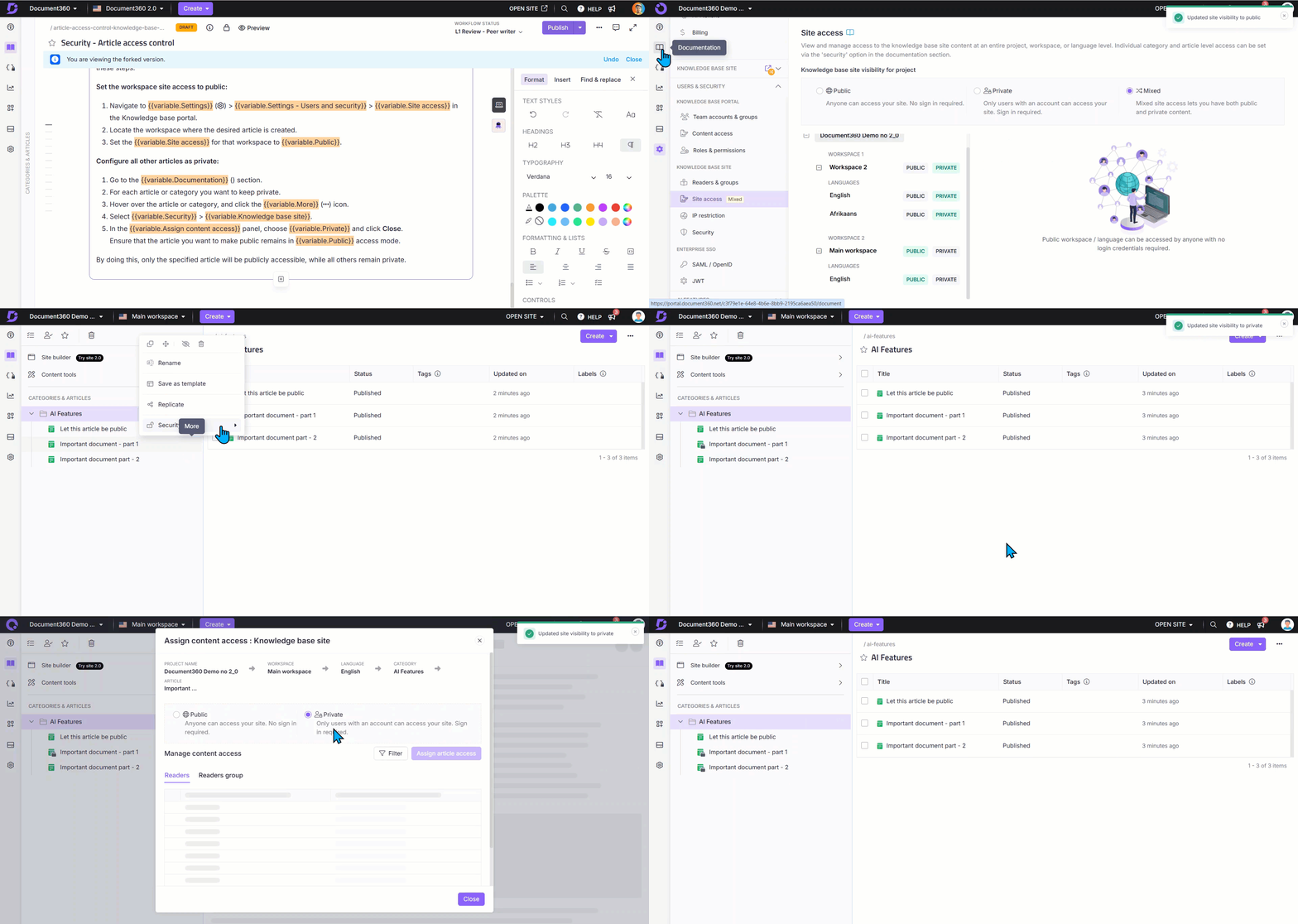
How can I make one article public while keeping all others in the same category private?
This works in a Mixed project only. Set the workspace Reader access to Public in Settings () > Users & permissions > Reader access. Then for each article you want to keep private, go to Security > Knowledge base site and set the Reader access to Private. Leave the article you want public in Public access mode.
Why is the padlock icon not showing on articles that should be private?
This usually happens when the subcategory containing the article is set to public, even if the parent category is private. Open the article, go to Security > Knowledge base Reader access control, and set Reader access to Private. If the category was cloned, it may have inherited public visibility settings. Update the subcategory settings to private and recheck the portal.
Why can't I see the category and article structure on the knowledge base site as it appears in the portal?
This may be due to reader group access settings. If a reader group does not have access to specific categories, those categories and their articles will not be visible to readers in that group. Ensure the correct content access is granted to the relevant reader group. If the project uses JWT access, verify that the reader group has the correct permissions assigned.