Reader access refers to the visibility setting in your Document360 project that determines who can view the content of your knowledge base site. There are three reader access modes: Public, Private, and Mixed.
Accessing the Reader access page
- Navigate to Settings () > Users and security in the left navigation bar in the knowledge base portal.
- In the left navigation pane, navigate to Site access.
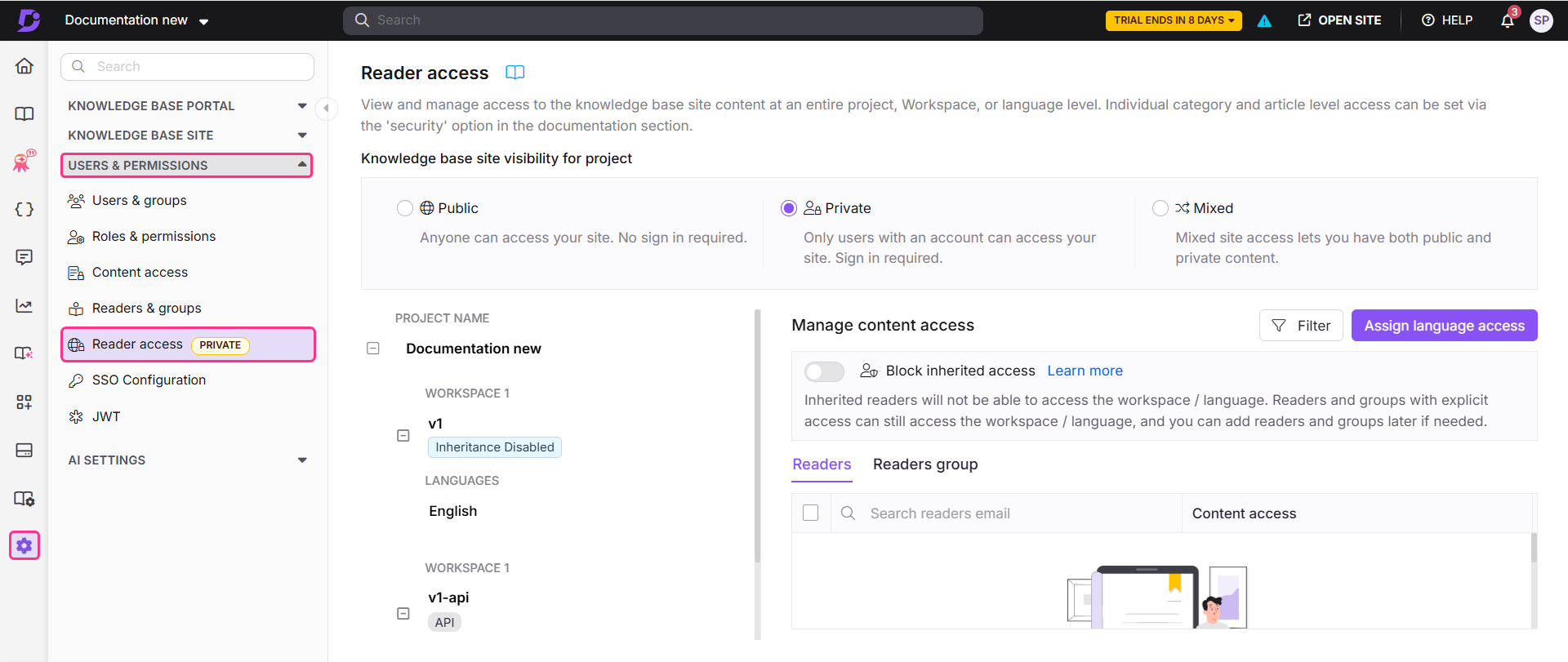
Available reader access modes
| Mode | Who can access the knowledge base site |
|---|---|
| Public | Anyone on the internet — no login required |
| Private | Only users and readers with an account and login credentials |
| Mixed | Some sections are public; others require login |
How to update the site access mode
-
Navigate to Settings () > Users and security in the left navigation bar in the knowledge base portal.
-
In the left navigation pane, navigate to Site access.
Your current reader access mode will be selected.
-
Choose between Public, Private, or Mixed.
-
Click the desired mode to update your project's visibility.
-
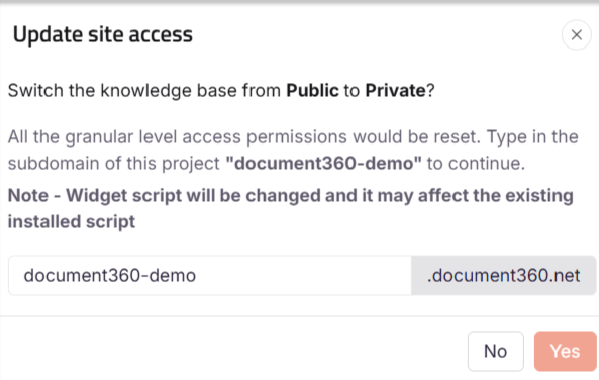
In the Update reader access confirmation dialog, enter your project's subdomain (for example,
document360-demo). -
Click Yes to confirm.
NOTE
When switching from Mixed to Private or from Private to Mixed, you might want to reconsider the previously assigned access permissions.
Articles in this section
| Article | Description |
|---|---|
| Public access | Behaviour and use cases for a publicly accessible knowledge base |
| Private access | Behaviour and use cases for a login-required knowledge base |
| Mixed access | Behaviour and use cases for a hybrid public/private knowledge base |
| Project, workspaces, and languages | How workspaces and languages interact with site access modes |
| Manage reader content access | Assign, deny, remove, and restore reader access at workspace, language, category, and article level |
FAQ
Why do I see a warning message about widget script changes when switching from Private to Public mode?
The warning message appears as a general alert. If you are switching from Private to Mixed mode, it will not impact your current widget setup or JWT configuration.
JWT support is available only for Private and Mixed mode sites. This warning is mainly relevant when switching to Public mode, where JWT is not supported and will be automatically deactivated.
Why do I see a session expired error on a private knowledge base site?
If your knowledge base site is set to Private, your login session may expire after more than 15 minutes of inactivity. This is a standard security measure to prevent unauthorized access to private content. Refresh the page to re-establish your session and restore access.
Why do I see a different version of the documentation when I open the site?
When you open the site, the system automatically shows the first publicly available documentation version it can find.
If the main documentation version is public, it is shown.
If the main version is private, another public documentation version is displayed instead.
If all standard documentation versions are private, the public API documentation is shown (if available).
If no public documentation is available, you are redirected to the login page.
Why am I redirected to the API documentation page instead of the home page?
This happens when the API documentation is public, but its home page is disabled. The site automatically redirects you to the API documentation page so you can still access the available API content.