The Advanced WYSIWYG editor supports two ways to display code in your articles: inline code and code blocks.
- Inline code formats a short snippet or command within a line of text, distinguishing it visually from the surrounding prose.
- Code block displays a multi-line block of code as a separate section with syntax highlighting, a language label, and a copy option.
Document360 uses Prism.js for syntax highlighting and supports a wide range of programming languages in code blocks.
Recommended scenarios
- Use inline code to reference a variable name, file path, command, or parameter within a sentence — for example, "Set the value of
max_retriesto 3" - Use a code block for multi-line scripts, {{ glossary.API}} request examples, configuration files, or any code readers may need to copy and run
- Use a custom language label when documenting a proprietary scripting language or configuration format not available in the default list
- Use code blocks inside tab elements to show the same API call in multiple languages side by side — for example, Python, JavaScript, and cURL in separate tabs
Inline Code
Inline code is applied directly to selected text within a paragraph without creating a new block.
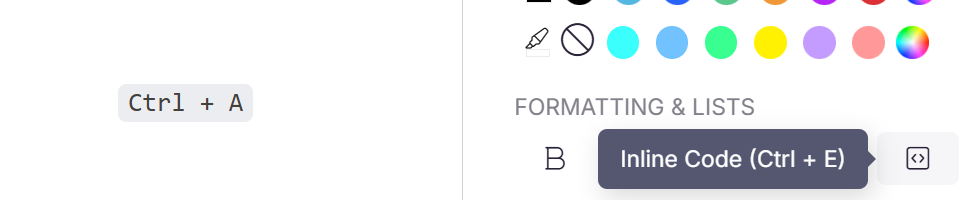
- Select the text you want to format as inline code.
- In the floating toolbar, click the Inline code icon or use the keyboard shortcut
Ctrl + E.
The selected text appears styled as code within the sentence.
Code Block
A code block creates a dedicated section for displaying multi-line code with syntax highlighting.
.png)
To insert a code block, use any of the following methods:
- Click the Code block icon in the Quick insert menu (appears when a block is empty)
- Type three backticks
```and pressEnter - Use the slash command
/code blockand pressEnter
After inserting a code block:
- Click on the code block — a floating menu appears.
- Select the desired language from the dropdown for syntax highlighting.
- Enter your code inside the block.
To copy the block, click the Copy icon. To remove it, click the Delete icon.
Setting a custom language label: If the language you need is not in the list, select Custom from the dropdown, click the Edit icon, enter your desired title, and click Update.
In the Advanced WYSIWYG editor, a code block always requires a heading. To hide the heading on the knowledge base site, apply Custom CSS via Settings > Knowledge base site > Custom CSS & JavaScript. This will hide the heading across all code blocks on the site. If you prefer code blocks without a heading, use the Markdown editor instead.
Supported Languages
Document360 supports syntax highlighting for the following languages (among others):
HTML, C#, Java, JavaScript, XML, JSON, CSS, SQL, Python, Markdown, PHP, PowerShell, Ruby, and Text.
For a full list, refer to Prism's supported languages.
Best practices
- Use inline code for short references (one line or less) and code blocks for anything longer
- Always select the correct language for your code block — accurate syntax highlighting improves readability and signals the correct language to readers
- Add a descriptive heading to your code block so readers know what the code does before reading it
- Keep code blocks focused — one block per distinct snippet or example; avoid combining unrelated code in a single block
- Keep code clean and free of placeholder comments that could cause errors if run directly